1. Introduction
This manual provides essential information and instructions for using your new vivo Y31 Pro 5G smartphone. Please read this manual thoroughly to ensure proper operation and to maximize your device's capabilities. Keep this manual for future reference.

Image 1.1: Front and back view of the vivo Y31 Pro 5G in Dreamy White.
The vivo Y31 Pro 5G is designed to offer a powerful and reliable mobile experience, featuring a high-resolution camera, long-lasting battery, and robust performance.
2. What's in the Box
Upon unboxing your vivo Y31 Pro 5G, verify that all the following items are included:
- vivo Y31 Pro 5G Smartphone
- Phone Case
- Power Adapter (44W FlashCharge compatible)
- USB Cable (Type-C)
- SIM Tray Ejector
- Screen Protector (Pre-applied)
- Quick Start Guide (this manual)
3. Device Layout
Familiarize yourself with the physical components of your vivo Y31 Pro 5G.

Image 3.1: Front view of the vivo Y31 Pro 5G, highlighting the display and front camera.

Image 3.2: Top and bottom views of the device, illustrating the USB-C port, speaker grille, and microphone.
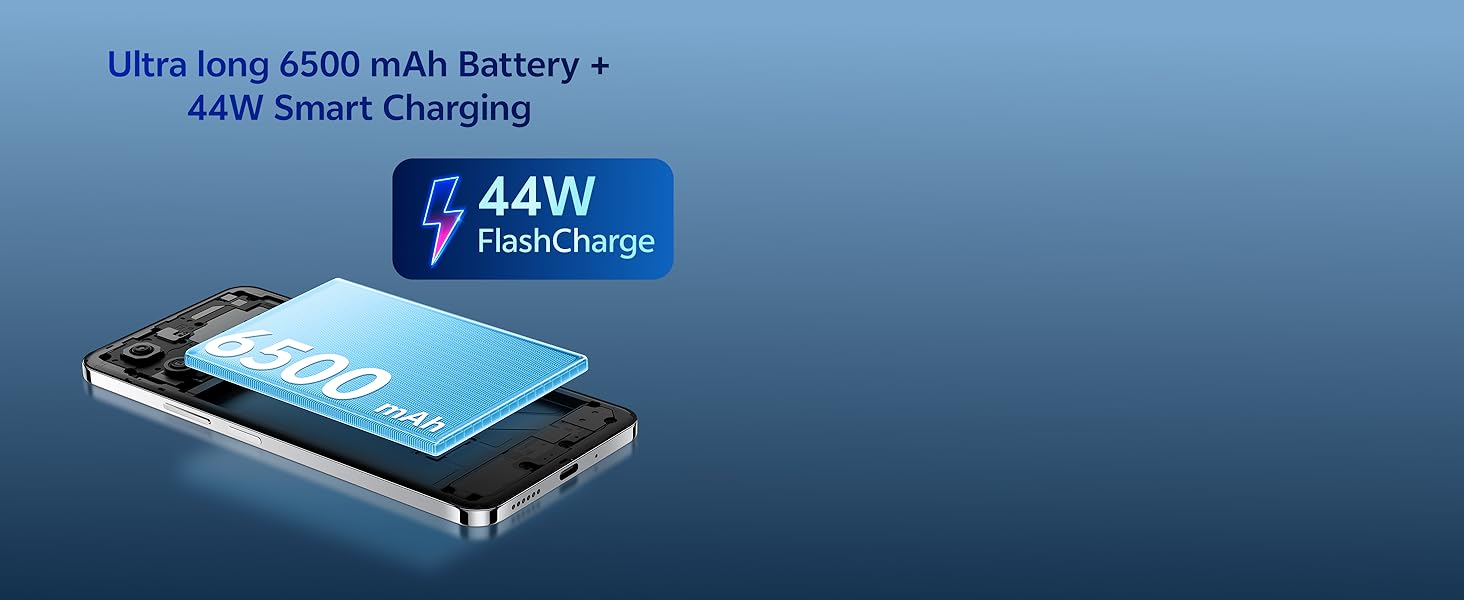
Image 3.3: The vivo Y31 Pro 5G is available in Dreamy White and Mocha Brown.
- Front Camera: Located at the top center of the display.
- Volume Buttons: On the right side, used to adjust media and call volume.
- Power Button/Fingerprint Sensor: On the right side, below the volume buttons. Used to power on/off the device and for fingerprint authentication.
- USB Type-C Port: At the bottom, for charging and data transfer.
- Speaker Grille: At the bottom, for audio output.
- SIM Card Tray: On the left side, for inserting Nano-SIM cards.
- Rear Cameras: Located on the upper left of the back panel.
4. Setup
4.1. Inserting the SIM Card
- Locate the SIM card tray on the left side of the phone.
- Insert the SIM tray ejector tool into the small hole next to the tray and press firmly until the tray pops out.
- Place your Nano-SIM card(s) into the tray with the gold contacts facing down. Ensure they are correctly seated.
- Carefully reinsert the tray into the phone until it clicks into place.
4.2. Initial Power On and Setup
- Press and hold the Power button until the vivo logo appears.
- Follow the on-screen prompts to select your language, region, and connect to a Wi-Fi network.
- Sign in with your Google account or create a new one.
- Set up a screen lock (PIN, pattern, password, fingerprint, or face unlock) for security.
- Review and accept the terms and conditions to complete the setup.
5. Operating Instructions
5.1. Power On/Off and Restart
- Power On: Press and hold the Power button until the device vibrates and the vivo logo appears.
- Power Off: Press and hold the Power button for a few seconds, then tap "Power off" on the screen.
- Restart: Press and hold the Power button for a few seconds, then tap "Restart" on the screen.
5.2. Basic Navigation
- Tap: Touch an icon or option to open or select it.
- Swipe: Drag your finger across the screen to scroll or navigate between screens.
- Pinch: Use two fingers to zoom in or out on images and web pages.
- Home Screen: Swipe up from the bottom of the screen (if using gesture navigation) or tap the Home button to return to the main screen.
- Recent Apps: Swipe up from the bottom and hold (if using gesture navigation) or tap the Recent Apps button to view and switch between open applications.
5.3. Security Features
- Fingerprint Unlock: Register your fingerprints in Settings > Security > Fingerprint. Place your registered finger on the power button to unlock.
- Face Unlock: Register your face in Settings > Security > Face. Lift the phone to your face to unlock.
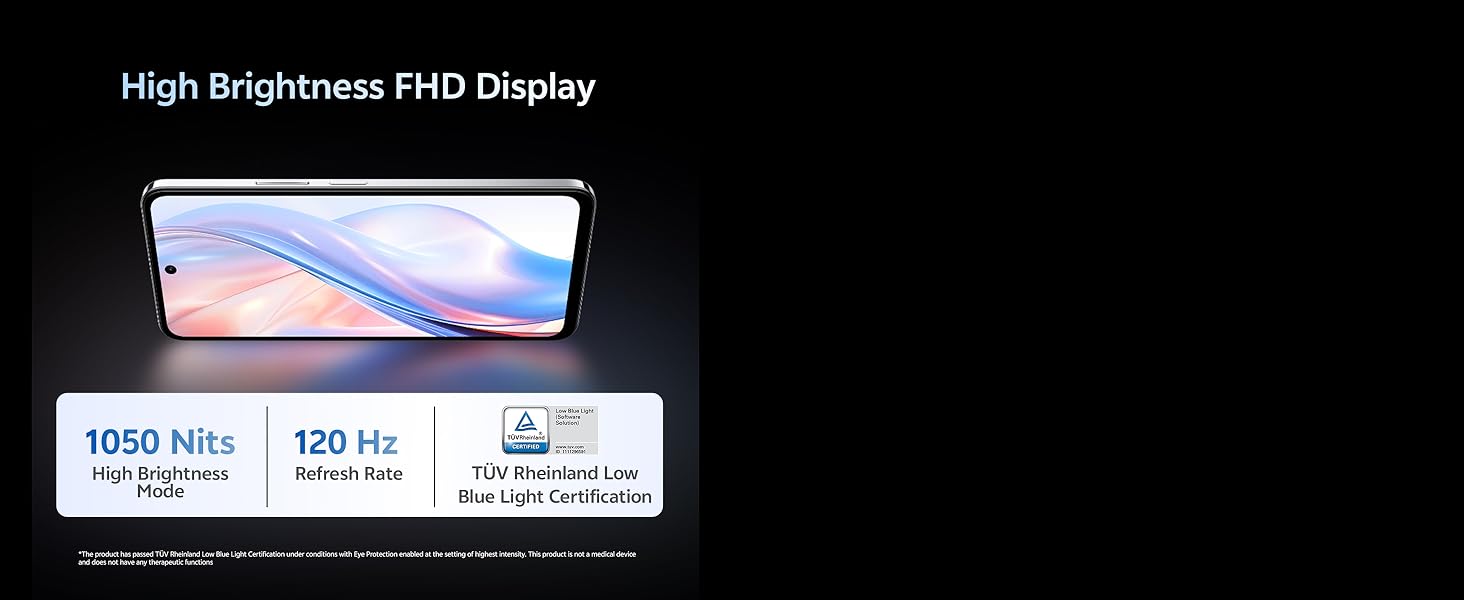
Image 5.1: The vivo Y31 Pro 5G is powered by the MediaTek Dimensity 7300 Processor.
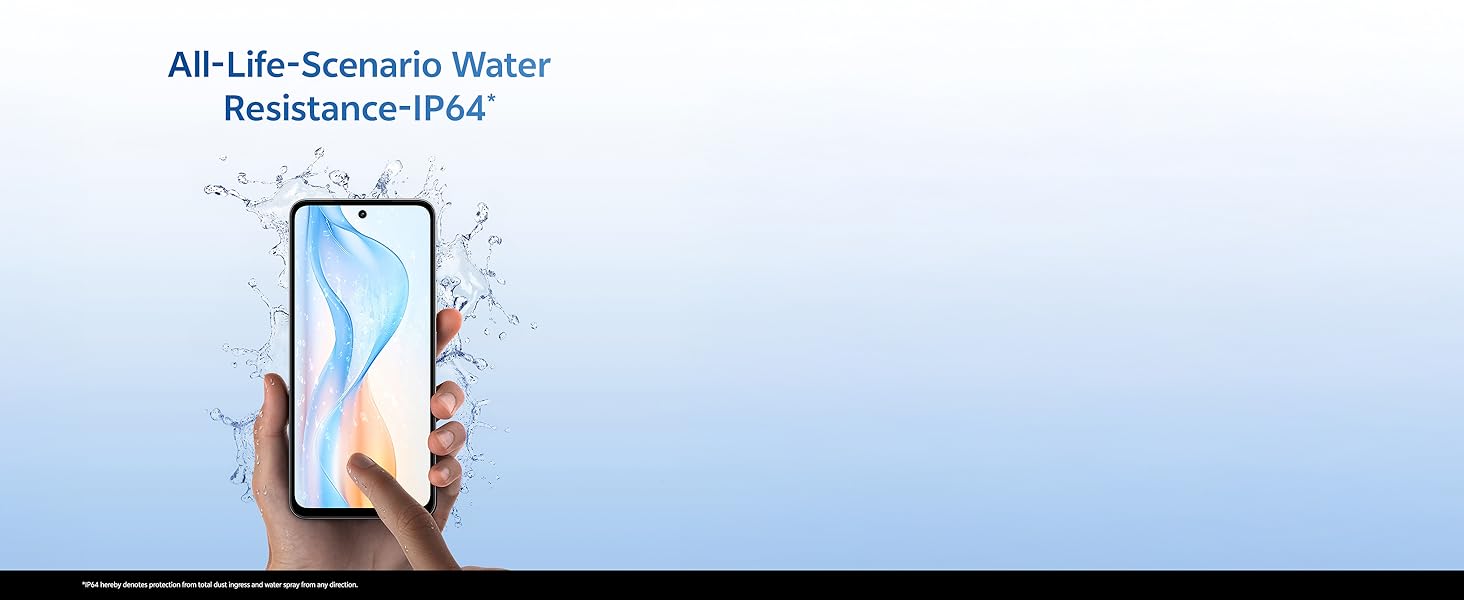
Image 5.2: The device features Dual Stereo Speakers for enhanced audio experience.
6. Camera Features
The vivo Y31 Pro 5G is equipped with a versatile camera system to capture your moments.
- Rear Camera: 50 MP Main Camera + 2 MP Bokeh Camera.
- Front Camera: 8 MP Selfie Camera.
- Video Recording: Supports 4K video recording.
6.1. Using the Camera App
- Open the Camera app from your home screen or app drawer.
- Swipe left or right to switch between modes (Photo, Portrait, Video, Night, Pro, etc.).
- Tap the shutter button to take a photo or start/stop video recording.
- Tap the camera switch icon to toggle between front and rear cameras.
6.2. AI Suite Features
Enhance your photos with built-in AI tools:
- AI Erase: Remove unwanted objects or people from your photos.
- AI Photo Enhance: Automatically optimize photo quality for better colors and details.

Image 6.1: Detail of the 50MP HD Main Camera and 2MP Bokeh Camera.

Image 6.2: The vivo Y31 Pro 5G supports 4K video recording.
7. Battery and Charging
Your vivo Y31 Pro 5G is equipped with a large 6500 mAh battery and supports 44W FlashCharge for quick power-ups.
7.1. Charging Your Device
- Connect the USB cable to the Power Adapter.
- Plug the Power Adapter into a wall outlet.
- Connect the USB Type-C end of the cable to the phone's charging port.
- The charging indicator will appear on the screen. Use only vivo-approved chargers and cables for optimal performance and safety.
7.2. Battery Optimization Tips
- Reduce screen brightness.
- Enable Dark Mode.
- Close unused apps running in the background.
- Turn off Wi-Fi, Bluetooth, and GPS when not in use.
- Utilize the phone's built-in battery saver modes.

Image 7.1: The vivo Y31 Pro 5G features a 6500 mAh battery with 44W FlashCharge.
8. Display Features
Experience vibrant visuals on the vivo Y31 Pro 5G's advanced display.
- Size: 17.06 cm (6.72 inch)
- Resolution: 2408 x 1080 (FHD)
- Brightness: Up to 1050 Nits in High Brightness Mode.
- Refresh Rate: 120 Hz for smooth scrolling and animations.
- Eye Protection: TÜV Rheinland Low Blue Light Certification for reduced eye strain.
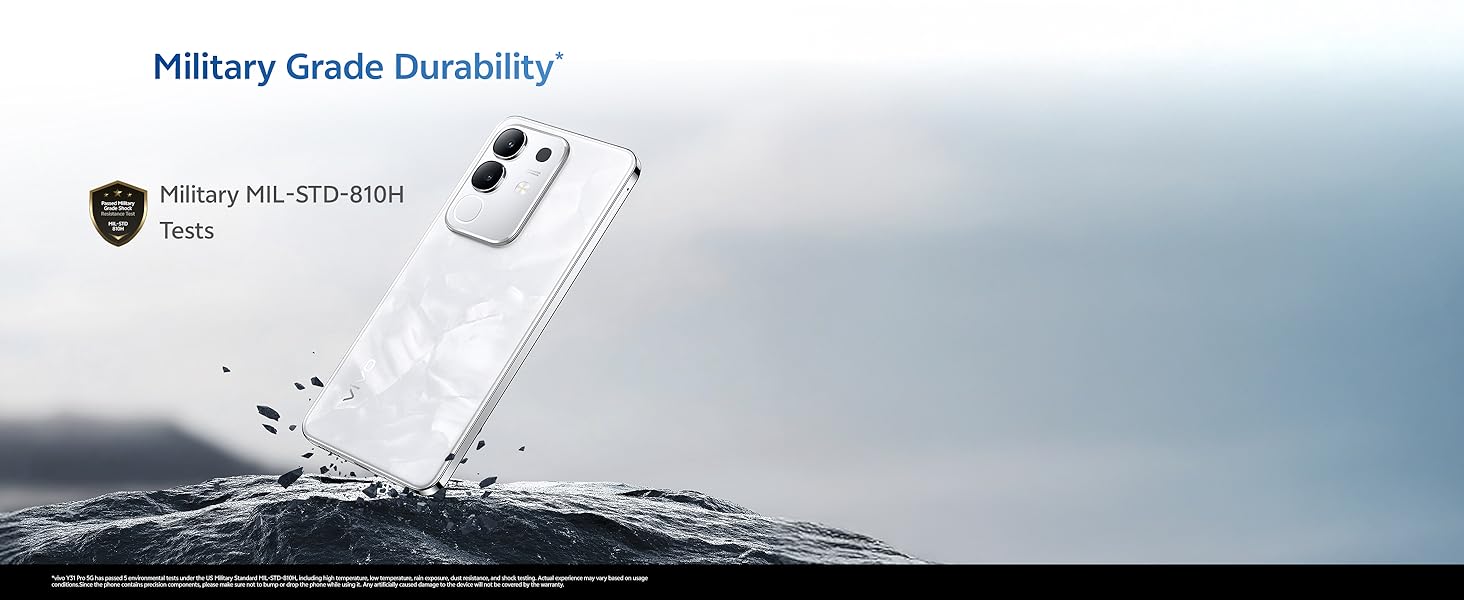
Image 8.1: The vivo Y31 Pro 5G features a High Brightness FHD Display with a 120 Hz refresh rate.
9. Durability and Water Resistance
The vivo Y31 Pro 5G is built to withstand daily challenges.
- Military Grade Durability: Tested to MIL-STD-810H standards for enhanced resilience against drops and environmental factors.
- IP64 Water Resistance: Provides protection against dust ingress and splashes of water from any direction. This rating does not imply full waterproofing; avoid submerging the device.
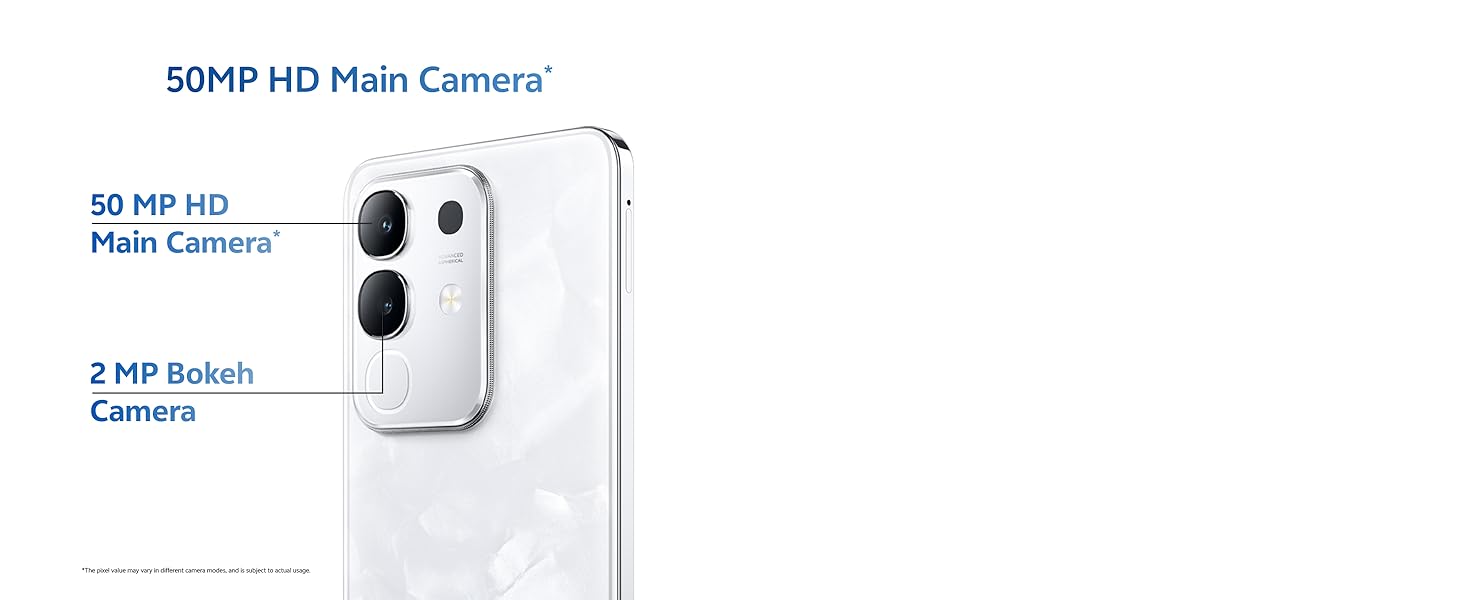
Image 9.1: The vivo Y31 Pro 5G undergoes Military Grade Durability testing.

Image 9.2: The device offers IP64 water resistance for protection against splashes.
10. Maintenance
Proper maintenance ensures the longevity and optimal performance of your device.
10.1. Cleaning the Device
- Use a soft, lint-free cloth to wipe the screen and body.
- Avoid using harsh chemicals, abrasive materials, or aerosol sprays.
- Gently clean ports with a soft brush if dust accumulates.
10.2. Software Updates
Regularly check for and install software updates to ensure your device has the latest features, security patches, and performance improvements. Go to Settings > System update to check for updates.
10.3. Storage Management
To maintain optimal performance, periodically manage your device's storage:
- Delete unnecessary files, photos, and videos.
- Uninstall unused applications.
- Clear cache data for apps in Settings > Apps > [App Name] > Storage & cache.
11. Troubleshooting
This section addresses common issues you might encounter with your vivo Y31 Pro 5G.
11.1. Common Issues and Solutions
| Issue | Solution |
|---|---|
| Device not turning on | Ensure the battery is charged. Connect to the charger for at least 10 minutes, then try powering on. If it still doesn't turn on, perform a forced restart by holding the Power button for 10-15 seconds. |
| Apps crashing or freezing | Clear the app's cache (Settings > Apps > [App Name] > Storage & cache > Clear cache). If the issue persists, uninstall and reinstall the app. Ensure your phone's software is up to date. |
| Poor network signal | Check if your SIM card is properly inserted. Try restarting the phone. Ensure you are in an area with network coverage. Reset network settings (Settings > System > Reset options > Reset Wi-Fi, mobile & Bluetooth). |
| Battery drains quickly | Review battery usage in Settings > Battery to identify power-hungry apps. Reduce screen brightness, disable unnecessary features (GPS, Bluetooth, Wi-Fi), and close background apps. |
11.2. Factory Reset
If you encounter persistent software issues, a factory reset may resolve them. Warning: This will erase all data on your phone. Back up important data before proceeding.
- Go to Settings > System > Reset options.
- Select Erase all data (factory reset).
- Confirm your decision and enter your PIN/password if prompted.
- The phone will restart and begin the reset process.
12. Specifications
Detailed technical specifications for the vivo Y31 Pro 5G.
| Feature | Detail |
|---|---|
| Model Name | Y31 Pro |
| Operating System | Funtouch OS 15 |
| Processor | MediaTek Dimensity 7300 (CPU Speed: 2, 2.5 GHz) |
| RAM | 8 GB |
| Internal Storage | 256 GB (variant specific) |
| Display Size | 17.06 cm (6.72 inch) |
| Display Resolution | 2408 x 1080 (FHD) |
| Display Refresh Rate | 120 Hz |
| Rear Camera | 50 MP + 2 MP |
| Front Camera | 8 MP |
| Battery Capacity | 6500 mAh |
| Charging | 44W FlashCharge |
| Connectivity | 5G, Bluetooth, Wi-Fi, GPS |
| Dimensions (LxWxH) | 16.6 x 7.6 x 0.8 cm |
| Weight | 208 g |
| Water Resistance | IP64 |
| Durability | Military MIL-STD-810H Tested |
| Color | Dreamy White (variant specific) |
13. Warranty and Support
13.1. Warranty Information
Your vivo Y31 Pro 5G comes with a standard manufacturer's warranty. Please refer to the warranty card included in your product packaging for specific terms, conditions, and duration. Keep your proof of purchase for warranty claims.
13.2. Customer Support
For further assistance, technical support, or service inquiries, please contact vivo customer support through their official website or authorized service centers. You can find contact details on the vivo official website or in your warranty documentation.
Online resources and FAQs may also be available on the official vivo support page: vivo India Support


