
Introduction
This manual provides essential information for setting up, operating, and maintaining your Element 43-inch 4K UHD HDR Frameless Xumo TV. Your new television offers stunning 4K Ultra HD resolution, enhanced color and contrast with Dolby Vision and HDR, and immersive sound with Dolby Audio. The integrated Xumo TV platform provides access to a wide range of streaming content and smart features. Please read this manual thoroughly to ensure proper use and enjoyment of your television.
Setup
1. What's in the Box
Before you begin, ensure all components are present. Carefully remove the TV and accessories from the packaging.

Figure 1: Box Contents and TV Dimensions. This image displays the items included in the TV box: TV, Voice Remote, TV Stands, Stand Screws, Quick Start Guide, and 2 AAA Remote Batteries. It also provides detailed dimensions for the TV with and without the stand, and the distance between the stand feet.
- TV
- Voice Remote
- TV Stands
- Stand Screws
- Quick Start Guide
- 2 AAA Remote Batteries
- Power Cable
2. Attaching the TV Stands
If you are not wall-mounting the TV, attach the included stands. Place the TV face down on a soft, clean surface to prevent screen damage. Align each stand with the corresponding screw holes on the bottom of the TV and secure them with the provided screws.
3. Connecting Power and Devices
Connect the power cable to the TV and then to a power outlet. Connect any external devices (e.g., cable box, gaming console, Blu-ray player) to the appropriate HDMI ports on the back of the TV. The TV supports Bluetooth and Ethernet connectivity for network access.
4. Initial Setup
Upon first power-on, the TV will guide you through the initial setup process. This includes selecting your language, connecting to a Wi-Fi or Ethernet network, and setting up your Xumo TV account. Follow the on-screen instructions to complete the setup.
Operating Instructions
1. Using the Voice Remote
The included voice remote allows for easy navigation and control. Insert the 2 AAA batteries into the remote. Use the directional pad to navigate menus and the voice button to issue commands. Dedicated buttons provide quick access to popular streaming services.
2. Navigating Xumo TV
Xumo TV provides a centralized platform for all your entertainment. The home screen displays recommended content, installed apps, and live TV options. Use the remote to browse categories, search for titles, and manage your profile.

Figure 2: Xumo TV Interface. This image illustrates the Xumo TV home screen, showcasing popular streaming applications like Netflix, Prime Video, Hulu, and HBO Max, along with trending content suggestions.

Figure 3: Available Streaming Apps. This image displays a wide array of streaming service logos, indicating the extensive content options available through the Xumo TV platform.
3. Picture and Sound Settings
Access the TV settings menu to customize your viewing experience. Adjust brightness, contrast, color, and sharpness. Enable or disable features like Dolby Vision and HDR for optimized picture quality. Configure sound modes and volume levels for Dolby Audio.
- 4K Ultra HD: Experience crystal-clear, detailed images.
- Dolby Vision & HDR: Enhances color and contrast for a more dynamic picture, especially in dark and bright scenes.
- Dolby Audio: Delivers superior sound quality for movies and gaming.
- 120Hz Effective Refresh Rate: Provides smooth motion and sharp visuals for fast-paced content.

Figure 4: 4K UHD HDR10 Detail. This close-up image highlights the clarity and detail provided by 4K UHD and HDR10 technology, exemplified by the sharp focus on a dog's eye.
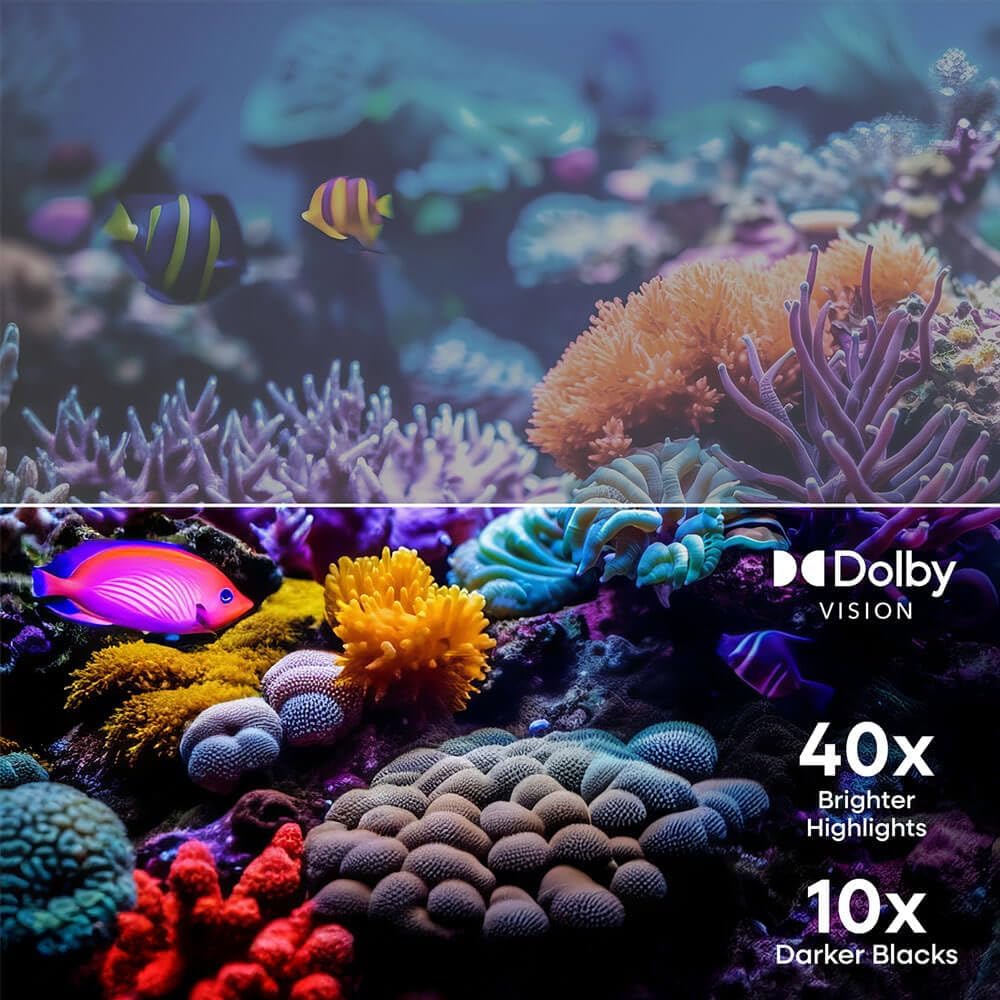
Figure 5: Dolby Vision Enhancement. This image demonstrates the visual improvement with Dolby Vision, showing a comparison between standard and Dolby Vision enhanced scenes, highlighting 40x brighter highlights and 10x darker blacks.

Figure 6: 120Hz Effective Refresh Rate. This image illustrates the smooth motion provided by the 120Hz effective refresh rate, depicted by fast-moving race cars on screen.
Maintenance
Cleaning the Screen
To clean the screen, gently wipe it with a soft, lint-free cloth. For stubborn marks, slightly dampen the cloth with water or a screen-specific cleaning solution. Avoid using harsh chemicals or abrasive materials. Always unplug the TV before cleaning.
General Care
Keep the TV in a well-ventilated area, away from direct sunlight, heat sources, and excessive dust. Do not block ventilation openings. Avoid placing heavy objects on the TV or subjecting it to strong impacts.
Troubleshooting
| Problem | Possible Cause | Solution |
|---|---|---|
| No power | Power cable disconnected; Power outlet issue | Ensure power cable is securely connected. Try a different power outlet. |
| No picture, but sound is present | Incorrect input source; Device connection issue | Press the 'Input' button on the remote to select the correct source. Check HDMI/AV cable connections. |
| No sound, but picture is present | Volume muted or too low; Audio settings incorrect | Unmute the TV or increase volume. Check audio output settings in the TV menu. |
| Cannot connect to Wi-Fi | Incorrect password; Router issue; TV too far from router | Verify Wi-Fi password. Restart your router. Move TV closer to router or use an Ethernet cable. |
| Remote control not working | Dead batteries; Obstruction; Remote not paired | Replace batteries. Remove any obstructions between remote and TV. Re-pair the remote if necessary (refer to Quick Start Guide). |
Specifications
- Brand: Element
- Model Number: E550AE43C
- Screen Size: 43 inches
- Resolution: 4K Ultra HD (3840 x 2160)
- Display Technology: LED
- HDR Support: Dolby Vision, HDR10
- Refresh Rate: 120Hz Effective
- Audio Technology: Dolby Audio
- Smart TV Platform: Xumo TV
- Connectivity: Bluetooth, Ethernet, HDMI (multiple ports), USB
- Aspect Ratio: 16:9
- Product Dimensions (with stand): 37.7"W x 22.2"H x 8.7"D (approximate, based on image)
- Product Dimensions (without stand): 37.7"W x 22.0"H x 3.3"D (approximate, based on image)
- Item Weight: 15.9 Pounds
- Mounting Type: Wall Mount, Table Mount
- Included Components: Remote Control, Power Cable
Warranty Information
Element televisions typically come with a limited manufacturer's warranty. For specific details regarding the warranty period, coverage, and terms and conditions, please refer to the warranty card included with your product or visit the official Element Electronics website. Keep your proof of purchase for warranty claims.
Support
If you encounter any issues not covered in this manual or require further assistance, please contact Element Electronics customer support. You can usually find contact information (phone number, email, or support portal) on the official Element Electronics website or in the Quick Start Guide provided with your TV.
Online Resources: For the latest updates, FAQs, and additional support, visit the Element Electronics Store on Amazon or their official brand website.


