1. Introduction
This manual provides essential information for the safe and efficient use of your realme 14 Pro Lite Smartphone. Please read it carefully before using your device.
Package Contents:
Upon unpacking, ensure all items are present:
- realme 14 Pro Lite Smartphone
- USB Cable
- 45W Adapter
- Protective Case
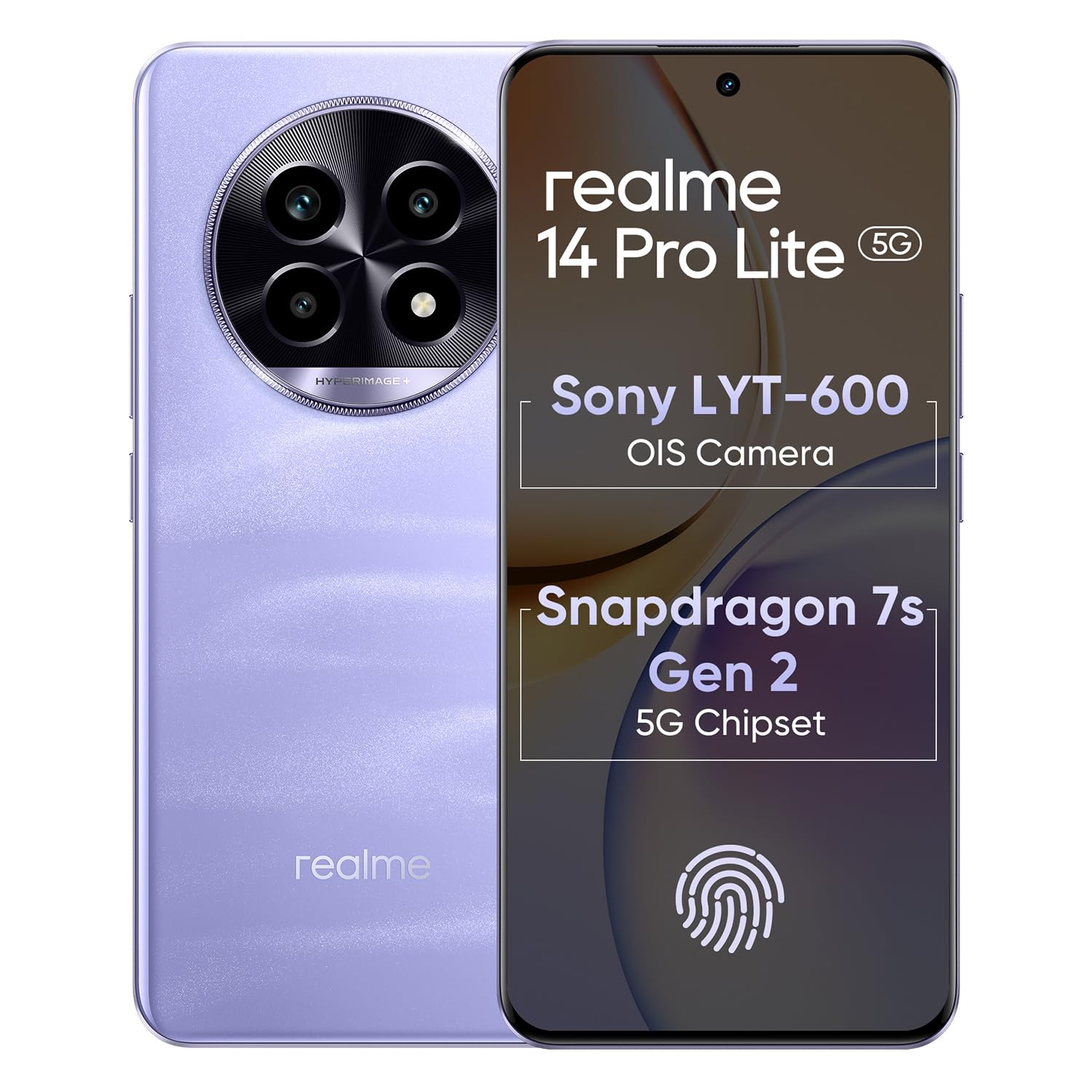
Image 1.1: The realme 14 Pro Lite Smartphone, showcasing its design.
2. Setup
2.1. SIM Card and MicroSD Card Installation
- Locate the SIM card tray on the side of your device.
- Insert the SIM ejector tool into the small hole next to the tray and push gently until the tray pops out.
- Place your Nano-SIM cards (up to two) and/or a microSD card into the designated slots on the tray. Ensure the gold contacts face downwards.
- Carefully reinsert the tray into the phone until it clicks into place.
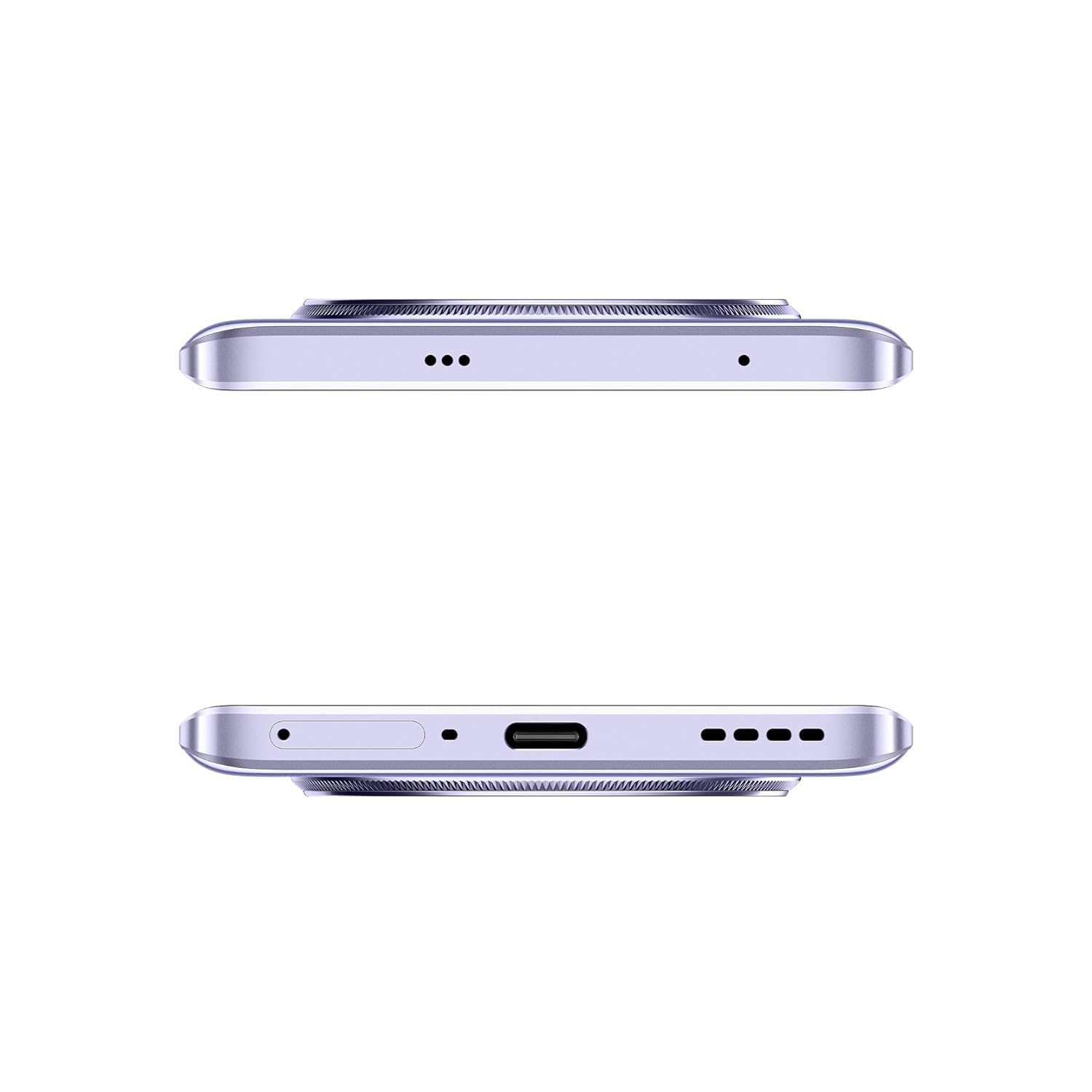
Image 2.1: Side view of the realme 14 Pro Lite, indicating the SIM card tray position.
2.2. Charging the Device
Connect the 45W adapter to a power outlet and the USB cable to the phone's charging port. The device supports 45W SuperVOOC fast charging. It is recommended to fully charge the device before first use.
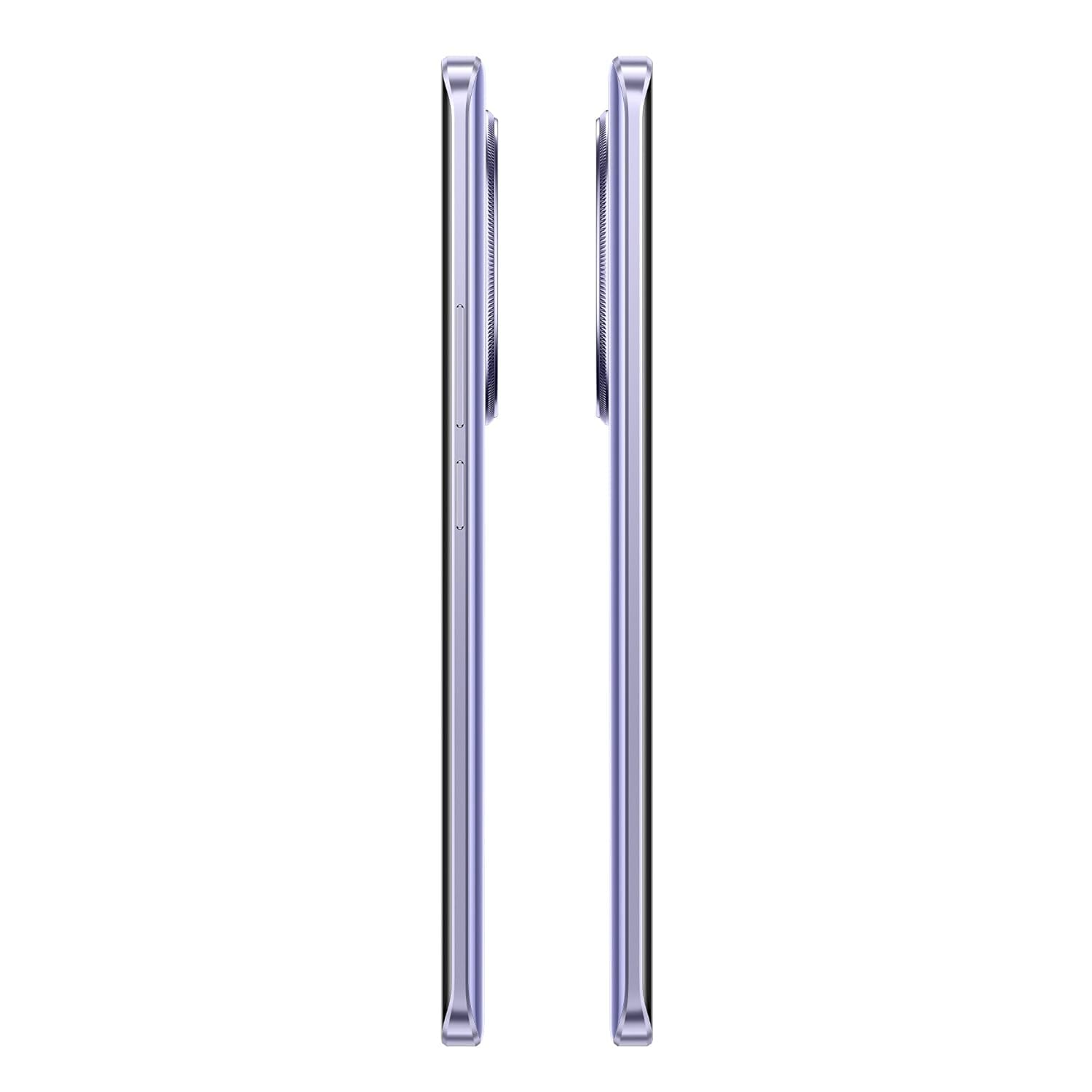
Image 2.2: Bottom view of the realme 14 Pro Lite, highlighting the USB-C charging port.
2.3. Powering On and Initial Setup
Press and hold the Power button located on the side of the device until the realme logo appears. Follow the on-screen instructions to select your language, connect to Wi-Fi, and set up your Google account.
3. Operating Instructions
3.1. Display and Navigation
Your realme 14 Pro Lite features a 6.7-inch OLED Flow Display with a 120Hz refresh rate for smooth visuals and a 2000Hz instant touch sampling rate for responsive interaction. Navigate the Android 14 operating system with realme UI 5.0 using gestures or on-screen buttons.
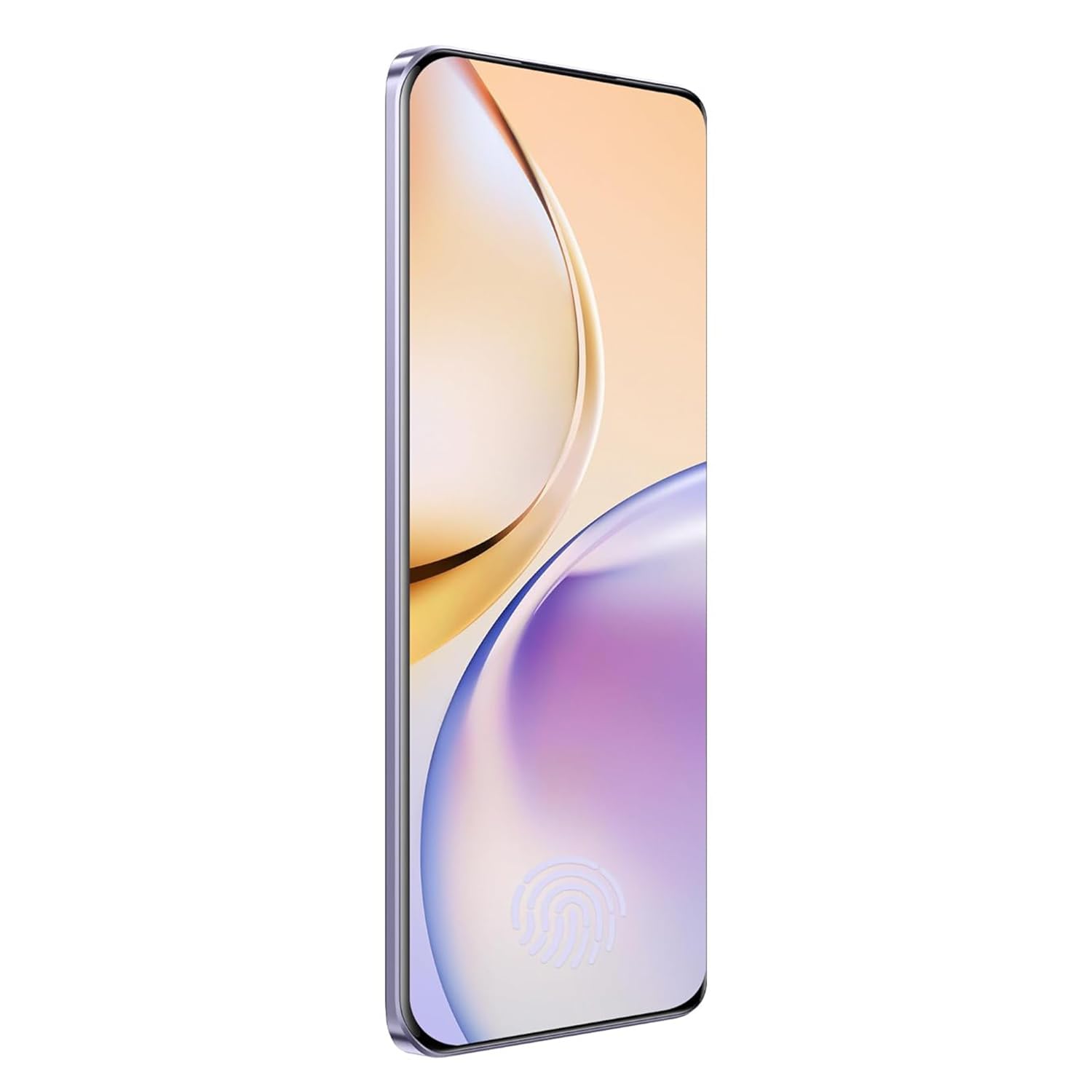
Image 3.1: Front view of the realme 14 Pro Lite, showcasing its display.
3.2. Performance and Connectivity
The device is powered by a Snapdragon 7s Gen 2 4nm 5G Chipset, ensuring efficient performance for various tasks. Connectivity options include Bluetooth, USB, and Wi-Fi. For 5G network access, ensure you have a compatible SIM card and service plan.
3.3. Camera Usage
Utilize the integrated camera system for photography and videography. Open the Camera application from your home screen or app drawer. Select modes such as Photo, Video, Portrait, or Night mode as desired. Tap the shutter button to capture images or start/stop video recording.

Image 3.2: Back view of the realme 14 Pro Lite, highlighting the camera module.
4. Maintenance
4.1. Battery Care
- Avoid exposing the device to extreme temperatures.
- Use only the provided 45W adapter and USB cable for charging.
- Do not leave the device charging for extended periods after it reaches 100%.
4.2. Software Updates
Regularly check for and install software updates to ensure optimal performance, security, and access to new features. Navigate to Settings > About device > realme UI version to check for updates.
4.3. Cleaning Your Device
Use a soft, lint-free cloth to clean the screen and body of the phone. Avoid using harsh chemicals or abrasive materials. Do not immerse the device in water.
5. Troubleshooting
5.1. Device Not Powering On
- Ensure the battery is charged. Connect the charger and wait a few minutes before attempting to power on again.
- Press and hold the Power button for at least 10-15 seconds to force a restart.
5.2. Connectivity Issues (Wi-Fi/Bluetooth)
- Toggle Wi-Fi or Bluetooth off and on again.
- Restart your device.
- Forget the network/device and attempt to reconnect.
5.3. Apps Crashing or Freezing
- Clear the cache and data for the problematic app via Settings > Apps > [App Name] > Storage.
- Uninstall and reinstall the app.
- Ensure your device's software is up to date.
6. Specifications
| Feature | Detail |
|---|---|
| Model Name | realme 14 Pro Lite |
| Operating System | Android 14 (with realme UI 5.0) |
| Processor | Snapdragon 7s Gen 2 4nm 5G Chipset |
| Display | 6.7-inch OLED Flow Display, 120Hz Refresh Rate, 2412x1080 Resolution |
| RAM | 8GB |
| Internal Storage | 128GB (expandable up to 1TB with microSD) |
| Battery Capacity | 5200mAh |
| Charging | 45W SuperVOOC Charge |
| Connectivity | 5G, Bluetooth, USB, Wi-Fi, GPS |
| Dimensions (LxWxH) | 16.13 x 7.39 x 0.82 cm |
| Weight | 183 g |
7. Warranty and Support
7.1. Warranty Information
Your realme 14 Pro Lite Smartphone comes with a standard manufacturer's warranty. Please refer to the warranty card included in your package or visit the official realme website for detailed terms and conditions regarding warranty coverage and duration.
7.2. Customer Support
For technical assistance, service, or further inquiries, please contact realme customer support. You can find contact details, FAQs, and support resources on the official realme website:
8. Official Product Videos
No official product videos from the seller were found in the provided data. Please visit the official realme website or authorized channels for any available video guides or demonstrations.


