
1. Introduction
The COMITOK MOCA Magnetic Gimbal Stabilizer is designed to enhance your mobile photography and videography experience, specifically optimized for iPhone 17 models running iOS 26. This device provides stable shooting, versatile control, and ergonomic handling for content creators and everyday users.
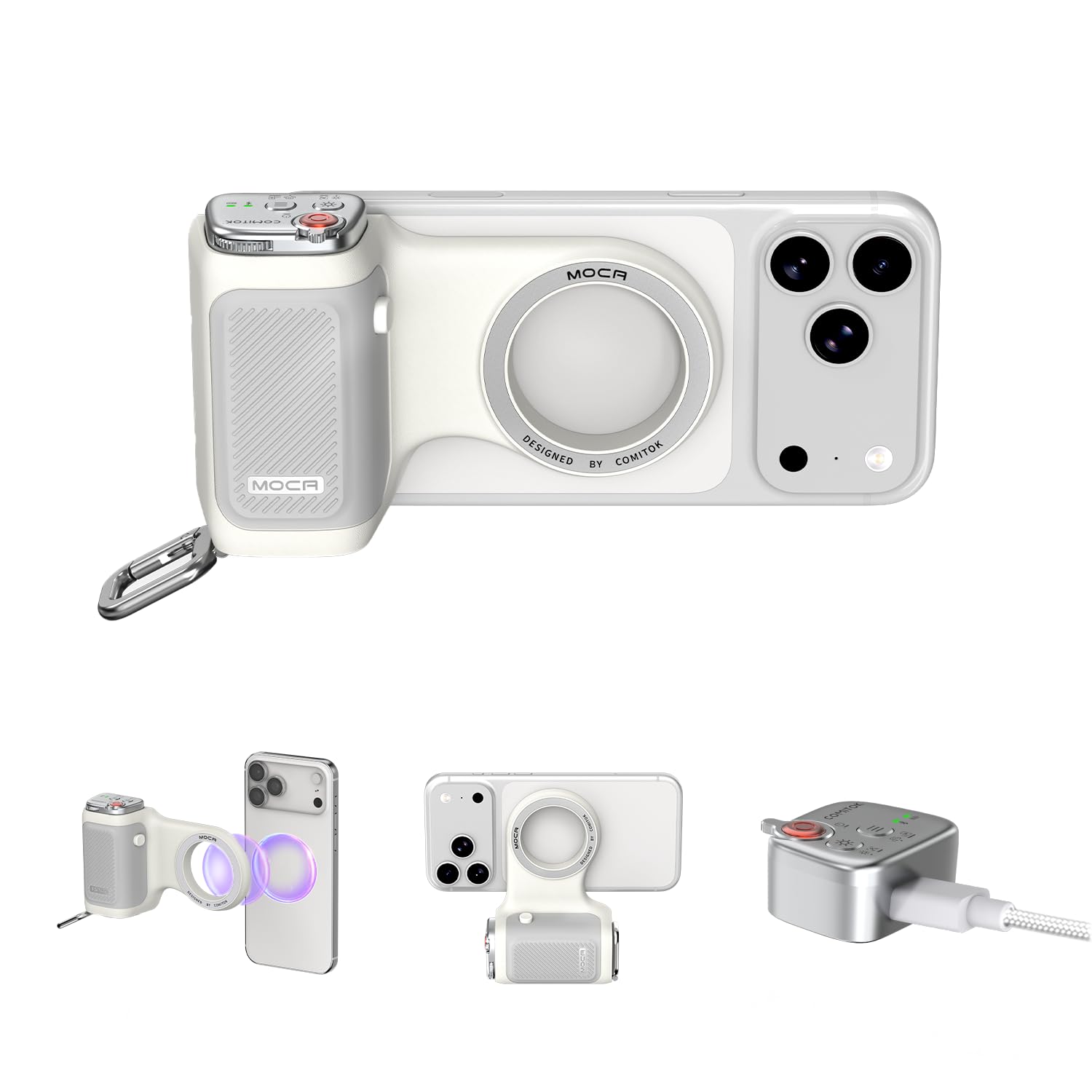
Image: The COMITOK MOCA Gimbal Stabilizer attached to an iPhone 17, demonstrating its use for capturing stable photos and videos.
2. Product Features
- Magnetic Mount Instant Attachment: Designed exclusively for iPhone 17, this shooting gimbal stabilizer is optimized for iOS 26, providing seamless native camera control.
- Removable Multifunction Remote: The remote control allows switching camera modes, switching between front and rear lenses, adjusting exposure and focus, and instantly launching the native camera to wake up the screen.
- Secure Magnetic + Remote Lock Mechanism: A strong magnet securely holds the remote control, which is released by pressing the lock button when needed. An independent battery and Bluetooth indicator ensure intuitive and reliable operation.
- Ergonomic + Portable Build: The lightweight design is comfortable to hold for long periods without fatigue. Made of durable, easy-to-clean silicone, it does not absorb odors. A built-in carabiner allows for convenient clipping on the go.
- Universal Mount Options: Features a built-in 1/4-inch thread for attaching a travel tripod, ideal for outdoor shooting or as a desktop phone stand. Supports both vertical and horizontal orientations for various content creation needs.

Image: Comparison illustrating the rechargeable nature of the MOCA stabilizer versus traditional battery-only devices.
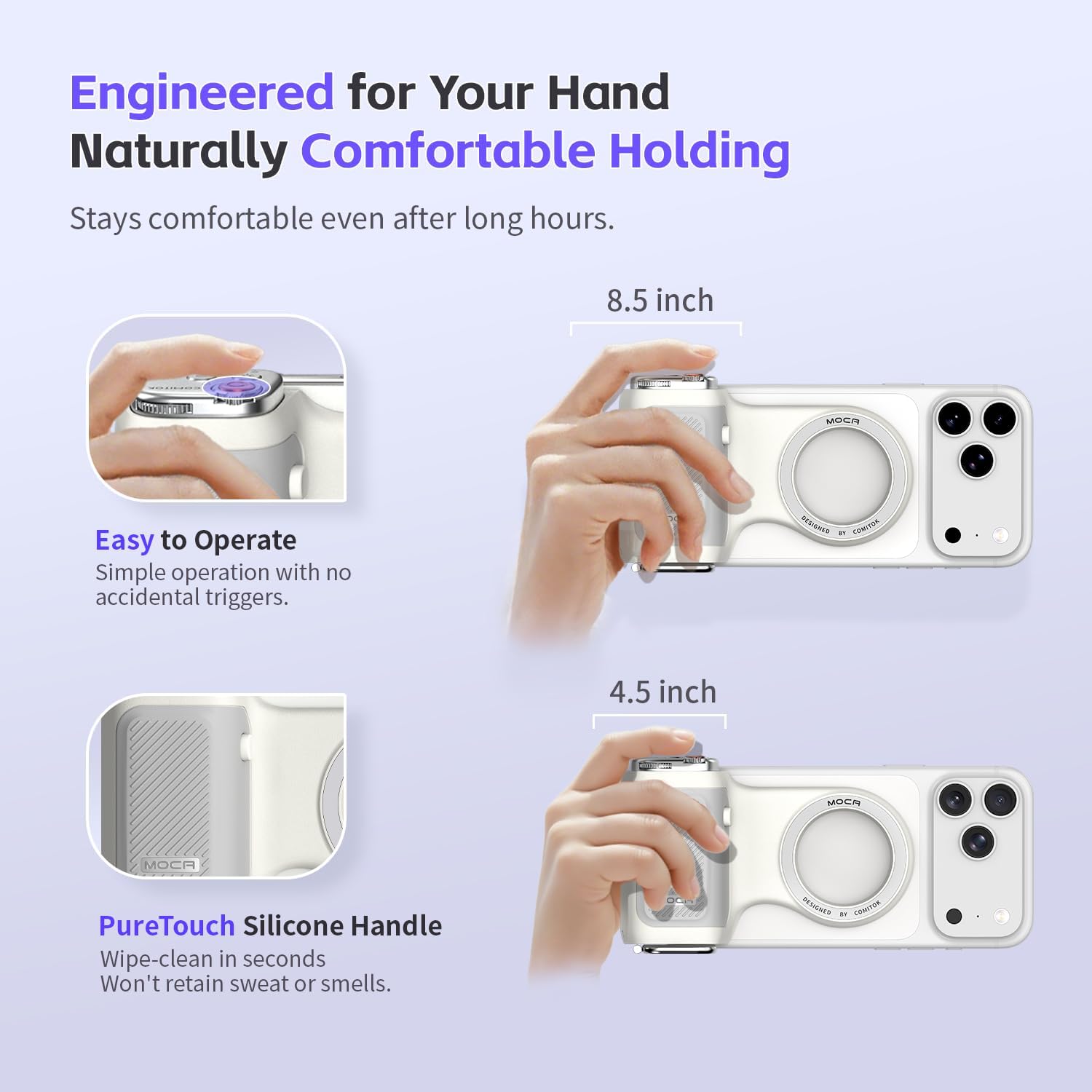
Image: The ergonomic design of the MOCA gimbal, engineered for comfortable and natural holding.

Image: Overview of the detachable remote control's functions for comprehensive camera management.

Image: The MOCA remote's universal keychain feature, allowing secure attachment to bags or straps.

Image: Demonstration of the ultra-strong magnetic grip, ensuring the phone remains securely attached.

Image: The MOCA gimbal functioning as a dual-mode desktop stand and its compatibility with tripods.

Image: The MOCA gimbal supporting both portrait and landscape orientations for diverse viewing and content creation.
3. Setup Instructions
- Unboxing: Carefully remove all components from the packaging. Ensure you have the MOCA stabilizer, magnetic plate, lanyard pad, wrist strap, and charging cable.
- Charging the Remote: The remote control has an independent battery. Connect the provided USB-C charging cable to the remote and a power source to charge it before first use. The Bluetooth indicator will show charging status.
- Attaching the Magnetic Plate (if needed): If your iPhone 17 does not have built-in magnetic compatibility, attach the provided magnetic plate to the back of your phone or phone case. Ensure it is centered for optimal stability.
- Attaching Your iPhone: Align your iPhone 17 with the magnetic mount on the MOCA stabilizer. The strong magnet will securely attach your phone.
- Bluetooth Pairing: Turn on the remote control. On your iPhone, go to Bluetooth settings and select "MOCA" (or similar device name) to pair. The Bluetooth indicator on the remote will confirm a successful connection.
4. Operating Instructions
The MOCA stabilizer offers intuitive controls for various shooting scenarios.
4.1 Remote Control Functions
- Power On/Off: Press and hold the power button on the remote to turn it on or off.
- Quick Camera Access: Press a designated button (refer to remote markings) to instantly launch your iPhone's native camera app and wake up the screen.
- Shutter Function: Press the shutter button to take photos or start/stop video recording.
- Camera Mode Switching: Use the mode selection button to cycle through different camera modes (e.g., Photo, Video, Portrait).
- Front/Rear Lens Switching: A dedicated button allows you to switch between your iPhone's front and rear cameras.
- Exposure and Focus Adjustment: Utilize the control dials or buttons on the remote to fine-tune exposure and focus settings within the camera app.
- Remote Lock Mechanism: To detach the remote, press the side lock button while pulling the remote away from the main unit.
4.2 Stabilizer Usage
- Handheld Shooting: Hold the ergonomic handle firmly for stable, shake-free footage.
- Desktop Stand Mode: Unfold the built-in stand to place your iPhone on a flat surface for hands-free viewing or recording.
- Tripod Mounting: Use the 1/4-inch thread at the bottom of the stabilizer to attach it to any standard tripod for enhanced stability and adjustable height.
- Orientation Switching: The stabilizer supports both portrait (vertical) and landscape (horizontal) orientations. Adjust your phone's position as needed for your content.
5. Maintenance
- Cleaning: Wipe the silicone handle and main body with a soft, damp cloth. Avoid harsh chemicals or abrasive materials.
- Storage: Store the stabilizer in a cool, dry place away from direct sunlight and extreme temperatures.
- Battery Care: Recharge the remote control regularly, even if not in frequent use, to maintain battery health.
- Water Exposure: This device is not waterproof. Avoid exposure to water or high humidity.
6. Troubleshooting
- Device Not Powering On: Ensure the remote control is fully charged. Connect it to a power source using the USB-C cable.
- Bluetooth Connection Issues: Make sure the remote is powered on and within range of your iPhone. Check your iPhone's Bluetooth settings to ensure it's enabled and attempt to re-pair the device. If issues persist, try restarting both your iPhone and the remote.
- Magnetic Grip Not Strong Enough: Ensure the magnetic plate (if used) is properly attached and centered on your iPhone or case. Avoid using overly thick or non-magnetic cases that may interfere with the magnetic connection.
- Slow Zoom Response: The digital zoom function via the remote may have a slight delay. For quicker adjustments, manually pinch the screen on your iPhone.
- Inaccurate Focus/Aperture Control: Ensure your iPhone's camera app is fully compatible with external controls. Some advanced camera settings might require manual adjustment directly on the phone screen.
- Mode Switching Not Precise: Practice using the mode switching button to understand its response. Ensure a firm press for each mode change.
7. Specifications
| Feature | Detail |
|---|---|
| Brand | COMITOK |
| Model Number | MOCA |
| Color | White |
| Compatible Devices | Mobile Phone (specifically iPhone 17, iOS 26 compatible) |
| Product Dimensions (D x W x H) | 17.7 x 10 x 4.1 cm |
| Product Weight | 107 grams |
| Folded Size | 6.97 inches (l) x 3.94 inches (w) x 1.61 inches (h) |
| Included Items | MOCA Stabilizer, Magnetic Plate, Lanyard Pad, Wrist Strap, Charging Cable |
| Shooting Functions | Portrait, Landscape, Sports, Night Mode (via iPhone camera app) |
| Exposure Control Type | Manual (M) mode |
| Video Resolution | 4K, 1080p, 720p |
| Waterproof | No |
| File Format | MP4 |
| Viewfinder Type | LCD Screen (on iPhone) |
| Light Sensitivity (ISO) | 32-25600 |
| Image Stabilization | Yes (via gimbal and iPhone's OIS) |
| Recording Function | No (uses iPhone's recording) |
| GTIN (UPC) | 795847169972 |
8. Warranty Information
This product comes with a standard manufacturer's warranty. Please refer to the warranty card included in your product packaging for specific terms, conditions, and duration. Keep your proof of purchase for warranty claims.
9. Support
For further assistance, technical support, or inquiries regarding your COMITOK MOCA Magnetic Gimbal Stabilizer, please contact COMITOK customer service through the retailer where you purchased the product or visit the official COMITOK website for contact information.


