
Introduction
This manual provides detailed instructions for setting up, operating, and maintaining your Formuler Z12 Ultra 4K Streaming Media Player. The Z12 Ultra is designed to deliver a premium streaming experience with advanced features such as 4K resolution, Dolby Vision, Dolby Atmos, and high-speed connectivity. Please read this manual thoroughly before using your device to ensure optimal performance and safety.
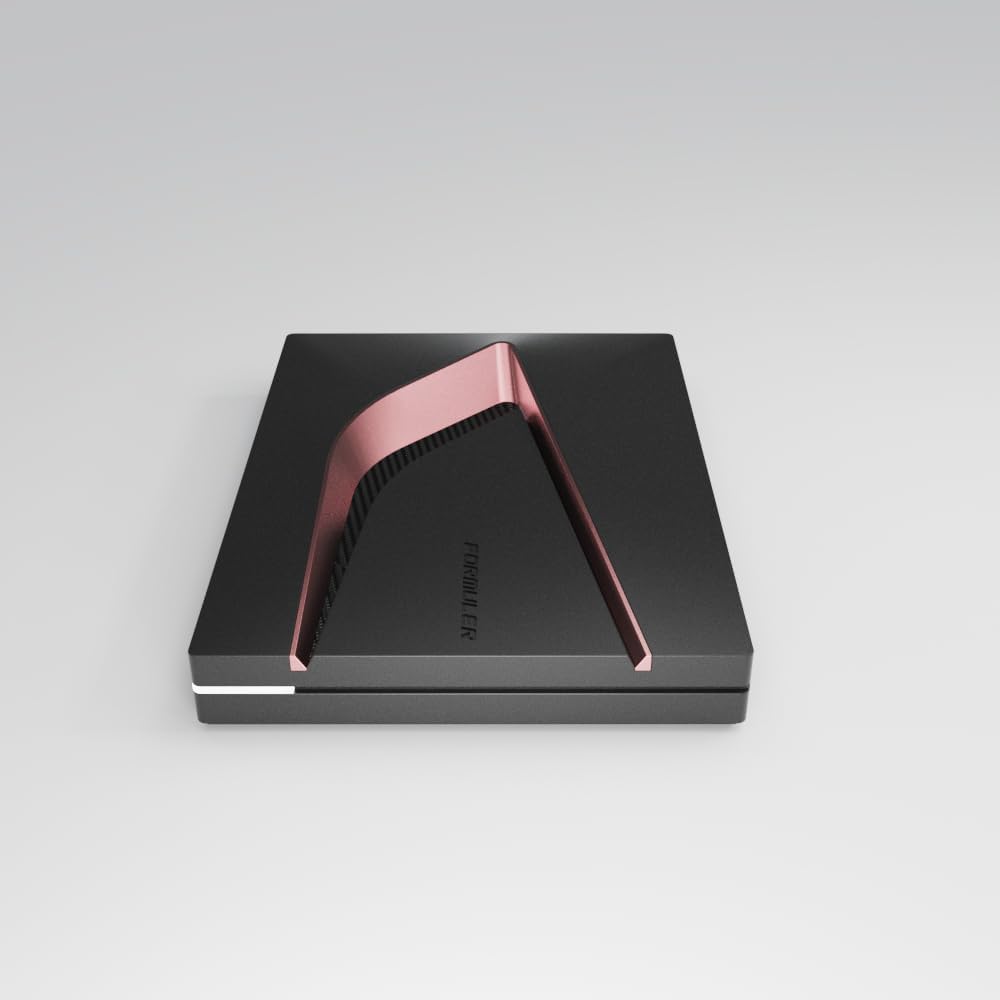
Image: Top view of the Formuler Z12 Ultra streaming media player, showcasing its sleek design with a rose gold accent.
What's in the Box
Verify that all items are present in the package before proceeding with the setup.
- Formuler Z12 Ultra Media Receiver
- Bluetooth Backlight Voice Remote Control (GTV-BT3)
- HDMI Cable
- Power Adapter
- Quick Setup Guide (this manual serves as a comprehensive guide)
Setup
1. Connecting the Device
- Connect to TV: Use the provided HDMI cable to connect the HDMI OUT port on the Formuler Z12 Ultra to an HDMI IN port on your television or display.
- Connect to Network (Optional):
- Wired Connection: For optimal performance, connect an Ethernet cable from your router to the LAN port on the Z12 Ultra.
- Wireless Connection: If using Wi-Fi, ensure your Wi-Fi network is active. You will configure the Wi-Fi connection during the initial setup process.
- Connect Power: Plug the power adapter into the DC IN port on the Z12 Ultra, then plug the other end into a wall outlet.

Image: Rear view of the Formuler Z12 Ultra, illustrating the various connectivity ports including HDMI, LAN, USB, and power input.
2. Initial Power On and Remote Control Pairing
- Power On: The device will automatically power on once connected to power. Your TV should display the Formuler boot screen.
- Insert Batteries: Open the battery compartment on the back of the Bluetooth Backlight Voice Remote Control and insert two AAA batteries (not included).
- Pair Remote: The remote control should automatically pair with the Z12 Ultra. If it does not, press and hold the OK and Back buttons simultaneously for 3-5 seconds until the LED indicator on the remote flashes, indicating pairing mode. Follow any on-screen prompts.

Image: The Formuler Z12 Ultra media player alongside its Bluetooth Backlight Voice Remote Control, ready for use.
3. On-Screen Setup Wizard
Follow the on-screen instructions to complete the initial setup, which typically includes:
- Language selection
- Network configuration (Wi-Fi setup if not using Ethernet)
- Google account sign-in (optional, but recommended for full Android features)
- Date and time settings
Operating Instructions
Basic Navigation
Use the directional pad and OK button on your remote control to navigate the user interface. The Back button returns to the previous screen, and the Home button takes you to the main home screen.
MYTVOnline3 Application
The Formuler Z12 Ultra features the MYTVOnline3 application for an optimized streaming experience.
- Accessing MYTVOnline3: Locate and select the MYTVOnline3 icon on your home screen.
- Configuration: Follow the in-app instructions to add your streaming services or content sources.
- Features: Explore features like Electronic Program Guide (EPG), Video On Demand (VOD), and Catch-up TV, depending on your service provider.
4K, Dolby Vision, and Dolby Atmos Playback
The Z12 Ultra supports 4K 60fps 10-bit video playback with AV1, H.265 (HEVC), H.264 codecs, and HDR formats including HDR10+ and HLG. It also supports Dolby Vision and Dolby Atmos for enhanced visual and audio experiences.
- Requirements: To experience these features, ensure your television and audio system are compatible with 4K, Dolby Vision, and Dolby Atmos.
- Settings: Verify that the video and audio output settings on your Z12 Ultra are configured correctly for your display and sound system. These settings are typically found in the Android system settings under "Display & Sound".
Network Connectivity (Gigabit LAN & WiFi 6E)
The device offers robust network options for stable streaming.
- Gigabit LAN: Provides the most stable and fastest connection for high-bandwidth streaming.
- WiFi 6E (AX): Offers high-speed wireless connectivity. To connect or change Wi-Fi networks, go to Settings > Network & Internet and select your desired Wi-Fi network.
Voice Control
The Bluetooth Backlight Voice Remote Control allows for convenient voice commands.
- Activating Voice Control: Press the dedicated Voice Assistant button on your remote (usually a microphone icon).
- Commands: Speak clearly into the remote to search for content, open applications, or control playback.
Maintenance
Software Updates
Regular software updates are released to improve performance, add features, and enhance security.
- Checking for Updates: Go to Settings > Device Preferences > About > System update.
- Installation: If an update is available, follow the on-screen prompts to download and install it. Ensure the device remains powered during the update process.
Cleaning
To maintain the appearance and functionality of your device:
- Device: Use a soft, dry, lint-free cloth to wipe the exterior. Avoid abrasive cleaners or solvents.
- Remote Control: Clean with a soft, slightly damp cloth. Do not immerse in water.
Troubleshooting
If you encounter issues with your Formuler Z12 Ultra, refer to the following common solutions.
| Problem | Possible Cause | Solution |
|---|---|---|
| No power / Device not turning on | Power adapter not connected or faulty. | Ensure the power adapter is securely connected to the device and a working power outlet. Try a different outlet. |
| No signal on TV / Blank screen | Incorrect HDMI connection or TV input. | Verify the HDMI cable is securely connected to both the Z12 Ultra and the TV. Select the correct HDMI input on your TV. Try a different HDMI port or cable. |
| Remote control not responding | Low batteries or remote not paired. | Replace batteries. Re-pair the remote by holding OK and Back buttons simultaneously for 3-5 seconds. |
| Network connection issues | Incorrect Wi-Fi password, router issue, or Ethernet cable disconnected. | Check Wi-Fi password. Restart your router. For Ethernet, ensure the cable is properly connected. Go to Settings > Network & Internet to reconfigure. |
| Video playback issues (stuttering, low quality) | Insufficient network bandwidth or content source issue. | Ensure a stable and fast internet connection. Use a wired Ethernet connection if possible. Check the quality settings within your streaming application. |
Specifications
Key technical specifications for the Formuler Z12 Ultra:
- Processor: High-performance Quad-core
- RAM: 4 GB DDR4
- Storage: 128 GB
- Operating System: Android 12
- Video Output Resolution: Up to 3840x2160 pixels (4K) at 60fps 10-bit
- Video Codecs: AV1, H.265 (HEVC), H.264
- HDR Support: HDR10+, HLG, Dolby Vision
- Audio Support: Dolby Atmos
- Connectivity:
- Gigabit LAN (Ethernet)
- WiFi 6E (AX)
- Bluetooth
- HDMI
- USB
- IR
- Remote Control: Bluetooth Backlight Voice Remote Control (GTV-BT3)
- Dimensions (L x W x H): 13.5 x 10 x 2.4 cm
- Weight: 464.4 Grams
- Color: Black/Rose Gold
- Power Consumption (Standby): 0.5 W
Warranty and Support
Formuler products are designed for reliability and performance.
- Spare Parts Availability: Spare parts are available for 2 years.
- Product Support: For technical assistance, troubleshooting beyond this manual, or warranty inquiries, please visit the official Formuler support website or contact your retailer. Keep your purchase receipt as proof of purchase.
- Online Resources: Additional support, FAQs, and software updates may be available on the official Formuler website.


