
Introduction
Welcome to the Relndoo T901 MAX 10-inch Android 15 Tablet. This manual provides essential information for setting up, operating, and maintaining your new device. Please read this manual thoroughly to ensure optimal performance and longevity of your tablet.

Image: The Relndoo T901 MAX Android 15 Tablet, showcasing its sleek design and key features.
What's in the Box
Your Relndoo T901 MAX tablet package includes the following items:
- 1 x 10.1 inch Relndoo Android Tablet (Blue)
- 1 x Keyboard
- 1 x Mouse
- 1 x Stylus Pen
- 1 x Pink Foldable Protective Case
- 1 x Screen Protector
- 1 x Charging Head (USB Wall Adapter)
- 1 x Type-C Cable
- 1 x User Manual
Note: The tablet itself is blue; the pink color refers to the included protective case.

Image: A complete view of the Relndoo T901 MAX tablet along with its bundled accessories: keyboard, mouse, stylus, protective case, charger, and cables.
Setup
1. Charging the Tablet
Before first use, fully charge your tablet. Connect the Type-C cable to the tablet's charging port and the USB charging head to a power outlet. The battery indicator on the screen will show charging status.

Image: An illustration showing the Relndoo T901 MAX tablet connected to its charger, displaying the charging progress on the screen.
2. Powering On/Off
- To Power On: Press and hold the Power button until the Relndoo logo appears.
- To Power Off: Press and hold the Power button, then select 'Power off' from the options on the screen.
3. Initial Setup
Upon first power-on, follow the on-screen prompts to configure your Android 15 system. This includes selecting your language, connecting to a Wi-Fi network, and setting up your Google account.
4. Connecting Accessories
The included keyboard and mouse connect via Bluetooth. Ensure Bluetooth is enabled on your tablet (Settings > Connected devices > Bluetooth). Follow the pairing instructions provided with the individual accessories.

Image: Screenshots demonstrating Android 15's Bluetooth auto-on, popup dialogs for quick connection, and enhanced physical keyboard support.
Operating Instructions
1. Basic Navigation
The tablet features a responsive 10-inch IPS touchscreen. Use standard Android gestures for navigation:
- Tap: Select an item.
- Swipe: Scroll through content or switch screens.
- Pinch-to-zoom: Enlarge or reduce content.
2. Android 15 Features
Your tablet runs on the latest Android 15 operating system, offering enhanced privacy, app management, and accessibility. Key features include:
- Widgets: Customize your home screen with convenient widgets.
- Split-Screen Multitasking: Run two apps side-by-side for increased productivity.
- Parent Control Mode: Manage usage for younger users.
- Facial Unlock: Secure your device with facial recognition.

Image: A visual guide demonstrating how to activate and use the split-screen feature on the Relndoo T901 MAX tablet for enhanced multitasking.
3. Connectivity (Wi-Fi & Bluetooth)
- Wi-Fi: The tablet supports dual-band 2.4GHz/5GHz Wi-Fi for fast and stable internet access. Go to Settings > Network & internet > Wi-Fi to connect to a network.
- Bluetooth V5.0: For connecting wireless headphones, speakers, and other Bluetooth devices. Go to Settings > Connected devices > Bluetooth.

Image: The Relndoo T901 MAX tablet displaying its 5G Wi-Fi capabilities, indicating fast and reliable internet connection.
4. Storage Management
Your tablet comes with 256GB of internal storage. You can expand this up to 2TB using a TF (microSD) card (not included). Insert the TF card into the designated slot on the tablet.
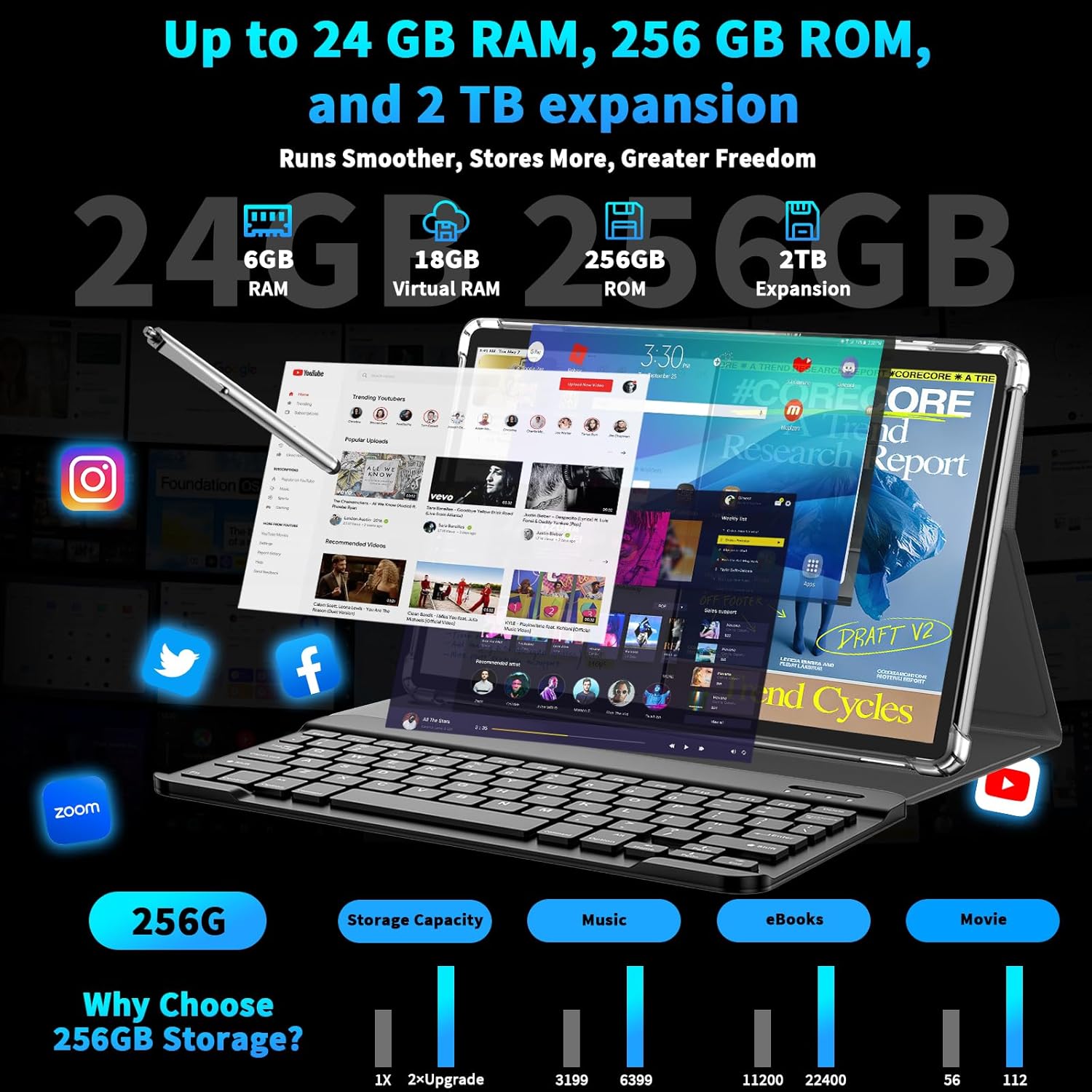
Image: A graphic illustrating the tablet's 24GB RAM (4GB physical + 20GB virtual), 256GB ROM, and support for up to 2TB external storage expansion.
5. Camera Usage
The tablet is equipped with a 13MP rear camera and a 5MP front camera. Open the Camera app to capture photos and videos. Utilize Smart Google Lens for scanning, learning, and exploring.

Image: Visuals highlighting the 13MP rear and 5MP front cameras, along with the Smart Google Lens feature for enhanced photography and interaction.
6. Widevine L1 Support
The tablet supports Widevine L1, allowing you to stream high-definition content (1080p or higher resolution) from popular streaming services for an immersive viewing experience.

Image: A graphic explaining Google Widevine L1 certification, indicating the tablet's capability for high-resolution streaming from various platforms.
7. Gemini AI Integration
Leverage the powerful Gemini AI 2.0 for enhanced productivity and creativity. Features include AI Voice Wake-up, Smart Control, Full-Screen Smart Assistance, and AI Real-time Conversation.

Image: A depiction of the tablet's Gemini AI capabilities, including voice activation, smart control, and full-screen assistance.
Maintenance
1. Cleaning the Device
Use a soft, lint-free cloth to clean the screen and body of the tablet. Avoid using harsh chemicals or abrasive materials that could damage the surface.
2. Battery Care
The tablet features an 8000mAh battery. To prolong battery life:
- Avoid extreme temperatures.
- Do not leave the tablet fully charged or fully discharged for extended periods.
- Use the provided charger for optimal charging.

Image: A graphic detailing the 8000mAh battery's performance, including standby time, music playback, video playback, call time, web browsing, and gaming duration.
3. Software Updates
Periodically check for system updates to ensure your tablet has the latest features and security patches. Go to Settings > System > System update.
Troubleshooting
If you encounter issues with your Relndoo T901 MAX tablet, refer to the following common solutions:
- Tablet not powering on: Ensure the tablet is charged. Connect it to the charger for at least 30 minutes before attempting to power on again.
- Wi-Fi connectivity issues: Restart your Wi-Fi router and the tablet. Forget the network in Wi-Fi settings and reconnect.
- Accessories not connecting: Ensure Bluetooth is enabled on the tablet and the accessory is in pairing mode. Check battery levels of the accessories.
- Slow performance: Close unnecessary background applications. Clear cache for frequently used apps. Consider performing a factory reset if issues persist (back up your data first).
- Screen not responding: Restart the tablet. If the issue persists, contact customer support.
For more complex issues, please refer to the official Relndoo support channels.
Specifications
Below are the detailed specifications for the Relndoo T901 MAX Tablet:
| Feature | Specification |
|---|---|
| Model Name | T901 |
| Operating System | Android 15 |
| Processor | Unisoc T606 Octa-Core (A75 & A55 architectures) |
| RAM | 24GB (4GB physical + 20GB virtual) |
| Internal Storage | 256GB ROM |
| Expandable Storage | Up to 2TB via TF card (not included) |
| Screen Size | 10.1 Inches IPS |
| Screen Resolution | 1280 x 800 pixels |
| Battery Capacity | 8000mAh |
| Wi-Fi | 2.4G/5G Dual-band |
| Bluetooth | V5.0 |
| Rear Camera | 13MP |
| Front Camera | 5MP |
| Audio | Dual Speakers, 3.5mm Headphone Jack |
| Dimensions | 10.7 x 7.5 x 2.5 inches |
| Item Weight | 3.16 pounds |
| Color | Blue Tablet (Pink Case) |
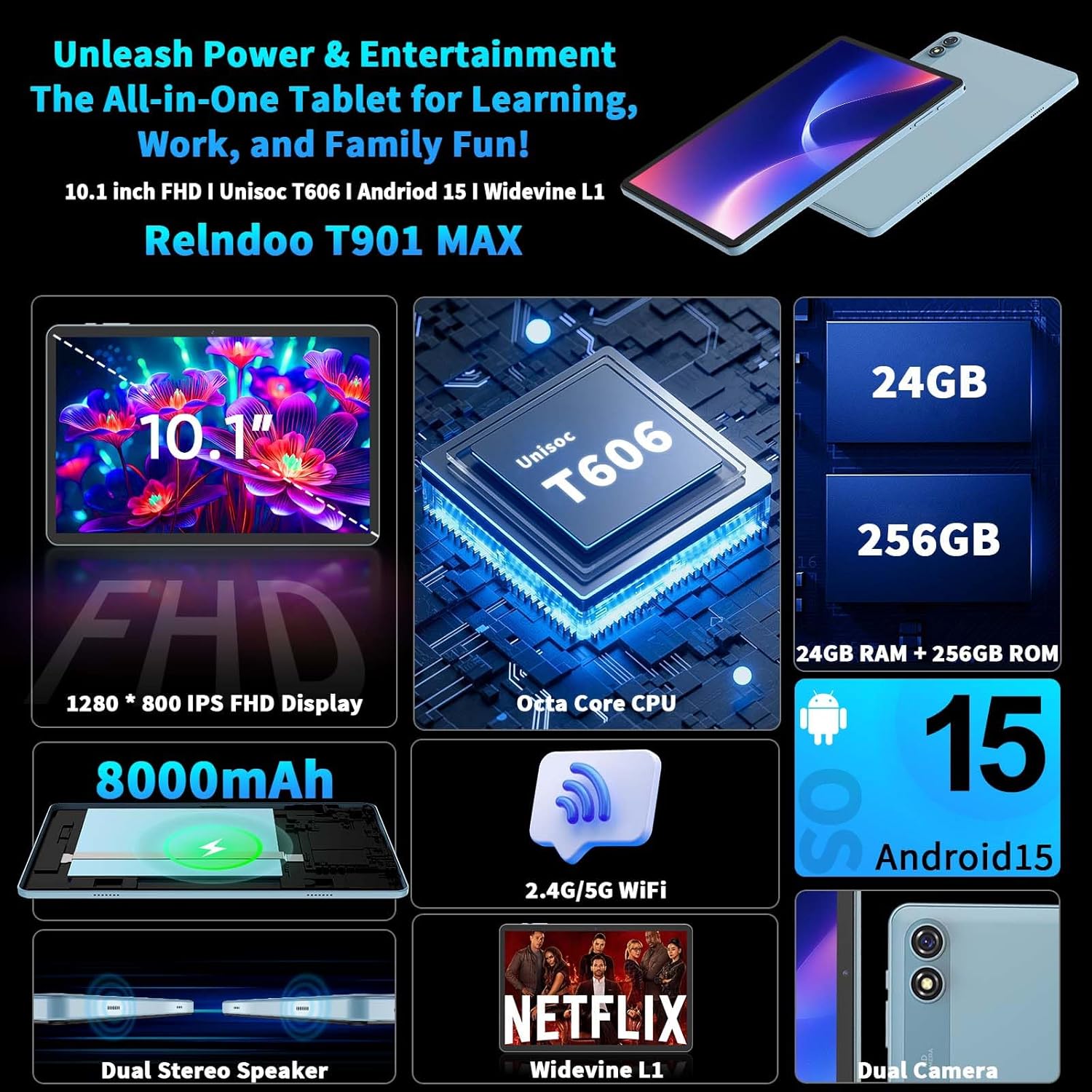
Image: A graphic summarizing the key specifications of the Relndoo T901 MAX tablet, including screen size, processor, battery, and operating system.
Warranty and Support
Relndoo products are designed for reliability and performance. For warranty information and technical support, please refer to the warranty card included in your package or visit the official Relndoo website. Keep your purchase receipt as proof of purchase for warranty claims.
For further assistance, you may contact Relndoo customer service through the contact information provided on their official website or within the product packaging.