
1. Introduction
This manual provides essential information for setting up, operating, and maintaining your Relndoo T901 10-inch Android 15 Tablet. Please read this manual thoroughly before using your device to ensure proper function and longevity.
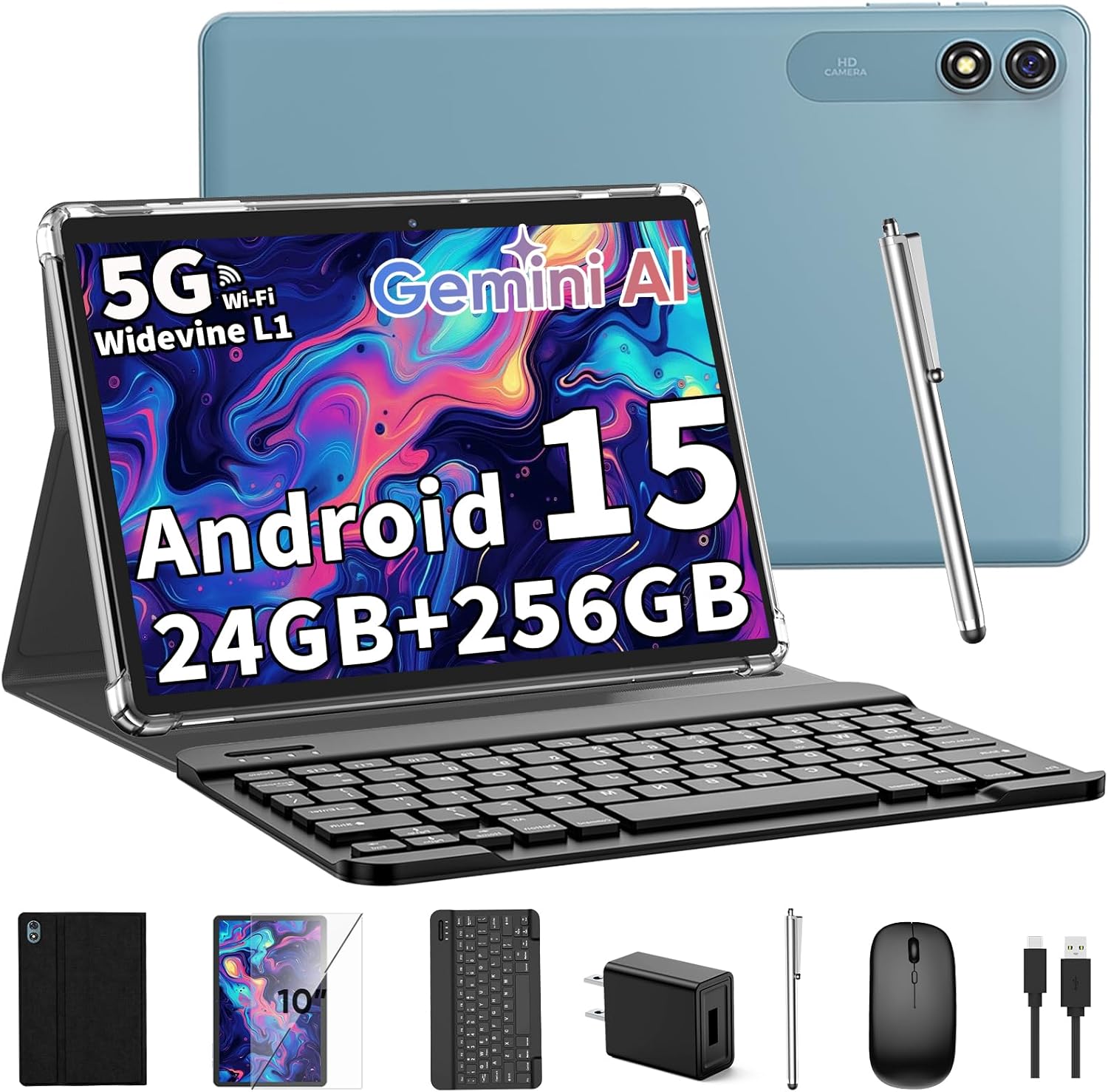
Figure 1.1: Relndoo T901 Tablet and included accessories.
2. Safety Information
Observe the following safety precautions to prevent damage to your device or injury to yourself:
- Do not expose the tablet to extreme temperatures, direct sunlight, or moisture.
- Use only the charger and cables provided or approved by Relndoo.
- Avoid dropping or subjecting the tablet to severe impact.
- Do not attempt to disassemble or repair the device yourself. Refer to qualified service personnel.
- Keep the tablet away from medical devices to avoid interference.
3. Package Contents
Verify that all items are present in your package:
- 1 x Relndoo T901 10.1-inch Android Tablet
- 1 x Bluetooth Keyboard
- 1 x Wireless Mouse
- 1 x Stylus Pen
- 1 x Black Foldable Protective Case
- 1 x Screen Protector (pre-applied or separate)
- 1 x USB Charger Head
- 1 x Type-C Charging Cable
- 1 x User Manual (this document)
4. Product Overview
Familiarize yourself with the physical components and features of your Relndoo T901 tablet.
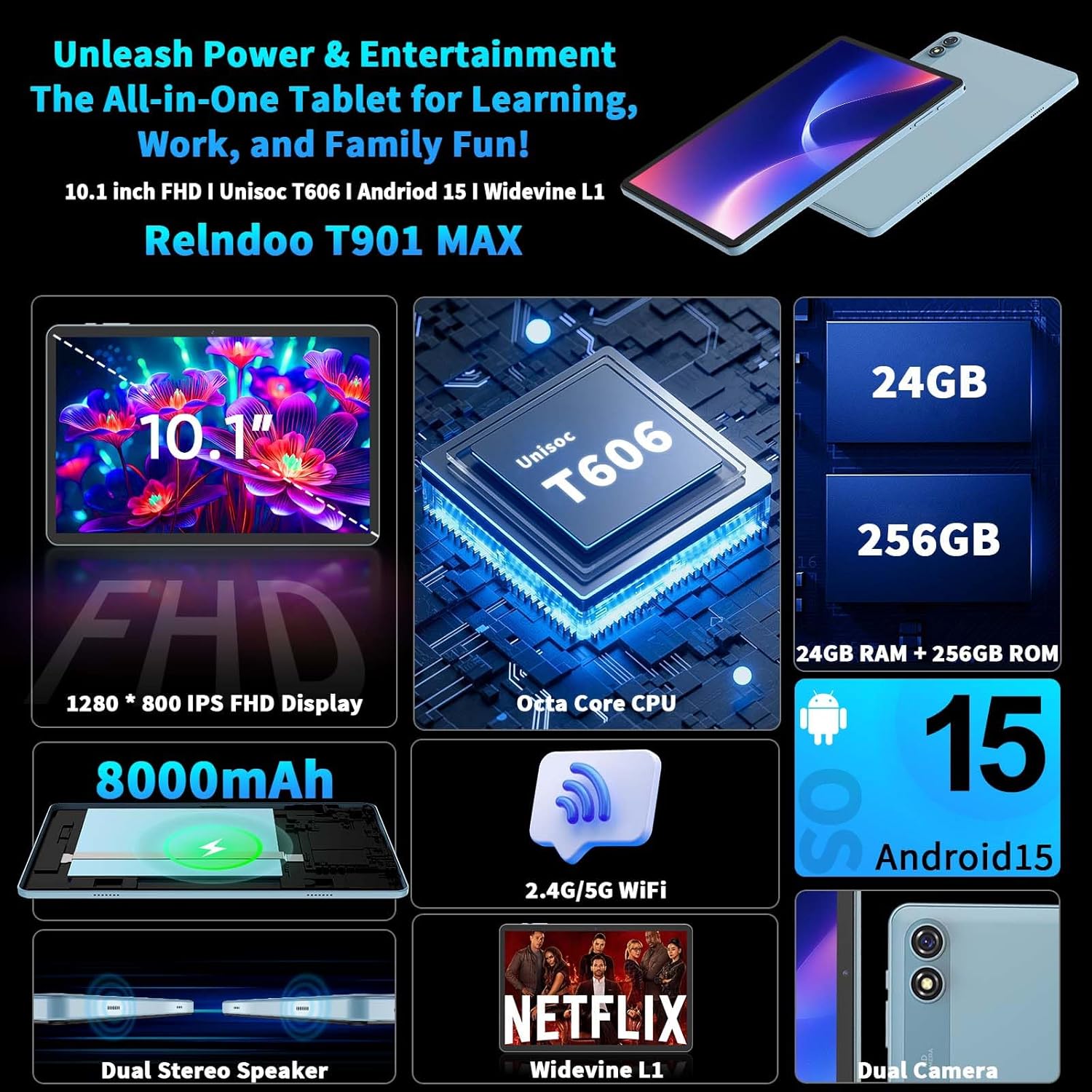
Figure 4.1: Key features of the Relndoo T901 Tablet.
4.1. Physical Components
- Front: 10.1-inch IPS Display, Front Camera.
- Rear: 13MP Rear Camera, HD Camera module.
- Sides: Power Button, Volume Buttons, USB Type-C Port, 3.5mm Headphone Jack, MicroSD Card Slot, Dual Speakers.
5. Setup
5.1. Initial Power On
- Press and hold the Power Button located on the side of the tablet until the Relndoo logo appears.
- Follow the on-screen prompts to select your language, region, and accept the terms and conditions.
5.2. Connecting Accessories
Your tablet comes with a keyboard, mouse, and stylus for enhanced productivity.
- Keyboard: Turn on the Bluetooth keyboard. On your tablet, go to Settings > Connected devices > Bluetooth and pair with the keyboard.
- Mouse: The wireless mouse typically connects via a USB dongle. Insert the dongle into the tablet's USB-C port using an adapter if necessary, or connect via Bluetooth if it supports it.
- Stylus: The stylus is a passive capacitive pen and does not require pairing. Simply use it directly on the screen.
5.3. Wi-Fi Connection
- Go to Settings > Network & internet > Wi-Fi.
- Toggle Wi-Fi On.
- Select your desired network from the list and enter the password if prompted.
5.4. Google Account Setup
To access the Google Play Store, Gmail, and other Google services, you will need to sign in with your Google account during the initial setup or later via Settings > Accounts.
6. Operating the Tablet
6.1. Basic Navigation
- Tap: Select an item or activate a function.
- Swipe: Scroll through screens or lists.
- Pinch-to-Zoom: Enlarge or reduce content on the screen.
- Long Press: Access contextual menus or move icons.
6.2. Android 15 Features
Your tablet runs on the latest Android 15 operating system, offering enhanced privacy, app management, and accessibility.

Figure 6.1: Android 15 user interface and features.
- Split-Screen Multitasking: Use two apps simultaneously. Access this feature by long-pressing an app icon in the recent apps view and selecting 'Split screen'.
- Widgets: Customize your home screen with convenient widgets.
- Privacy Protection: Advanced controls for app permissions and data access.
- Facial Unlock: Configure facial recognition for secure and quick access.
6.3. Storage Management
The tablet features 24GB (6GB physical + 18GB virtual) RAM and 256GB internal storage, expandable up to 2TB via a TF (MicroSD) card.
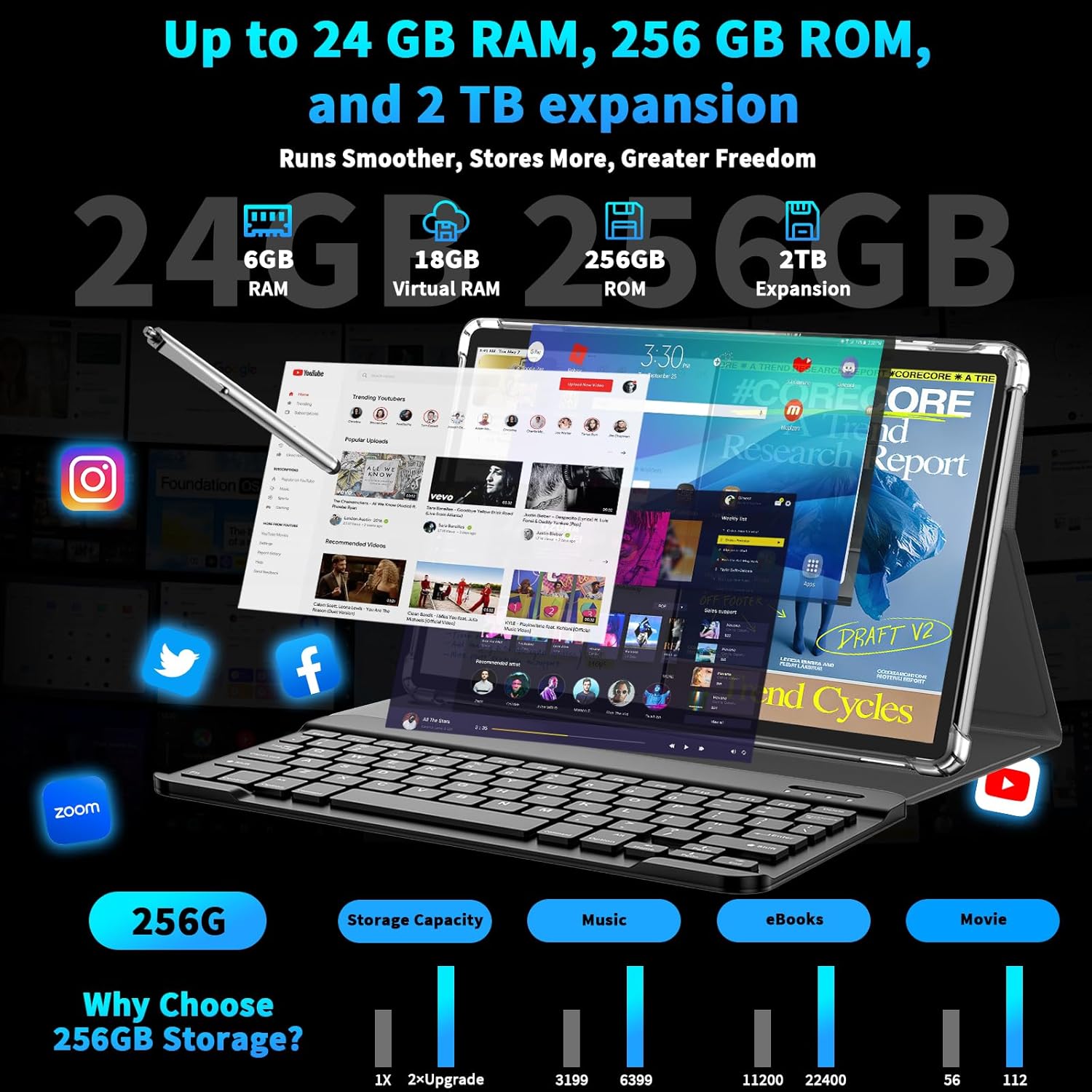
Figure 6.2: Storage capabilities of the Relndoo T901 Tablet.
- To insert a TF card, locate the card slot on the side of the tablet and gently push the card in until it clicks.
- Manage storage via Settings > Storage.
6.4. Media Playback
Enjoy an immersive media experience with Widevine L1 support and dual speakers.
- Widevine L1: Stream high-definition content from supported platforms like Netflix and YouTube.
- Dual Speakers: Provides enhanced audio quality for videos and music.
- 3.5mm Headphone Jack: Connect wired headphones for private listening.
6.5. Camera Usage
Capture moments with the tablet's cameras.

Figure 6.3: Camera features and capabilities.
- Open the Camera app to take photos or record videos.
- Utilize Smart Google Lens for scanning, learning, and exploring.
7. Maintenance
7.1. Battery Care
The 8000mAh battery provides extended usage. To maximize battery life:

Figure 7.1: Battery features and estimated performance.
- Avoid fully discharging the battery frequently.
- Charge the tablet using the provided Type-C cable and charger.
- Reduce screen brightness and close unused apps to conserve power.
7.2. Cleaning
Use a soft, lint-free cloth to clean the screen and body of the tablet. Avoid abrasive materials or harsh chemicals.
7.3. Software Updates
Periodically check for system updates via Settings > System > System update to ensure your tablet has the latest features and security patches.
8. Troubleshooting
If you encounter issues with your tablet, refer to the following common solutions:
| Problem | Solution |
|---|---|
| Tablet does not power on | Ensure the battery is charged. Connect the charger and wait a few minutes before attempting to power on again. |
| Wi-Fi connection issues | Restart the tablet and your Wi-Fi router. Check Wi-Fi settings to ensure the correct network and password are used. |
| Apps are slow or crashing | Close unused apps. Clear app cache (Settings > Apps > [App Name] > Storage > Clear cache). Restart the tablet. |
| Touchscreen unresponsive | Restart the tablet. Ensure the screen is clean and free of debris. |
9. Specifications
Detailed technical specifications for the Relndoo T901 Tablet:
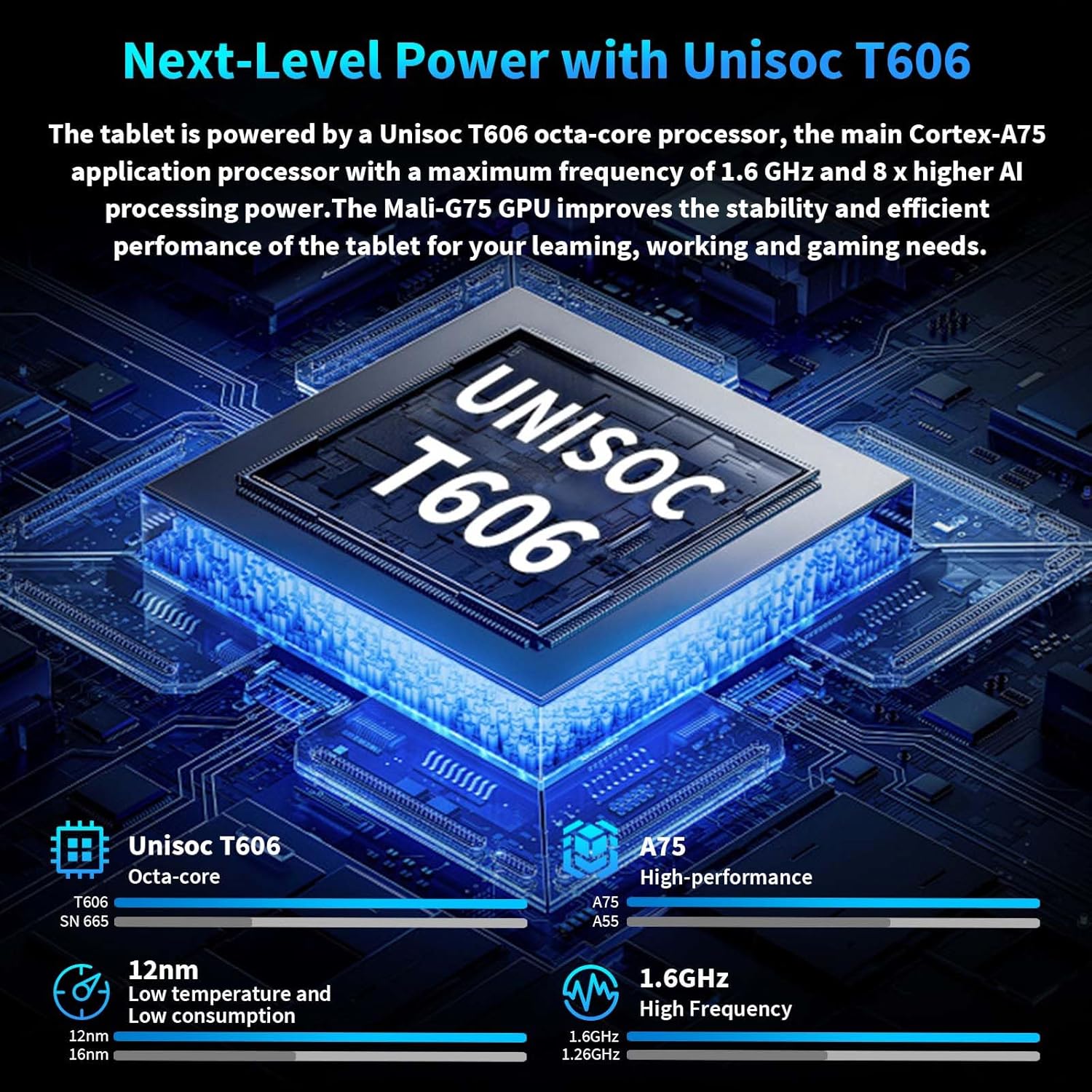
Figure 9.1: Unisoc T606 Octa-Core Processor details.
| Feature | Specification |
|---|---|
| Model Name | T901 |
| Operating System | Android 15 |
| Processor | Unisoc T606 Octa-Core (ARM A75 & A55) |
| RAM | 24GB (6GB physical + 18GB virtual) |
| Internal Storage | 256GB |
| Expandable Storage | Up to 2TB via TF card (not included) |
| Screen Size | 10.1 Inches |
| Screen Resolution | 1280 x 800 pixels (IPS Display) |
| Battery Capacity | 8000mAh |
| Wireless Connectivity | 2.4G/5G Wi-Fi (802.11n), Bluetooth V5.0 |
| Cameras | 13MP Rear, 5MP Front |
| Audio | Dual Speakers, 3.5mm Headphone Jack |
| Dimensions (LxWxH) | 10.7 x 7.5 x 2.5 inches |
| Item Weight | 3.1 pounds |
10. Warranty and Support
For warranty information and customer support, please refer to the warranty card included in your product packaging or visit the official Relndoo website. Keep your purchase receipt as proof of purchase.