
1. Product Overview
The BLUEING NC15A is a 15.6-inch laptop designed for business and student use, offering a balance of performance and portability. It features an Intel Pentium Gold 6500Y processor, a vibrant Full HD IPS display, and ample storage for daily computing tasks.
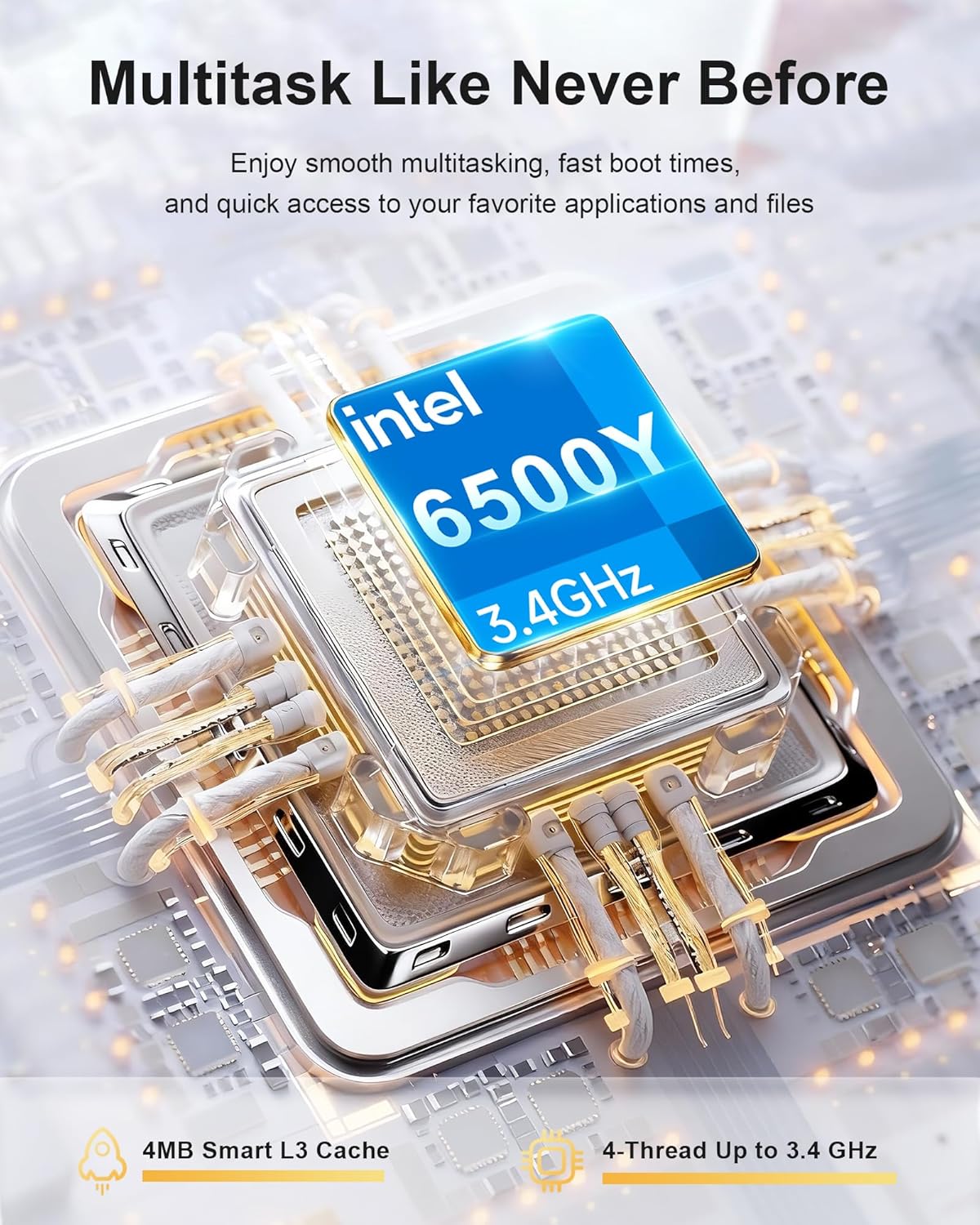
Image 1.1: The BLUEING NC15A laptop in its sleek, closed form.
Video 1.1: An unboxing and initial overview of the BLUEING NC15A laptop, highlighting its physical features and specifications.
2. Setup Guide
Follow these steps to set up your new BLUEING NC15A laptop:
- Unpack the Laptop: Carefully remove the laptop and all accessories from the packaging. Ensure all components listed in the 'What's in the Box' section are present.
- Connect Power: Plug the power adapter into the laptop's Type-C charging port and then into a power outlet. Allow the laptop to charge for at least 30 minutes before initial use.
- Initial Boot-up: Open the laptop lid. The laptop should power on automatically. If not, press the power button located on the keyboard.
- Windows Setup: Follow the on-screen instructions to complete the Windows 11 setup process. This includes selecting your language, region, connecting to a Wi-Fi network, and creating a user account.
- Software Updates: Once Windows is set up, connect to the internet and check for any available system and driver updates to ensure optimal performance and security.
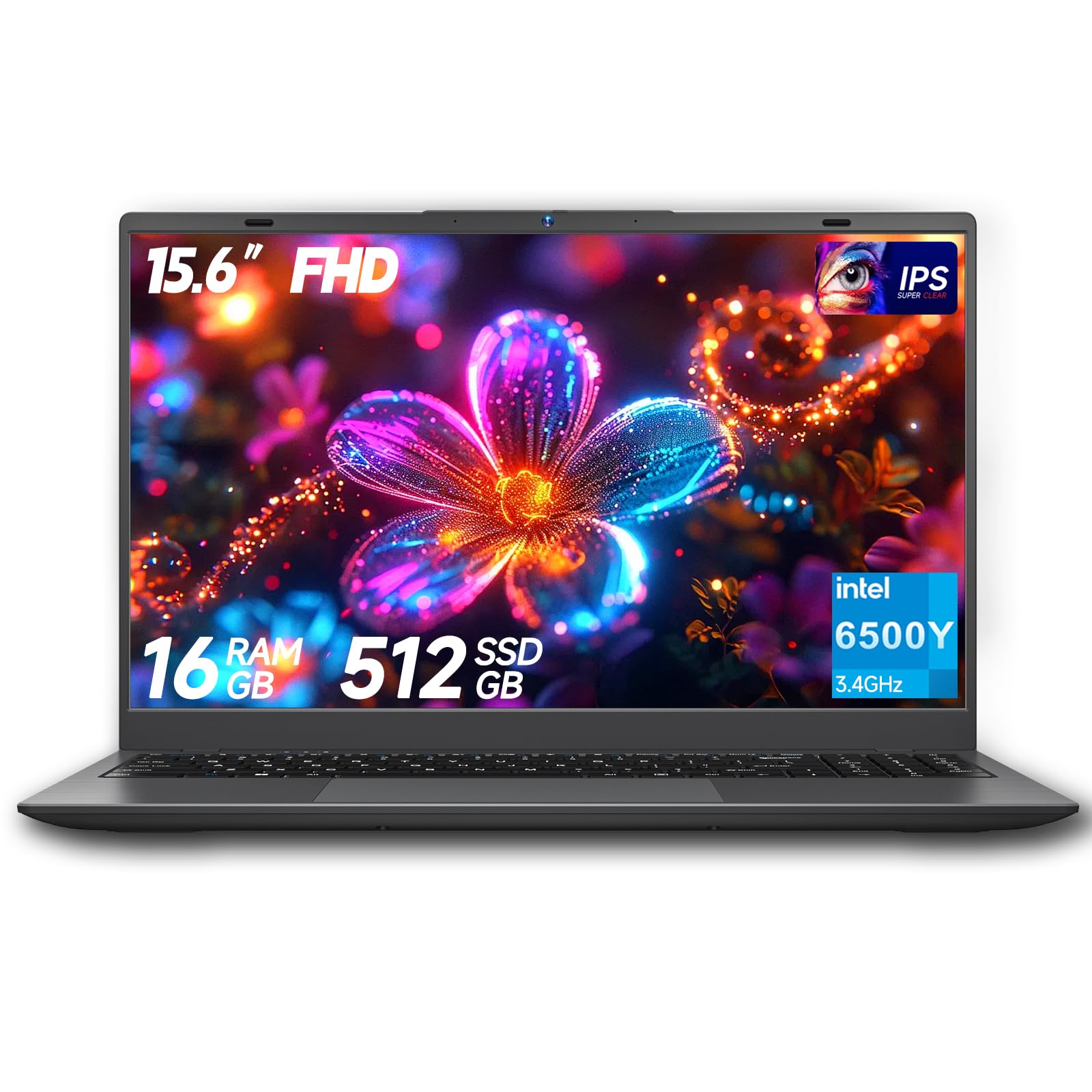
Image 2.1: The BLUEING NC15A laptop displaying the Windows 11 desktop after initial setup.
3. Operating Your Laptop
This section provides basic instructions for operating your BLUEING NC15A laptop.
3.1 Keyboard and Touchpad
The laptop features a full-size ergonomic keyboard and a spacious touchpad. The touchpad supports multi-touch gestures for navigation. Refer to Windows settings for customizing touchpad gestures.
3.2 Power Management
To power on, press the power button. To shut down, click the Start button in Windows, then select Power > Shut down. For sleep mode, close the lid or select Power > Sleep. The laptop is equipped with a 5000mAh battery for extended use.
4. Performance
The BLUEING NC15A is powered by an Intel Pentium Gold 6500Y processor, capable of boosting up to 3.4 GHz with 4 threads and 4MB Smart Cache. This configuration ensures smooth performance for everyday office tasks, web browsing, and multimedia consumption.

Image 4.1: Illustration of the Intel Pentium Gold 6500Y processor, highlighting its multitasking capabilities.
5. Display Features
Experience vibrant visuals on the 15.6-inch Full HD (1920 x 1080 pixels) IPS display. With 100% sRGB color gamut coverage and a 93% screen-to-body ratio, the display delivers vivid and sharp images, ideal for watching movies, editing photos, or browsing the web.

Image 5.1: The laptop's 15.6-inch FHD IPS display showcasing vibrant colors.
6. Storage and Memory
The laptop comes with 8GB of RAM, expandable up to 32GB, for enhanced system performance. It includes a high-speed 256GB M.2 2280 SATA PCIe 3.0 SSD, which supports NVMe, providing fast boot times and ample space for your operating system and applications. Storage can be expanded further up to 512GB using a TF card or by upgrading the SSD to 4TB NVMe.

Image 6.1: The laptop demonstrating its capability to handle multiple applications with fast memory and massive storage.
7. Connectivity
7.1 Ports
The NC15A offers extensive connectivity options:
- 1x USB-C Full-Function Jack (supports charging, data transfer, and video output)
- 2x USB 3.2 Jacks
- 1x USB 2.0 Jack
- 1x HDMI 1.4 Jack (supports 4K@30Hz uncompressed transmission for external displays)
- 1x TF Card Slot
- 1x Headphone Jack
- 1x Kensington Lock Slot

Image 7.1: The laptop connected to an external monitor, demonstrating its rich expansion interface.

Image 7.2: Detailed view of the laptop's various ports and interface configurations.
7.2 Wireless Connectivity
The laptop supports powerful wireless connectivity with 2.4G+5G Wi-Fi for fast downloads and streaming, and Bluetooth 5 for connecting wireless peripherals.
8. Privacy Features
The BLUEING NC15A includes a built-in privacy camera switch. This allows you to physically disable the webcam when not in use, ensuring your privacy during meetings or general use.

Image 8.1: The laptop's integrated camera privacy switch for enhanced security.
9. Battery Life
Equipped with a 5000mAh high-capacity lithium-ion battery, the NC15A provides long-lasting power support, allowing you to work or enjoy entertainment for extended periods without needing to recharge frequently. The average battery life is approximately 5 hours, depending on usage.

Image 9.1: A user enjoying extended battery life with the BLUEING NC15A laptop in a travel setting.
10. Specifications
| Feature | Specification |
|---|---|
| Model Name | NC15A |
| Screen Size | 15.6 Inches |
| Screen Resolution | 1920 x 1080 pixels (FHD IPS) |
| Processor | Intel Pentium Gold 6500Y (up to 3.4 GHz) |
| RAM | 8 GB DDR3 (expandable up to 32GB) |
| Hard Drive | 256 GB M.2 2280 SATA PCIe 3.0 SSD (supports NVMe, upgradeable to 4TB) |
| Graphics Coprocessor | UHD Graphics 615 (Integrated) |
| Operating System | Windows 11 |
| Wireless Type | 802.11a/b/g/n/ac (2.4G+5G Wi-Fi), Bluetooth 5 |
| USB Ports | 1x USB 2.0, 2x USB 3.0, 1x USB-C (Full-Function) |
| HDMI Port | 1x HDMI 1.4 |
| Battery Life | Approx. 5 Hours (5000mAh) |
| Item Weight | 4.49 pounds |
| Product Dimensions | 14 x 0.8 x 9.2 inches |
11. Maintenance
To ensure the longevity and optimal performance of your BLUEING NC15A laptop, follow these maintenance guidelines:
- Keep it Clean: Regularly clean the screen with a microfiber cloth and a screen-safe cleaner. Use compressed air to clear dust from the keyboard and vents.
- Software Updates: Keep your operating system and drivers updated to the latest versions.
- Battery Care: Avoid completely draining the battery frequently. For long-term storage, charge the battery to about 50-70%.
- Avoid Extreme Temperatures: Do not expose the laptop to extreme heat or cold, as this can damage internal components.
- Handle with Care: Avoid dropping or subjecting the laptop to physical shocks.
12. Troubleshooting
If you encounter issues with your laptop, refer to the following common troubleshooting tips:
- Laptop Not Powering On: Ensure the power adapter is securely connected and the laptop has sufficient charge. Try a different power outlet.
- No Wi-Fi Connection: Check if Wi-Fi is enabled in Windows settings. Restart your router and the laptop. Ensure drivers are updated.
- Slow Performance: Close unnecessary applications. Check for background processes consuming high resources. Ensure sufficient free storage space on the SSD.
- Screen Issues: If the screen is dim, adjust the brightness settings. If there are display artifacts, update graphics drivers.
- Peripheral Not Recognized: Ensure the peripheral is correctly plugged into the appropriate port. Try a different port or restart the laptop.
For persistent issues, please contact customer support.
13. Warranty and Support
BLUEING provides a 1-Year Manufacturer Protection Plan for your laptop. Additionally, you can enjoy 30-Day Hassle-Free Support. For any questions or assistance with your device, our customer service team is available.
Contact Support:
- Log in to your Amazon buyer account.
- Find your order for the BLUEING NC15A laptop.
- Click "Get Help" to access support options.

Image 13.1: BLUEING customer support details for assistance.