
YUYIU B0FP19P8Z1
YUYIU Wireless 2.4GHz Controller User Manual
Model: B0FP19P8Z1
1. Introduction
This manual provides instructions for setting up and operating your YUYIU Wireless 2.4GHz Controller. This controller is designed for use with Xbox One, Xbox Series X|S consoles, and Steam PC Windows 10 and above. It features 7-color RGB lighting, dual vibration motors, programmable keys, and a 3.5mm audio jack.

Image: The YUYIU Wireless 2.4GHz Controller demonstrating compatibility with PC, Steam, and Xbox consoles.

Image: The YUYIU Wireless 2.4GHz Controller showcasing features like 2.4GHz Wireless, Linear Trigger, Quadruple Vibration, Turbo Speed, Light setting key, 2 Programmable buttons, Quick trigger, and Wireless Controller functionality.
2. Package Contents
- YUYIU Wireless 2.4GHz Controller
- 2.4GHz Wireless Adapter
- USB-C Charging Cable
- User Manual (this document)

Image: YUYIU Wireless 2.4GHz Controller in blue, along with its 2.4GHz wireless adapter and USB-C charging cable.
3. Controller Layout
Familiarize yourself with the buttons and ports on your YUYIU Wireless 2.4GHz Controller:

Image: Front view of the YUYIU Wireless 2.4GHz Controller, highlighting the joysticks, D-pad, A/B/X/Y buttons, Home button, View button, Menu button, and Share button.

Image: Back view of the YUYIU Wireless 2.4GHz Controller, showing the programmable 'ML' and 'MR' buttons, reset button, and quick trigger switches.
- Home Button: Powers on/off the controller.
- View Button: Accesses system menus or in-game options.
- Menu Button: Accesses system menus or in-game options.
- Share Button: Captures screenshots or video clips.
- 3.5mm Stereo Jack: For connecting headphones and microphones.
- USB-C Port: For charging the controller.
- Wireless Connect Button: Used for pairing with the 2.4GHz adapter.
- Programmable Keys (ML/MR): Located on the back, can be mapped to other buttons.
- Quick Trigger Switches: Adjust trigger travel distance.
4. Setup and Connection
4.1. Wireless Connection (2.4GHz Adapter)
- Plug the 2.4GHz wireless adapter into an available USB port on your Xbox console or PC (Windows 7 or above). The receiver's indicator light will blink slowly.
- Press the Home button on the controller to power it on.
- Hold the small button next to the USB-C charging port on the controller until its lights blink rapidly.
- Hold the button on the 2.4GHz wireless adapter until its light flashes rapidly.
- Wait for the controller and receiver to connect. Once connected, the controller will vibrate once, and both the controller's Home button and the receiver's indicator light will stay solidly lit.
Video: Demonstrates the steps for wirelessly connecting the YUYIU controller to a device using the 2.4GHz adapter.
4.2. Wired Connection
To use the controller in wired mode, simply connect the USB-C charging cable from the controller to a USB port on your Xbox console or PC. The controller will automatically connect, and the indicator light will remain on, signifying a successful connection.
Note: The controller itself does not have Bluetooth and requires the 2.4G receiver for wireless connection. Not compatible with TV and Phone.
5. Operating Instructions
5.1. RGB Lighting Modes
The controller features 7-color RGB lighting around the joysticks with multiple modes. The lighting setting key is located on the back of the controller.
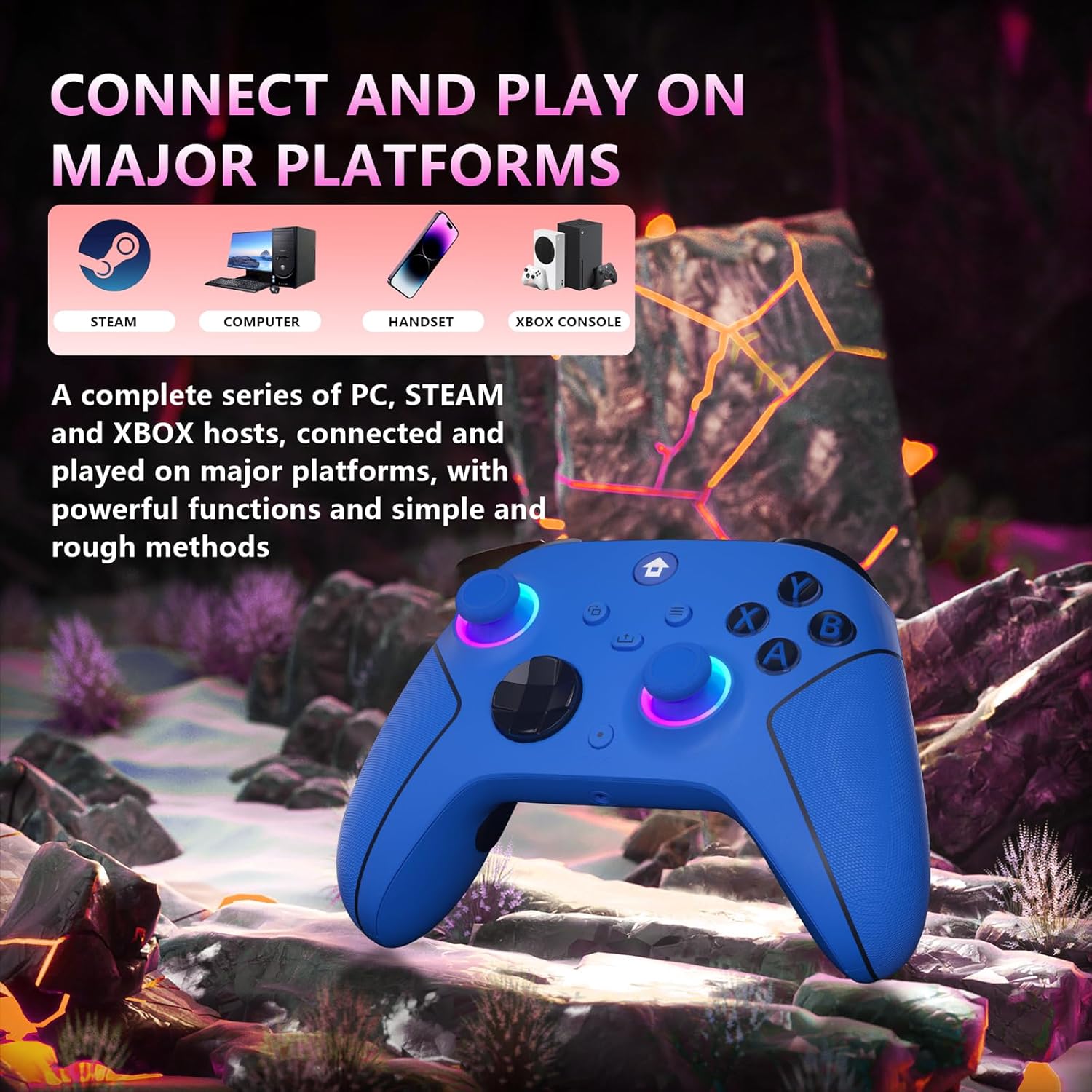
Image: The YUYIU controller displaying its four distinct RGB lighting modes: RGB LED off, Flashing Light, Breath LED light, and Solid LED lights.
- Monochrome Light Constant On Mode: Press the Light Setting Key + A button. Each press of the Light Setting Key will cycle through blue, ice blue, green, orange, yellow, red, and pink colors.
- Breathing Mode: Press the Light Setting Key + B button. The lights will breathe and change colors in sequence (blue, ice blue, green, orange, yellow, red, pink).
- Circle Running Marquee Changing Mode: Press the Light Setting Key + Y button. The lights will rotate and change colors in sequence (blue, ice blue, green, orange, yellow, red, leaf green).
- To turn the lights ON/OFF, press and hold the Light Setting Key.
Video: A tutorial demonstrating how to control and change the RGB lighting modes on the YUYIU Wireless Controller.
Video: Another tutorial detailing the lighting control features of the YUYIU Wireless Controller.
5.2. Turbo Function
The Turbo function allows for rapid, repeated button presses. There are three states for each button: Normal, Hold Turbo, and Auto Turbo.
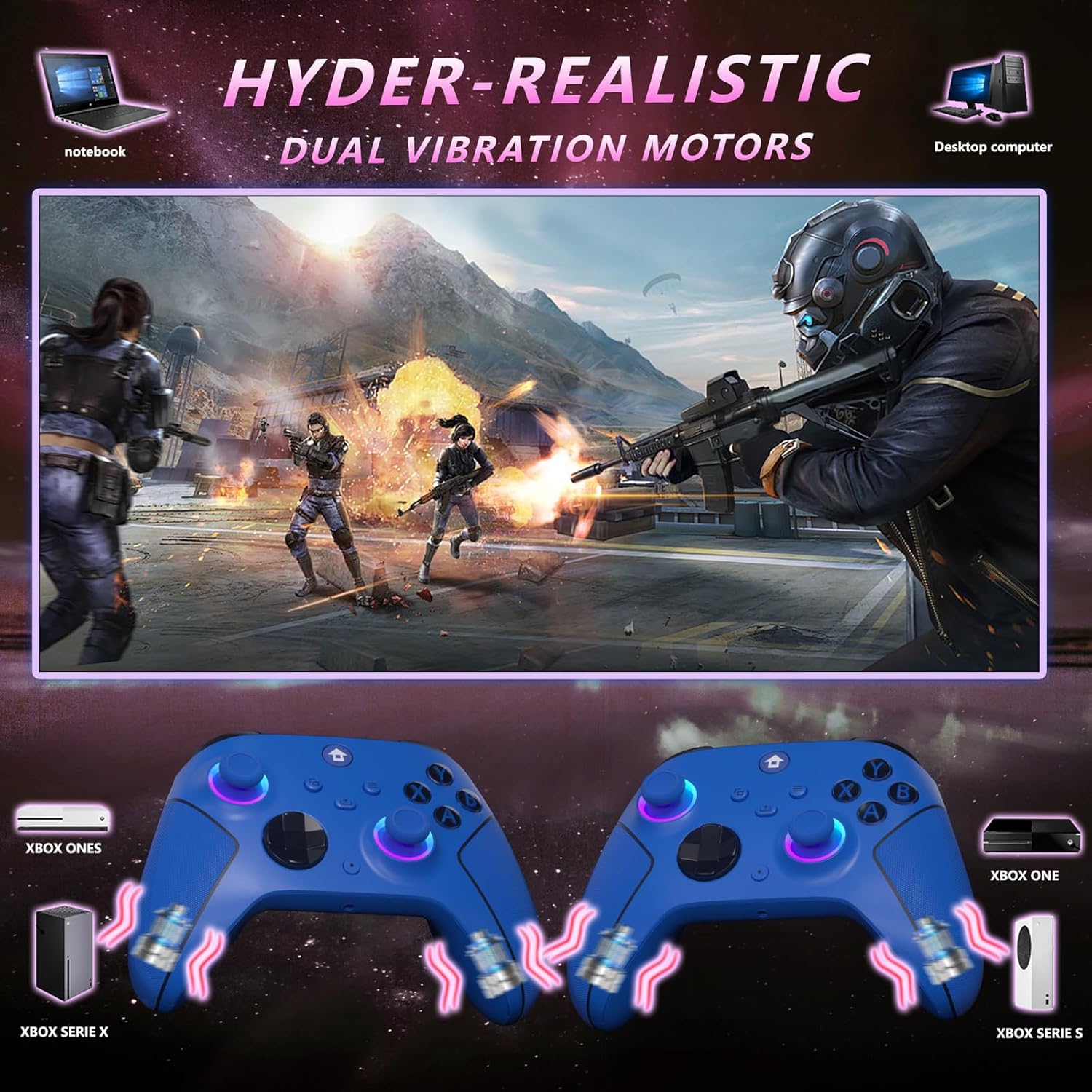
Image: The YUYIU controller illustrating the Turbo Burst function, designed to enable easier skill execution in games.
- Setting Turbo: In any mode, press the desired action button (A/B/X/Y/L1/L2/R1/R2) and the Turbo key (first press) to set the Turbo function. The Turbo light will flash.
- Setting Auto Turbo: Press the action button and Turbo key again (second press) to activate Auto Turbo. The Turbo light will flash. In Auto Turbo mode, pressing and holding the button stops rapid shots, and letting go resumes them.
- Clearing Turbo: Press the action button and Turbo key a third time to clear the Turbo function for that specific button.
- Adjusting Turbo Speed: Hold the Turbo button and press the D-pad Up/Down to adjust the rapid-fire speed (2 preset rates).
Video: A tutorial demonstrating how to set up Combo Attack and Macro Programming on the YUYIU Wireless Controller.
5.3. Programmable Keys (Macro)
The "ML" and "MR" buttons on the back of the controller can be programmed to map 1-16 basic function keys (A/B/X/Y/LB/RB/L3/R3/D-PAD) for customized gameplay.
- Entering Programming Mode: Press and hold the programming key (located between ML and MR buttons) for 3 seconds. The controller will vibrate once.
- Recording a Macro: While in programming mode, press the sequence of buttons you wish to record.
- Assigning and Exiting: Press either the ML or MR back button to confirm the recorded sequence and exit programming mode. The combo is now assigned to that back button.
- Executing Macro: Press the assigned ML or MR button once to execute your recorded combo.
Video: A tutorial demonstrating how to set up Combo Attack and Macro Programming on the YUYIU Wireless Controller.
6. Charging the Controller
The controller has a built-in 1000mAh lithium battery and supports Type-C port charging.

Image: The YUYIU controller highlighting its built-in 1000mAh battery and USB-C charging port, indicating 10-12 hours play time and 2-3 hours fast charge.
- Connect the USB-C charging cable to the controller and a power source (e.g., console, PC, USB wall adapter).
- The controller's indicator light will flash slowly during charging.
- Once fully charged, the indicator light will remain on.
- A full charge typically takes 2-3 hours and provides 10-14 hours of gameplay.
7. Specifications
| Feature | Detail |
|---|---|
| Model | XB-023 CE |
| Connectivity | 2.4GHz Wireless (with adapter), Wired (USB-C) |
| Compatibility | Xbox One/S/X, Xbox Series X|S, Steam PC (Windows 10+) |
| Battery Capacity | 1000mAh Lithium Battery |
| Charging Time | 2-3 hours |
| Play Time | 10-14 hours |
| Wireless Range | Up to 33 feet |
| Audio Jack | 3.5mm Stereo Jack |
| Vibration | Dual Vibration Motors |
| Programmable Buttons | ML/MR on back (1-16 key combinations) |
| Dimensions | 3.94 x 3.15 x 1.97 inches |
| Item Weight | 12.6 ounces |
8. Troubleshooting
- Controller not connecting:
- Ensure the 2.4GHz adapter is securely plugged into a USB port.
- Verify both the controller and adapter lights are flashing rapidly during pairing.
- Confirm your PC is running Windows 7 or above.
- Try connecting the controller directly via USB-C cable to check for basic functionality.
- RGB lights not working or changing:
- Ensure the controller is powered on.
- Press the Light Setting Key (on the back) to cycle through modes.
- Press and hold the Light Setting Key to toggle lights on/off.
- Audio jack issues (buzzing, low volume, mic feedback):
- Test your headphones/microphone with another device to ensure they are working correctly.
- Ensure the 3.5mm jack is fully inserted into the controller.
- Check audio settings on your console or PC.
- Controller not charging:
- Verify the USB-C cable is properly connected to both the controller and the power source.
- Try a different USB port or charging cable.
- Ensure the power source is active.
9. Warranty and Support
YUYIU is committed to providing quality products and a good game experience. If you encounter any problems during use, please contact us by email. Our customer service team will assist you as soon as possible.
For further support, please visit the YUYIU Store on Amazon.
Ask a question about this manual
Ask about setup, troubleshooting, compatibility, parts, safety, or missing instructions. Manuals+ will review the question and use this page’s manual context to help answer it.