
1. Introduction
This manual provides detailed instructions for the setup, operation, and maintenance of your Dexnor Keyboard Case for the Samsung Galaxy Tab A9+ Plus. Please read this manual thoroughly before using the product to ensure proper functionality and longevity.
2. Compatibility
This keyboard case is specifically designed for the 11-inch Samsung Galaxy Tab A9+ Plus (2023) with model numbers SM-X210, SM-X215, SM-X216, and SM-X218. It is not compatible with Samsung Galaxy Tab A9, S9+ Plus, S9 FE+ Plus, S9 Ultra, S9, or S9 FE models. Please verify your tablet's model number before use.
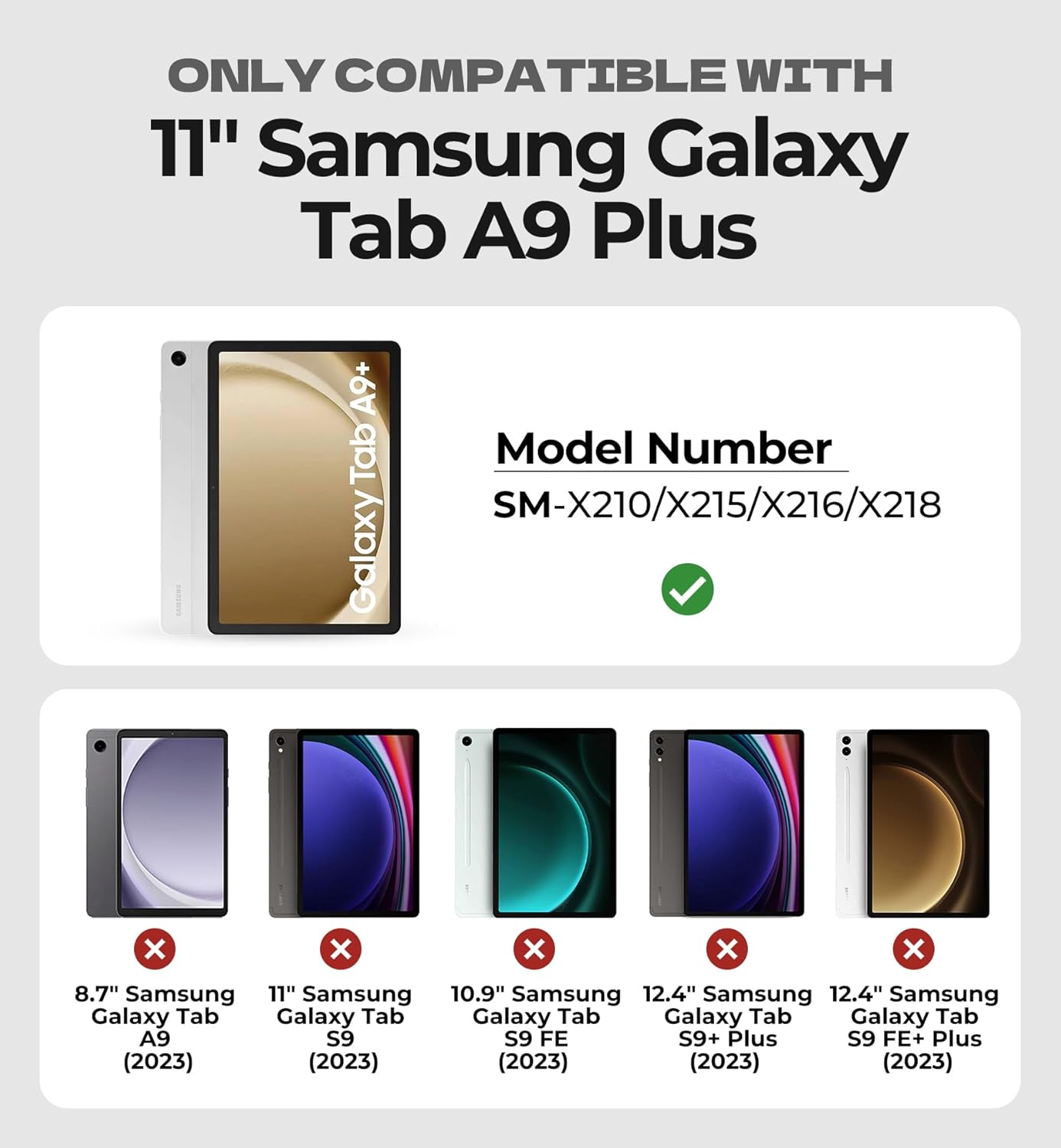
Image: Compatibility chart for Dexnor Keyboard Case, highlighting supported and unsupported Samsung Galaxy Tab models.
3. Package Contents
- 1 x Dexnor Keyboard Case for Samsung Galaxy Tab A9+ Plus
- 1 x USB-C Charging Cable
- 1 x Quick-start Guide
- 1 x User Manual (this document)
4. Product Features
- Ultra-Stable Magnetic Support: Strong magnets securely attach the tablet to the keyboard case, providing a stable viewing and typing experience. The ergonomic design allows for a 120-degree viewing angle.
- Multi-Touch Trackpad: Features a built-in trackpad that supports multi-finger gestures for precise navigation, file management, web browsing, and app switching. The trackpad can be disabled by pressing Fn + Spacebar.
- Backlit Keyboard: Single-color backlight with three adjustable brightness levels for comfortable typing in low-light conditions.
- Rechargeable Battery: Equipped with a 650mAh lithium polymer battery, offering up to 720 hours of standby time, 200 hours of use without backlight, and 10 hours of continuous use with the brightest backlight. A full charge takes approximately 3 hours.
- All-around Protection: The case provides protection against drops, scratches, and daily wear. It includes a built-in stylus holder (stylus not included).
- Laptop-like Typing: Features perfectly spaced, responsive scissor-switch keys and a full row of shortcut keys for quick access to media functions, screen brightness, and volume.
- Upgraded Power-saving Design: The keyboard automatically powers on when the case is opened and wakes the tablet. Closing the case turns off the keyboard and puts the tablet to sleep. The keyboard enters sleep mode after 30 minutes of inactivity, and the backlight sleeps after 45 seconds of inactivity.

Image: Dexnor Keyboard Case with Samsung Galaxy Tab A9+ Plus in use.
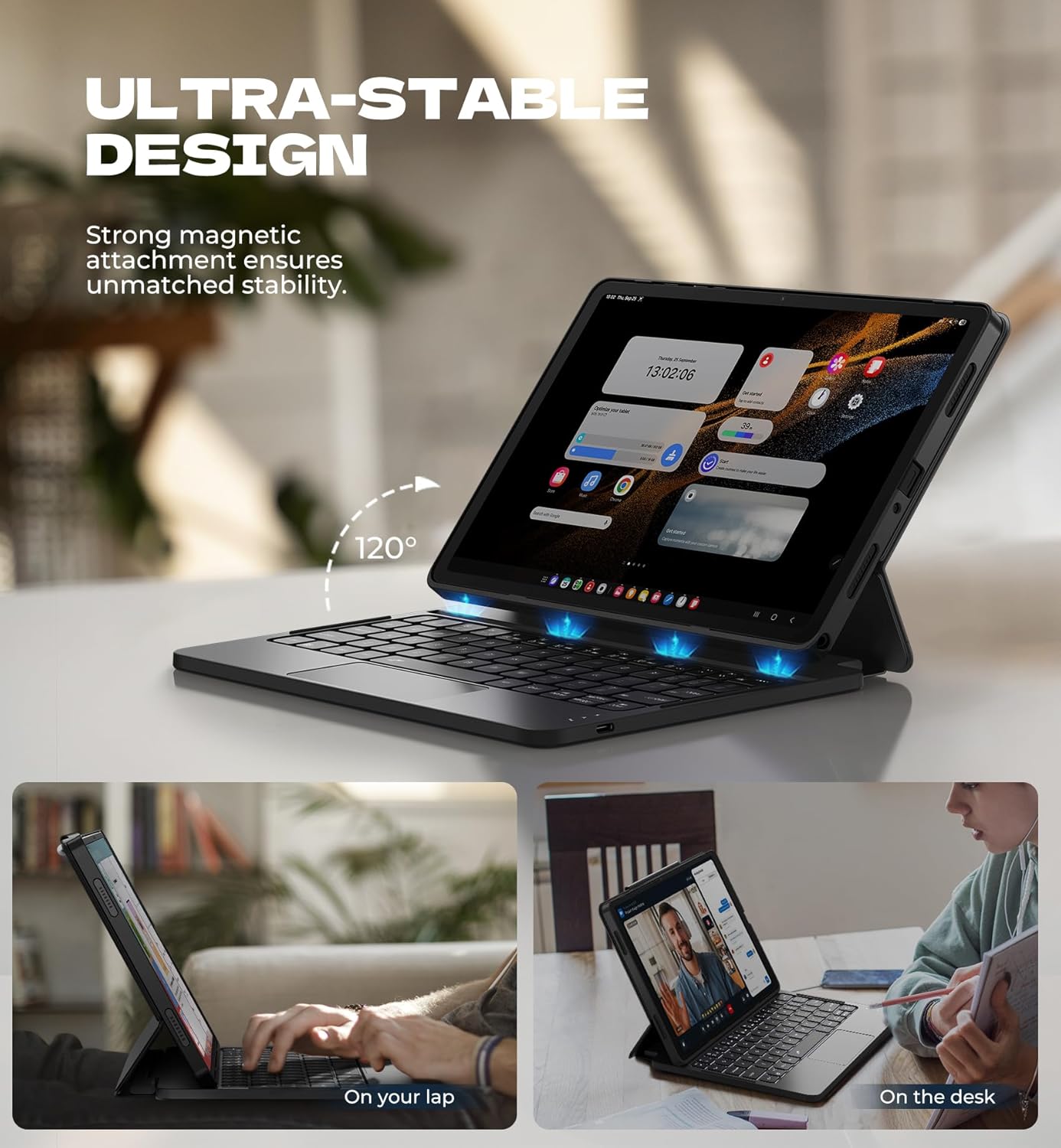
Image: Ultra-stable design of the keyboard case.

Image: Multi-touch trackpad features.
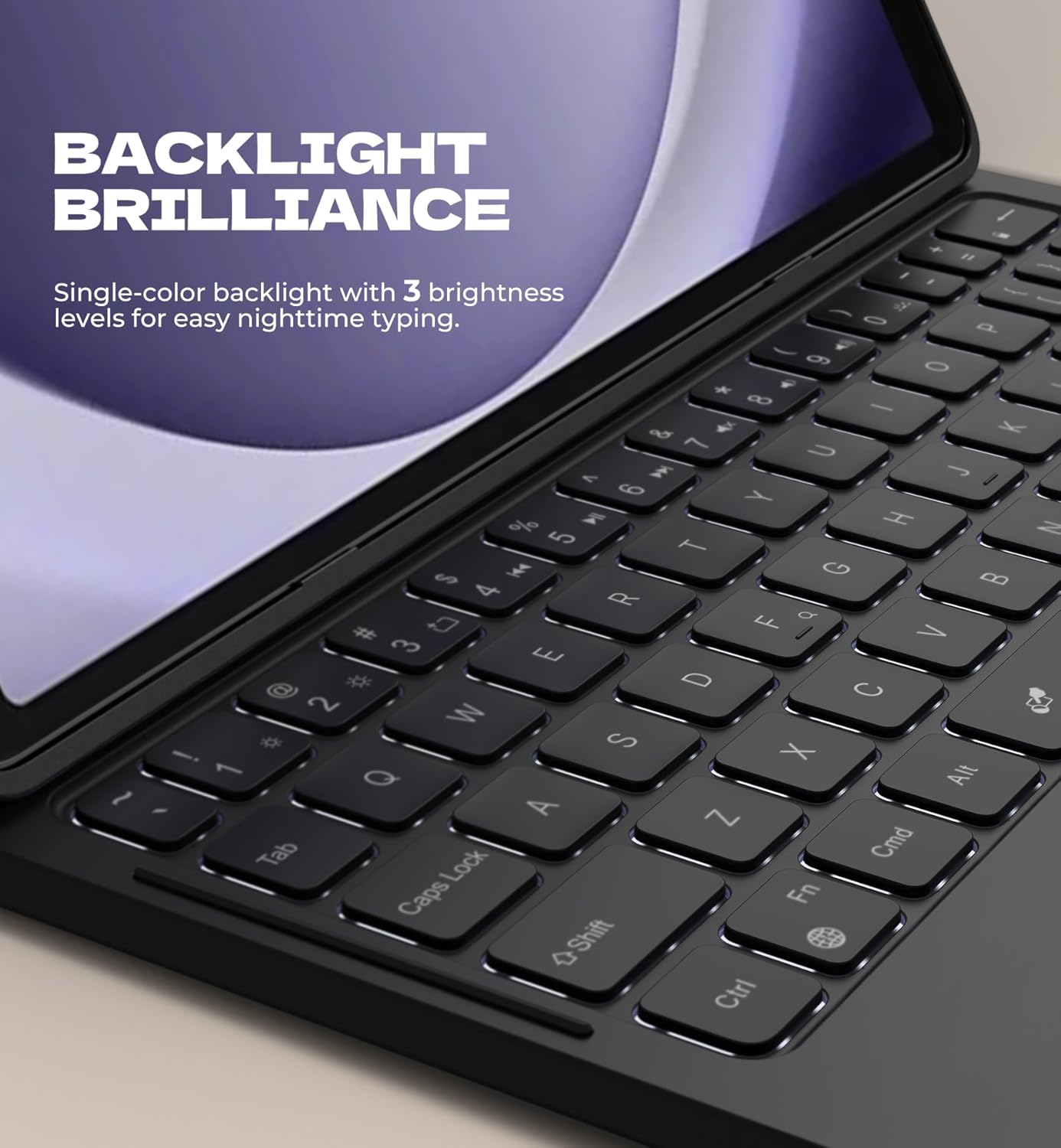
Image: Backlit keyboard for low-light typing.
Video: Demonstrates the ease of use and portability of the Dexnor Keyboard Case, showing a user attaching the tablet, typing, and carrying the device.
5. Setup Instructions
- Insert Tablet: Gently place your Samsung Galaxy Tab A9+ Plus into the protective PC case. Ensure all ports and buttons align correctly. The strong magnets in the case will secure the tablet.
- Power On Keyboard: Open the keyboard case. The keyboard will automatically power on.
- Pair via Bluetooth:
- On your Samsung Galaxy Tab A9+ Plus, go to Settings > Connected devices > Bluetooth.
- Turn on Bluetooth.
- On the keyboard, press the Fn key and the C key simultaneously to enter pairing mode. The Bluetooth indicator light on the keyboard will flash.
- On your tablet, select "Dexnor Keyboard" (or similar name) from the list of available devices.
- Follow any on-screen prompts to complete the pairing process. The Bluetooth indicator light on the keyboard will turn off once successfully paired.
6. Operating Instructions
6.1. Using the Trackpad
- Single Finger Tap: Left-click.
- Two Finger Tap: Right-click.
- Two Finger Scroll: Scroll up/down or left/right.
- Pinch In/Out: Zoom in/out.
- Three Finger Swipe Up: View open applications.
- Three Finger Swipe Left/Right: Switch between open applications.
- Disable Trackpad: Press Fn + Spacebar to toggle the trackpad on/off.
6.2. Adjusting Backlight
- Press the light bulb icon key (usually near the top right of the keyboard) to cycle through backlight brightness levels (Low, Medium, High, Off).
6.3. Using Shortcut Keys
The top row of keys provides quick access to various functions. Refer to the icons on the keys for specific functions such as media control, volume adjustment, and screen brightness.
- To activate a shortcut, press the desired shortcut key.
- To use the traditional F1-F12 functions, press Fn and the corresponding shortcut key.
6.4. DeX Mode
The keyboard supports Samsung DeX mode. To activate DeX mode, press Fn + Enter.
7. Charging the Keyboard
When the battery is low, the power indicator light on the keyboard will flash. To charge the keyboard:
- Connect the included USB-C charging cable to the charging port on the keyboard.
- Connect the other end of the cable to a USB power adapter (not included) or a computer's USB port.
- The charging indicator light will illuminate during charging and turn off once fully charged.
A full charge takes approximately 3 hours.
8. Power Saving Features
- Automatic On/Off: Opening the case automatically powers on the keyboard and wakes your tablet. Closing the case powers off the keyboard and puts your tablet to sleep.
- Keyboard Sleep Mode: The keyboard will enter sleep mode after 30 minutes of inactivity to conserve power. Press any key to wake it up.
- Backlight Sleep Mode: The backlight will turn off after 45 seconds of inactivity. Press any key to reactivate it.
9. Maintenance
- Keep the keyboard case away from liquids and extreme temperatures.
- Clean the surface of the case and keyboard with a soft, damp cloth. Avoid using harsh chemicals.
- Do not attempt to disassemble the keyboard or case.
10. Troubleshooting
- Keyboard not connecting via Bluetooth:
- Ensure the keyboard is charged.
- Make sure Bluetooth is enabled on your tablet.
- Re-enter pairing mode on the keyboard (Fn + C).
- Forget the device on your tablet's Bluetooth settings and attempt to pair again.
- Restart both your tablet and the keyboard.
- Keys not responding:
- Check if the keyboard is powered on and connected via Bluetooth.
- Ensure the keyboard battery is not depleted.
- If the issue persists, try re-pairing the keyboard.
- Trackpad not working:
- Ensure the trackpad is not disabled (press Fn + Spacebar to toggle).
- Check Bluetooth connection and battery level.
11. Specifications
| Feature | Detail |
|---|---|
| Model Number | DK006 |
| Compatible Devices | Samsung Galaxy Tab A9+ Plus 11" (2023) |
| Connectivity Technology | Bluetooth |
| Keyboard Description | Multi Functional, Scissor-switch keys |
| Special Features | Backlit keys, Multi-gesture trackpad, Auto-wake/sleep, Magnetic attachment, Stylus holder |
| Battery Capacity | 650mAh Lithium Polymer |
| Standby Time | Up to 720 hours |
| Working Time (no backlight) | Up to 200 hours |
| Working Time (brightest backlight) | Up to 10 hours |
| Charging Time | Approximately 3 hours |
| Item Weight | 1.36 pounds (approx. 617g) |
| Material | PU leather, Polycarbonate |
| Power Source | USB Powered |
12. Warranty and Support
For warranty information and customer support, please refer to the documentation provided with your purchase or contact Dexnor customer service through their official website or the retailer where the product was purchased. Keep your purchase receipt for warranty claims.


