
1. Setup
1.1 Package Contents
- AJAZZ AJ139 V2 MC Gaming Mouse
- Charging Base
- USB-C to USB-A Cable
- 2.4G USB Receiver
1.2 Charging the Mouse
The AJAZZ AJ139 V2 MC mouse features a 500mAh rechargeable battery. To charge the mouse:
- Connect the charging base to a power source using the provided USB-C cable.
- Place the mouse onto the charging base, aligning the magnetic contacts. The mouse will begin charging.
- Alternatively, connect the mouse directly to a USB port using the USB-C cable for wired charging.

Image: The AJAZZ AJ139 V2 MC mouse positioned on its wireless charging base, illustrating the charging process.

Image: The AJAZZ AJ139 V2 MC mouse alongside its dedicated charging dock.
1.3 Connecting the Mouse
The mouse supports three connection modes: 2.4G Wireless, Bluetooth, and Wired. A switch on the bottom of the mouse allows selection between these modes.

Image: Visual representation of the three available connection modes for the AJAZZ AJ139 V2 MC mouse.

Image: Underside of the AJAZZ AJ139 V2 MC mouse, highlighting the mode selection switch and indicator light.
1.3.1 2.4G Wireless Mode
- Locate the 2.4G USB receiver, typically stored in a compartment on the underside of the mouse.
- Plug the USB receiver into an available USB port on your computer.
- Set the mode switch on the bottom of the mouse to the '2.4G' position.
- The mouse should connect automatically.
1.3.2 Bluetooth Mode
- Set the mode switch on the bottom of the mouse to the 'BT' position.
- On your computer or device, open Bluetooth settings and enable Bluetooth.
- The mouse should appear in the list of available devices (e.g., 'AJAZZ AJ139 V2 MC'). Select it to pair.
1.3.3 Wired Mode
- Connect the provided USB-C cable to the mouse and the USB-A end to your computer.
- Set the mode switch on the bottom of the mouse to the 'Wired' position.
- The mouse will function as a wired device and charge simultaneously.
2. Operation
2.1 Button Functions
The AJAZZ AJ139 V2 MC mouse features standard mouse buttons and additional programmable buttons:
- Left Click: Primary action button.
- Right Click: Secondary action button, typically for context menus.
- Scroll Wheel: Scrolls content vertically. Can also be pressed for a middle-click function.
- Side Buttons (Forward/Backward): Default functions for navigation in web browsers or file explorers. These can often be customized via software.
- DPI Adjustment Button: Cycles through preset DPI sensitivity levels.
2.2 DPI Adjustment
The mouse allows for on-the-fly DPI (Dots Per Inch) adjustment to change cursor sensitivity. Press the DPI adjustment button, located behind the scroll wheel, to cycle through different DPI settings. An indicator light may change color or flash to indicate the current DPI level.
2.3 Indicator Light
The mouse features an indicator light that provides information on its status:
- Charging: The light will indicate when the mouse is charging and when it is fully charged.
- Low Battery: The light will flash or change color to warn of a low battery level.
- DPI Level: The light may briefly change color or flash to indicate the current DPI setting when adjusted.
- Connection Mode: The light might indicate the active connection mode (2.4G, BT, Wired).
3. Maintenance
3.1 Cleaning
To ensure optimal performance and longevity, clean your mouse regularly:
- Use a soft, lint-free cloth slightly dampened with water or a mild cleaning solution.
- Avoid harsh chemicals, abrasive materials, or excessive moisture.
- Clean the optical sensor area on the bottom of the mouse to prevent tracking issues.
3.2 Battery Care
To maximize the lifespan of the 500mAh battery:
- Avoid fully discharging the battery frequently.
- Store the mouse in a cool, dry place if not used for extended periods.
- Charge the mouse using the provided cable and charging base.
4. Troubleshooting
If you encounter issues with your AJAZZ AJ139 V2 MC mouse, refer to the following common problems and solutions:
4.1 Connectivity Issues
- Mouse not connecting in 2.4G mode: Ensure the USB receiver is securely plugged in and the mouse switch is set to '2.4G'. Try a different USB port.
- Mouse not connecting in Bluetooth mode: Ensure Bluetooth is enabled on your device and the mouse switch is set to 'BT'. Re-pair the mouse if necessary.
- Intermittent connection: Move the mouse closer to the receiver/device. Avoid sources of interference (e.g., other wireless devices).
4.2 Tracking Problems
- Cursor erratic or unresponsive: Clean the optical sensor on the bottom of the mouse. Ensure you are using the mouse on a suitable surface (e.g., a mouse pad).
- DPI not changing: Press the DPI button firmly. If using software, ensure it is correctly configured.
4.3 Charging Issues
- Mouse not charging: Ensure the USB cable is properly connected to both the charging base/mouse and the power source. Verify the magnetic contacts on the charging base and mouse are clean and aligned. Try a different USB port or power adapter.
- Short battery life: Ensure the mouse is fully charged before use. Reduce polling rate or RGB lighting if possible (check software options).
5. Specifications
Key technical specifications for the AJAZZ AJ139 V2 MC Tri-Mode Connected Mouse:
| Feature | Specification |
|---|---|
| Model | AJ139 V2 MC |
| Sensor | PAW3311 Optical Sensor |
| Connectivity | Tri-Mode (2.4G Wireless, Bluetooth, Wired) |
| DPI (Dots Per Inch) | Up to 12000 DPI (Adjustable) |
| Return Rate | 1000Hz |
| Tracking Speed | 300 IPS |
| Acceleration | 35G |
| Battery Capacity | 500mAh |
| Weight | Approximately 66 grams |
| Dimensions | 5 x 2.5 x 0.1 inches (Product Dimensions) |
| Item Model Number | Aj139 V2 MC |
| ASIN | B0FNZW3YPR |
| UPC | 6976412985584 |
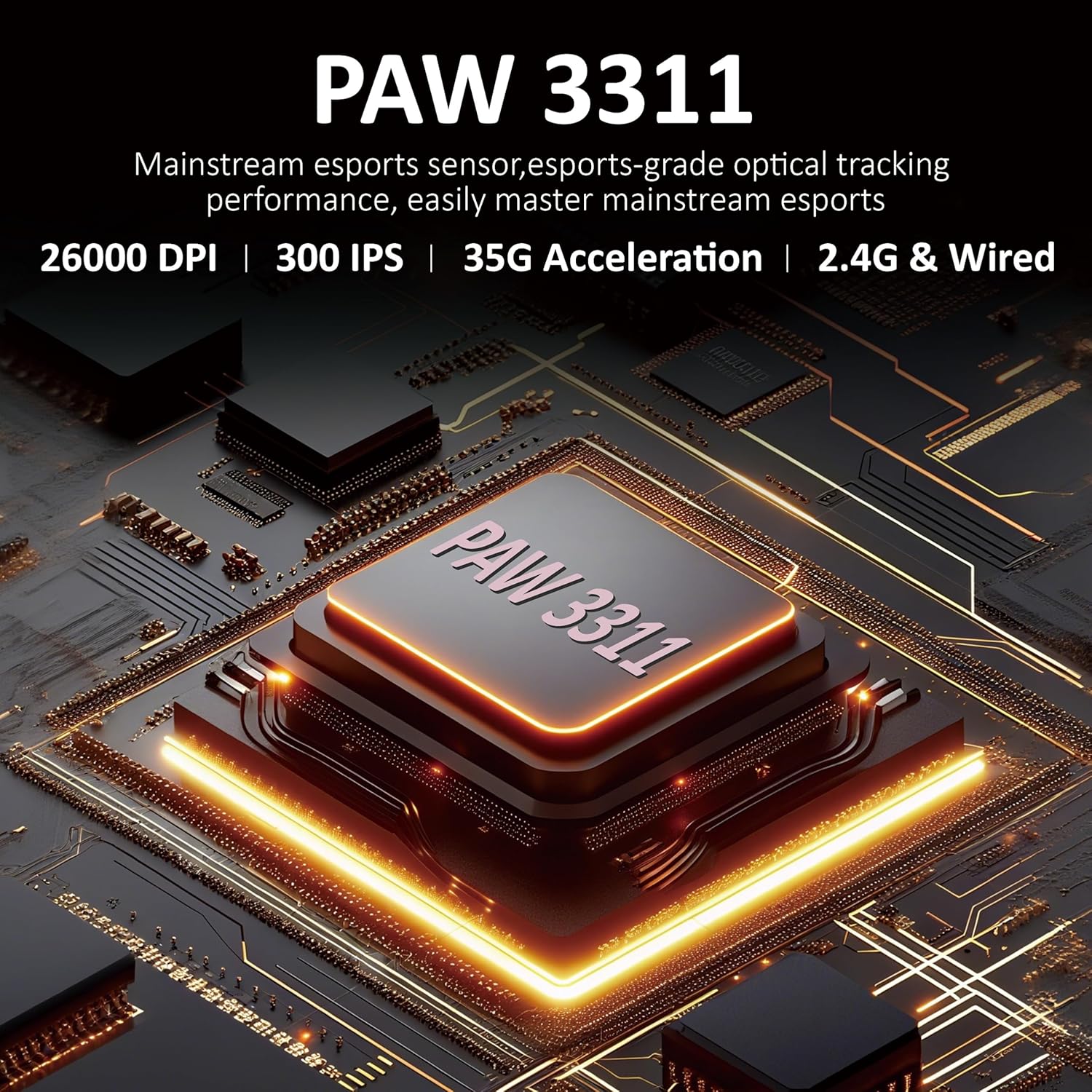
Image: Close-up of the PAW3311 optical sensor, highlighting its core component.

Image: Key features of the mouse including 1000Hz refresh rate, 500mAh battery, and lightweight design.

Image: The AJAZZ AJ139 V2 MC mouse, highlighting its 66-gram lightweight construction.
6. Warranty and Support
For warranty information and technical support, please refer to the official AJAZZ website or contact their customer service. Keep your purchase receipt as proof of purchase.
For further assistance, visit the AJAZZ Store on Amazon.


