
1. Introduction
Thank you for choosing the Lefant M310 Ultra Robot Vacuum. This manual provides essential information for the safe operation, maintenance, and optimal performance of your new robot vacuum. Please read it thoroughly before first use and retain it for future reference.
The Lefant M310 Ultra is designed to provide a comprehensive cleaning solution, featuring vacuuming, sweeping, and mopping capabilities. Its advanced navigation and smart features ensure efficient cleaning of various floor types.
2. What's in the Box
Carefully unpack your Lefant M310 Ultra and ensure all components are present. If any items are missing or damaged, please contact Lefant customer service.
- Lefant M310 Ultra Robot Vacuum
- Charging Dock
- Power Adapter
- Side Brushes (4 pcs)
- Dustbin
- Water Tank with Mop Cloth
- User Manual (this document)

Image: The Lefant M310 Ultra Robot Vacuum, its charging dock, the Lefant app interface on a smartphone and smartwatch, and four side brushes.
3. Setup
3.1 Charging the Robot
- Place the charging dock against a wall in an open area, ensuring there are no obstacles within 1 meter (3 feet) to the sides and 2 meters (6 feet) in front.
- Connect the power adapter to the charging dock and plug it into a wall outlet.
- Place the robot vacuum onto the charging dock. Ensure the charging contacts on the robot align with those on the dock. The indicator light on the robot will show charging status.
3.2 Installing Side Brushes
The side brushes are crucial for effective edge cleaning. Install them before first use.
- Turn the robot vacuum upside down.
- Align each side brush with the corresponding square post on the bottom of the robot.
- Press down firmly until the brush clicks into place. Ensure all four brushes are securely attached.

Image: A hand demonstrating the easy removal and installation of a side brush onto the underside of the robot vacuum.
3.3 Connecting to the Lefant App
For full control and smart features, download the Lefant App.
- Download the 'Lefant' app from the App Store (iOS) or Google Play Store (Android).
- Register an account and log in.
- Follow the in-app instructions to add your M310 Ultra robot vacuum. Ensure your Wi-Fi network is 2.4GHz.

Image: Illustrations of the Lefant app on a smartphone and integration with voice assistants like Amazon Alexa and Google Assistant, highlighting 2.4GHz Wi-Fi compatibility.
4. Operating Instructions
4.1 Cleaning Modes
The Lefant M310 Ultra offers various cleaning modes to suit your needs, accessible via the Lefant App:
- Plan Mode: Follows a systematic path for thorough cleaning.
- Random Mode: Cleans randomly, suitable for open spaces.
- Along the Wall Mode: Focuses on cleaning edges and corners.
- Fixed Point Mode: Concentrates cleaning in a specific area.
4.2 Vacuum, Sweep, and Mop Functions
The M310 Ultra is an all-in-one cleaning solution. You can choose between vacuum-only, vacuum and mop, or mop-only modes.
- Vacuum Only: Remove the water tank and mop cloth for dry vacuuming.
- Vacuum & Mop: Attach the water tank with a damp mop cloth for simultaneous vacuuming and mopping.
- Mop Only: Ensure the water tank is filled and the mop cloth is attached. The robot will focus on mopping.

Image: Visual representation of the robot vacuum performing mop mode, vacuum & mop mode, and vacuum only mode on different floor types.
4.3 Carpet Detection & Auto-Boost
The M310 Ultra features advanced carpet detection. When the mop holder is installed, the robot will avoid carpets to prevent wetting them. When the mop holder is removed, the suction power automatically increases to maximum on carpets for a deeper clean.

Image: The robot vacuum cleaning a floor with a pet present, highlighting its powerful pet hair pickup and quiet operation (55dB) with different suction modes (Eco, Standard, Max).
4.4 Obstacle Recognition
The robot is equipped with precision obstacle recognition and evasion technology, utilizing a 190-degree PSD (Position Sensitive Detector) to navigate around furniture and objects, minimizing collisions.
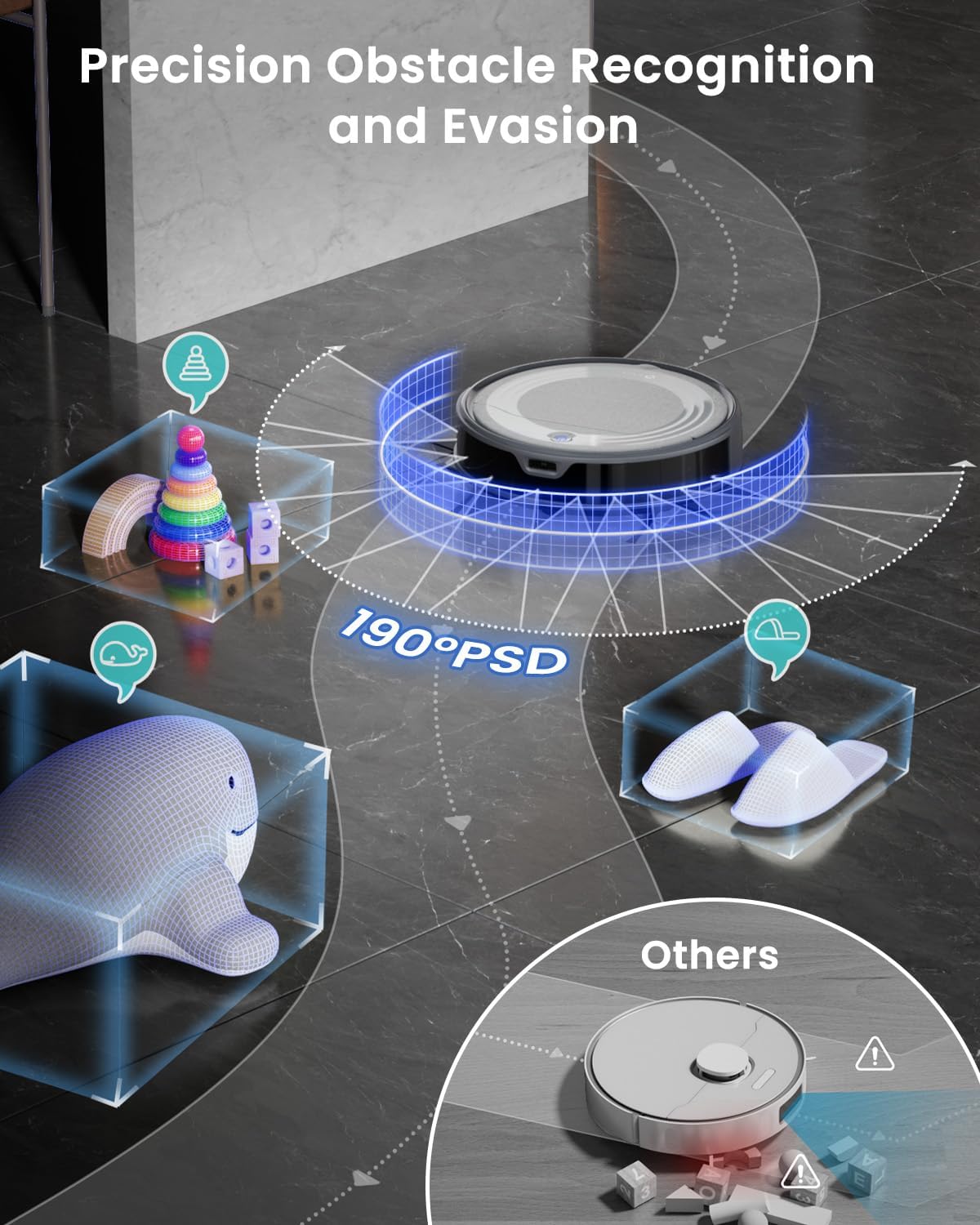
Image: An illustration showing the Lefant M310 Ultra's 190-degree PSD sensor detecting and evading various household objects like toys and slippers.
4.5 Automatic Recharge
The robot vacuum is equipped with a 2600mAh battery, providing up to 170 minutes of continuous cleaning. When cleaning is complete or the battery level is low, the robot will automatically return to its charging station to recharge.
5. Maintenance
Regular maintenance ensures the longevity and optimal performance of your Lefant M310 Ultra.
5.1 Cleaning the Dustbin and Filter
- Press the dustbin release button and pull out the dustbin.
- Open the dustbin cover and empty its contents into a trash can.
- Remove the filter and tap it gently to remove dust. Do not wash the filter with water.
- Rinse the dustbin with water if necessary, ensuring it is completely dry before reinstallation.
- Reinstall the filter and dustbin into the robot.
5.2 Cleaning Side Brushes
Inspect side brushes regularly for tangled hair or debris. If brushes become bent, they can often be restored.
- Remove the side brushes from the robot.
- Remove any hair or debris tangled around the brushes.
- If the bristles are bent, place the brush into hot water for a few minutes to help them straighten.
- Shake off excess water and allow to air dry completely before reattaching.

Image: A four-step visual guide demonstrating how to straighten bent side brush bristles by soaking them in hot water.
5.3 Cleaning Sensors and Charging Contacts
Wipe all sensors and charging contacts with a clean, dry cloth periodically to ensure proper function.
6. Troubleshooting
If you encounter issues with your Lefant M310 Ultra, refer to the following common problems and solutions:
| Problem | Possible Cause | Solution |
|---|---|---|
| Robot does not turn on | Low battery; Power switch off | Charge the robot; Ensure power switch is on |
| Robot cannot charge | Charging contacts dirty; Dock not powered | Clean charging contacts; Check power connection to dock |
| Poor cleaning performance | Dustbin full; Filter clogged; Brushes tangled | Empty dustbin; Clean/replace filter; Clean side brushes |
| Robot gets stuck frequently | Too many obstacles; Cliff sensors dirty | Clear obstacles; Clean cliff sensors |
| App connection issues | Incorrect Wi-Fi (not 2.4GHz); Robot too far from router | Ensure 2.4GHz Wi-Fi; Move robot closer to router; Restart app/robot |
If the problem persists, please contact Lefant customer service for further assistance.
7. Specifications
- Model: M310 Ultra
- Battery Capacity: 2600mAh
- Max Runtime: Up to 170 minutes
- Dustbin Capacity: 500ml
- Water Tank Capacity: 200ml
- Connectivity: 2.4GHz Wi-Fi
- Noise Level: Approximately 55dB (Eco Mode)
- Dimensions: (Refer to product packaging for exact dimensions)
8. Warranty and Customer Support
Lefant provides a standard warranty for the M310 Ultra Robot Vacuum. Please refer to the warranty card included in your packaging for specific terms and conditions.
For any questions, technical support, or warranty claims, please contact Lefant customer service. Our professional customer service team is available 24/7 (Monday to Friday) to assist you.
Contact Information:
- Website: www.lefant.com (for support and FAQs)
- Email: (Refer to product packaging or website for specific email address)


