
1. Introduction
Thank you for choosing the Mrowly 2K 3MP Window Camera Y661. This manual provides essential information for the proper installation, operation, and maintenance of your security camera. Please read this manual thoroughly before using the product and retain it for future reference.
The Mrowly Y661 is designed for indoor use, offering 2K 3MP resolution, dual-band 2.4G/5G Wi-Fi connectivity, color night vision, and advanced detection capabilities for persons and vehicles. Its unique window-mount design allows for discreet surveillance without drilling.
2. Safety Information
- Ensure the camera is powered by a stable power source as specified.
- Do not expose the camera to extreme temperatures, humidity, or direct sunlight.
- Avoid placing the camera near strong electromagnetic fields.
- Do not attempt to disassemble or modify the camera. This will void the warranty.
- Keep the camera and its accessories out of reach of children.
- Use only approved accessories with the camera.
3. Product Overview
The Mrowly Y661 Window Camera is a compact and versatile security device. It features a high-resolution lens, infrared LEDs for night vision, a microphone, a speaker for two-way audio, and a USB-C power port.
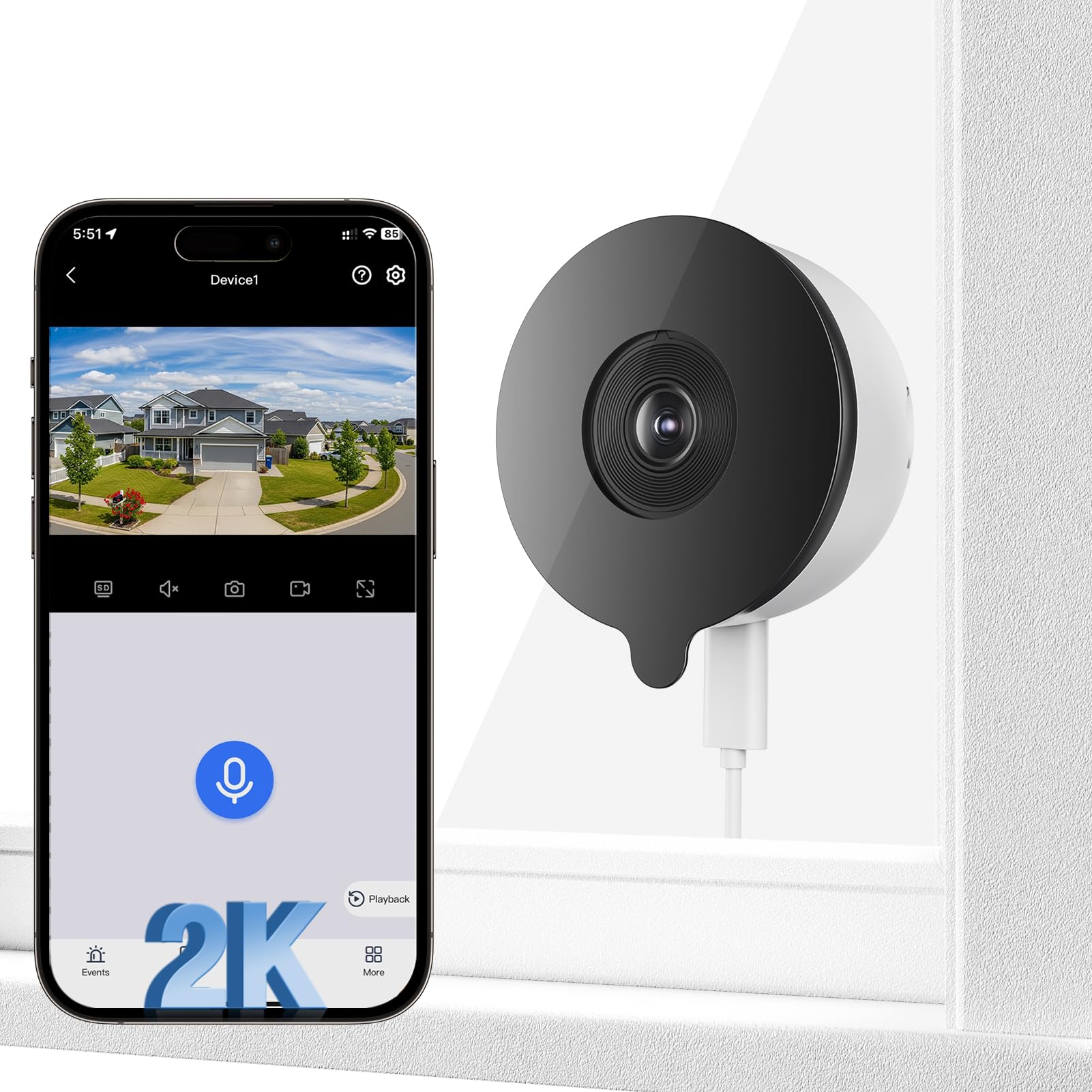
Image 1: Mrowly 2K 3MP Window Camera Y661. This image shows the front view of the camera, highlighting its compact design and lens.
Key Features:
- 2K 3MP Resolution: Provides clear and detailed video footage.
- Dual-Band Wi-Fi: Supports both 2.4G and 5G Wi-Fi networks for flexible connectivity.
- Color Night Vision: Enhanced visibility in low-light conditions.
- Person/Vehicle Detection: Intelligent algorithms reduce false alarms.
- Two-Way Audio: Communicate with visitors or deter intruders remotely.
- Window Mount Design: Easy installation without drilling, ideal for indoor placement looking outwards.
4. Setup
4.1 Package Contents
- Mrowly 2K 3MP Window Camera Y661
- USB-C Power Cable
- Power Adapter
- Window Mounting Adhesives
- User Manual (this document)
4.2 Initial Setup
- Download the App: Scan the QR code provided in the quick start guide or search for the official Mrowly app in your smartphone's app store (iOS/Android).
- Create an Account: Open the app and follow the on-screen instructions to register a new account or log in if you already have one.
- Power On the Camera: Connect the USB-C power cable to the camera and the power adapter, then plug the adapter into a power outlet. The camera will power on and indicate its status (e.g., flashing LED).
- Add Device: In the app, tap the '+' icon to add a new device. Select your camera model (Y661) and follow the in-app instructions to connect it to your Wi-Fi network. Ensure your phone is connected to the same Wi-Fi network (2.4GHz or 5GHz) you intend to use for the camera.
- Pairing: The app will guide you through the pairing process, which typically involves scanning a QR code displayed on your phone screen with the camera's lens.
4.3 Mounting the Camera
The Mrowly Y661 is designed for window mounting, allowing it to monitor outdoor areas from inside your home without drilling.
- Choose a Location: Select a clean, dry window surface that provides the desired viewing angle. Ensure the camera's field of view is not obstructed.
- Clean the Surface: Thoroughly clean the window surface where the camera will be mounted to ensure optimal adhesion.
- Apply Adhesives: Attach the provided window mounting adhesives to the designated areas on the camera.
- Mount the Camera: Press the camera firmly against the clean window surface, ensuring good contact with the adhesives. Adjust the camera's angle as needed.
- Connect Power: Ensure the power cable is securely connected and routed neatly to avoid interference.
5. Operating Instructions
5.1 App Interface Overview
Once connected, open the Mrowly app to access your camera's live feed and settings. The main screen typically displays a list of your cameras. Tap on the Y661 to view its live stream.
5.2 Live View, Recording, and Playback
- Live View: Access real-time video from your camera.
- Manual Recording: Tap the record button in the live view to manually start or stop recording.
- Playback: Access recorded footage via the 'Playback' or 'History' section in the app. You can filter by date and time.
5.3 Two-Way Audio
To use two-way audio, tap the microphone icon in the live view. Speak into your phone, and your voice will be transmitted through the camera's speaker. Release the icon to listen.
5.4 Motion Detection Settings
Navigate to the camera settings in the app to configure motion detection:
- Sensitivity: Adjust the detection sensitivity to minimize false alarms.
- Detection Zones: Set specific areas within the camera's view for motion detection.
- Alerts: Enable push notifications to receive alerts on your smartphone when motion is detected.
- Person/Vehicle Detection: Activate these advanced features to differentiate between human/vehicle movement and other motion.
5.5 Night Vision
The camera automatically switches to night vision mode in low-light conditions. The Y661 features color night vision for improved clarity.
5.6 Wi-Fi Settings
If you need to change the Wi-Fi network or switch between 2.4G and 5G, access the Wi-Fi settings within the camera's device settings in the app. Follow the prompts to reconnect to a new network.
6. Maintenance
6.1 Cleaning the Camera
To maintain optimal image quality, regularly clean the camera lens with a soft, dry, lint-free cloth. Do not use harsh chemicals or abrasive materials.
6.2 Firmware Updates
Periodically check the Mrowly app for available firmware updates. Keeping your camera's firmware up-to-date ensures optimal performance, security, and access to new features. Follow the in-app instructions for firmware updates.
7. Troubleshooting
- Camera not connecting to Wi-Fi:
- Ensure your Wi-Fi network is 2.4GHz or 5GHz and stable.
- Check if the Wi-Fi password is entered correctly.
- Move the camera closer to the Wi-Fi router.
- Restart the camera and your router.
- Poor image quality:
- Clean the camera lens.
- Ensure there is sufficient lighting.
- Check your internet connection speed.
- Motion detection not working or too many false alarms:
- Adjust motion detection sensitivity in the app.
- Configure detection zones to focus on specific areas.
- Ensure Person/Vehicle Detection is enabled if desired.
- Two-way audio not working:
- Check microphone and speaker permissions for the app on your phone.
- Ensure the camera's microphone and speaker are not obstructed.
8. Specifications
| Feature | Specification |
|---|---|
| Model Number | Y661 |
| Resolution | 2K (3 Megapixels) |
| Connectivity | Wi-Fi (2.4G/5G), Wired |
| Night Vision | Color Night Vision |
| Special Features | Two-Way Audio, Person/Vehicle Detection |
| Usage Environment | Indoor |
| Mounting Type | Window Mount |
| Video Format | MP4 |
| Dimensions (L x W x H) | 10 x 4.7 x 9 cm |
| Weight | 170 grams |
| Power Source | Wired (USB-C) |
9. Warranty and Support
Mrowly products are covered by a limited warranty from the date of purchase. Please refer to the warranty card included in your package or visit the official Mrowly website for detailed warranty terms and conditions.
For technical support, troubleshooting assistance, or any inquiries regarding your Mrowly Y661 camera, please contact our customer support team:
- Email: support@mrowly.com (Example email, please refer to actual product documentation for correct contact)
- Website: www.mrowly.com (Example website, please refer to actual product documentation for correct contact)
When contacting support, please have your product model (Y661) and purchase information ready.

