
Introduction
This manual provides detailed instructions for the installation, operation, and maintenance of your GOHHDL Android 15 Car Radio. Please read this manual thoroughly before using the product to ensure proper function and safety.
Setup and Installation
Package Contents
Verify that all items are present in the package:
- Car Radio Unit
- Power Cable
- RCA Cables
- GPS Antenna
- USB Cable
- Rear Camera Input Cable
- Radio Adapter Cable
- User Manual
- Installation Tool
- Canbus Decoder (if applicable)
- Camera (if included)
- Microphone (if included)
- Cooling Fan (pre-installed or separate)

Image: Overview of the car radio unit, its dimensions, and included accessories such as power cables, USB cables, GPS antenna, and user manual.
Wiring Diagrams
Refer to the following diagrams for correct wiring connections. Incorrect wiring can damage the unit or vehicle electrical system.
16-Pin Power Cable Connection

Image: Diagram showing the pinout for the 16-pin power cable, detailing functions like GND, ACC, B+, KEY-1, KEY-2, ILL, and speaker outputs (FL+, FL-, RR+, RR-, RL+, RL-).
Important Note: If the car player does not work properly after installation, ensure that parts A and B (as circled in the diagram) are correctly connected. If issues persist, contact customer support.
16-Pin Canbus Plug Connection
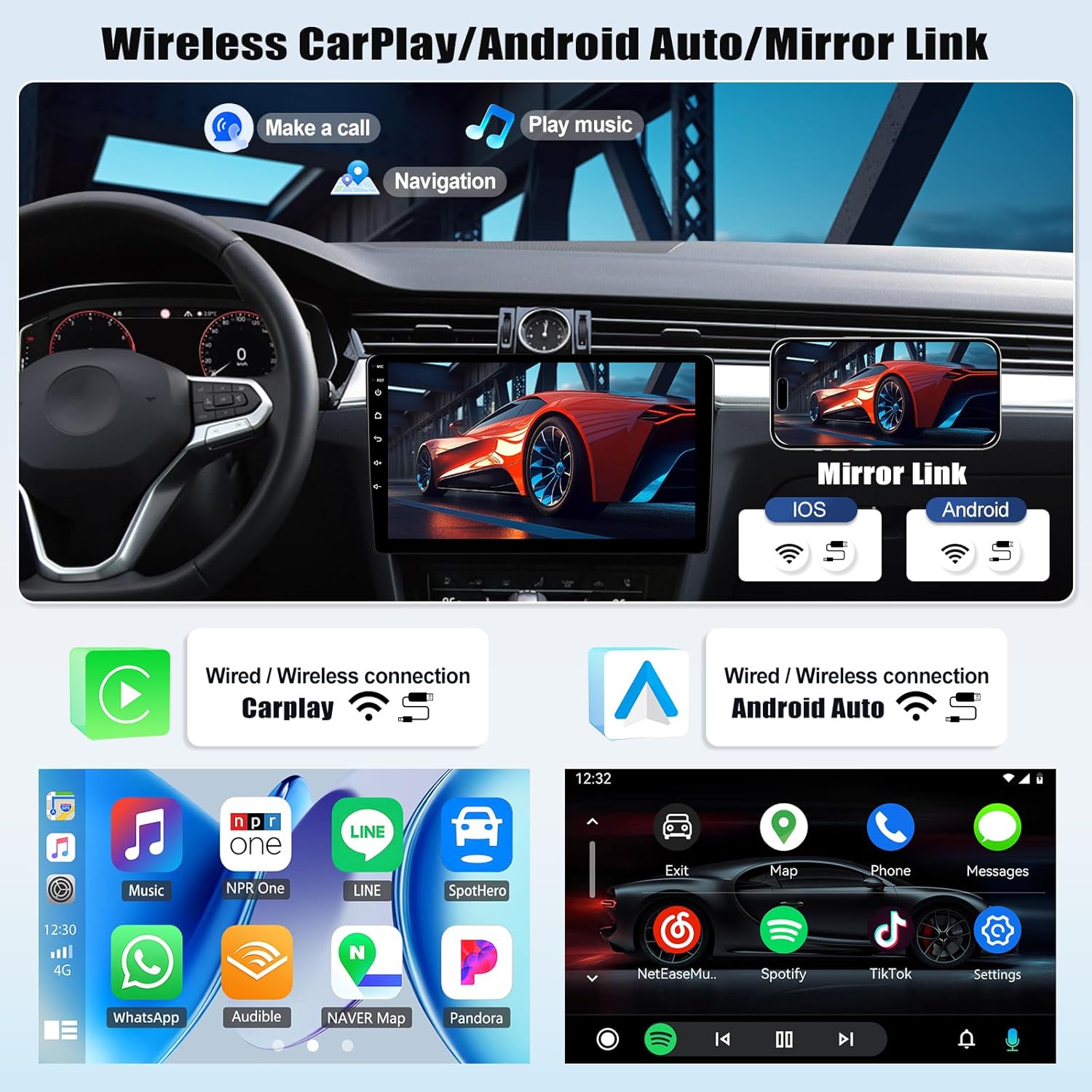
Image: Diagram illustrating the 16-pin Canbus plug connections, including GND, +BAT, CAN H, CAN L, ILL OUT, ACC OUT, BRAKE OUT, REVERSE OUT, and serial data lines. A warning advises against plugging this connector into the radio if the car has no Canbus, as it may cause malfunction.
Caution: This connector is for Canbus-equipped vehicles only. Do not plug this connector into the radio if your vehicle does not have a Canbus system, as it may lead to malfunction. The connector is either 16-pin or 20-pin depending on the vehicle model.
Operating Instructions
System Overview
Your GOHHDL car radio operates on Android 15, featuring an 8-core Qualcomm chip, 4GB RAM, and 64GB ROM for smooth performance and ample storage.

Image: A visual representation of the Android 15 car radio's high-performance specifications, highlighting the 8-core processor, 4GB RAM, and 64GB ROM.
Wireless Carplay & Android Auto
Connect your smartphone wirelessly via WiFi for seamless integration with Apple CarPlay or Android Auto. This allows for safe access to navigation, calls, messages, and music directly from the car radio's 9-inch touchscreen.

Image: Display showing the wireless CarPlay and Android Auto interfaces, demonstrating phone calls, music playback, and navigation features. It also illustrates the Mirror Link function for both iOS and Android devices.

Image: An illustration depicting wireless CarPlay and Android Auto connectivity, showing a smartphone connected to the car radio display, enabling functions like calls, music, and navigation.
Mirror Link Function
The Mirror Link feature allows you to cast your smartphone's screen content directly onto the car radio's 9-inch touchscreen. This supports both iOS and Android devices via WiFi or USB connection.

Image: A visual demonstrating the wireless Mirror Link function, where a smartphone screen is mirrored onto the car radio display, compatible with both Android and iOS.
GPS Navigation & WiFi Connectivity
The unit includes an integrated GPS receiver supporting both online and offline navigation. Connect to WiFi or a mobile hotspot to access online maps, streaming services (YouTube, Spotify), and other applications.

Image: A screenshot of the GPS navigation interface, showing a map with route directions, speed limit indicator, and various navigation app icons.

Image: A display showing the WiFi connection settings, including network options and signal strength indicator.
Bluetooth & FM/RDS Radio
Utilize Bluetooth 5.1 for hands-free calling and wireless music streaming. The integrated FM/RDS tuner supports 18 preset stations, providing clear radio reception with station information.

Image: A screenshot of the FM/RDS radio interface, displaying the frequency (87.50 MHz) and various radio functions.

Image: An illustration showing Bluetooth 5.1 connectivity for hands-free calls and music, alongside steering wheel control buttons.
Digital Sound Processor (DSP)
The built-in DSP offers various surround sound field modes, allowing for powerful bass, soft midrange, and clear treble, enhancing your audio experience with transparent stereo sound.

Image: A screenshot of the DSP audio interface, displaying controls for sound adjustments and settings, with a visual representation of sound waves.
AHD Rear View Camera Support
The unit supports an AHD rear view camera. When reversing, the car radio screen automatically displays the rear view, providing a wide-angle, HD, night-vision, and waterproof image with guide lines for safer parking.

Image: The car radio display showing the rear view camera feed with parking guidelines, highlighting features like HD, night vision, and waterproof design.

Image: A diagram illustrating the AHD reversing camera system, showing the camera's view on the car radio screen with guide lines, and a basic wiring connection for the camera.
Steering Wheel Control (SWC)
Control essential functions of the car radio directly from your vehicle's steering wheel buttons, enhancing convenience and safety while driving.
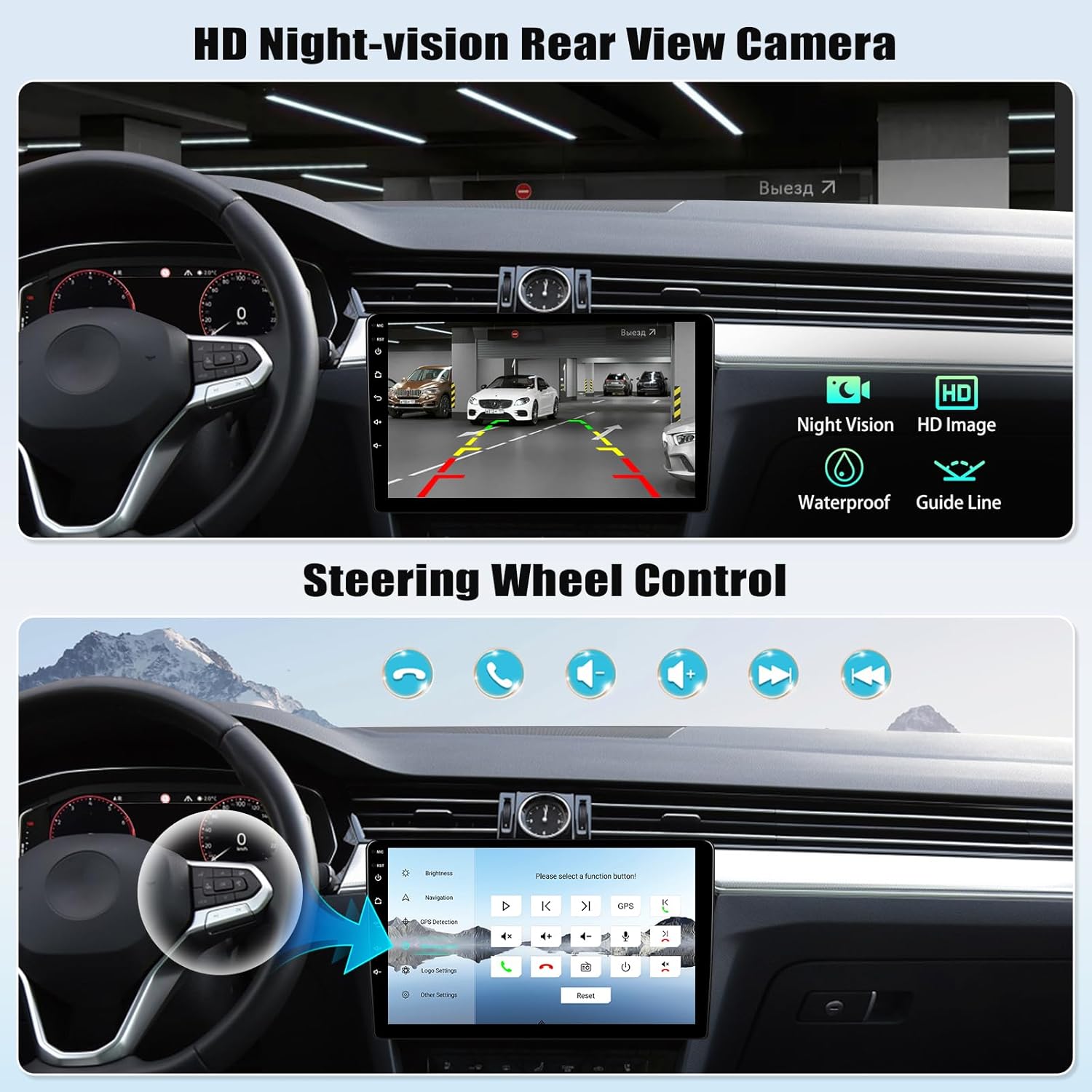
Image: The car radio display showing the steering wheel control settings, with an overlay indicating how buttons on the steering wheel can be mapped to radio functions.
Voice Control
The unit supports voice control for various functions. Activation may be required to use this feature. This allows for hands-free operation of the radio, such as making calls or changing tracks.

Image: An illustration of the voice control feature in a car, showing a virtual assistant icon and examples of voice commands like "Phone" and "Previous track."
Picture-in-Picture (PIP) Video Playback
Enjoy video playback in Picture-in-Picture mode, allowing you to view videos while simultaneously performing other operations on the screen.

Image: The car radio display demonstrating both split-screen functionality and picture-in-picture video playback, allowing multiple applications to be viewed simultaneously.

Image: An illustration of the picture-in-picture feature on the car radio, showing a video playing in a smaller window while another application is active in the main display area.
Customizable UI Design and ShaderLab Themes
Personalize your car radio's interface with various UI designs and advanced ShaderLab themes. You can adjust UI colors and font styles to match your preferences.

Image: The car radio display showcasing various colorful UI designs and themes, demonstrating the customization options available for the user interface.

Image: A screen showing the advanced ShaderLab topics interface, where users can adjust UI color and font as desired, with multiple preview windows of different themes.
3D Car Dynamic Effects
Experience 1:1 scale reproduction of vehicle exterior and interior details with dynamic 3D effects, enhancing the visual interaction with the car radio.

Image: The car radio display showing various 3D car dynamic effects, illustrating different views and customizable aspects of a virtual car model.
Window Design
The intuitive window design allows for easy and fast operation, including split view themes, card themes, and secondary interface displays.

Image: A display showing the Window Design interface, illustrating various layout options such as SplitView Theme, Card Theme, Secondary Interface display, and Full SplitView Theme.
Fan Settings
Manage the internal cooling fan settings to maintain optimal operating temperature for the unit. This feature helps prevent overheating and ensures stable performance.

Image: A screen displaying the fan settings interface, showing temperature controls, fan speed options, and a visual representation of the cooling fan.
Global Weather Display
The Global Weather Display feature shows real-time weather conditions from around the world. Activation may be required to use this feature.

Image: The car radio display showing the Global Weather Display feature, presenting current weather conditions and forecasts for different locations.
Maintenance
To ensure the longevity and optimal performance of your GOHHDL car radio, follow these general maintenance guidelines:
- Cleaning: Use a soft, dry cloth to clean the touchscreen and exterior surfaces. Avoid abrasive cleaners or solvents.
- Software Updates: Periodically check for and install available software updates to ensure the system runs efficiently and securely.
- Environmental Conditions: Avoid exposing the unit to extreme temperatures, direct sunlight for prolonged periods, or excessive moisture.
- Cable Connections: Ensure all cables are securely connected. Loose connections can lead to intermittent issues.
Troubleshooting
Steering Wheel Controls Not Working
If you encounter issues with the steering wheel controls not functioning correctly, follow these steps:
- Select Protocol: Navigate to the settings and select the correct protocol: "Hiworld - Volkswagen - Polo - 2010 - present - all models".

Image: A troubleshooting guide for steering wheel controls, showing the step to select the correct vehicle protocol in the settings, with an example of a working navigation screen after adjustment.
If the above method does not resolve the problem, please provide the following information to customer support: a video demonstrating the radio malfunction and the device's detailed model/version specifications. This will assist in arranging a replacement part if necessary.
General Issues
- No Power: Check all power cable connections. Ensure the ACC and B+ wires are correctly connected and receiving power. Verify vehicle's fuse box.
- No Sound: Check speaker wiring. Ensure volume is not muted or set to minimum. Verify DSP settings.
- GPS Signal Loss: Ensure the GPS antenna is properly installed and has a clear view of the sky.
- Bluetooth Connectivity Issues: Ensure Bluetooth is enabled on both the car radio and your smartphone. Try unpairing and re-pairing the devices.
Specifications
| Brand | GOHHDL |
| Model Number | Android 15, 4G+64G 8-Core Qualcomm |
| Operating System | Android 15 |
| Processor | 8-Core Qualcomm Chipset |
| RAM | 4GB |
| ROM | 64GB |
| Display | 9-inch Touchscreen (1280*720 LED) |
| Connectivity | Bluetooth 5.1, Wi-Fi, USB |
| Special Features | Wireless Apple CarPlay, Wireless Android Auto, Mirror Link, GPS Navigation, FM/RDS Radio, DSP Sound, SWC Support, AHD Rear Camera Support, Voice Control, Picture-in-Picture, 3D Car Dynamic Effects, Customizable UI |
| Audio Output Mode | Surround, Stereo (5.1 channels) |
| Video Encoding | H.264, H.265/HEVC |
| Compatible Devices | Smartphone |
| Input | ISO 16 pin |
Warranty and Support
The product comes with a 24-month warranty. For technical support or warranty claims, please contact the seller directly through your purchase platform.
For customer support, you can typically find a "Ask a question" button on the seller's page on the e-commerce platform.

Image: An illustration showing how to access customer support by clicking on the seller's name and then the "Ask a question" button on the product page.
