
1. Introduction
This manual provides detailed instructions for the setup, operation, and maintenance of your InnoView 15.6" FHD Dual Portable Monitor. Please read this manual thoroughly before using the device to ensure optimal performance and longevity.
The InnoView dual portable monitor is designed to expand your workspace, offering two 15.6-inch 1080P IPS displays. Its foldable design and versatile display modes enhance productivity for various tasks.

Figure 1: InnoView 15.6" FHD Dual Portable Monitor in stacked configuration.
2. What's in the Box
- InnoView 15.6" FHD Dual Portable Monitor
- HDMI cable
- 30W adapter
- Type-C power cable
- Full-featured Type-C cable
3. Setup Instructions
3.1 Power Connection
Connect the provided 30W adapter to the monitor using the Type-C power cable. For optimal performance, ensure a 30W or higher power source is used.
3.2 Connecting to Windows Devices
For Windows systems, the monitor is plug-and-play, requiring no driver installation. Connect the monitor to your laptop using the full-featured Type-C cable for both signal transmission and power. This enables extended, split-screen, and duplicate modes.
3.3 Connecting to Mac Devices
For Mac devices, extended mode requires a driver installation. Without the driver, only split-screen and duplicate modes are supported. Ensure your device's Type-C port is full-featured.
Driver Installation Path for Mac:
- Go to "Menu"
- Select "Other Settings"
- Choose "Mac Extend"
- Set to "On"
Video 1: Instructions on how to download and install dual monitor display drivers for Mac devices to enable extended mode.
3.4 HDMI Connection
When connecting via HDMI, only duplicate and split-screen modes are available on any system. Extended mode is not supported with HDMI.
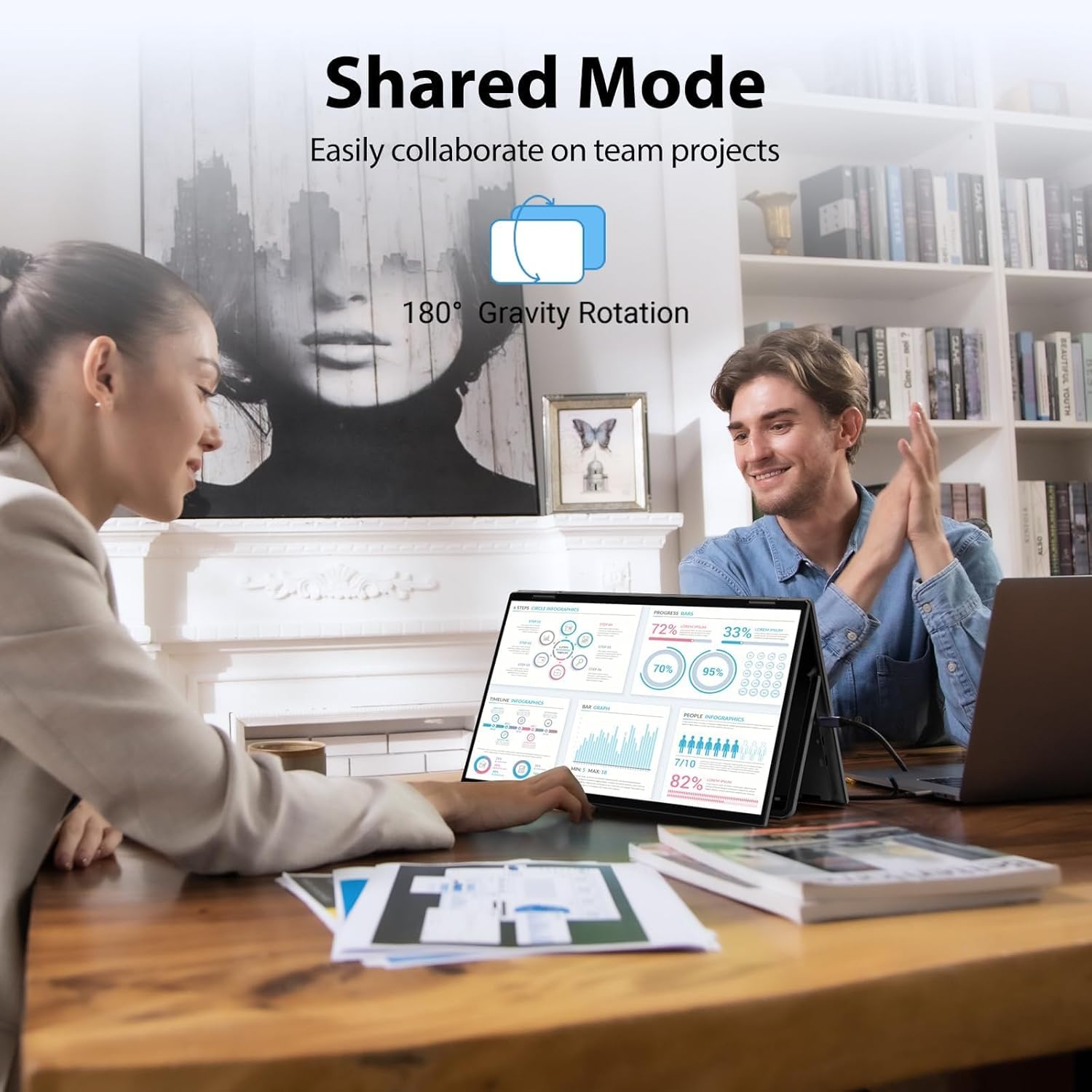
Figure 2: Connectivity ports on the InnoView monitor, including USB-C and MiniHDMI.
4. Operating Modes
The InnoView dual portable monitor supports various display configurations to suit your workflow:
- Extended Mode: Expands your desktop across both screens, allowing for more workspace. (Requires driver for Mac).
- Split-Screen Mode: Divides content across the two screens.
- Duplicate Mode: Mirrors the content of your primary display onto the portable monitor.

Figure 3: Visual representation of the multiple display modes available.
4.1 Screen Rotation and Folding
The screens can rotate 0-315° with 180° adjustable stands. Gravity sensors enable automatic screen rotation for optimal viewing when connected to Windows or Mac. This flexibility allows for various configurations, including vertical layouts for programming or document review, and shared viewing for collaboration.

Figure 4: Various flexible usage modes of the dual monitor.
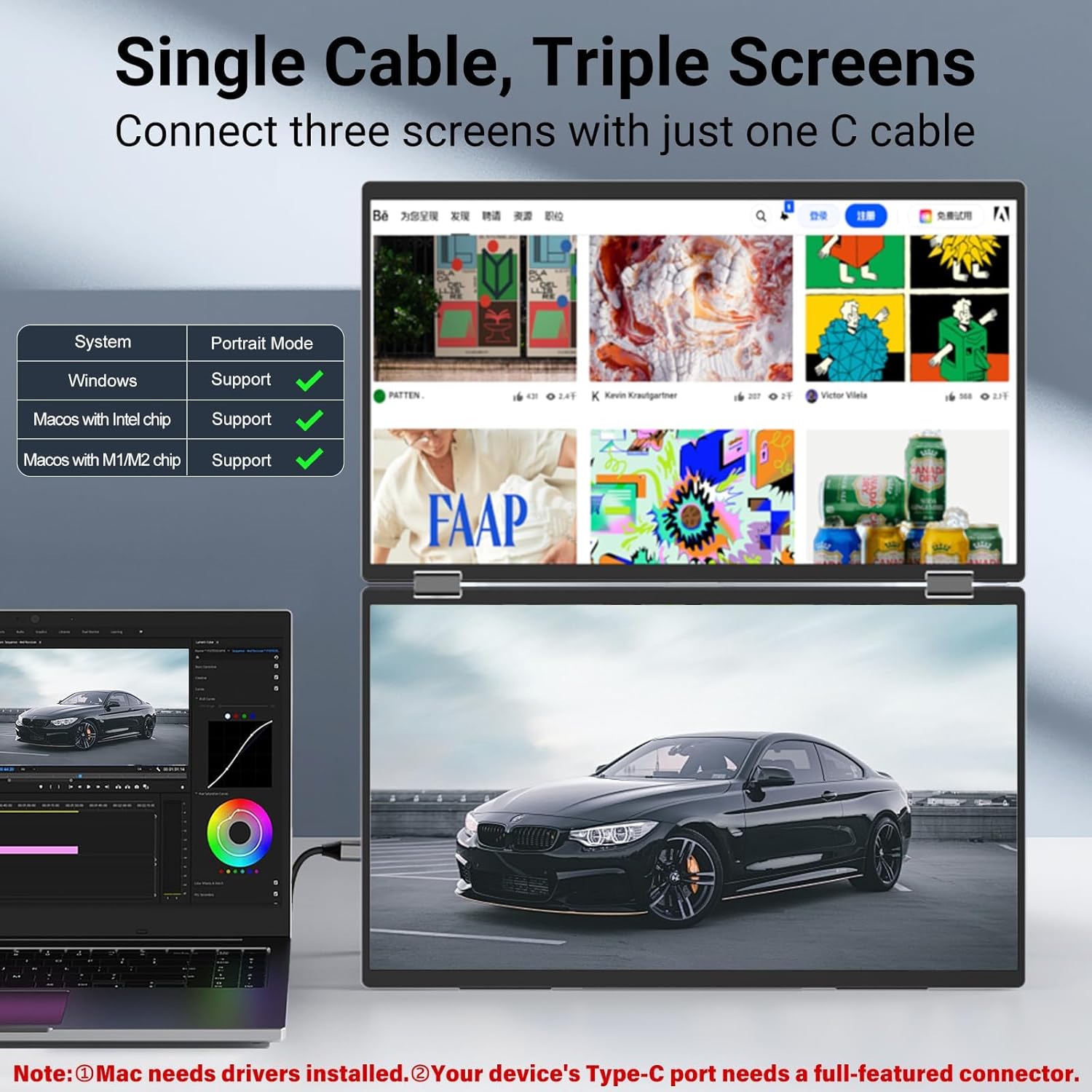
Figure 5: Effortless screen sharing in a collaborative setting.
5. Maintenance
- Keep the monitor clean by gently wiping the screens with a soft, lint-free cloth. Avoid abrasive cleaners.
- Do not expose the monitor to extreme temperatures or humidity.
- Handle the monitor with care to prevent physical damage, especially to the hinges and screens.
- Store the monitor in its folded position when not in use to protect the screens.
6. Troubleshooting
6.1 No Display / Black Screen
- Ensure the monitor is properly powered using the original 30W adapter and Type-C power cable.
- Verify that the full-featured Type-C cable (for signal) or HDMI cable is securely connected to both the monitor and your device.
- Check your device's display settings to ensure the external monitor is detected and configured correctly (e.g., extended or duplicate mode).
- For Mac users, confirm that the necessary drivers are installed for extended mode.
6.2 Incorrect Display Mode on Mac
If your Mac is not displaying in extended mode, ensure the display drivers are installed. Refer to Section 3.3 for driver installation instructions.
6.3 Screen Rotation Issues
The monitor features gravity sensors for automatic rotation. If rotation is not working, ensure the monitor is placed on a stable, flat surface. Check your operating system's display settings for any rotation locks or manual orientation adjustments.
7. Specifications
| Feature | Detail |
|---|---|
| Model Number | INVPM009 05B |
| Screen Size | 15.6 Inches (x2) |
| Resolution | 1920 x 1080 Pixels (FHD 1080p) |
| Aspect Ratio | 16:9 |
| Image Brightness | 300 Candela |
| Screen Surface | Matte |
| Product Dimensions | 8.5 x 14 x 0.85 inches |
| Item Weight | 3.5 pounds |
| Manufacturer | InnoView |
8. Warranty and Support
InnoView offers a 30-day return policy and an 18-month warranty for this product. For any questions, technical assistance, or warranty claims, please contact our dedicated customer support team.

Figure 6: Warranty information.

Figure 7: Return policy details.


