
SUVCON M02
SUVCON M02 Dash Cam User Manual
Front and Rear 4K/1080P Full HD Dash Camera
1. Introduction
Thank you for choosing the SUVCON M02 Dash Cam. This device is designed to provide reliable front and rear video recording for your vehicle, enhancing driving safety and providing crucial evidence in case of incidents. Featuring 4K front and 1080P rear recording, Wi-Fi connectivity, G-Sensor, loop recording, and parking monitoring, this manual will guide you through the installation, operation, and maintenance of your new dash cam.

Image 1.1: The SUVCON M02 Dash Cam system, showing the main unit, rear camera, and a smartphone displaying the app interface.
2. Package Contents
Please check the package for the following items:
- Front Camera (Main Unit)
- Rear Camera
- Adjustable Suction Mount
- Type-C Power Cable
- Rear Camera Cable
- 32GB Memory Card
- Car Reader
- Cable Clips (4 pieces)
- Cable Hiding Clips (4 pieces)
- Installation Tool
- Double-Sided Sticker
- User Manual
- Exquisite Box (Packaging)

Image 2.1: Visual representation of all items included in the SUVCON M02 Dash Cam package.
3. Product Overview and Features
The SUVCON M02 Dash Cam offers a range of features designed for comprehensive vehicle surveillance:
- 4K Front & 1080P Rear Recording: Captures ultra-sharp 4K video from the front and Full HD 1080P from the rear, ensuring clear details.
- Ultra-Wide Angle Lenses: A 170° front lens and 150° waterproof rear camera minimize blind spots.
- WDR Technology: Wide Dynamic Range technology provides exceptional clarity in various lighting conditions, improving visibility of license plates and road signs day and night.
- Built-in Wi-Fi & App Control: Connects to your smartphone via the Viidure app for real-time viewing, playback, download, and management of recordings.
- G-Sensor: Automatically detects collisions and sudden impacts, locking and preserving critical footage from being overwritten.
- 24-Hour Parking Monitoring: Provides continuous protection for your vehicle when parked (requires hardwiring kit, sold separately).
- Loop Recording: Automatically overwrites the oldest videos when the storage space is full, managing storage efficiently.
- 3.94" IPS Screen: Provides a clear display for settings and video playback.
- Included 32GB Memory Card: Ready to use out of the box.

Image 3.1: Overview of the SUVCON M02 Dash Cam's main features, including 4K HD video, 32GB card, F2.0 aperture, G-Sensor, wide view angle, loop cycle, Wi-Fi & app control, 24-hour parking mode, WDR, and screen saver.
4. Setup and Installation
Follow these steps for proper installation of your dash cam:
- Insert Memory Card: Insert the provided 32GB memory card into the dash cam's TF card slot. Ensure it is inserted correctly until it clicks into place.
- Mount the Front Camera: Attach the adjustable suction mount to the front camera. Clean the windshield area where you intend to mount the camera. Press the suction cup firmly against the glass and lock it into position. Position the camera to ensure a clear view of the road without obstructing your driving vision.
- Install the Rear Camera: Mount the rear camera on the rear windshield, typically at the top center, using the double-sided sticker. Ensure the lens has a clear view of the rear.
- Connect Rear Camera Cable: Route the rear camera cable from the rear camera to the front camera. Use the provided cable clips and installation tool to neatly tuck the cable along the vehicle's headliner and A-pillars to conceal it. Connect the rear camera cable to the designated port on the front camera.
- Connect Power Cable: Connect the Type-C power cable to the front camera and plug the car charger adapter into your vehicle's cigarette lighter socket. For continuous parking monitoring, a hardwiring kit (sold separately) is required.
- Adjust Camera Angle: Once powered on, adjust the front and rear camera angles to capture the desired field of view. The front camera mount allows for 360° rotation for optimal positioning.
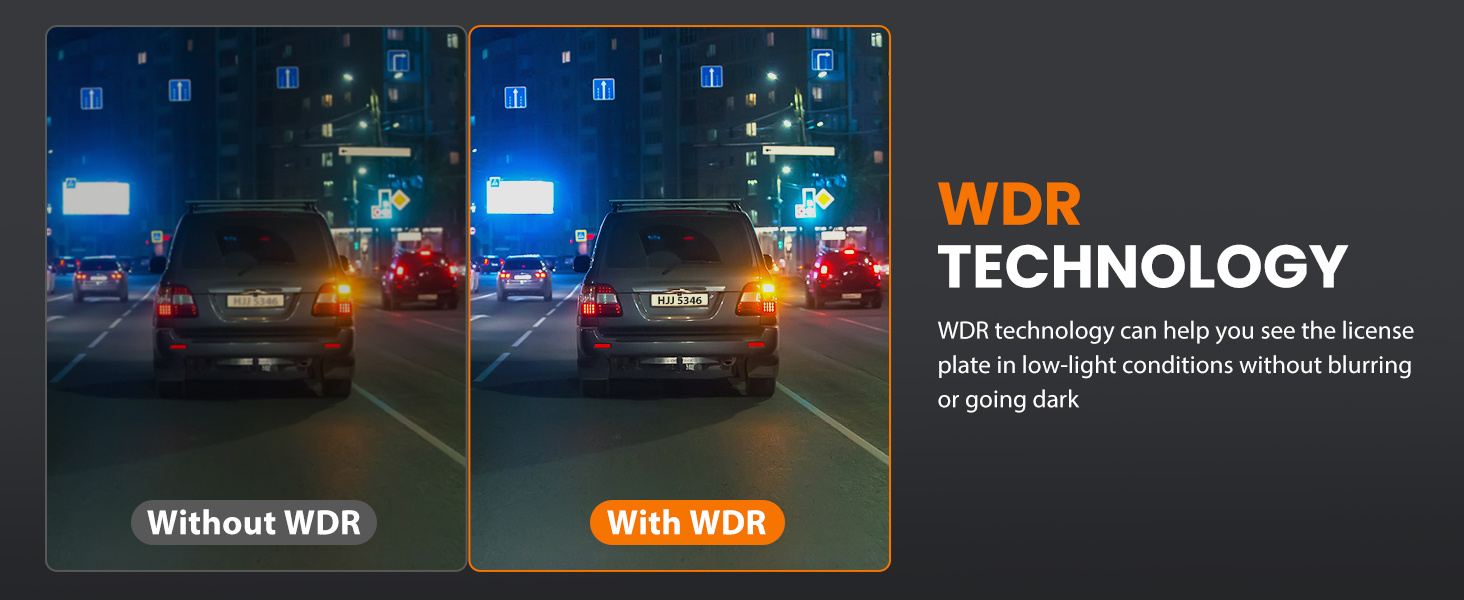
Image 4.1: Installation diagram showing how to connect the front and rear cameras, route cables, and the 360-degree rotation capability of the main unit.
5. Operating Instructions
5.1 Power On/Off
- Automatic: The dash cam will automatically power on and begin recording when your vehicle's ignition is turned on (and power is supplied to the cigarette lighter socket).
- Manual: Press and hold the power button on the dash cam to manually turn it on or off.
5.2 Basic Recording
Once powered on, the dash cam will automatically start recording. The front camera records in 4K, and the rear camera records in 1080P simultaneously.

Image 5.1: Depiction of the dash cam's dual recording feature, capturing 4K video from the front and 1080P from the rear.
5.3 Menu Navigation
Use the physical buttons on the dash cam to navigate through the menu options on the 3.94" IPS screen. Common settings include video resolution, loop recording duration, G-Sensor sensitivity, and parking mode settings.
6. Wi-Fi & App Control
The SUVCON M02 Dash Cam features built-in Wi-Fi for seamless connection to your smartphone via the Viidure app.
- Download the App: Search for "Viidure" in the Apple App Store (for iOS) or Google Play Store (for Android) and install the application.
- Enable Wi-Fi on Dash Cam: Access the dash cam's menu and enable the Wi-Fi function. The screen will display the Wi-Fi network name (SSID) and password.
- Connect Your Phone: On your smartphone, go to Wi-Fi settings, find the dash cam's SSID, and enter the password to connect.
- Use the App: Open the Viidure app. You can now:
- View live footage from both cameras.
- Play back recorded videos.
- Download videos directly to your phone.
- Adjust dash cam settings.
- Share footage to social media platforms.

Image 6.1: The dash cam's Wi-Fi and app control feature, showing a smartphone connected to the dash cam via the Viidure app, enabling viewing, playback, and sharing of footage.
7. G-Sensor and Parking Mode
7.1 G-Sensor Emergency Lock
The built-in G-Sensor automatically detects sudden movements or impacts, such as a collision. When triggered, it locks the current video segment, preventing it from being overwritten by loop recording. This ensures critical incident footage is safely preserved.

Image 7.1: The G-Sensor feature automatically locks video footage during a collision to prevent overwriting.
7.2 24-Hour Parking Monitoring
With the 24-hour parking monitoring feature, your dash cam can continue to protect your vehicle even when it's parked. If an impact or motion is detected while the vehicle is off, the dash cam will automatically start recording. This feature requires a hardwiring kit (not included) to provide continuous power to the dash cam when the vehicle is off.

Image 7.2: The 24-hour parking monitor provides continuous surveillance against collisions and theft when the vehicle is parked.
8. Loop Recording
The loop recording function ensures that your dash cam never stops recording due to a full memory card. When the storage space on the 32GB memory card is full, the system will automatically overwrite the oldest unlocked video files with new recordings. You can customize the loop recording duration to 1, 2, or 3-minute segments through the dash cam's settings.
9. Maintenance
- Clean Lenses: Regularly clean the front and rear camera lenses with a soft, lint-free cloth to ensure clear video quality.
- Memory Card Care: Format the memory card periodically (e.g., once a month) using the dash cam's menu to maintain optimal performance and prevent data corruption.
- Temperature: Avoid exposing the dash cam to extreme temperatures for extended periods, as this can affect battery life and device performance.
- Firmware Updates: Check the manufacturer's website or the Viidure app for any available firmware updates to ensure your dash cam has the latest features and bug fixes.
10. Troubleshooting
If you encounter issues with your SUVCON M02 Dash Cam, please refer to the following common problems and solutions:
| Problem | Possible Solution |
|---|---|
| Dash cam does not power on. |
|
| Recording stops or freezes. |
|
| Poor video quality. |
|
| Wi-Fi connection issues. |
|
| G-Sensor is too sensitive/not sensitive enough. |
|
11. Specifications
| Feature | Detail |
|---|---|
| Model Name | M02 |
| Front Camera Resolution | 4K |
| Rear Camera Resolution | 1080P |
| Front Field of View | 170 Degrees |
| Rear Field of View | 150 Degrees |
| Display Screen | 3.94" IPS Screen |
| Connectivity Technology | Wi-Fi (Wireless) |
| Special Features | App Control, Loop Recording, Parking Monitor, G-Sensor, WDR |
| Included Memory Card | 32GB |
| Mounting Type | Dashboard Mount (Suction Cup) |
| Product Dimensions | 4 x 1.57 x 1.97 inches |
| Item Weight | 14.9 ounces |
| Batteries | 1 Lithium Ion battery (included) |
12. Warranty and Support
The SUVCON M02 Dash Cam comes with a comprehensive 2-year warranty. For any issues, concerns, or technical support, please contact our professional support team. Contact information can typically be found on the product packaging or the official SUVCON website.
Related documentsM02


Ask a question about this manual
Ask about setup, troubleshooting, compatibility, parts, safety, or missing instructions. Manuals+ will review the question and use this page’s manual context to help answer it.