
1. Introduction
This manual provides detailed instructions for the setup, operation, maintenance, and troubleshooting of your REALFORCE R4 Hybrid Full 30g Japanese Layout Black Keyboard. Please read this manual thoroughly before using the product to ensure proper functionality and longevity.
Key Features:
- Electrostatic Capacitive Non-Contact Method: Equipped with Topre switches, offering superior reliability and durability without physical contact points.
- Bluetooth 5.0 & Wired Connection: Connects to up to 5 devices, allowing flexible usage based on your situation.
- Silent Operation: Maintains the signature typing feel while significantly reducing typing noise, ideal for office or home environments.
- Dedicated Software: Offers key remapping and various other customizable functions.
- APC (Actuation Point Change) Function: Adjust the key actuation point from 0.8mm to 3.0mm in 0.1mm increments for optimized response speed.
- Proximity Sensor: Features a proximity sensor around the keyboard for power saving during inactivity and automatic reconnection when hands approach.
- Mouse Function: Control the mouse cursor and clicks directly from the keyboard, enhancing efficiency and serving as an alternative when a mouse is unavailable.
2. Setup
2.1 Package Contents
Verify that all items are present in the package:
- REALFORCE R4 Keyboard Unit
- AAA Alkaline Batteries x 3 (for operation check)
- USB Cable (Type-C to Type-A, approx. 1.8m)
- Instruction Manual
2.2 Battery Installation
Insert the three AAA alkaline batteries into the battery compartment located on the underside of the keyboard. Ensure correct polarity.
2.3 Power On/Off
Locate the power switch on the side of the keyboard. Slide it to the 'ON' position to power on the device. Slide it to 'OFF' to power off.
2.4 Connection Methods
The REALFORCE R4 keyboard supports both wired and wireless (Bluetooth) connections.
2.4.1 Wired Connection
- Connect the USB Type-C end of the provided cable to the keyboard.
- Connect the USB Type-A end of the cable to an available USB port on your computer.
- The keyboard will be automatically recognized by your operating system.
2.4.2 Bluetooth Connection
The keyboard can connect to up to 5 Bluetooth devices.
- Ensure the keyboard is powered on.
- On your device (computer, tablet, smartphone), enable Bluetooth and search for new devices.
- Select "REALFORCE R4" from the list of available devices.
- Follow any on-screen prompts to complete the pairing process.
- To switch between paired devices, use the dedicated function keys on the keyboard. Refer to the keyboard layout for specific key combinations.

Image: Top view of the REALFORCE R4 keyboard, showcasing its full layout and keycaps.
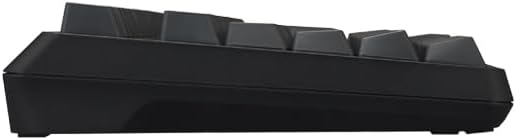
Image: Back view of the REALFORCE R4 keyboard, showing the product label and adjustable feet.

Image: Side view of the REALFORCE R4 keyboard, highlighting the power switch and USB-C port.
3. Operating Instructions
3.1 APC (Actuation Point Change) Function
The APC function allows you to customize the key actuation point for each key. This can be adjusted between 0.8mm and 3.0mm in 0.1mm increments using the dedicated software. This feature optimizes key response speed to suit individual typing styles or specific application requirements.

Image: Diagram illustrating the adjustable actuation points (0.8mm to 3.0mm) for the APC function.
3.2 Mouse Function
The keyboard includes a mouse function, enabling cursor movement and clicks via specific key inputs. This is useful for quick navigation without reaching for a mouse, or as a backup when a mouse is unavailable. Refer to the software or quick guide for key assignments.

Image: Diagram showing how keyboard keys can be used to control mouse cursor movement and clicks.
3.3 Proximity Sensor
A proximity sensor is integrated into the keyboard. During periods of inactivity, the keyboard enters a power-saving standby mode. When your hands approach the keyboard, the sensor detects movement and automatically reconnects, ensuring seamless operation.

Image: Illustration of the proximity sensor detecting hands near the keyboard for automatic power management.
3.4 Silent Switch
The REALFORCE R4 features silent switches that reduce the noise generated during typing while preserving the distinct Topre typing feel. This makes the keyboard suitable for environments where noise reduction is important.

Image: Visual representation comparing standard key sound waves with silent key sound waves, showing reduced noise.
3.5 Dedicated Software
Utilize the dedicated REALFORCE software to customize various keyboard settings, including key remapping, APC settings, and heatmaps to analyze typing patterns. This allows for a personalized typing experience.

Image: Screenshot of the REALFORCE software interface, showing options for APC settings, key remapping, and heatmap analysis.
4. Maintenance
To ensure the longevity and optimal performance of your REALFORCE R4 keyboard, follow these maintenance guidelines:
- Cleaning: Regularly clean the keycaps and keyboard surface with a soft, dry cloth. For deeper cleaning, you may use a slightly damp cloth with mild soap, ensuring no liquid enters the keyboard.
- Keycap Material: The keycaps are made of durable PBT material, which is resistant to shine and wear over time.
- Avoid Liquids: Do not spill liquids on the keyboard. In case of accidental spills, immediately disconnect the keyboard and allow it to dry completely before re-use.
- Storage: Store the keyboard in a cool, dry place away from direct sunlight and extreme temperatures.
5. Troubleshooting
If you encounter issues with your REALFORCE R4 keyboard, refer to the following common problems and solutions:
5.1 Keyboard Not Responding
- Wired Connection: Ensure the USB cable is securely connected to both the keyboard and the computer. Try a different USB port or cable.
- Bluetooth Connection: Check if Bluetooth is enabled on your device and the keyboard. Ensure the keyboard is paired correctly. Try re-pairing the device. Verify that the keyboard batteries are not depleted.
- Power: Confirm the keyboard is powered on and batteries are correctly installed and charged.
5.2 Accidental Key Presses (Ghosting)
Some users may experience unintended key presses, especially with lighter key loads. This can be due to resting fingers on keys. Consider adjusting the APC settings to a higher actuation point (e.g., 2.0mm or 3.0mm) or opting for a model with a heavier key load (e.g., 45g) if this issue persists.

Image: Diagram illustrating the concept of key load and how it affects typing feel and potential for accidental presses.
5.3 Keys Not Visible in Low Light
The black keycaps with black legends can be difficult to see in low-light conditions. This design choice prioritizes a minimalist aesthetic. If visibility is an issue, consider using an external light source or exploring alternative keycap sets (sold separately) with higher contrast legends.
5.4 Other Issues
For any other issues not covered here, please refer to the official REALFORCE website or contact customer support.
6. Specifications
| Feature | Specification |
|---|---|
| Brand | REALFORCE |
| Model | R4HA13 |
| Connection Technology | Bluetooth 5.0 & Wired |
| Keyboard Description | R4 |
| Special Features | APC function, Mouse function, Proximity sensor, PBT keycaps, Dye-sublimated legends, No Kana characters, 30g key load, Switch life 100 million+ cycles, Made in Japan, Electrostatic Capacitive Non-Contact Method |
| Style | FULL 30g Black |
| Included Components | Keyboard unit, AAA Alkaline Batteries x 3, USB Type-C to Type-A cable, Instruction Manual |
| Switch Type | Mechanical (Topre Electrostatic Capacitive) |
| Number of Buttons/Keys | 112 |
| Manufacturer | Topre Corporation |
| Country of Origin | Japan |
7. Warranty and Support
7.1 Warranty Information
This product comes with a 1-year manufacturer's warranty. For warranty service, please contact the REALFORCE Customer Center. Please note that products purchased outside the official REALFORCE Store may not be eligible for free repair under warranty.
7.2 Customer Support
For technical assistance, troubleshooting, or any inquiries regarding your REALFORCE R4 keyboard, please visit the official REALFORCE website or contact their customer support directly.
8. Product Video Overview
Video: A brief overview showcasing the design and key features of the REALFORCE R4 keyboard.
