
1. Introduction
The Sogledwow Elite Series ESP32 WLED LED Strip Controller is a versatile device designed for controlling addressable RGB IC LED strips. Built on the ESP32 chip, it offers robust performance, extensive lighting effects, and features like music synchronization and energy-saving capabilities. This manual provides detailed instructions for setup, operation, and maintenance of your controller.

Image 1.1: Front view of the Sogledwow Elite Series ESP32 WLED LED Strip Controller.
2. Product Features
- Powerful Core Performance: Utilizes the ESP32 chip for reliable control and customization of lighting setups.
- 100+ Dynamic Lighting Effects: Offers a wide range of pre-programmed effects for creative lighting designs.
- Music Synchronization: Provides immersive audio-reactive experiences by syncing lights with music.
- Energy Saving Relay: Reduces power consumption during standby by cutting off power to the LED strip when turned off.
- Safety Design: Includes a 5A / 20A pluggable fuse for overload protection.
- Wide LED Compatibility: Supports popular addressable LED types such as WS2811, WS2812, SK6812, WS2813, and WS2815.
- Type-C UART Download: Features a Type-C port for power supply and program downloading, facilitating firmware updates.
- Quick Connect Port: Designed with user-friendly Wago terminals for easy and secure wire connections.
- All-in-One Function Button: A single button for power control, color switching, and resetting the device.

Image 2.1: The controller supports various addressable LED strip types including WS2812B, SM16703P, SK6812, WS2813, WS2811, WS2815, GS8208, and TM1814.
3. Setup Instructions
3.1 Wiring Connections
Ensure all power is disconnected before making any wiring connections. The controller uses quick-connect Wago terminals for secure wiring.
- Input Power: Connect your DC 5-12-24V power supply to the INPUT terminals (V+ and V-). Observe polarity. The maximum input current is 15A.
- LED Strip Output: Connect your addressable LED strip(s) to the OUTPUT terminals. The controller provides multiple output channels (IO16, IO2, IO13) and corresponding V+ and GND terminals. Ensure correct data line (IOx), positive voltage (V+), and ground (GND) connections for your specific LED strip type. Each channel supports a maximum output current of 10A, with a total maximum output current of 15A.
- Type-C Power (Optional): The Type-C port can be used for power supply (5V, 3A Max) or program downloading. Use a USB wall adapter, not a PC USB port for power.

Image 3.1: Internal circuit design highlighting the USB-to-Serial Chip, TI level shifter IC, and PMOS components for stable signal transmission and program downloading.

Image 3.2: Illustration of the quick connect port wiring process: 1. Open the connector upwards. 2. Press down after inserting the wire. 3. Wiring is complete.
3.2 Initial Power On and App Connection
After wiring, connect the power supply. The controller will power on. To control the LED strips, you will need to connect to the WLED application.
- Download the WLED app on your smartphone or tablet.
- Power on the controller. It will broadcast a Wi-Fi network (e.g., 'WLED-AP').
- Connect your device to the 'WLED-AP' Wi-Fi network.
- Open the WLED app. The controller should be automatically discovered. If not, manually add it using its IP address (usually 4.3.2.1 for the access point).
- Configure your home Wi-Fi network within the WLED app settings to allow the controller to connect to your local network for easier access.
4. Operating Instructions
4.1 Using the Function Button
The controller features a single multi-function button:
- Short press: Toggles power on/off.
- Long press for 1 second: Switches between different colors or effects.
- Long press for 10 seconds: Resets the WLED controller to factory settings and activates the WLED-AP hotspot for initial setup.

Image 4.1: The single function button on the controller for power, color switching, and reset.
4.2 WLED App Control
The WLED app provides comprehensive control over your LED strips.
- Color Control: Select from a wide spectrum of colors using the color wheel or predefined palettes.
- Dynamic Effects: Choose from over 100 built-in dynamic lighting effects to create various ambiances.
- Segmented Control: Personalize individual segments of your LED strip to display different colors or effects simultaneously.
- Music Synchronization: Activate the microphone function to make your lights react to music in real-time.
- Sync Lighting: Synchronize the lighting effects of multiple LED strips connected to the same WLED controller on the same Wi-Fi network.

Image 4.2: Screenshot of the WLED app interface showing color selection and control options.

Image 4.3: Screenshot of the WLED app interface displaying a list of over 100 dynamic lighting effects.
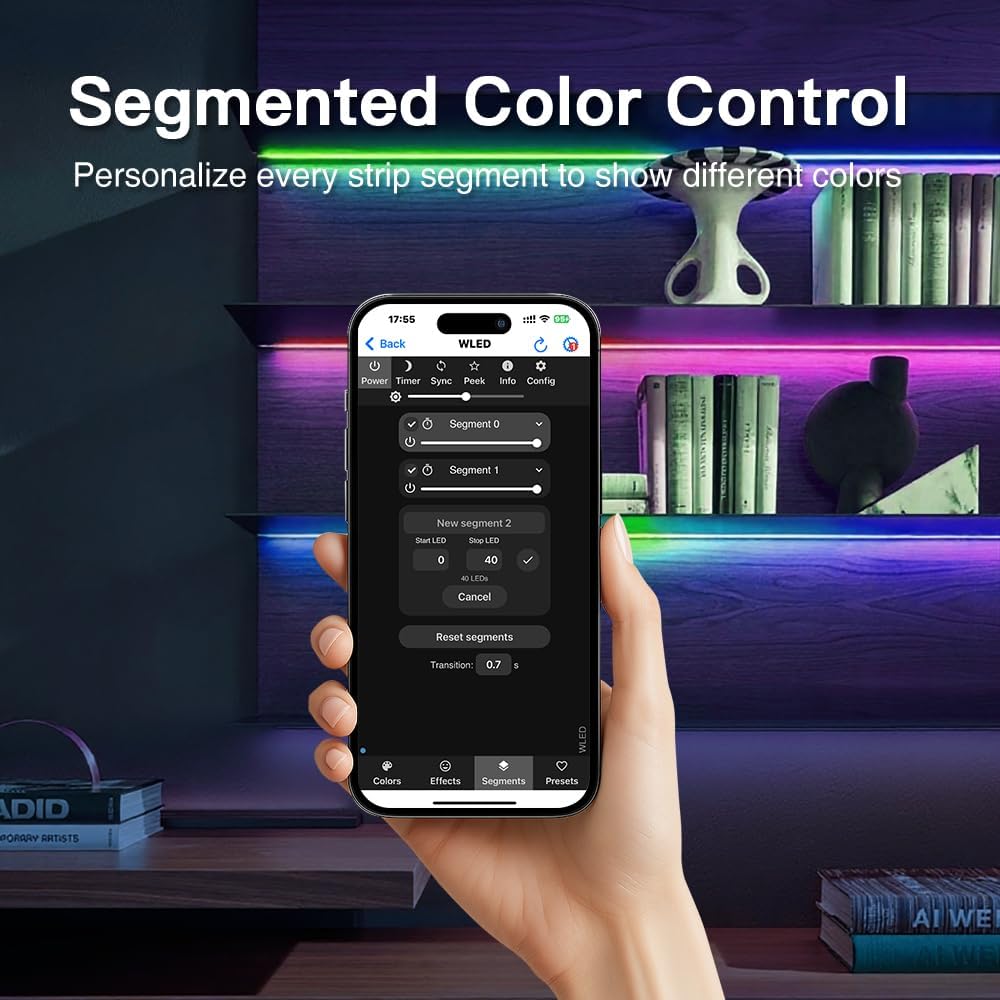
Image 4.4: Screenshot of the WLED app interface demonstrating segmented color control for LED strips.

Image 4.5: Illustration of the controller's microphone function enabling lights to react to music.

Image 4.6: Comparison showing LED strips before and after activating sync lighting via the WLED app.
5. Maintenance
5.1 Fuse Replacement
The controller is equipped with a pluggable 5A / 20A fuse for overcurrent protection. If the fuse blows due to an overload, it can be replaced with a new one of the same rating. Always disconnect power before attempting to replace the fuse.
5.2 Cleaning
Wipe the controller with a dry, soft cloth. Do not use liquid cleaners or solvents.

Image 5.1: Product details highlighting the 20A pluggable fuse, heat dissipation holes, and reliable Wago terminals.
6. Troubleshooting
- Controller not powering on: Check the power supply connection and ensure the input voltage is within the DC 5-24V range. Verify the power adapter is functional.
- LED strips not lighting up:
- Ensure correct wiring polarity for V+, GND, and data lines (IOx).
- Check if the fuse is blown. Replace if necessary.
- Confirm the LED strip type is compatible with the controller.
- Verify settings in the WLED app, including output pin assignments and number of LEDs.
- Cannot connect to WLED-AP Wi-Fi: Try resetting the controller by long-pressing the function button for 10 seconds. This will re-enable the WLED-AP hotspot.
- Unstable Wi-Fi connection: Ensure the controller is within range of your Wi-Fi router. Avoid interference from other wireless devices.
- Lights not responding to music: Ensure the microphone function is enabled in the WLED app and the controller is placed in an area where it can pick up sound.
- Firmware update issues: Use the Type-C UART port for program downloading. Ensure you are using the correct firmware file (e.g., WLED_X.X.X_ESP32.bin) and a reliable USB-to-Serial connection.
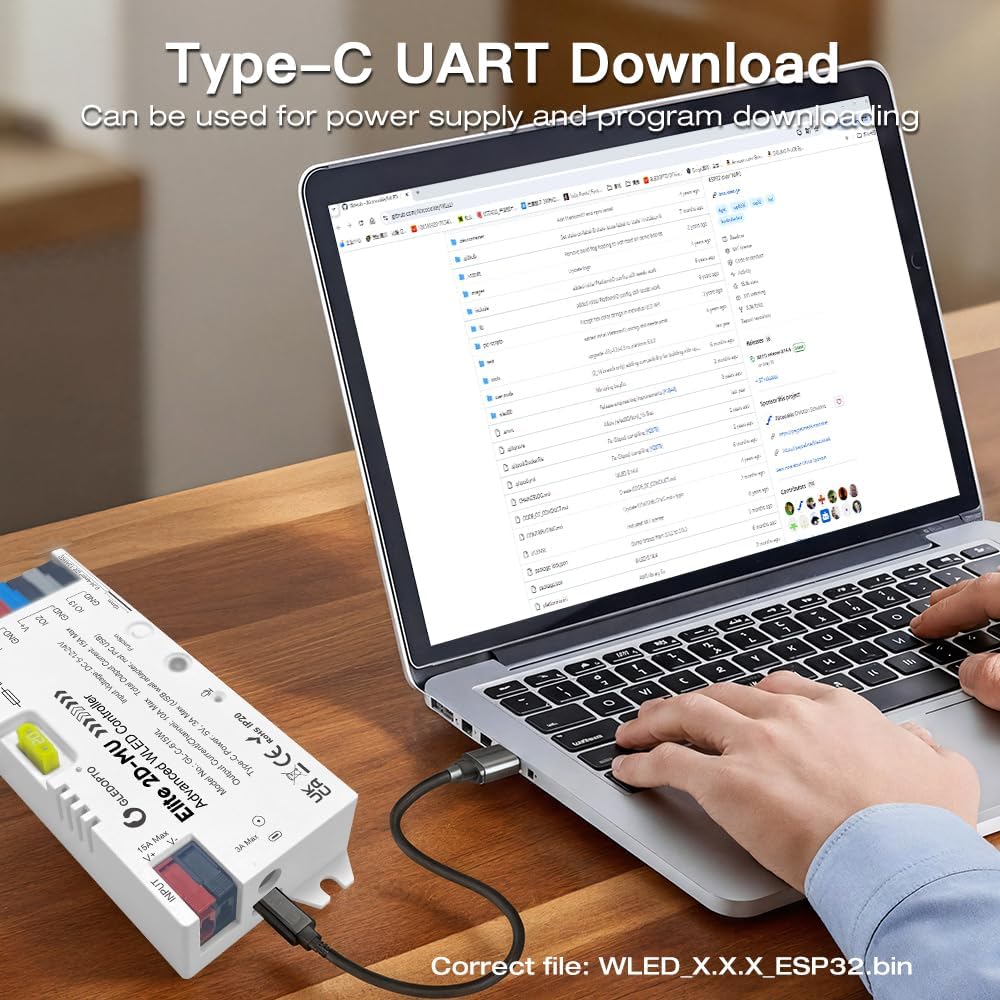
Image 6.1: The Type-C port on the controller connected to a laptop for UART download and program updates.
7. Specifications
| Model No. | GL-C-615WL |
| Input Voltage | DC 5-12-24V |
| Total Output Current | 15A Max |
| Output Current/Channel | 10A Max |
| Type-C Voltage | 5V |
| Type-C Current | 3A Max |
| IP Rate | IP20 (Indoor Use Only) |
| Material | Flame Retardant PC |
| Net Weight (N.W.) | 70.5g |
| Gross Weight (G.W.) | 80.6g |
| Dimensions | 129 x 50 x 23mm |
| Operating Temperature | -20~45°C |
| Included Components | Elite ESP32 WLED Strip Controller |

Image 7.1: Visual representation of the product parameters and dimensions.
8. Warranty and Support
This product typically comes with a manufacturer's warranty. For specific warranty details and duration, please refer to the product packaging or contact the retailer where the product was purchased. For technical support, firmware updates, or further assistance, please visit the official Sogledwow website or contact their customer service department.