1. Introduction
This manual provides essential information for the proper setup, operation, and maintenance of your YunLone R36MAX Retro Handheld Game Console. Please read this manual thoroughly before using the device to ensure optimal performance and longevity.
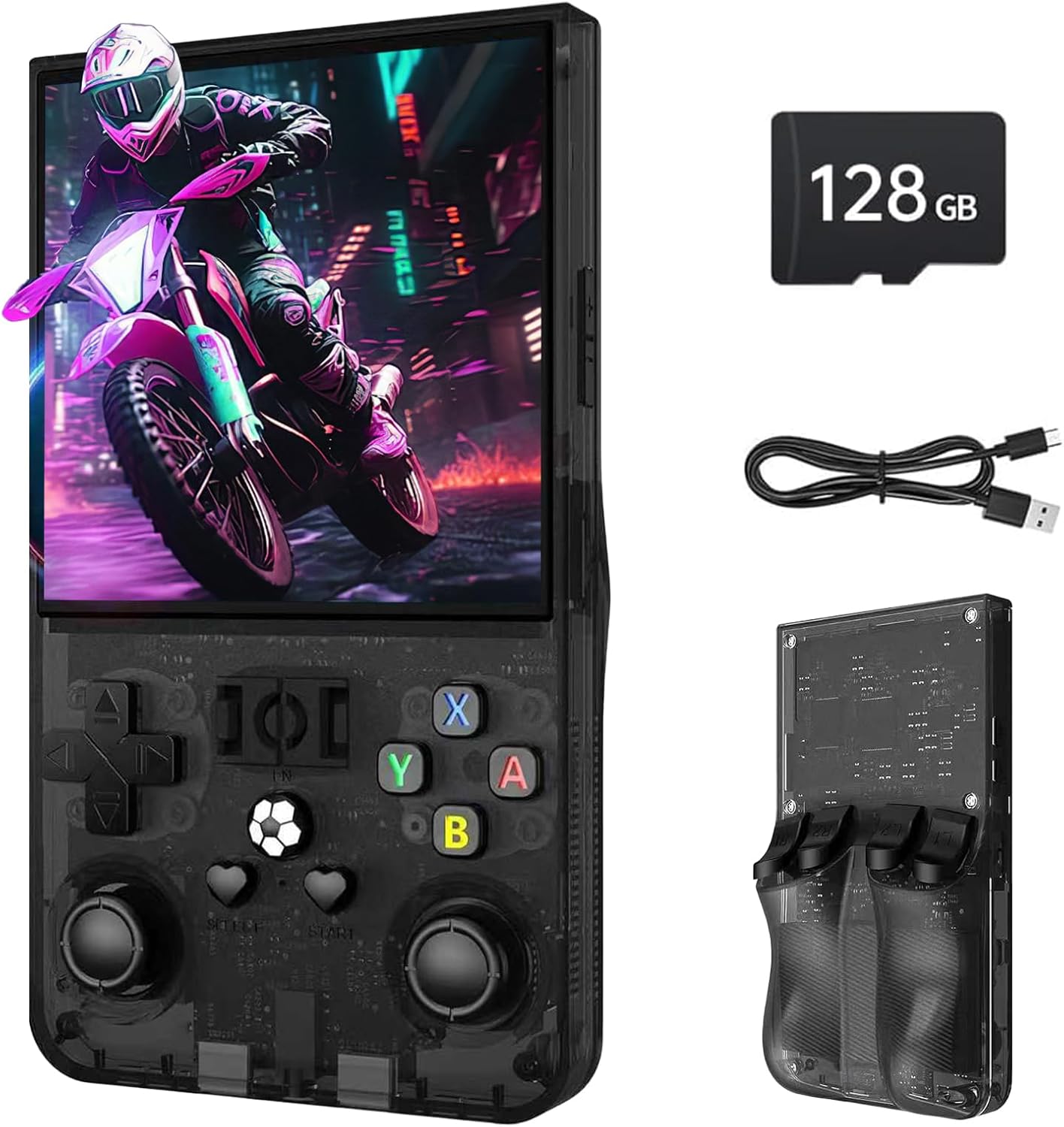
Figure 1: YunLone R36MAX Retro Handheld Game Console and accessories.
2. Package Contents
Upon unboxing, verify that all items listed below are present:
- R36MAX Game Console
- Charging Cable (USB Type-C)
- User Manual (this document)
- 128GB TF Card (pre-installed or included separately)
- Screen Protector
- Portable Case
3. Device Layout and Controls
Familiarize yourself with the console's buttons, ports, and indicators.

Figure 2: Front, back, and top views of the R36MAX console with labeled controls and ports.
- Volume Keys (+/-): Adjust audio output level.
- D-Pad (Double Cross Key): Directional input for games and menu navigation.
- Left/Right Rockers (3D Hall Joysticks): Analog directional input.
- A/B/X/Y Buttons: Action buttons, typically for confirming, canceling, or performing in-game actions.
- Select/Start Buttons: Standard game control functions.
- Function (FN) Button: Special system or emulator functions.
- R1/R2/L1/L2 Triggers: Shoulder buttons for additional in-game controls.
- TF Card Slot: For inserting the operating system and game storage TF card.
- Type-C Port (DC): For charging the device.
- OTG Port: For connecting external devices such as gamepads or for video output via an adapter.
- Headset Jack (3.5mm): For connecting headphones.
4. Setup and First Use
4.1 Initial Charging
Before first use, fully charge the console. Connect the provided USB Type-C charging cable to the console's Type-C port and the other end to a compatible USB power adapter (not included) or a computer USB port. The charging indicator will show the charging status. A full charge typically provides 6-10 hours of playtime.
4.2 Inserting the TF Card
The R36MAX operates using an open-source Linux system stored on a TF card. The console comes with a 128GB TF card pre-loaded with the operating system and over 22,000 classic games. Ensure the TF card is properly inserted into the designated TF card slot before powering on the device. The console supports additional TF cards for expanding your game library.
4.3 Powering On/Off
- To Power On: Press and hold the Power button (usually located on the side or top) for a few seconds until the screen illuminates.
- To Power Off: Navigate to the system menu and select the 'Shutdown' or 'Power Off' option. Alternatively, press and hold the Power button until the device powers down. Avoid simply holding the power button for extended periods during active use to prevent data corruption.
5. Operating the Console
5.1 System Navigation
The R36MAX runs on an open-source Linux system, providing a user-friendly interface for game selection and system settings. Use the D-pad or joysticks to navigate through menus and the A button to confirm selections.
5.2 Game Selection and Play
The console supports over 30 mainstream emulators and comes pre-loaded with a vast library of classic games. Browse through the emulator categories or game lists to find your desired title. Select a game to launch it. Controls will automatically map to the console's buttons for most games.

Figure 3: Game genres and supported emulators on the R36MAX.
5.3 Connecting to an External Display
The R36MAX features an OTG port that can be used for video output to a larger screen. An OTG adapter and a compatible video cable (e.g., HDMI adapter) are required (not included). Connect the console to the adapter, then the adapter to your display. The console screen may mirror or extend to the external display.

Figure 4: OTG port functionality for external display and gamepad connections.
5.4 Connecting an External Gamepad
Utilize the OTG port to connect an external USB gamepad for an alternative control experience. An OTG adapter may be required. Once connected, the system should automatically recognize the gamepad, allowing for two-player gaming or preferred control schemes.
6. Maintenance
6.1 Cleaning
To clean the console, use a soft, dry, lint-free cloth. For stubborn smudges on the screen, a slightly damp cloth with a small amount of screen cleaner can be used. Avoid abrasive materials or harsh chemicals, as these can damage the screen and casing.
6.2 Battery Care
The R36MAX is equipped with a 4000mAh rechargeable battery. To prolong battery life:
- Avoid fully discharging the battery frequently.
- Store the device in a cool, dry place when not in use for extended periods.
- Use only the provided charging cable or a certified USB Type-C cable.
6.3 Software Updates
As the R36MAX runs on an open-source Linux system, firmware updates may be released periodically by the community or manufacturer to improve performance, add features, or fix bugs. Refer to the official product support channels for instructions on how to safely update your console's firmware.
7. Troubleshooting
If you encounter issues with your R36MAX console, refer to the following common problems and solutions:
| Problem | Possible Solution |
|---|---|
| Console does not power on. | Ensure the battery is charged. Connect the console to a power source and allow it to charge for at least 30 minutes before attempting to power on again. Check the power cable and adapter. |
| Games are not loading or visible. | Verify that the TF card is correctly inserted into its slot. If the issue persists, try reinserting the TF card. Ensure the game files on the TF card are not corrupted. |
| Controls are unresponsive. | Restart the console. If using an external gamepad, ensure it is properly connected via the OTG port and powered on. |
| Screen is blank or flickering. | Perform a hard reset by holding the power button for 10-15 seconds. If connected to an external display, disconnect the cable and check the console's screen directly. |
| Audio issues (no sound/distorted sound). | Check the volume level using the volume keys. If using headphones, ensure they are fully plugged into the 3.5mm jack. Restart the console. |
If these solutions do not resolve your issue, please contact customer support.
8. Specifications
Key technical specifications for the YunLone R36MAX Retro Handheld Game Console:

Figure 5: Product specifications as listed on the packaging.
- Model: R36MAX
- Operating System: Open Source Linux System
- Processor: 1.5GHz 64-bit RK3326 Quad-core CPU
- Display: 4.0-inch IPS Screen, 720x720 resolution
- Storage: 128GB TF Card (expandable)
- Emulators: Supports 30+ mainstream emulators
- Games: Pre-loaded with 22,000+ classic games
- Battery: 4000mAh Lithium-ion, up to 10 hours playtime
- Charging: USB Type-C
- Connectivity: 3.5mm Headphone Jack, OTG Port
- Dimensions: 6"L x 3.2"W x 1.38"H (approx.)
- Weight: 0.8 Pounds / 12.8 ounces (approx.)
- Material: ABS Plastic, Glass
- Recommended Age: 12 years and up
9. Warranty and Support
For warranty information, technical support, or any questions regarding your YunLone R36MAX console, please refer to the contact information provided with your purchase or visit the official YunLone support website. Please retain your proof of purchase for warranty claims.


