
1. Introduction
Thank you for choosing the Qubo Smart 360° 3MP Wi-Fi Security Camera. This device is designed to provide comprehensive indoor surveillance with advanced features such as 2K resolution, AI-powered person detection, two-way talk, and night vision. Please read this manual carefully to ensure proper installation and operation.
What's in the Box
- Qubo Smart Cam (1N)
- Power Adapter (5V/1A) (1N)
- Warranty Card (1N)
- USB Cable (1N)
- Screw Kit (1N)

2. Key Features
The Qubo Smart 360° 3MP Wi-Fi Security Camera offers a range of advanced functionalities for enhanced home security:
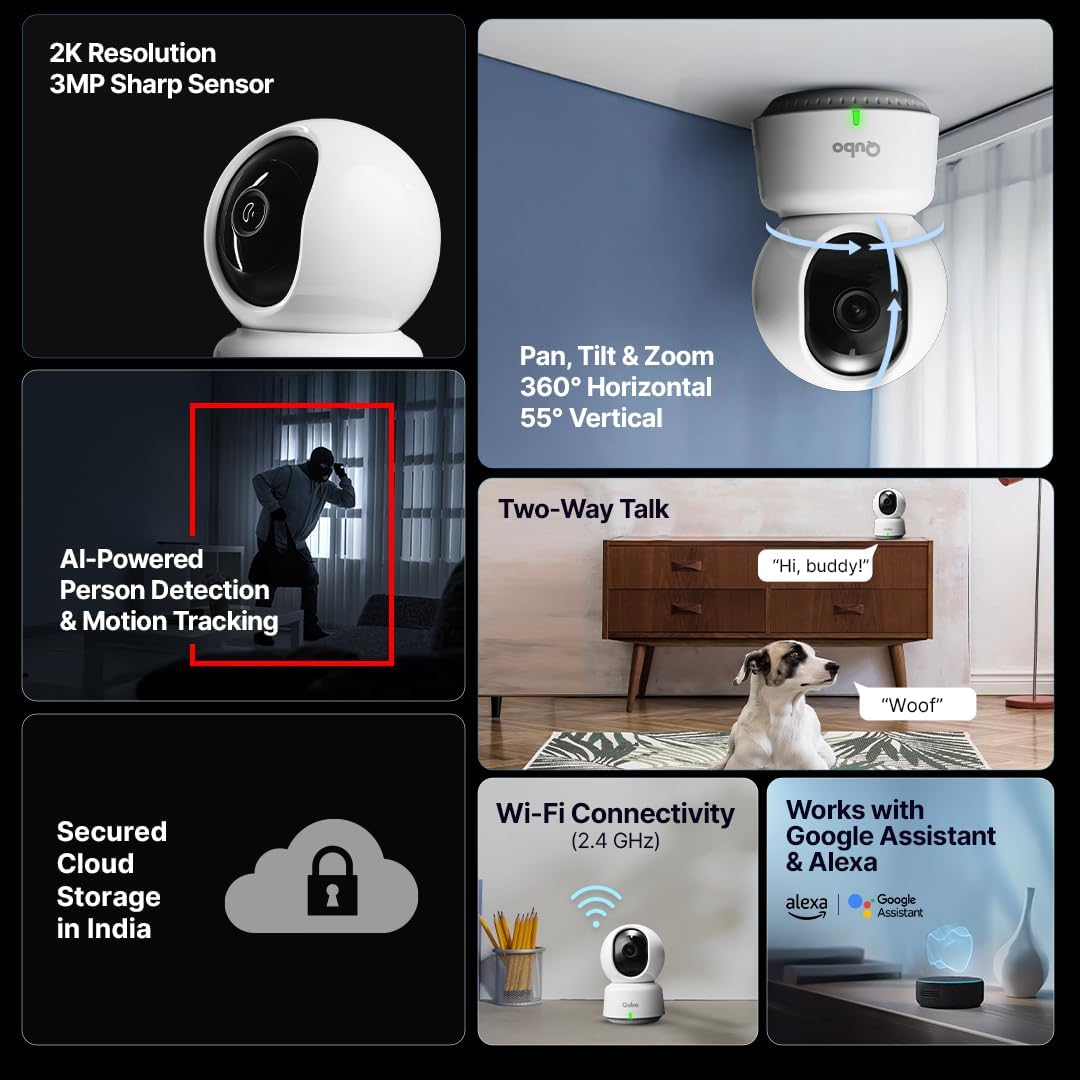
- 2K Ultra HD Resolution: Captures clear and detailed video footage (2304 x 1296p).
- 360° Pan, Tilt & Zoom: Provides a comprehensive view of your space with remote control.
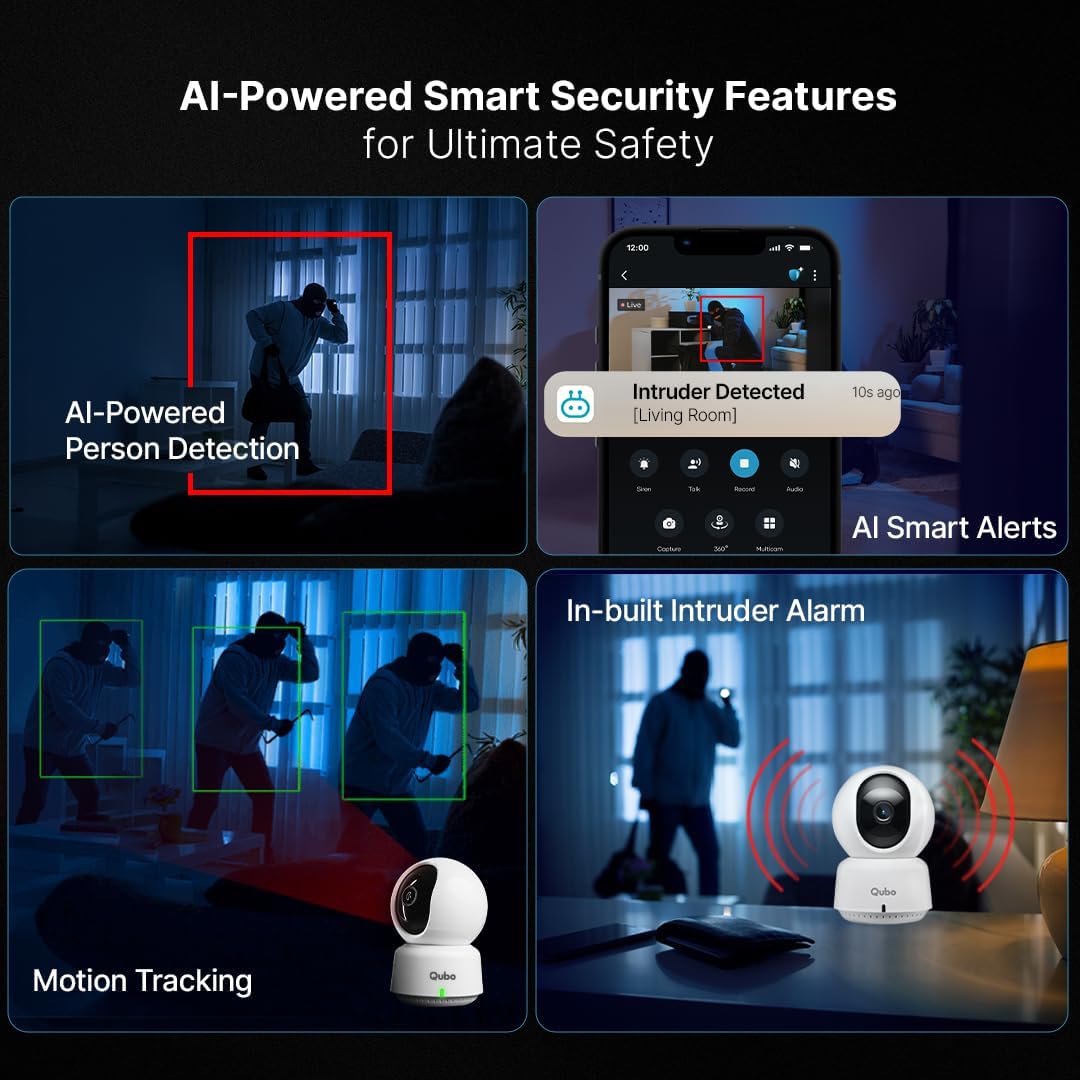
- AI Person Detection: Intelligently identifies human figures, reducing false alarms.
- Motion Tracking: Automatically follows detected movement within its field of view.
- Two-Way Talk: Allows for real-time communication through the camera's built-in speaker and microphone.
- NightPulse Vision: Enhanced infrared technology with 6pcs 850nm IR LEDs for clear night vision up to 20 feet.
- Automatic Intruder Alarm: Triggers an alarm upon detecting unauthorized entry.
- Wi-Fi Connectivity: Easy integration with your home network (2.4 GHz).
- Smart Home Integration: Compatible with Google Assistant and Alexa.
- Secure Cloud & SD Card Storage: Multiple options for video recording and backup.

3. Setup Guide
3.1 Initial Setup
- Unpack: Carefully remove all components from the packaging.
- Power On: Connect the camera to the power adapter using the provided USB cable and plug it into a power outlet. The camera will power on and indicate its status (e.g., blinking LED).
- Download App: Download the Qubo app from your smartphone's app store (iOS or Android).
- Create Account: Open the Qubo app and follow the on-screen instructions to create a new account or log in if you already have one.
- Add Device: In the app, select the option to add a new device. Follow the prompts to scan the QR code located on the camera. This will initiate the pairing process.
- Connect to Wi-Fi: Select your 2.4 GHz Wi-Fi network and enter the password when prompted by the app. Ensure your phone is connected to the same 2.4 GHz network during setup.
- Completion: Once connected, the camera's LED indicator will change, and the app will confirm successful setup.
3.2 Mounting Options
The Qubo Smart 360° camera can be placed on various surfaces or mounted for optimal coverage:
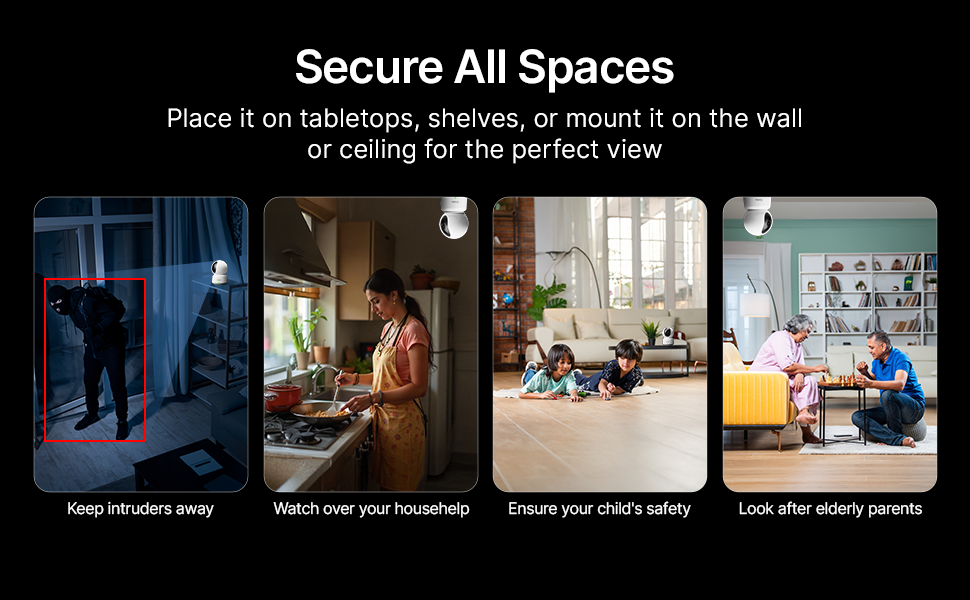
- Tabletop Placement: Place the camera on a flat, stable surface such as a table or shelf.
- Wall or Ceiling Mounting: Use the provided screw kit to securely mount the camera to a wall or ceiling. Ensure the mounting surface is strong enough to support the camera's weight. The app includes a feature to invert the video feed if the camera is mounted upside down.
4. Operation
4.1 Live View and Control
- Open the Qubo app to access the live video feed from your camera.
- Use the on-screen controls to pan (horizontal rotation), tilt (vertical movement), and digitally zoom the camera view.
- Activate the Two-Way Talk feature to speak through the camera's speaker and listen through its microphone.
4.2 Recording and Storage
The camera supports various recording modes and storage options:
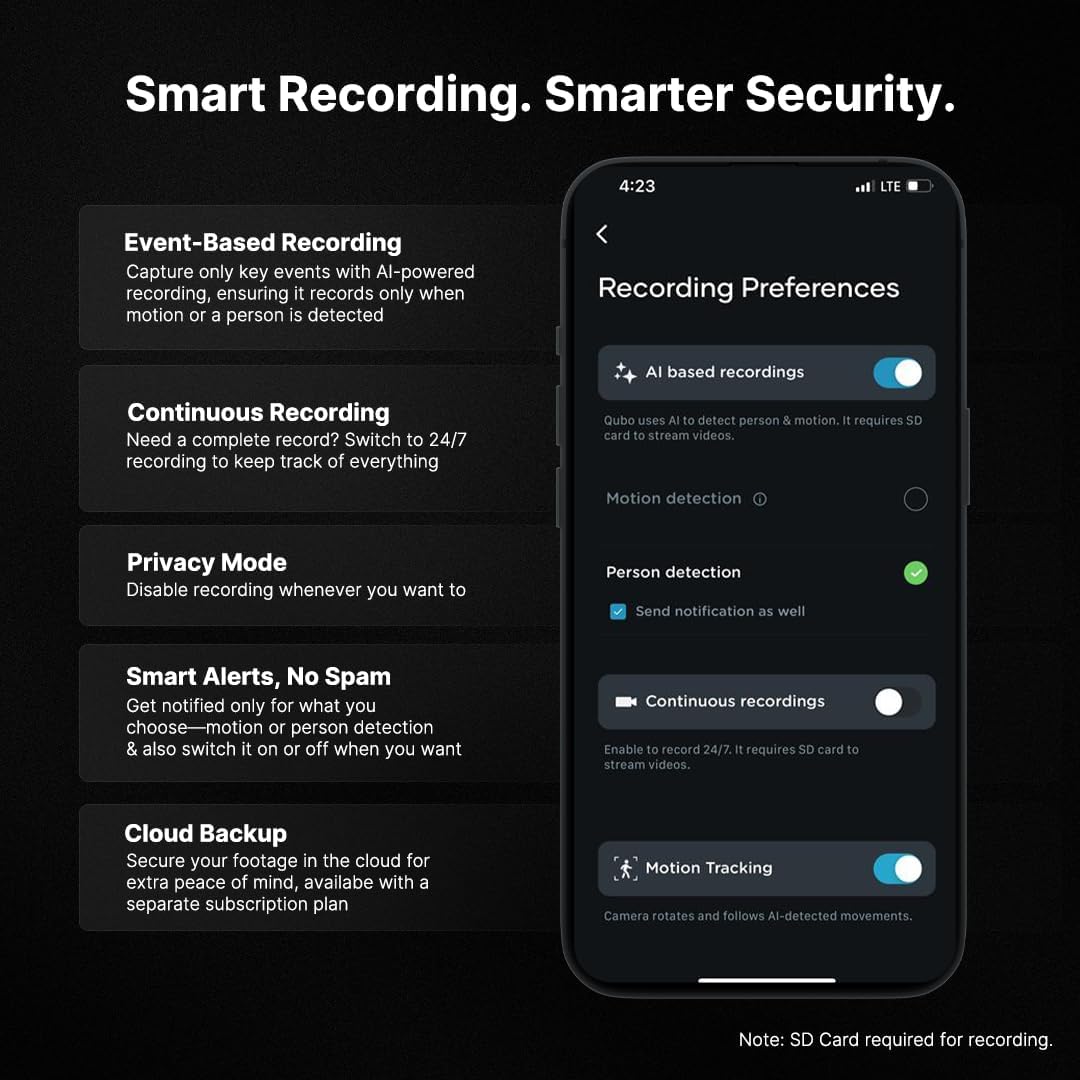
- Event-Based Recording: Records only when motion or a person is detected, saving storage space and making event review efficient.
- Continuous Recording: Records 24/7. Requires an SD card for continuous operation.
- Privacy Mode: Temporarily disables recording and live view for privacy.
- SD Card Storage: Supports microSD cards up to 1TB (Class 10 or higher recommended). Insert the SD card into the designated slot on the camera.
- Cloud Storage: Secure cloud backup is available, often with a free trial period. Cloud storage provides off-site backup for critical events.

4.3 Alerts and Alarms
- Smart Alerts: Receive notifications on your smartphone for detected motion or persons. Customize alert settings in the app.
- Intruder Alarm: The camera features an in-built loud alarm that can be triggered automatically upon detection or manually via the app to deter intruders.
5. Specifications
| Feature | Detail |
|---|---|
| Model Number | HCM01 |
| Resolution | 3MP (2K, 2304 x 1296p) |
| Connectivity | Wireless (Wi-Fi 2.4 GHz) |
| Indoor/Outdoor Usage | Indoor |
| Special Features | Night Vision, AI Person Detection, Two-Way Talk, Motion Tracking, Automatic Alarm |
| Pan/Tilt/Zoom | 360° Horizontal, 55° Vertical |
| Storage | MicroSD (up to 1TB), Cloud Storage |
| Material | Acrylonitrile Butadiene Styrene (ABS) |
| Power Adapter | 5V/1A |
| Dimensions (L x W x H) | 10 x 10 x 10 Millimeters |
| Weight | 10 Milligrams |
| Manufacturer | Hero Electronix Pvt. Ltd. |
| Country of Origin | India |
6. Maintenance
To ensure the longevity and optimal performance of your Qubo Smart 360° camera, follow these maintenance guidelines:
- Cleaning: Gently wipe the camera lens and body with a soft, dry, lint-free cloth. Avoid using harsh chemicals or abrasive materials, which can damage the surface or lens.
- Dust Protection: The camera features a dust-resistant design. However, regularly remove any accumulated dust from the device, especially around moving parts if applicable, to prevent interference with its functionality.
- Placement: Ensure the camera is placed in a stable environment, away from direct sunlight, extreme temperatures, and high humidity.
- Firmware Updates: Periodically check the Qubo app for available firmware updates. Keeping your camera's firmware up-to-date ensures you have the latest features and security enhancements.
7. Troubleshooting
If you encounter issues with your Qubo Smart 360° camera, refer to the following common problems and solutions:
| Problem | Solution |
|---|---|
| Camera not connecting to Wi-Fi | Ensure your Wi-Fi network is 2.4 GHz. Check Wi-Fi password. Move camera closer to the router. Restart both the camera and your router. |
| No video feed / Offline status | Check power connection. Verify Wi-Fi connectivity. Restart the camera. Ensure your internet connection is stable. |
| App not opening or receiving OTP | Ensure your app is updated to the latest version. Check your phone's network connection for OTP delivery. Reinstall the app if necessary. Contact support if the issue persists. |
| Poor video quality | Ensure the camera lens is clean. Check your internet speed. Adjust video quality settings in the app if available. |
| False motion alerts | Adjust motion detection sensitivity in the app. Define specific detection zones to exclude irrelevant areas. Ensure AI Person Detection is enabled if you only want alerts for people. |
| Two-Way Talk audio issues | Ensure the camera's microphone and speaker are not obstructed. Check volume settings in the app. Ensure your phone's microphone is enabled for the Qubo app. |
8. Warranty and Support
8.1 Warranty Information
Your Qubo Smart 360° 3MP Wi-Fi Security Camera comes with a warranty. Please refer to the included Warranty Card for specific terms, conditions, and duration of coverage. Keep your purchase receipt as proof of purchase for warranty claims.
8.2 Customer Support
For any technical assistance, product inquiries, or warranty claims, please contact Qubo customer support. Qubo provides prompt pre and post-sales support.
- Online Support: Visit the official Qubo website for FAQs, troubleshooting guides, and contact information.
- In-App Support: Some support features may be available directly within the Qubo mobile application.
- Contact Details: Refer to your product packaging or the Qubo website for the most up-to-date contact information (phone, email, or WhatsApp support).


