
1. Introduction
Thank you for choosing the Moondrop Space Travel 2 Ultra Wireless Earphones. These earphones are designed to provide a high-fidelity audio experience with advanced features such as a 13mm planar driver, LDAC high-definition audio transmission, NPU hardware-level AI noise canceling, and a low-latency game mode. This manual provides detailed instructions for setup, operation, and maintenance to ensure optimal performance and longevity of your device.
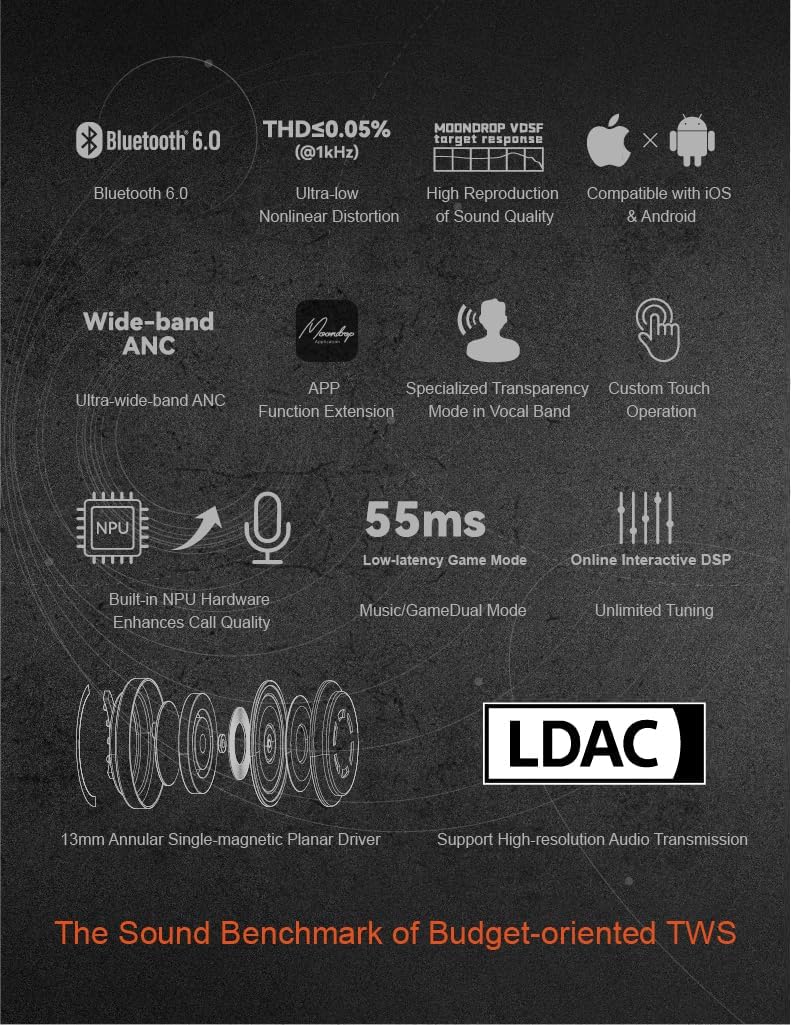
Image: The Moondrop Space Travel 2 Ultra earphones, shown alongside their transparent charging case, highlighting the compact and ergonomic design.
2. What's in the Box
Upon unboxing your Moondrop Space Travel 2 Ultra, please verify that all components are present:
- Space Travel 2 Ultra Earphones (Left and Right)
- Charging Case
- Charging Cable
- Eartips (Sizes: S, M, L)
- User Manual
- After-service Card
- Guidance Card
- Service Card
- Certificate
3. Product Overview
Key Features
- Patent 13mm Annular Single-magnetic Planar Driver: Utilizes advanced planar driver technology for excellent bandwidth and low distortion.
- LDAC High-definition Lossless Audio Transmission Protocol: Supports 24Bits/96kHz audio transmission for high-quality sound.
- Built-in NPU Hardware-level AI Noise Canceling: Features an AI ENC algorithm for effective noise elimination and vocal clarity during calls.
- 55ms Low-latency Game Mode: Provides a reduced signal transmission delay for an optimized gaming experience.
- Seamless Switching Between Monaural-Binaural: Supports automatic reconnection and switching between single and dual earbud use.
- DSP Graphic Interface: Customizable equalizer settings via the MOONDROP APP.
- Custom Touch Operation & ANC Switch: Personalize touch controls and ANC settings through the MOONDROP Link APP.
- Seamless Switching Between Two Devices: Dual-device connectivity for simultaneous connection to two devices.

Image: An infographic illustrating the core features of the Space Travel 2 Ultra, including Bluetooth 6.0, LDAC support, NPU AI noise canceling, and low-latency game mode.
Driver Technology
The Space Travel 2 Ultra incorporates a newly developed patented 13mm single-magnetic annular planar driver. This design, inspired by flagship technologies, ensures excellent bandwidth and low distortion through a unique double suspension and planar magnetic circuit.

Image: An exploded diagram showcasing the internal components of the 13mm planar driver, including the flexible diaphragm suspension, double-suspension diaphragm, ultra-thin CCAW coil, and N55 magnets.
4. Setup
4.1 Charging the Earphones and Case
Before first use, fully charge the earphones and the charging case. Place the earphones into the charging case and connect the provided USB-C cable to the charging port on the case and a power source. The indicator light on the case will show charging status.
4.2 Pairing with a Device
- Ensure the earphones are charged.
- Place earphones back in the case, close the lid, then open it again to re-enter pairing mode.
- On your device (smartphone, tablet, computer), go to Bluetooth settings and enable Bluetooth.
- Search for available devices and select "Moondrop Space Travel 2 Ultra" from the list.
- Once connected, the LED indicator on the earphones will stop flashing.
Note: The earphones support seamless switching between monaural and binaural modes. They will automatically reconnect to the last paired device when removed from the case.
5. Operating Instructions
5.1 Touch Controls
The Space Travel 2 Ultra features customizable touch controls. Default operations typically include:
- Single Tap: Play/Pause music, Answer/End call.
- Double Tap (Left/Right): Previous/Next track.
- Triple Tap (Left/Right): Volume Down/Up.
- Long Press: Activate Voice Assistant, Switch ANC/Transparency Mode.
- Four Taps: Switch between Music Mode and Low-latency Game Mode.
For detailed customization of touch operations and ANC settings, download the MOONDROP Link APP.

Image: A screenshot from the MOONDROP Link app demonstrating the interface for customizing touch controls and Active Noise Cancellation (ANC) settings.
5.2 LDAC High-definition Audio
The earphones support LDAC for high-resolution audio transmission (24Bits/96kHz). To enable LDAC, you may need to manually activate it through the MOONDROP APP on your device. After activation, the earphones may restart. Note that enabling LDAC can increase power consumption and may reduce battery life. Compatibility and performance may vary across different mobile phones due to varying RF performance and electromagnetic environment.

Image: A visual representation of the LDAC High-definition Lossless Audio Transmission Protocol, emphasizing its support for high-quality audio.
5.3 Low-latency Game Mode
For an optimized gaming experience, switch to Game Mode by tapping the touch faceplate four times. This mode reduces signal transmission delay to as low as 55ms. Tap four times again to return to Music Mode. The 55ms delay is an official specification of the SOC chip and may vary based on environmental interference and connected equipment.

Image: A graphic illustrating the easy switching mechanism between Music Mode and the 55ms Low-latency Game Mode.
5.4 MOONDROP APP Customization (DSP & ANC)
The MOONDROP APP allows for advanced customization:
- DSP Graphic Interface: Customize and debug the parameterized equalizer. Adjust parameters such as filter type, frequency point, gain, and Q value.
- Custom ANC Switch: Adjust switches for features like Active Noise Cancellation (ANC), transparency mode, and power off.
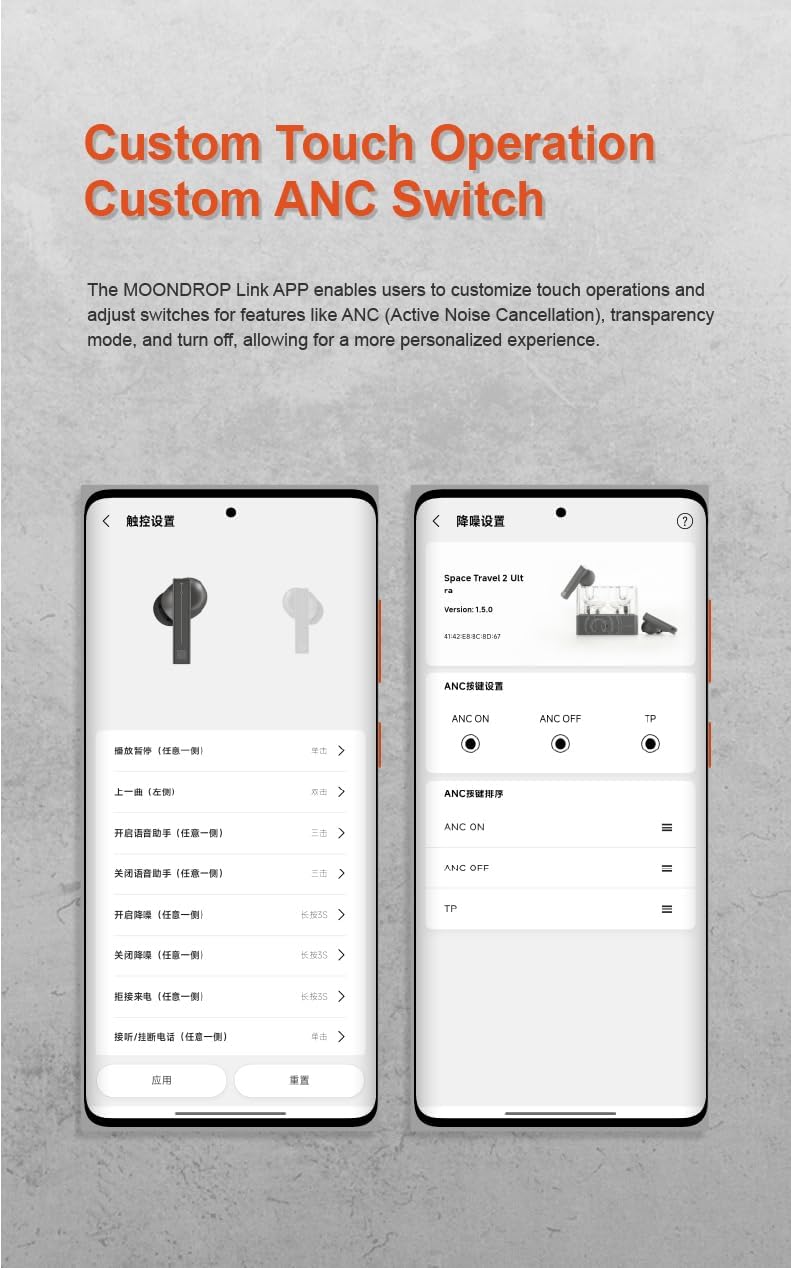
Image: Screenshots from the MOONDROP app displaying the DSP graphic interface for equalizer adjustments and other customization options.
5.5 Dual Device Connectivity
The Space Travel 2 Ultra supports connecting to two different devices simultaneously. You can easily switch between connected devices through the MOONDROP APP for a seamless experience.

Image: The Moondrop Space Travel 2 Ultra earphones and charging case positioned between a tablet and a smartphone, illustrating the dual-device connectivity feature.
6. Maintenance
- Cleaning: Regularly clean the earphones and charging case with a soft, dry, lint-free cloth. Do not use harsh chemicals or abrasive materials.
- Eartips: Remove eartips periodically and clean them with mild soap and water. Ensure they are completely dry before reattaching.
- Charging Ports: Keep the charging contacts on the earphones and in the case clean and free of debris.
- Storage: When not in use, store the earphones in their charging case to protect them and keep them charged.
- Avoid Water: The earphones are not waterproof. Avoid exposure to water, moisture, or extreme temperatures.
7. Troubleshooting
7.1 Earphones Not Pairing
- Ensure earphones are charged.
- Place earphones back in the case, close the lid, then open it again to re-enter pairing mode.
- Turn off and on Bluetooth on your device.
- Forget the device from your Bluetooth list and try pairing again.
7.2 No Sound or Low Volume
- Check the volume level on both the earphones (via touch controls or app) and your connected device.
- Ensure earphones are properly seated in your ears.
- Clean any debris from the earphone nozzles and eartips.
- Reconnect the earphones to your device.
7.3 Disconnections or Interference (LDAC Mode)
- LDAC mode can be demanding on device RF performance and is sensitive to electromagnetic interference.
- If experiencing frequent disconnections, try disabling LDAC through the MOONDROP APP or switching to AAC.
- Ensure there are no major obstacles or strong interference sources between your device and the earphones.
8. Specifications
| Feature | Detail |
|---|---|
| Model Name | SPACE TRAVEL 2 ULTRA |
| Brand | Moondrop |
| Connectivity Technology | Wireless (Bluetooth 6.0) |
| Ear Placement | In Ear |
| Form Factor | In Ear |
| Driver Type | 13mm Annular Single-magnetic Planar Driver |
| Audio Codec Support | LDAC, AAC, SBC |
| Noise Canceling | NPU Hardware-level AI ENC |
| Low-latency Mode | 55ms Game Mode |
| Item Weight | 3.84 ounces |
| Package Dimensions | 4.06 x 2.87 x 1.42 inches |
| Manufacturer | MOONDROP |

Image: A frequency response graph comparing the Space Travel 2 Ultra's performance against a target response, indicating its audio characteristics.
9. Warranty and Support
Moondrop products are covered by a limited warranty against manufacturing defects. Please refer to the included After-service Card and Service Card for specific warranty terms and conditions. For technical support, troubleshooting assistance, or warranty claims, please contact Moondrop customer service through their official website or the contact information provided on your service card.
You can also visit the official Moondrop store on Amazon for additional product information and support: Moondrop Amazon Store.


