
Introduction
The Yofidra 15.6" Digital Calendar is an interactive touchscreen display designed to help families manage schedules, chores, meal plans, and more. It functions as an all-in-one home command center, integrating calendar synchronization, a reward-based chore chart, a digital photo frame, and smart reminders. This manual provides detailed instructions for setting up, operating, and maintaining your device.

Image: Overview of the Yofidra Digital Calendar's features, including calendar, photo frame, chores, rewards, meal plan, to-do list, timer, notifications, weather, calendar sync, auto-rotate, and sleep mode.
Package Contents
Please verify that all items are present in the package before proceeding with the setup.
- Yofidra 15.6" Digital Calendar
- Power Adapter
- Adjustable Stand (for desk placement)
- Wall Mounting Plate and Screws (for wall installation)
- User Manual (this document)
Setup
1. Power Connection
- Connect the power adapter to the DC input port on the back of the digital calendar.
- Plug the power adapter into a standard electrical outlet.
- The device will automatically power on.
2. Wi-Fi Connection
- Upon first boot-up, the device will guide you through the initial setup process.
- Select your preferred language.
- Choose your Wi-Fi network from the list and enter the password. A stable internet connection is required for full functionality, including calendar synchronization and app features.
3. AIMOR App Installation and Account Setup
The Yofidra Digital Calendar uses the AIMOR app for advanced features and remote management.
- Download the "AIMOR" app from the Google Play Store (for Android devices) or the Apple App Store (for iOS devices).
- Open the app and create an account.
- Follow the on-screen instructions in the app to pair your digital calendar with your account. This typically involves scanning a QR code displayed on the calendar or entering a device ID.

Image: The digital calendar displaying a family photo, with a smartphone showing the AIMOR app for photo and video sharing.
4. Calendar Synchronization
The Yofidra Digital Calendar supports synchronization with popular calendar services.
- Within the AIMOR app or directly on the calendar's settings, navigate to the calendar sync options.
- Connect your Google, Outlook, iCloud, Cozi, or Yahoo calendar accounts.
- Events will automatically sync, allowing you to view and edit schedules from both the calendar and your connected devices.

Image: The Yofidra Digital Calendar displaying a synchronized schedule, with icons for Google, Outlook, iCloud, and Yahoo, illustrating seamless integration with external calendar services.
5. Mounting Options
The calendar can be placed on a desk using its adjustable stand or mounted on a wall.
Desk Placement:
- Attach the adjustable stand to the back of the calendar.
- Place the calendar on a flat, stable surface. The device supports both landscape and portrait orientations, which can be adjusted via the stand.
Wall Mounting:
- Use the provided wall mounting plate and screws.
- Ensure the mounting location is suitable and can support the weight of the device.
- Follow the instructions provided with the mounting hardware to securely attach the calendar to the wall.
- The calendar will automatically switch between portrait and landscape modes when rotated.

Image: The Yofidra Digital Calendar displayed in both desktop and wall-mounted configurations, illustrating its automatic rotation feature between portrait and landscape modes.
Video: Wall-Mounting Installation Guide. This video demonstrates the steps for securely mounting the Yofidra Digital Calendar on a wall.
Operating Instructions
1. Basic Navigation
- The Yofidra Digital Calendar features a responsive touchscreen display.
- Swipe left or right to navigate between different views or applications.
- Tap icons to open specific features like Calendar, Chore Chart, Meal Plan, or Photo Frame.
- The home screen provides an overview of your daily calendar, chores, rewards, meal plan, to-do items, and photos. Tap on any module to access its detailed page.
Video: Product Functions and How to Use. This video provides a general overview of the calendar's functions and basic operation.
2. Calendar Management
- Viewing Modes: Switch between Schedule, Day, Week, and Month views using the options at the top of the calendar interface.
- Adding Events: Tap the '+' icon or an empty slot on the calendar to add a new event. Enter event details such as title, time, date, and assign colors for different family members or event types.
- Editing Events: Tap on an existing event to modify its details.
- Navigation: Use the arrow icons to move between weeks or months. Tap "Today" to return to the current date.
3. Chore Chart and Rewards
The integrated chore chart helps assign tasks and motivate family members with a reward system.
- Assigning Chores: Access the Chore Chart section. You can assign tasks with fixed schedules and reminders.
- Reward System: Set up a point-based reward system within the AIMOR app. Points are awarded upon completion of chores, encouraging responsibility.

Image: A child interacting with the Yofidra Digital Calendar, which shows a reward-based chore chart with points for completed tasks.
4. Meal Plan
Plan your family's meals directly on the calendar.
- Navigate to the Meal Plan section.
- Add meals for each day of the week. This helps in planning groceries and avoiding last-minute meal decisions.

Image: A family in a kitchen, with the Yofidra Digital Calendar prominently displaying a weekly meal plan, aiding in family organization.
5. To-Do List
Keep track of tasks and errands with the integrated to-do list.
- Access the To-Do section to create and manage shared lists.
- Tasks can be added directly on the calendar or through the AIMOR app.
6. Smart Photo Frame
When idle, the calendar transforms into a digital photo frame.
- Use the AIMOR app to easily transfer photos and videos from your smartphone to the calendar.
- The calendar will display a revolving photo album, showcasing your memories. No subscription is required for this feature.
7. Smart Reminders and Utilities
- Clock: Displays the current time.
- Timer: Set countdown timers for cooking, activities, or other needs.
- Weather: Provides current weather conditions and forecasts.
- Notifications: Receive timely alerts for events, chores, and other important information.
- Custom Repeat Cycles: Set events or reminders to repeat daily, weekly, monthly, or yearly.
- Auto-Brightness: The screen brightness adjusts automatically based on ambient light.
- Energy-Saving Sleep Mode: The device can be set to enter a low-power sleep mode during specified hours.
Maintenance
- Cleaning: Use a soft, dry cloth to clean the screen and exterior. Avoid abrasive cleaners or solvents.
- Software Updates: The calendar system supports remote updates. Ensure your device is connected to Wi-Fi and check for available updates periodically in the settings menu to access new features and improvements.
- Storage: The device has 64GB of internal storage for photos and videos. Manage your content through the AIMOR app to optimize storage.
Troubleshooting
| Problem | Possible Cause | Solution |
|---|---|---|
| Device does not power on. | Power adapter not connected or faulty outlet. | Ensure the power adapter is securely connected to the device and a working electrical outlet. Try a different outlet. |
| Cannot connect to Wi-Fi. | Incorrect password, out of range, or network issue. | Verify the Wi-Fi password. Move the device closer to the router. Restart your router and the digital calendar. |
| Calendar not syncing with external services. | Incorrect account credentials or app permissions. | Check your account login details in the AIMOR app or calendar settings. Ensure the AIMOR app has necessary permissions to access your external calendars. Verify internet connection. |
| Photos/videos not uploading. | App connectivity issues or insufficient storage. | Ensure the AIMOR app is connected to the calendar and has internet access. Check the calendar's storage capacity. Restart the app and the calendar. |
| Screen is unresponsive. | Temporary software glitch. | Restart the device by unplugging and re-plugging the power adapter. If the issue persists, contact customer support. |
Specifications
| Feature | Detail |
|---|---|
| Brand | Yofidra |
| Model | sku1J0003_1 |
| Screen Size | 15.6 inches |
| Product Dimensions | 15.7"W x 9.8"H |
| Material | Acrylonitrile Butadiene Styrene (ABS) |
| Mounting Type | Desk Mount & Wall Mount |
| Storage Capacity | 64GB (for 15.6" model) |
| Connectivity | Wi-Fi |
| Supported Calendar Services | Google, Outlook, iCloud, Cozi, Yahoo |
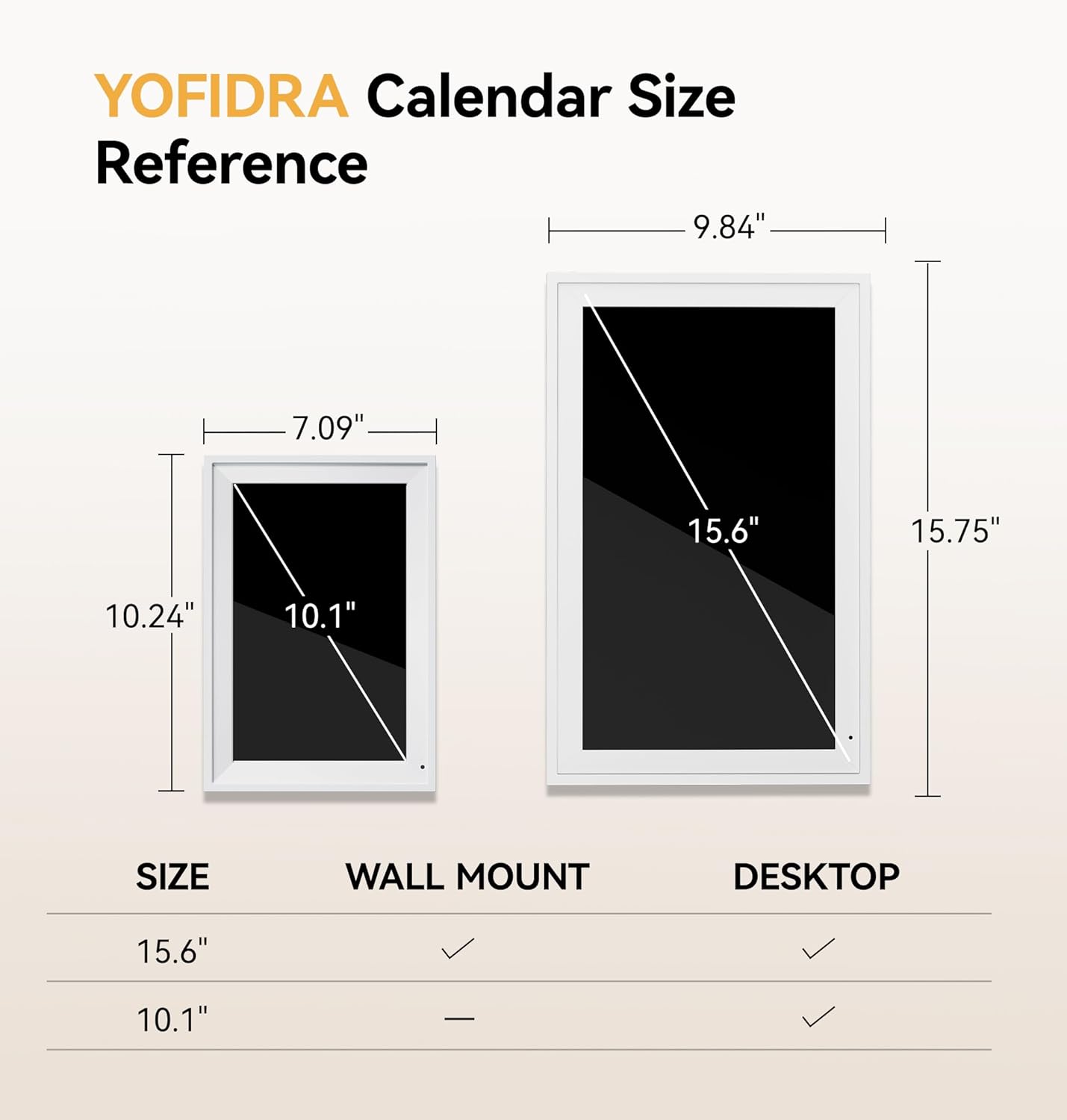
Image: Size reference for Yofidra Digital Calendars, detailing dimensions for 10.1" and 15.6" models, and indicating wall mount and desktop compatibility.
Warranty and Support
For warranty information, please refer to the documentation included with your purchase or visit the official Yofidra website.
If you encounter any issues not covered in the troubleshooting section, or require further assistance, please contact Yofidra customer support. Contact details can typically be found on the product packaging, the official website, or within the AIMOR app's help section.
Online Resources: