
1. Product Overview
The SIXTOP Double Din Car Stereo Radio (Model P1) is a versatile in-car entertainment system featuring a 7-inch IPS touch screen. It supports wireless Apple CarPlay and Android Auto, Bluetooth connectivity, FM radio, and various multimedia inputs. This manual provides detailed instructions for installation, operation, and maintenance to ensure optimal performance and user experience.
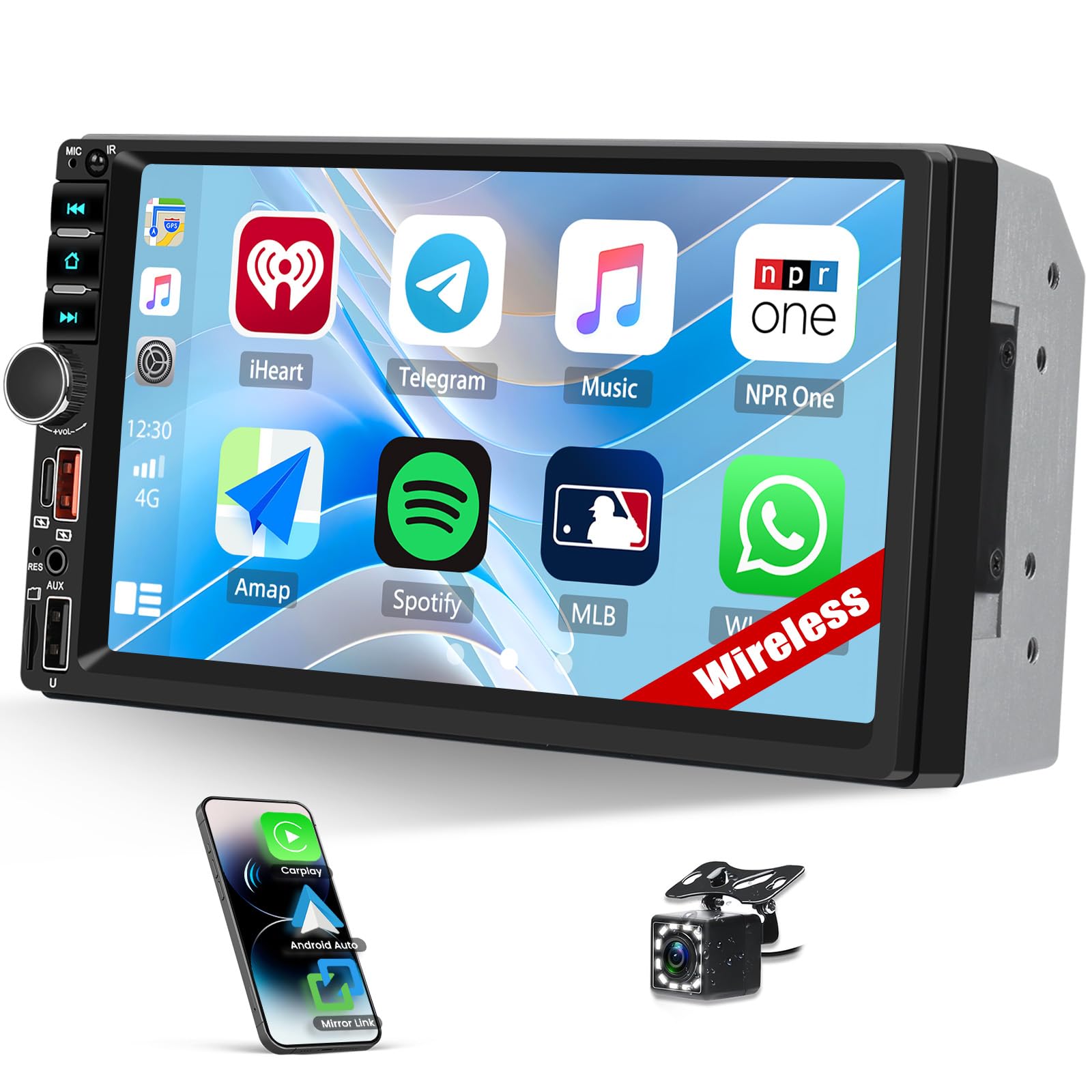
Image: Front view of the SIXTOP Double Din Car Stereo, showcasing its 7-inch touch screen interface with various app icons.
2. What's in the Box
Verify that all components are present before beginning installation.
- 1 x SIXTOP Double Din Car Stereo (Model P1)
- 1 x Backup Camera
- 1 x Mounting Bracket
- 1 x User Manual
- 1 x Power Cable
- 1 x Horn Cable
- USB/AUX/TF Input Cables

Image: All components included in the product packaging, laid out for inspection.
3. Setup and Installation
3.1 Wiring Diagram
Refer to the detailed wiring diagram for proper connection of the power, speaker, and accessory cables. Ensure all connections are secure to prevent malfunction.

Image: A comprehensive diagram illustrating the various wiring connections for the car stereo system.
3.2 Physical Installation
Professional installation is recommended for optimal performance and safety. Ensure the vehicle's battery is disconnected before starting the installation process.
- Remove the original vehicle machine.
- Connect the original vehicle line using the provided adapter cable.
- Connect the back interface, including GPS antenna, radio antenna, and RCA cables.
- Install the 2 USB cables.
- Secure the new car stereo into the double din slot using the mounting brackets and screws.
Video: A step-by-step demonstration of the car stereo installation process, including removal of the old unit and connecting new wiring.
Video: A demonstration of the power connection and initial power-on sequence after installation.
3.3 Backup Camera Wiring (Optional)
If installing the backup camera, connect the reversing trigger line to the reversing light cable in the power harness. Connect the camera power cable to the positive pole of the reverse light and ground it to the chassis.

Image: A diagram detailing the wiring connections required for the backup camera installation.
4. Operating Instructions
4.1 Wireless CarPlay & Android Auto
Connect your smartphone wirelessly via Wi-Fi/Bluetooth to access navigation, music, calls, and other apps directly on the car stereo's 7-inch touch screen.
Video: Demonstration of connecting a smartphone to the car stereo for wireless CarPlay and Android Auto functionality.
4.2 Mirror Link
Mirror Link allows you to sync your Android or iOS phone's screen to the car stereo via Wi-Fi or USB connection.

Image: The Mirror Link function displaying a smartphone screen on the car stereo, enabling direct interaction.
4.3 FM Radio
Tune into your favorite FM radio stations. The system supports saving up to 18 preset stations for quick access to music, news, and sports broadcasts.

Image: The FM radio interface on the car stereo, showing frequency selection and preset buttons.
4.4 Bluetooth Connectivity
Utilize built-in Bluetooth for hands-free calling and wireless audio streaming. The integrated microphone ensures clear communication while driving.

Image: The Bluetooth menu of the car stereo, highlighting hands-free calling and audio streaming features.
4.5 EQ Audio Settings
Adjust the Equalizer (EQ) system to customize audio effects and optimize sound quality according to your preferences.

Image: The EQ settings screen, allowing users to fine-tune audio output with various presets like Jazz, Classic, Rock, Pop, and User-defined.
4.6 Steering Wheel Control (SWC)
The unit supports steering wheel control functions, allowing you to easily manage volume, switch channels, and make calls without taking your hands off the wheel.

Image: The Steering Wheel Control setup screen, where users can program buttons on their steering wheel to control the stereo.
4.7 Backup Camera Display
When the car's rear gear is engaged, the stereo automatically switches to display a clear reversing image from the included backup camera. The camera features night vision, a wide viewing angle, and is waterproof.

Image: The car stereo screen showing the view from the backup camera with dynamic parking guidelines.
5. Maintenance
To ensure the longevity and optimal performance of your SIXTOP car stereo, follow these maintenance guidelines:
- Cleaning the Screen: Use a soft, lint-free cloth to gently wipe the touch screen. Avoid abrasive materials or harsh chemicals that could damage the display.
- General Cleaning: Keep the unit free from dust and debris. Use a soft brush or compressed air to clean vents and buttons.
- Software Updates: Periodically check for software updates to ensure the system has the latest features and security patches. Refer to the manufacturer's website for update instructions.
- Avoid Extreme Temperatures: Do not expose the unit to extreme heat or cold for extended periods, as this can affect performance and lifespan.
6. Troubleshooting
If you encounter issues with your car stereo, refer to the following common troubleshooting steps:
- No Power: Check all power connections and ensure the fuse is intact. Verify the vehicle's battery is charged.
- No Sound: Check speaker connections and ensure the volume is not muted or set too low. Verify EQ settings are not causing audio issues.
- Touch Screen Unresponsive: Perform a system reset (refer to the user manual for specific instructions). Ensure the screen is clean and free from obstructions.
- CarPlay/Android Auto Connection Issues: Ensure your phone's Wi-Fi and Bluetooth are enabled. Try restarting both your phone and the car stereo. Verify the phone's operating system is compatible.
- Backup Camera Not Displaying: Check the camera's power and video connections. Ensure the reverse trigger wire is correctly connected to the vehicle's reverse light circuit.
7. Specifications
| Feature | Specification |
|---|---|
| Screen Material | IPS |
| System | 8268K |
| Voltage | 12 V |
| Maximum Power Output | 4*45W |
| CarPlay/Android Auto | Support Wireless |
| Radio Band | FM |
| Radio Frequency | 87.5-108MHz |
| Screen Resolution | 1024x600 |
| Audio Formats | MP3/AAC/OGG/FLAC/APE |
| Video Formats | AVI/3GP/MP4/MOV/MPG/MKV/VOB/RMVB/RM |
| Languages | English, Chinese, Japanese, Portuguese, Russian, German, Spanish, Turkish, Italian, French, Polish, Hebrew, Slovenia |
8. Warranty and Support
SIXTOP offers comprehensive customer support for its products. For any technical assistance, warranty claims, or product inquiries, please refer to the contact information below.
- Online Support: SIXTOP123@163.com
- Response Time: 24 Hours/7 Days Quick Response
- Replacement: 1-Year Replacement
- Technical Support: Lifetime Technical Support

Image: Visual representation of SIXTOP's customer support, including email, response time, replacement policy, and technical support.


