
Introduction
Welcome to the iBUYPOWER Scale Gaming PC Desktop Computer user manual. This guide provides essential information for setting up, operating, maintaining, and troubleshooting your new gaming system. The iBUYPOWER SCI5N4601 is designed for high-performance gaming and content creation, featuring an Intel Core i5 14400F processor, NVIDIA GeForce RTX 4060 8GB graphics card, 16GB DDR5 RGB 5200MHz RAM, and a 1TB NVMe SSD. It comes pre-installed with Windows 11 Home and includes a gaming keyboard and mouse.
Key features include:
- Intel Core i5 14400F CPU and NVIDIA GeForce RTX 4060 8GB GPU for powerful performance.
- 16GB DDR5 RGB 5200MHz RAM for efficient multitasking.
- 1TB NVMe SSD for fast boot times and ample storage.
- Windows 11 Home operating system.
- Wi-Fi Ready connectivity.
- Tempered Glass RGB Gaming Case with 16-color RGB lighting.
- Included iBUYPOWER Gaming Keyboard and RGB Gaming Mouse.
- Tower Air Cooler for effective CPU cooling.

Image: Front and side view of the iBUYPOWER Scale Gaming PC desktop computer, showcasing its tempered glass panel and RGB fans.
1. Setup Instructions
1.1 Unboxing
Carefully remove the computer and all accessories from the packaging. Retain the original packaging for future transport or service needs.
1.2 Connecting Peripherals
- Connect Monitor: Connect your monitor to the graphics card (NVIDIA GeForce RTX 4060) ports, typically HDMI or DisplayPort, located at the rear of the PC. Ensure the cable is securely fastened.
- Connect Keyboard and Mouse: Plug the included iBUYPOWER gaming keyboard and RGB gaming mouse into the available USB ports on the rear or top of the PC.
- Connect Power: Connect the power cable to the power supply unit (PSU) at the rear of the PC, then plug the other end into a grounded electrical outlet.
- Connect Network (Optional): For a wired internet connection, connect an Ethernet cable from your router or modem to the RJ-45 network port on the rear of the PC. For wireless, the PC is Wi-Fi ready.

Image: Close-up view of the top input/output (IO) ports on the PC case, showing USB ports, audio jacks, and power button for easy access.
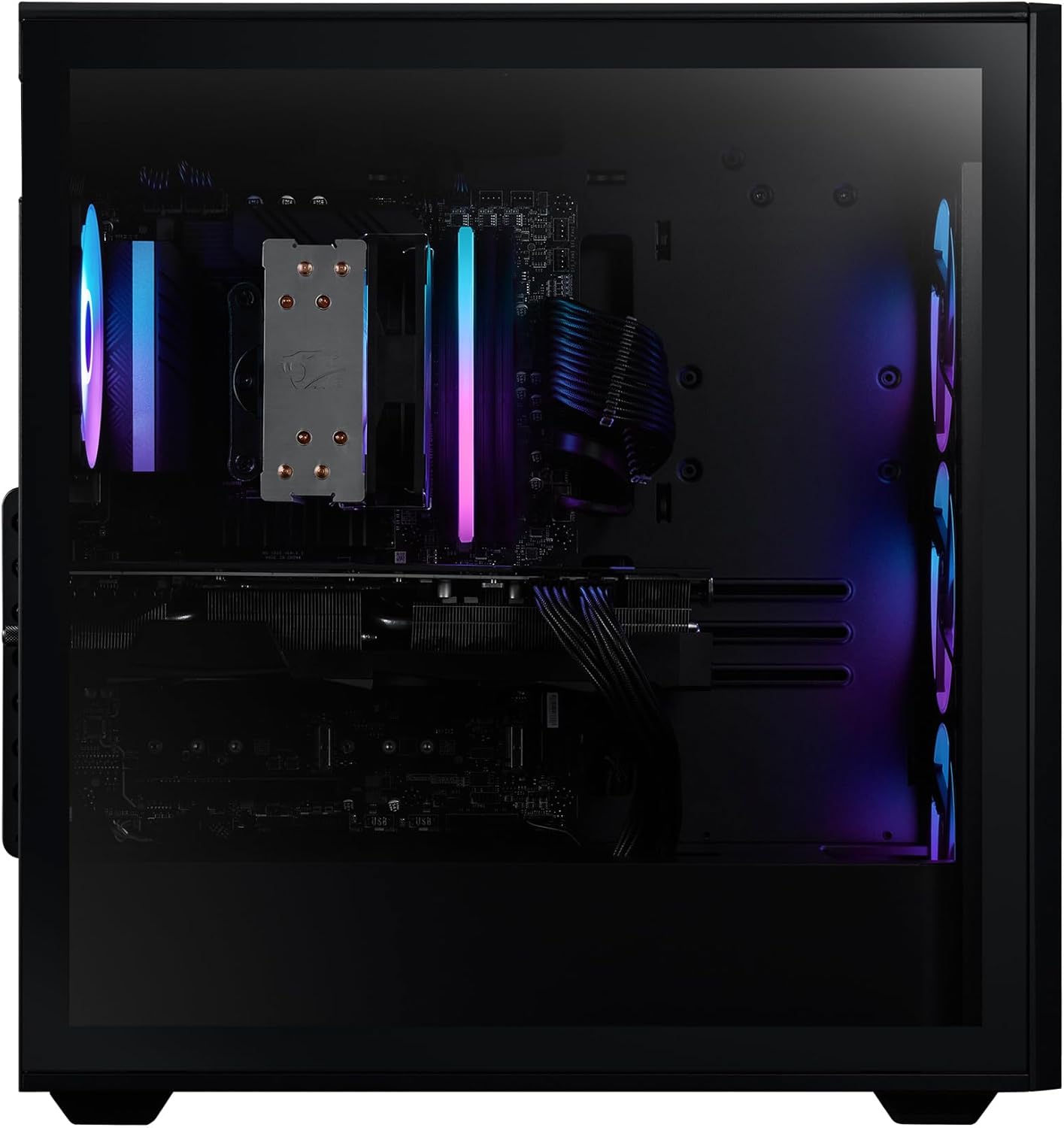
Image: Interior view of the iBUYPOWER PC, showing the CPU cooler, RAM sticks, and graphics card installed on the motherboard.
1.3 Initial Boot-Up
Press the power button located on the top of the PC. The system will initiate the boot process. Follow the on-screen instructions to complete the Windows 11 Home setup, including language selection, network configuration, and user account creation.
2. Operating Instructions
2.1 Power On/Off
- Power On: Press the power button once.
- Shut Down: Click the Start button in Windows, then select Power > Shut down.
- Restart: Click the Start button in Windows, then select Power > Restart.
2.2 Windows 11 Home
Your PC comes with Windows 11 Home pre-installed. Familiarize yourself with the operating system's interface and features. Regular updates are recommended for security and performance.
2.3 Gaming and Performance
The iBUYPOWER Scale PC is optimized for gaming. Ensure your graphics drivers are up to date for optimal performance. You can download the latest drivers from the NVIDIA website. The 16GB DDR5 RAM and 1TB NVMe SSD contribute to fast load times and smooth gameplay.
2.4 RGB Lighting Control
The PC features 16-color RGB lighting in the case fans. Control and customize the RGB lighting effects using the pre-installed software or physical buttons on the case, if available. Refer to the specific software documentation for detailed instructions on customization.
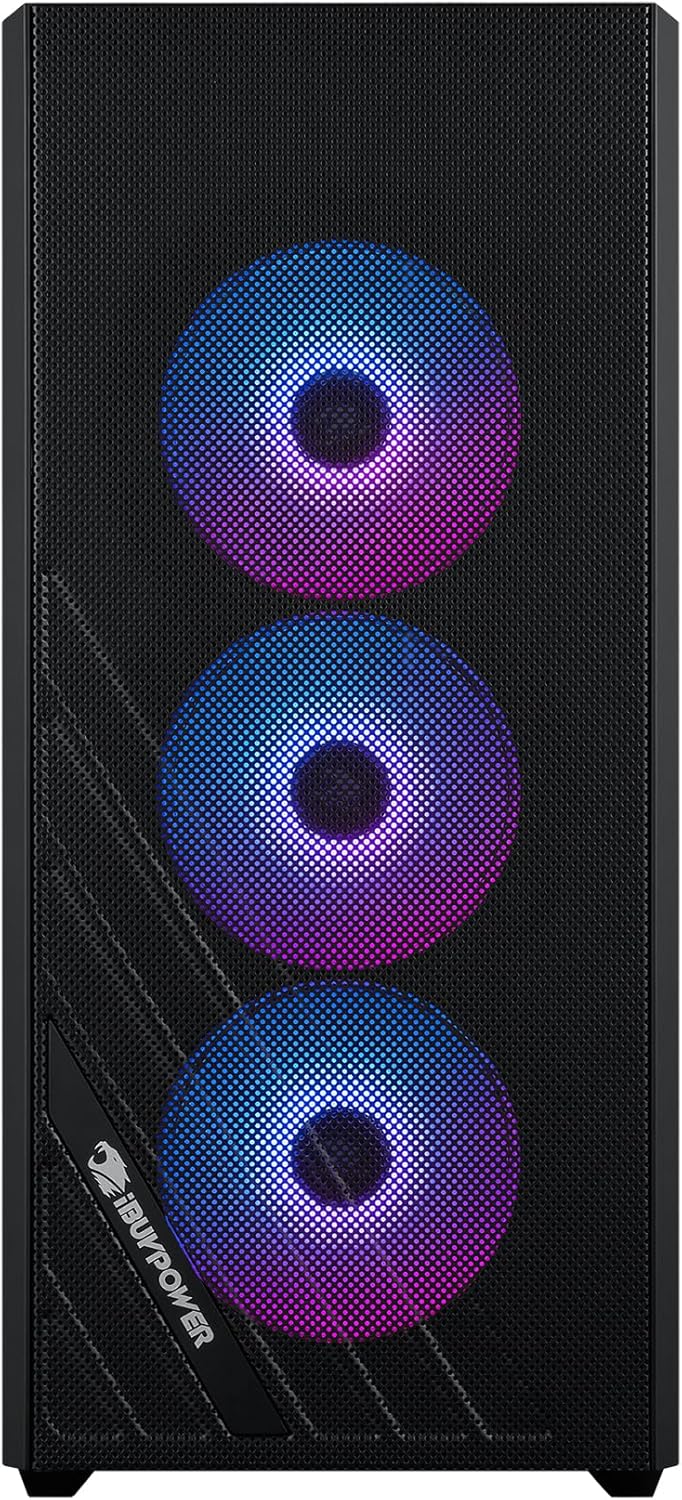
Image: Close-up front view of the iBUYPOWER PC, highlighting the three RGB fans behind the mesh front panel.
3. Maintenance
3.1 Cleaning
Regular cleaning helps maintain optimal performance and extends the lifespan of your PC.
- Exterior: Use a soft, damp cloth to wipe down the exterior of the case. Avoid harsh chemicals.
- Dust Removal: Periodically use compressed air to clear dust from fan vents, especially the mesh front panel and rear exhaust. Ensure the PC is powered off and unplugged before cleaning.
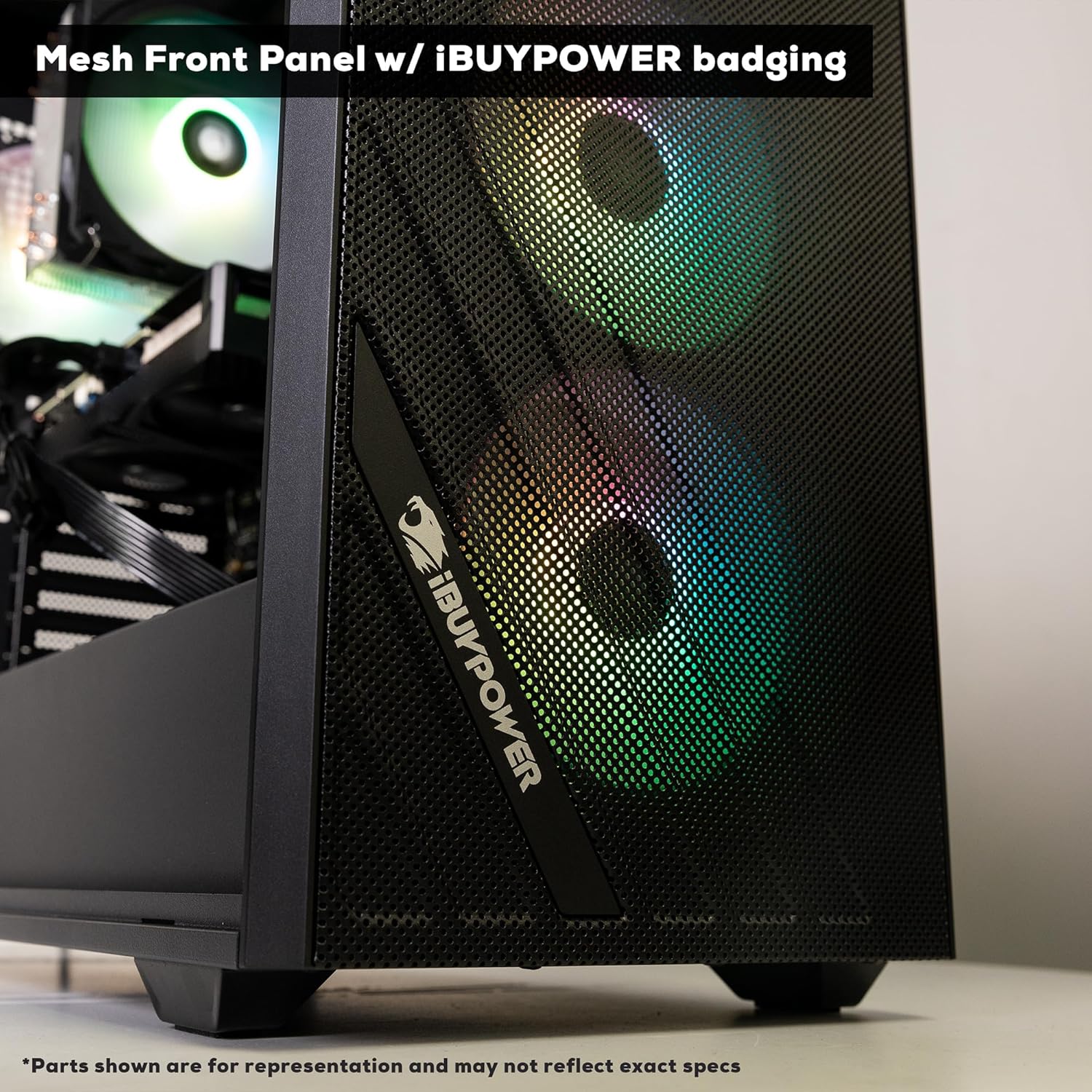
Image: Detailed view of the mesh front panel of the iBUYPOWER PC case, featuring the iBUYPOWER logo, designed for optimal airflow.
3.2 Airflow and Cooling
The iBUYPOWER Scale case features a mesh front panel and a Tower Air Cooler to ensure efficient airflow and cooling. Keep the PC in a well-ventilated area and ensure no obstructions block the air intake or exhaust vents.
3.3 Software Updates
Regularly update your operating system (Windows Update) and device drivers (especially graphics drivers) to ensure system stability, security, and optimal performance.
3.4 Accessing Internal Components
The PC features easy-open popout side panels for convenient access to internal components for upgrades or maintenance. Exercise caution when opening the case and ensure the PC is powered off and unplugged.

Image: A hand demonstrating how to easily open the popout side panel of the iBUYPOWER PC case, revealing the interior.
4. Troubleshooting
This section addresses common issues you might encounter. For more complex problems, please contact iBUYPOWER support.
- No Power:
- Ensure the power cable is securely connected to both the PC and the wall outlet.
- Verify the power switch on the PSU (at the back of the PC) is in the 'On' position.
- Try a different power outlet.
- No Display on Monitor:
- Ensure the monitor is powered on and the correct input source is selected.
- Verify the video cable (HDMI/DisplayPort) is securely connected to both the graphics card (not the motherboard's integrated graphics ports) and the monitor.
- Try a different video cable or monitor if possible.
- No Internet Connection:
- For wired connections, check the Ethernet cable and router/modem status.
- For Wi-Fi, ensure the Wi-Fi antenna (if external) is connected and Wi-Fi is enabled in Windows settings.
- Restart your router/modem.
- System Freezes or Crashes:
- Ensure all drivers, especially graphics drivers, are up to date.
- Check for sufficient airflow and ensure the PC is not overheating.
- Run a system diagnostic tool (available in Windows) to check for hardware issues.
5. Specifications
| Component | Detail |
|---|---|
| Model Number | SCI5N4601 |
| Processor | Intel Core i5 14400F (2.5 GHz base, up to 4.7 GHz max) |
| Graphics Card | NVIDIA GeForce RTX 4060 8GB GDDR6 |
| RAM | 16GB DDR5 RGB 5200MHz (1x16GB, 4 slots available, max 192GB) |
| Storage | 1TB NVMe SSD |
| Operating System | Windows 11 Home |
| Connectivity | Wi-Fi (802.11ac), Ethernet (10/100/1000), Bluetooth |
| USB Ports | 6 x USB 3.1, Total 9 USB ports |
| Video Output | HDMI (1 port) |
| Audio | On board audio |
| Cooling | Tower Air Cooler, RGB fans |
| Case Features | Tempered Glass RGB Gaming Case, Mesh Front Panel, Easy Open Popout Side Panels |
| Dimensions (LxWxH) | 18.5 x 8.66 x 19.4 inches |
| Weight | 36 pounds |
| Included Peripherals | iBUYPOWER Gaming Keyboard, RGB Gaming Mouse |
6. Warranty Information
Your iBUYPOWER Scale Gaming PC Desktop Computer (Model SCI5N4601) comes with a standard warranty:
- Labor: 1 Year
- Manufacturer Parts: 1 Year
Please retain your proof of purchase for warranty claims. For detailed warranty terms and conditions, refer to the documentation included with your product or visit the official iBUYPOWER website.
7. Customer Support
For technical assistance, troubleshooting beyond this manual, or warranty inquiries, please contact iBUYPOWER customer support.
- Online Support: Visit the official iBUYPOWER website for FAQs, driver downloads, and support resources.
- Contact Information: Refer to the contact details provided in your product packaging or on the iBUYPOWER website.
When contacting support, please have your model number (SCI5N4601) and proof of purchase readily available.