
1. Introduction
This manual provides essential information for the installation, operation, maintenance, and troubleshooting of your MOUGOL AMD Radeon R5 230 Low Profile Graphics Card. Please read this manual thoroughly before installation and use to ensure optimal performance and longevity of your product.

Figure 1: MOUGOL AMD Radeon R5 230 Low Profile Graphics Card.
2. Setup and Installation
2.1 Package Contents
- MOUGOL AMD Radeon R5 230 Graphics Card
- Low Profile Brackets (for small form factor cases)

Figure 2: Graphics card and included low profile bracket.
2.2 Physical Installation
- Power Off: Ensure your computer is completely powered off and unplugged from the wall outlet.
- Open Case: Remove the side panel of your computer case to access the motherboard.
- Locate PCIe Slot: Identify an available PCI Express x16 slot on your motherboard.
- Remove Slot Cover: Remove the metal slot cover from the back of your computer case corresponding to the chosen PCIe slot.
- Install Graphics Card: Carefully align the graphics card with the PCIe slot and press down firmly until it is securely seated. A click may be heard.
- Secure Card: Fasten the graphics card to the case using the screw or retention clip.
- Low Profile Bracket (if applicable): If installing in a Small Form Factor (SFF) case, you may need to replace the standard bracket with the included low-profile brackets. Refer to the video below for a demonstration of this process.
- Close Case: Replace the computer's side panel.
Video 1: Demonstration of installing a low profile graphics card in a Dell Small Form Factor case. This video illustrates the general procedure for installing a low-profile card, including bracket replacement, which is applicable to the MOUGOL R5 230.
Video 2: A brief overview of the MOUGOL R5 230 graphics card, showcasing its physical features and ports.
2.3 Driver Installation
After physical installation, power on your computer. The operating system may automatically install a basic driver. For full functionality and optimal performance, download and install the latest drivers from the official AMD website (AMD.com) by searching for 'Radeon R5 230'.
3. Operating the Graphics Card
3.1 Connecting Displays
The MOUGOL R5 230 features two HDMI ports, allowing for dual monitor setups. Connect your monitors to the HDMI ports on the graphics card using appropriate cables.

Figure 3: The graphics card supports connecting two monitors via HDMI.
3.2 Dual Screen Display Setup (Windows 10/11)
To configure dual monitors, follow these steps:
- Right-click on an empty area of the desktop and select "Display Settings".
- In the Display settings, locate the two connected screens under the "Multiple Displays" option.
- To quickly switch between display modes (Copy, Extend, Second screen only), use the shortcut [Win key + P].
- Select your desired dual-screen mirroring or extended mode.

Figure 4: Windows 10/11 Display Settings interface for configuring multiple displays.

Figure 5: Options for selecting display modes (Copy, Extend, Second screen only) in Windows.
3.3 Important Notes for Display Configuration
- Adjust Screen Arrangement: In "Monitor Alignment", drag the monitors to adjust their relative positions for smooth mouse movement.
- Set Resolution and Refresh Rate: Select the best resolution for each screen (e.g., 1920x1080, 2560x1440, 3840x2160) and ensure refresh rates match (e.g., 60Hz/120Hz/144Hz) to avoid screen tearing or stuttering.
- Set Up Main Display: Select the main working screen and check "Set as Main Display" to ensure the taskbar and applications appear on your primary monitor.

Figure 6: Visual guide for adjusting monitor alignment and settings.
4. Maintenance
- Keep Drivers Updated: Regularly check the AMD website for the latest graphics drivers to ensure optimal performance and compatibility.
- Clean Fan and Heatsink: Periodically clean the fan and heatsink to prevent dust buildup, which can lead to overheating and reduced performance. Use compressed air for best results.
- Ensure Proper Airflow: Make sure your computer case has adequate airflow to dissipate heat effectively.
5. Troubleshooting
Here are answers to some frequently asked questions regarding the MOUGOL R5 230 graphics card:

Figure 7: Common questions and answers for the R5 230 graphics card.
- No Display Signal After Installation:
- Check if the auxiliary power cable is connected properly (if required by your specific model). The R5 230 typically does not require external power.
- Ensure the display cable is plugged into the graphics card's output port, not the motherboard's integrated graphics port.
- Try restarting the computer or reseating the graphics card.
- Fan Noise: Increased fan speed under high load is normal. If the noise is abnormal, check for dust buildup on the fan or if the heatsink is loose.
- Low Frame Rate (FPS) in Games: The performance of this card is suitable for basic graphics processing and light rendering. For demanding games, it is recommended to lower in-game graphics settings (like resolution, effects quality) or disable features like V-Sync to improve frame rates.
- Multiple Monitor Support: Yes, the R5 230 supports multiple displays, typically offering two HDMI output ports.
6. Specifications
| Feature | Specification |
|---|---|
| Model | R5 230 |
| Graphics Coprocessor | AMD Radeon R5 230 |
| Memory Size | 2 GB |
| Memory Type | DDR3 |
| GPU Clock Speed | 625 MHz |
| Bus Interface | PCIe x16 (compatible with x8 mode) |
| Video Output Interface | 2 x HDMI |
| Cooling Method | Single Fan Cooling |
| Product Dimensions | 6.29 x 4.72 x 0.1 inches |
| Item Weight | 12.3 ounces |
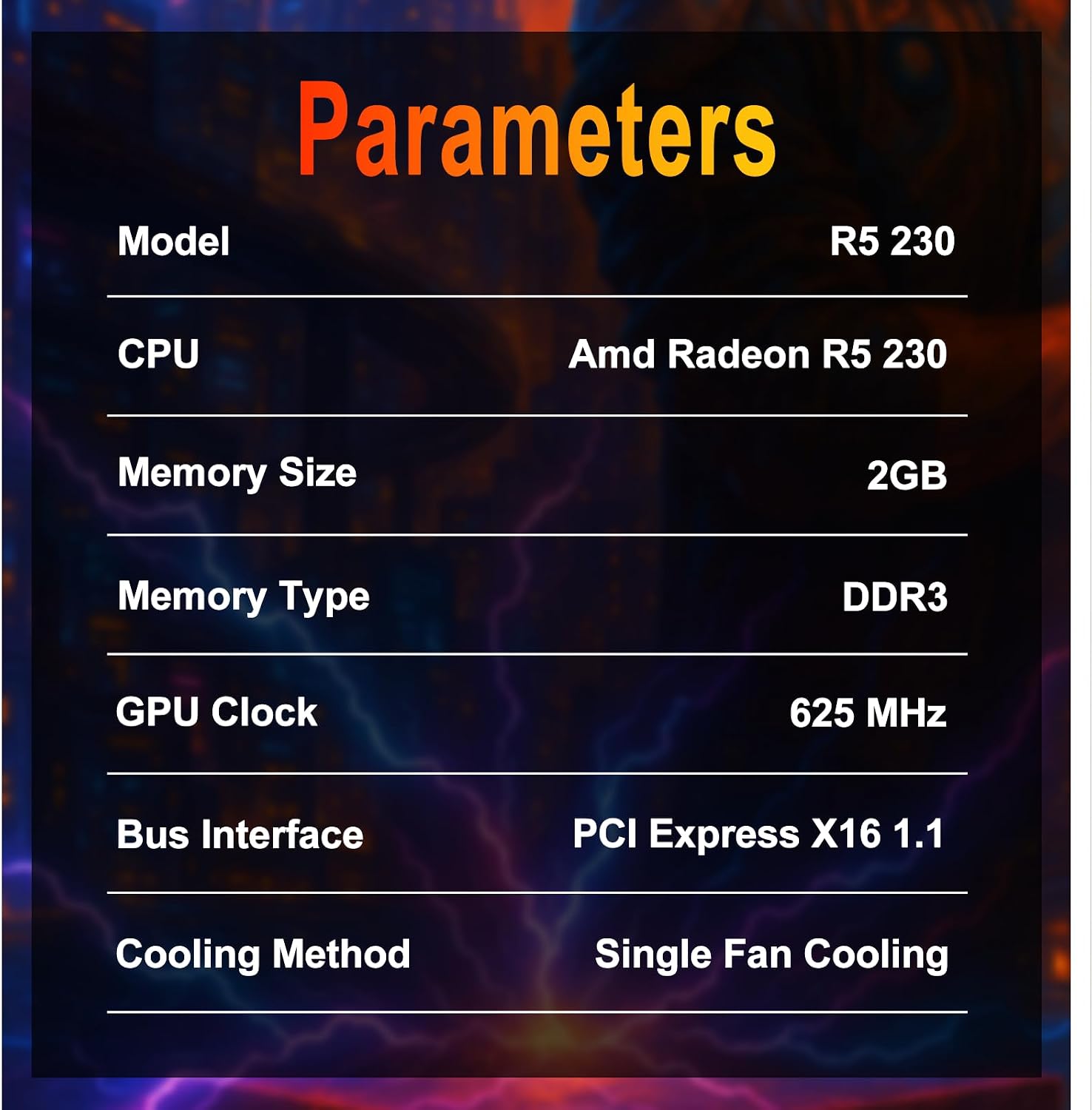
Figure 8: Key technical parameters of the MOUGOL R5 230.
7. Warranty and Support
For warranty information and technical support, please refer to the documentation included with your purchase or visit the official MOUGOL website. Keep your proof of purchase for warranty claims.