
1. Introduction
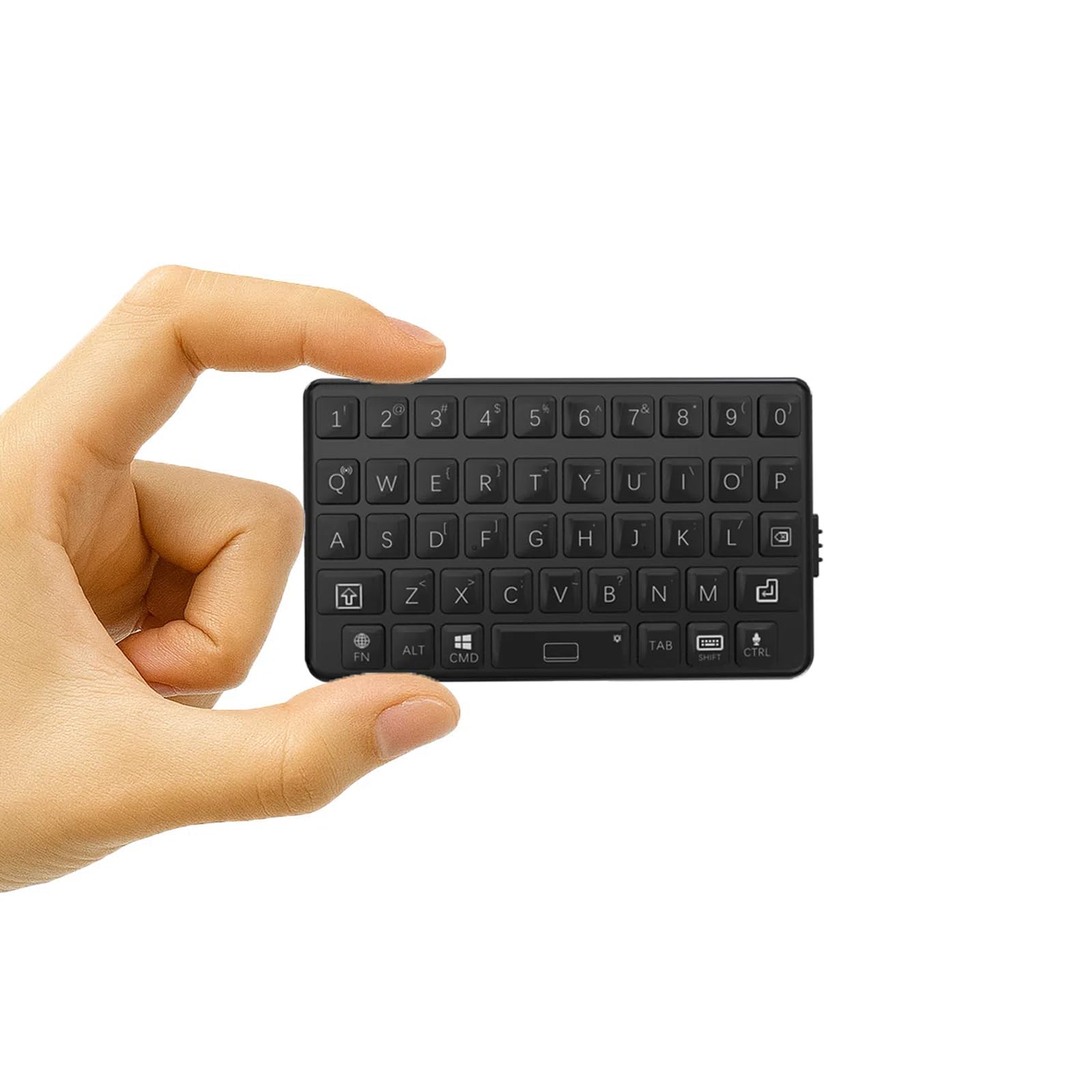
Thank you for purchasing the DarkWalker M4 Mini Bluetooth Keyboard. This ultra-portable wireless keyboard is designed for seamless compatibility with a wide range of devices, including smartphones, tablets, iPads, iPhones, Macs, Android devices, and Windows PCs. Its compact design and tactile keys provide an efficient and comfortable typing experience, making it ideal for mobile professionals and everyday use.
2. Setup
2.1 Charging the Keyboard
Before initial use, fully charge the keyboard. Connect the provided USB charging cable to the keyboard's charging port and to a USB power source (e.g., computer, wall adapter). The charging indicator light will illuminate during charging and turn off when fully charged.
2.2 Bluetooth Pairing
- Power On: Locate the power switch on the side of the keyboard and slide it to the "ON" position.
- Enter Pairing Mode: Press and hold the Fn key and the Bluetooth icon key (usually located on one of the number keys or a dedicated key) simultaneously for a few seconds until the Bluetooth indicator light starts blinking. This indicates the keyboard is in pairing mode.
- Enable Bluetooth on Your Device: On your smartphone, tablet, or computer, go to the Bluetooth settings.
- Select Keyboard: In the list of available Bluetooth devices, select "DarkWalker M4" or a similar name.
- Confirm Pairing: Follow any on-screen prompts to complete the pairing process. The Bluetooth indicator light on the keyboard will stop blinking and remain solid (or turn off) once successfully paired.
2.3 Multi-OS Automatic Recognition
The DarkWalker M4 keyboard features multi-OS automatic recognition. Upon powering on, it will automatically detect and configure itself for iOS, Mac, Android, or Windows operating systems, ensuring optimal key functionality without manual switching.

3. Operating Instructions
3.1 Basic Typing
The keyboard features a standard QWERTY layout. Simply type as you would on a full-sized keyboard. The tactile switches provide precise feedback for comfortable and efficient typing.
3.2 Special Functions (Fn Key Combinations)
The Fn key allows access to secondary functions printed on certain keys. Press and hold the Fn key, then press the desired function key.
- Arrow Keys: To use arrow keys (Up, Down, Left, Right), press and hold Fn and then press the keys corresponding to 7 (Up), 8 (Down), 9 (Left), and 0 (Right).
- Other Functions: Refer to the keycaps for additional functions accessible via the Fn key, such as multimedia controls or system shortcuts.

3.3 Power Management
- Automatic Sleep Mode: The keyboard will enter sleep mode after a period of inactivity to conserve battery. Press any key to wake it up.
- Battery Life: The keyboard provides up to 12 hours of continuous operation on a full charge.
4. Maintenance
4.1 Cleaning
To clean the keyboard, power it off and gently wipe the surface with a soft, damp cloth. Avoid using harsh chemicals or abrasive materials. Do not immerse the keyboard in water.
4.2 Storage
When not in use for extended periods, store the keyboard in a cool, dry place. Ensure it is powered off to prevent battery drain.
5. Troubleshooting
5.1 Keyboard Not Connecting/Pairing
- Ensure the keyboard is powered on and fully charged.
- Make sure Bluetooth is enabled on your device.
- Place the keyboard within close proximity to your device.
- Try unpairing and re-pairing the keyboard from your device's Bluetooth settings.
- Restart both the keyboard (power off/on) and your device.
5.2 Keys Not Responding
- Check if the keyboard is properly connected via Bluetooth.
- Ensure the keyboard battery is not depleted.
- Clean any debris around the keys.
5.3 Input Lag or Disconnections
- Move closer to your device to reduce interference.
- Ensure no other devices are causing Bluetooth interference.
- Recharge the keyboard.
6. Specifications
| Brand | DarkWalker |
| Model Number | M4 |
| Connectivity Technology | Bluetooth 5.0 |
| Compatible Devices | Android, iOS, iPad, iPhone, Mac, PC, Windows |
| Keyboard Layout | QWERTY |
| Switch Type | Tactile |
| Product Dimensions (L x W x H) | 7.5 x 4.5 x 1.2 cm |
| Weight | 40g |
| Continuous Operation Time | Up to 12 hours |
| Country of Origin | China |
| UPC | 739608135400 |
| ASIN | B0FNK4BWM2 |
7. Warranty & Support
7.1 Warranty Information
This DarkWalker M4 Mini Bluetooth Keyboard comes with a 1-year warranty from the date of purchase. This warranty covers manufacturing defects and malfunctions under normal use. It does not cover damage caused by misuse, accidents, unauthorized modifications, or normal wear and tear.
7.2 Customer Support
For technical assistance, troubleshooting, or warranty claims, please contact DarkWalker customer support. Refer to the product packaging or the official DarkWalker website for the most current contact information.