
MESWAO MES-B3 Pro
MESWAO 15.6 Inch Android Tablet User Manual
Model: MES-B3 Pro
Introduction
Thank you for choosing the MESWAO 15.6 Inch Android Tablet, Model MES-B3 Pro. This tablet is designed to provide a powerful and immersive experience with its large display, robust performance, and long-lasting battery. This manual provides essential information for setting up, operating, maintaining, and troubleshooting your device to ensure optimal performance and longevity.
What's in the Box
Please verify that all items are present in the package:
- 1x MESWAO 15.6 inch Android Tablet
- 1x Power Adapter
- 1x Type-C Cable
- 1x Type-C to USB Adapter
- 1x Stuck Pin (for SIM/SD card tray)

Image: The MESWAO 15.6 Inch Android Tablet displayed with its power adapter, Type-C cable, Type-C to USB adapter, and stuck pin.
Setup
1. Initial Charging
Before first use, fully charge your tablet. Connect the Type-C cable to the tablet's charging port and the power adapter. Plug the adapter into a wall outlet. The tablet supports 30W fast charging.

Image: The MESWAO tablet connected to a 30W fast charger, displaying charging status.
2. Powering On/Off
- To Power On: Press and hold the Power button located on the side of the tablet until the MESWAO logo appears.
- To Power Off: Press and hold the Power button, then select "Power off" from the options on the screen.
- To Restart: Press and hold the Power button, then select "Restart" from the options on the screen.
3. Initial Setup Wizard
Upon first power-on, follow the on-screen instructions to complete the initial setup:
- Select your preferred language.
- Connect to a Wi-Fi network.
- Sign in with your Google account or create a new one.
- Set up screen lock (PIN, pattern, password).
- Review and accept terms and conditions.
4. Inserting a MicroSD Card
The tablet supports MicroSDXC cards up to 1TB for expanded storage.
- Locate the SIM/SD card tray on the side of the tablet.
- Insert the provided stuck pin into the small hole next to the tray to eject it.
- Place the MicroSD card into the designated slot on the tray, ensuring correct orientation.
- Gently push the tray back into the tablet until it clicks into place.
Operating Instructions
1. Basic Navigation (Android 14)
Your MESWAO tablet runs on Android 14, offering a clean and intuitive user interface. Use touch gestures for navigation:
- Tap: Select an item or open an app.
- Swipe: Scroll through pages, menus, or content.
- Pinch-to-Zoom: Zoom in or out on images and web pages.
- Long Press: Access contextual menus or move app icons.
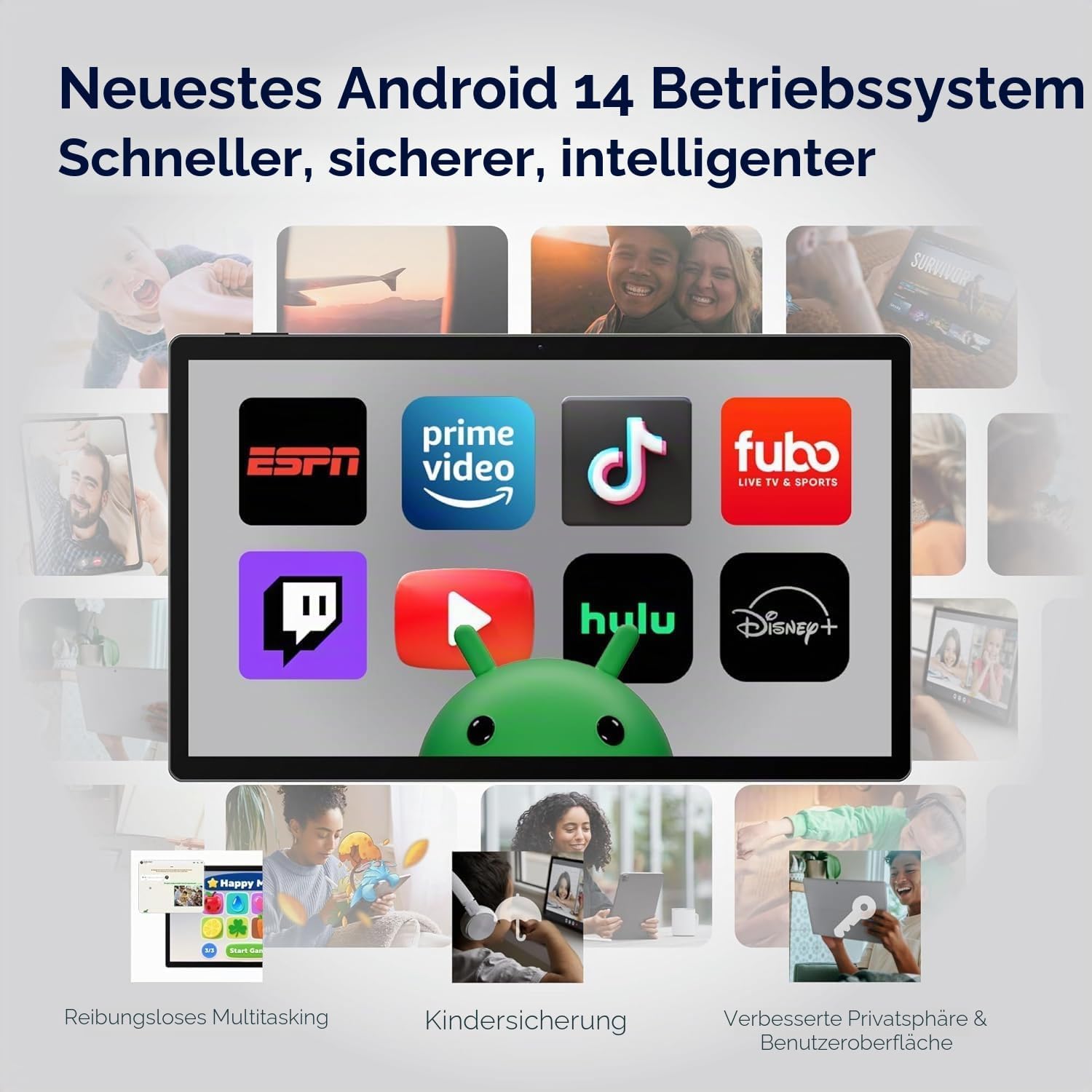
Image: The MESWAO tablet screen showing the Android 14 operating system with popular streaming and productivity applications.
2. Wi-Fi and Bluetooth Connectivity
- Wi-Fi: Go to Settings > Network & internet > Wi-Fi. Turn Wi-Fi on and select your desired network. Enter the password if prompted. The tablet supports 2.4G and 5G Wi-Fi.
- Bluetooth: Go to Settings > Connected devices > Connection preferences > Bluetooth. Turn Bluetooth on and pair with compatible devices like headphones or keyboards. The tablet features Bluetooth 5.0.
3. Camera Usage
The tablet is equipped with a 32MP rear camera and a 5MP front camera.
- Open the Camera app from your home screen or app drawer.
- Tap the shutter button to take photos.
- Switch between front and rear cameras using the camera toggle icon.
- Select video mode to record videos in FHD 1080p resolution.
4. Audio and Multimedia
Experience immersive audio with the tablet's quad-speaker system. You can also connect external audio devices:
- USB-C Audio: Connect USB-C headphones or adapters to the Type-C port.
- Bluetooth Audio: Pair Bluetooth headphones or speakers as described above.

Image: The MESWAO tablet highlighting its quad-speaker system and various connectivity ports.
5. Storage Management
Your tablet comes with 256GB of internal storage, expandable up to 1TB via a MicroSD card. To manage storage:
- Go to Settings > Storage to view storage usage and free up space.
- Move files to the MicroSD card to optimize internal storage.

Image: The MESWAO tablet illustrating its 256GB internal storage and the option for 1TB expandable storage.
6. Wireless Screen Casting
Share your tablet's screen wirelessly to a compatible smart TV or monitor for presentations, movies, or fitness applications.
- Ensure your tablet and the display device are connected to the same Wi-Fi network.
- Go to Settings > Connected devices > Connection preferences > Cast.
- Select your desired display device from the list to begin casting.
Maintenance
1. Cleaning Your Tablet
- Use a soft, lint-free cloth to clean the screen and body.
- For stubborn smudges, slightly dampen the cloth with water or a screen cleaner.
- Avoid using harsh chemicals, abrasive materials, or excessive moisture.
2. Battery Care
To maximize the lifespan of your 12000mAh battery:
- Avoid extreme temperatures.
- Do not let the battery completely drain frequently.
- Use the provided charger for optimal charging.
3. Software Updates
Regularly check for and install system updates to ensure your tablet has the latest features, security patches, and performance improvements.
- Go to Settings > System > System update.
- Follow the on-screen instructions to download and install any available updates.
Troubleshooting
If you encounter issues with your MESWAO tablet, refer to the following common solutions:
| Problem | Solution |
|---|---|
| Tablet does not power on. | Ensure the tablet is sufficiently charged. Connect it to the power adapter and wait a few minutes before attempting to power on again. |
| Wi-Fi connection issues. | Check if Wi-Fi is enabled in Settings. Restart your router and the tablet. Ensure you are within range of the Wi-Fi signal. |
| Apps are crashing or freezing. | Close and reopen the app. Clear the app's cache (Settings > Apps > [App Name] > Storage & cache > Clear cache). Restart the tablet. |
| Slow performance. | Close unnecessary background apps. Clear cache and temporary files. Consider uninstalling unused apps. Ensure sufficient free storage space. |
| Touchscreen unresponsive. | Restart the tablet. If the issue persists, ensure the screen is clean and free of debris. |
Specifications
| Feature | Detail |
|---|---|
| Brand | MESWAO |
| Model Name | MES-B3 Pro |
| Operating System | Android 14 |
| Processor | MediaTek Helio G99 Octa-Core (up to 2.2 GHz) |
| RAM | 8 GB |
| Internal Storage | 256 GB |
| Expandable Storage | Up to 1 TB (MicroSDXC) |
| Display Size | 15.6 Inches |
| Display Resolution | 1920 x 1080 Pixels (IPS HD Display) |
| Refresh Rate | 60 Hz |
| Rear Camera | 32 MP |
| Front Camera | 5 MP |
| Video Capture Resolution | FHD 1080p |
| Battery Capacity | 12000 mAh |
| Battery Life (Average) | 10 Hours |
| Charging | 30W Fast Charging (Type-C) |
| Connectivity | Wi-Fi (802.11ac, 2.4G/5G), Bluetooth 5.0, USB 3.1 Type-C |
| Audio Format Support | APE, M4A, MIDI, OGG, MP3, MP2, AMR, AWB, WAV, FLAC, 3GP (AAC, WMA with license) |
| Dimensions (L x W x D) | 36.9L x 22.3W x 0.9D cm |
| Weight | 1100 Grams |
Warranty and Support
1. Product Warranty
The MESWAO 15.6 Inch Android Tablet comes with a One Year Warranty, covering manufacturing defects. Please retain your proof of purchase for warranty claims.
2. Customer Support
For any questions, technical assistance, or warranty claims, please contact MESWAO customer support. We offer 24-hour customer support and have local after-sales centers in EU/US/UP regions to provide responsive service.
- 24-Hour Customer Support: Our support team is available to assist you.
- Local Service Centers: Located in Europe, the US, and other regions for convenient local care.
- Responsive Resolution: Issues reported are typically addressed within 24 hours, leading to problem resolution or replacement.

Image: Visual representation of MESWAO's customer support, including 12-month warranty, 24-hour support, and local service centers.
Related documentsMES-B3 Pro

Ask a question about this manual
Ask about setup, troubleshooting, compatibility, parts, safety, or missing instructions. Manuals+ will review the question and use this page’s manual context to help answer it.