
Dell DC16256
Dell 16 Laptop DC16256 User Manual
Model: DC16256 (LDC16256-A049IND-PUS)
1. Introduction
This manual provides essential information for setting up, operating, maintaining, and troubleshooting your Dell 16 Laptop DC16256. This laptop features an AMD Ryzen 7 250 processor, AMD Radeon Graphics, 16GB DDR5 memory, and a 1TB SSD, designed for enhanced productivity and a comfortable user experience.

Figure 1: Front view of the Dell 16 Laptop DC16256.
2. Product Overview and Components
2.1 Key Features
- Display: 16-inch FHD+ Anti-Glare Non-Touch 300nits Display with 16:10 aspect ratio for expansive visuals.
- Processor: AMD Ryzen 7 250 for efficient performance.
- Graphics: Integrated AMD Radeon Graphics.
- Memory: 16GB DDR5 RAM (5600 MHz).
- Storage: 1TB SSD for fast boot times and ample storage.
- Keyboard: Backlit English Keyboard with Fingerprint Reader and numeric keypad.
- Camera: FHD camera with wide dynamic range and temporal noise reduction for clear video calls.
- Design: Sleek, durable aluminum design with adaptive thermals.
2.2 Ports and Connectors

Figure 2: Port layout of the Dell 16 Laptop DC16256.
- SD Card Reader
- Global Headset Jack
- USB 3.2 Gen 1 Type-A Port
- Lock Slot
- Power Jack
- HDMI 1.4 Port
- USB 3.2 Gen 1 Type-A Port
- USB 3.2 Gen 2 Type-C™ Port (DisplayPort/Power Delivery)
3. Initial Setup
3.1 Unboxing and Power Connection
Carefully remove your laptop and accessories from the packaging. Connect the 65 Watt AC Adapter to the power jack on your laptop and then to a power outlet. Allow the battery to charge sufficiently before first use.
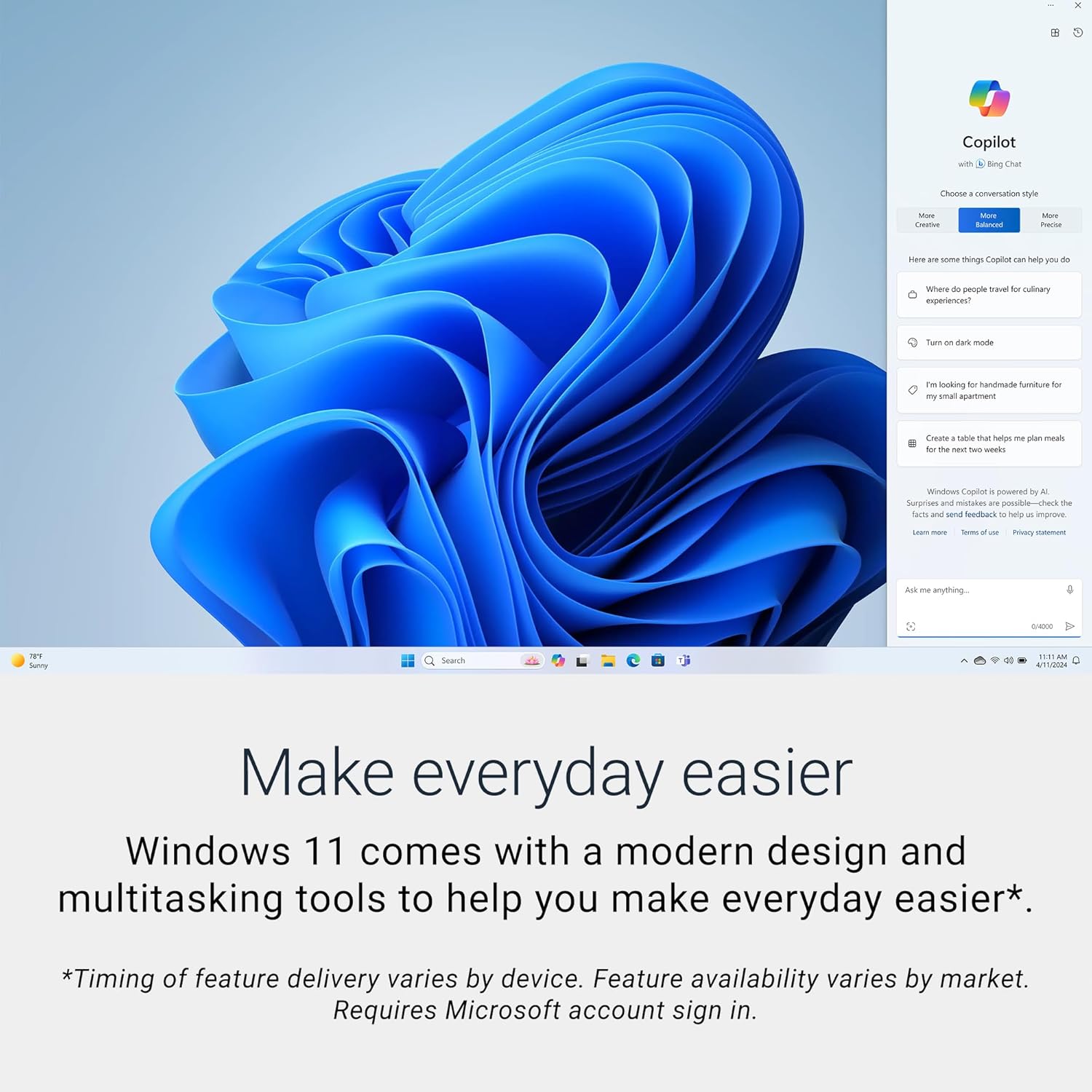
Figure 3: Dell laptop running Windows 11.
3.2 First Boot and Windows Setup
Press the power button to turn on your laptop. Follow the on-screen instructions to complete the Windows 11 Home setup. This includes connecting to a network, creating a user account, and configuring initial settings.
3.3 Fingerprint Reader Setup
During the Windows setup or afterwards in the system settings, you can configure the integrated fingerprint reader for secure and convenient login.
4. Operating Your Laptop
4.1 Display Features
The 16-inch FHD+ display offers a 16:10 aspect ratio for an immersive viewing experience. Dell ComfortView technology is integrated to reduce harmful blue light emissions, promoting eye comfort during extended use.

Figure 4: Edge-to-edge clarity on the display.

Figure 5: Dell ComfortView for eye comfort.
4.2 Camera and Communication
The integrated FHD camera is designed with wide dynamic range and temporal noise reduction to provide clear and sharp images, adapting to various lighting conditions for virtual connections.

Figure 6: Laptop optimized for virtual communication.
4.3 Adaptive Thermals
Your laptop includes built-in technology that senses when it is on a stable surface. It automatically adjusts its power and thermal settings to operate more efficiently, optimizing performance and cooling.
5. Maintenance and Care
5.1 Cleaning Your Laptop
- Use a soft, lint-free cloth to clean the screen and exterior surfaces.
- For stubborn marks, lightly dampen the cloth with water or a screen-safe cleaner.
- Avoid spraying liquids directly onto the laptop.
5.2 Battery Care
To prolong battery life, avoid extreme temperatures and fully discharging the battery frequently. For optimal performance, keep your laptop connected to power when possible, especially during intensive tasks.
5.3 Environmental Responsibility
Dell is committed to sustainable design, utilizing responsible and recycled materials in products like this laptop. For more information on Dell's environmental initiatives, please refer to official Dell resources.

Figure 7: Dell's commitment to design innovation with responsible materials.
Video 1: Dell's approach to product sustainability and circular design.
6. Troubleshooting Common Issues
6.1 Power Issues
- Laptop not turning on: Ensure the AC adapter is securely connected to both the laptop and a working power outlet. Check if the power indicator light is on.
- Battery not charging: Verify the AC adapter and power cord are not damaged. Try a different power outlet.
6.2 Display Problems
- No display: Connect an external monitor to check if the issue is with the laptop's internal display. Restart the laptop.
- Flickering screen: Update your graphics drivers. Adjust display refresh rate in Windows settings.
6.3 Connectivity Issues
- Wi-Fi not connecting: Ensure Wi-Fi is enabled. Restart your router and laptop. Check network settings in Windows.
- Bluetooth device not pairing: Ensure Bluetooth is enabled on both devices. Place devices close to each other.
For more detailed troubleshooting, refer to the Dell support website or contact Dell technical support.
7. Technical Specifications
| Feature | Specification |
|---|---|
| Brand | Dell |
| Model Name | Dell 16 DC16256 Laptop |
| Screen Size | 16 Inches |
| Screen Resolution | 1920 x 1200 pixels (FHD+) |
| Processor | AMD Ryzen 7 250 (3.3 GHz) |
| RAM | 16 GB DDR5 (5600 MHz) |
| Hard Drive | 1 TB SSD (Solid State) |
| Graphics Coprocessor | AMD Radeon Graphics (Integrated) |
| Operating System | Windows 11 Home |
| Wireless Type | 802.11ax, Bluetooth |
| USB 3.0 Ports | 3 (including 1x USB 3.2 Gen 2 Type-C with DisplayPort/Power Delivery) |
| Item Weight | 4.36 pounds |
| Product Dimensions | 9.82 x 14.05 x 0.75 inches |
| Color | Midnight Blue |
| Special Features | Anti Glare Coating, Backlit Keyboard, Fingerprint Reader, Memory Card Slot, Numeric Keypad |
8. Warranty and Support
Your Dell 16 Laptop DC16256 comes with a 1 Year Onsite Service, which provides support when and where you need it. If an issue covered by the Limited Hardware Warranty cannot be resolved remotely, Dell will dispatch a technician to your home, office, or location of choice.

Figure 8: Dell's 1 Year Onsite Service.

Figure 9: Benefits of Dell's onsite support.
Onsite service is provided by Dell Marketing L.P. Availability varies. For complete details and to access support resources, please visit the official Dell website: Dell Support.
You can also utilize SupportAssist, a tool integrated into your Dell PC, for proactive and predictive support.
Related documentsDC16256


Ask a question about this manual
Ask about setup, troubleshooting, compatibility, parts, safety, or missing instructions. Manuals+ will review the question and use this page’s manual context to help answer it.