
Introduction
This manual provides detailed instructions for the setup, operation, and maintenance of your Jectse 5G Mobile Hotspot. Please read this manual thoroughly before using the device to ensure proper functionality and to maximize your user experience. Keep this manual for future reference.
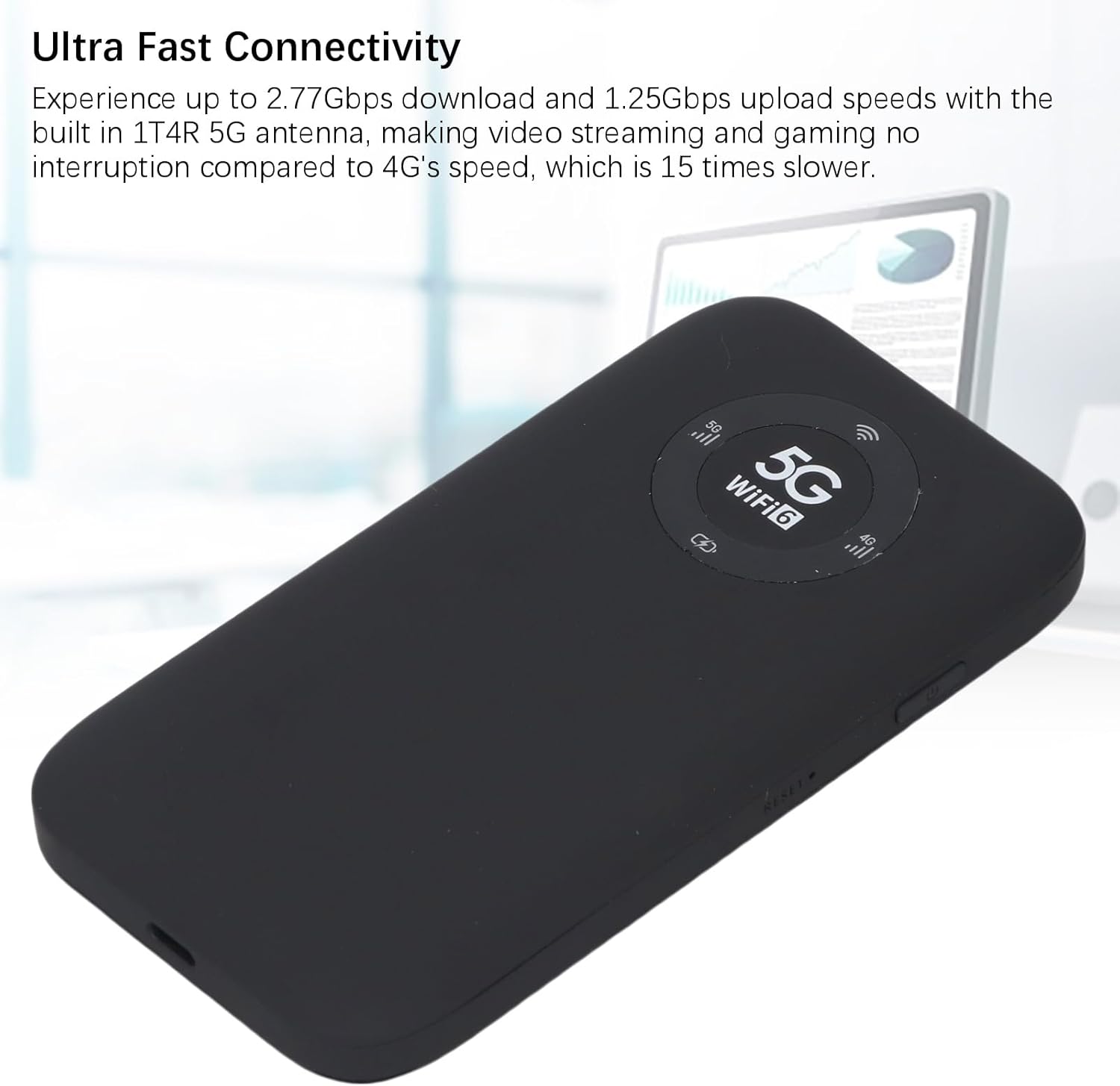
Image: The Jectse 5G Mobile Hotspot, a compact and portable device designed for high-speed 5G and WiFi 6 connectivity.
Product Overview
Key Features
- Ultra-Fast 5G Connectivity: Supports up to 2.77Gbps download and 1.25Gbps upload speeds with a built-in 1T4R 5G antenna.
- Extensive Network Band Support: Compatible with multiple 5G NR bands (FDD: N1, N3, N28; TDD: N41, N78) and 4G bands (TDD LTE: B34, 38, 39, 40, 41; FDD LTE: B1, B3, B5, B8), and 3G band B1.
- Dual-Band WiFi 6: Offers 2.4GHz and 5.8GHz WiFi connectivity (802.11 a/b/g/n/ac/ax protocols) for up to 16 devices simultaneously.
- Long-Lasting Battery: Equipped with a 7100mAh Li-Ion battery for extended use.
- Robust Design: Features an IP67 rating, making it drop-proof, dust-proof, and rain-proof.
- User-Friendly LED Display: Provides information on data usage, signal strength, WiFi credentials, and device settings.
- SIM Card Slot: Supports SIM card compatibility for ease of setup (SIM card not included).
Package Contents
The product package includes:
- 1 x Jectse 5G Mobile Hotspot
- 1 x USB Cable (Type-C)
- 1 x User Manual (this document)
- 1 x SIM Card Eject Pin

Image: The Jectse 5G Mobile Hotspot device shown alongside its included USB-C charging cable and a SIM card eject pin.
Setup Guide
1. SIM Card Installation
- Ensure the device is powered off.
- Locate the SIM card slot on the side of the hotspot.
- Insert the provided SIM eject pin into the small hole next to the SIM card tray. Press gently until the tray pops out.
- Place your activated Nano-SIM card into the tray with the gold contacts facing down and the notched corner aligned correctly.
- Carefully push the SIM card tray back into the slot until it clicks into place.
2. Charging the Device
- Connect the USB-C cable to the charging port on the hotspot.
- Connect the other end of the USB cable to a compatible USB power adapter (not included) or a computer's USB port.
- The LED indicator on the device will show charging status. A full charge is recommended before first use.
3. Powering On/Off
- To Power On: Press and hold the Power button (usually located on the side) for a few seconds until the screen or LED indicators light up.
- To Power Off: Press and hold the Power button until the device prompts you to power off or the indicators turn off.
Operating Instructions
1. Connecting Devices to the Hotspot
- Ensure the Jectse 5G Mobile Hotspot is powered on.
- On your WiFi-enabled device (smartphone, laptop, tablet), open the WiFi settings.
- Scan for available WiFi networks.
- Select the network name (SSID) displayed on your hotspot's screen or indicated in the manual.
- Enter the WiFi password (Key) displayed on the hotspot's screen or in the manual.
- Once connected, your device will have internet access through the hotspot. Up to 16 devices can be connected simultaneously.

Image: The Jectse 5G Mobile Hotspot showing its display with 5G and WiFi 6 indicators, ready for device connection.
2. Understanding LED Indicators
The device features an LED light display that provides essential information:
- Signal Strength: Indicates the strength of the 5G/4G cellular signal.
- Battery Level: Shows the current battery charge status.
- WiFi Status: Confirms if WiFi is active and broadcasting.
- Data Usage: May display current data consumption (check device interface for details).
- Network Type: Indicates whether the device is connected to a 5G or 4G network.
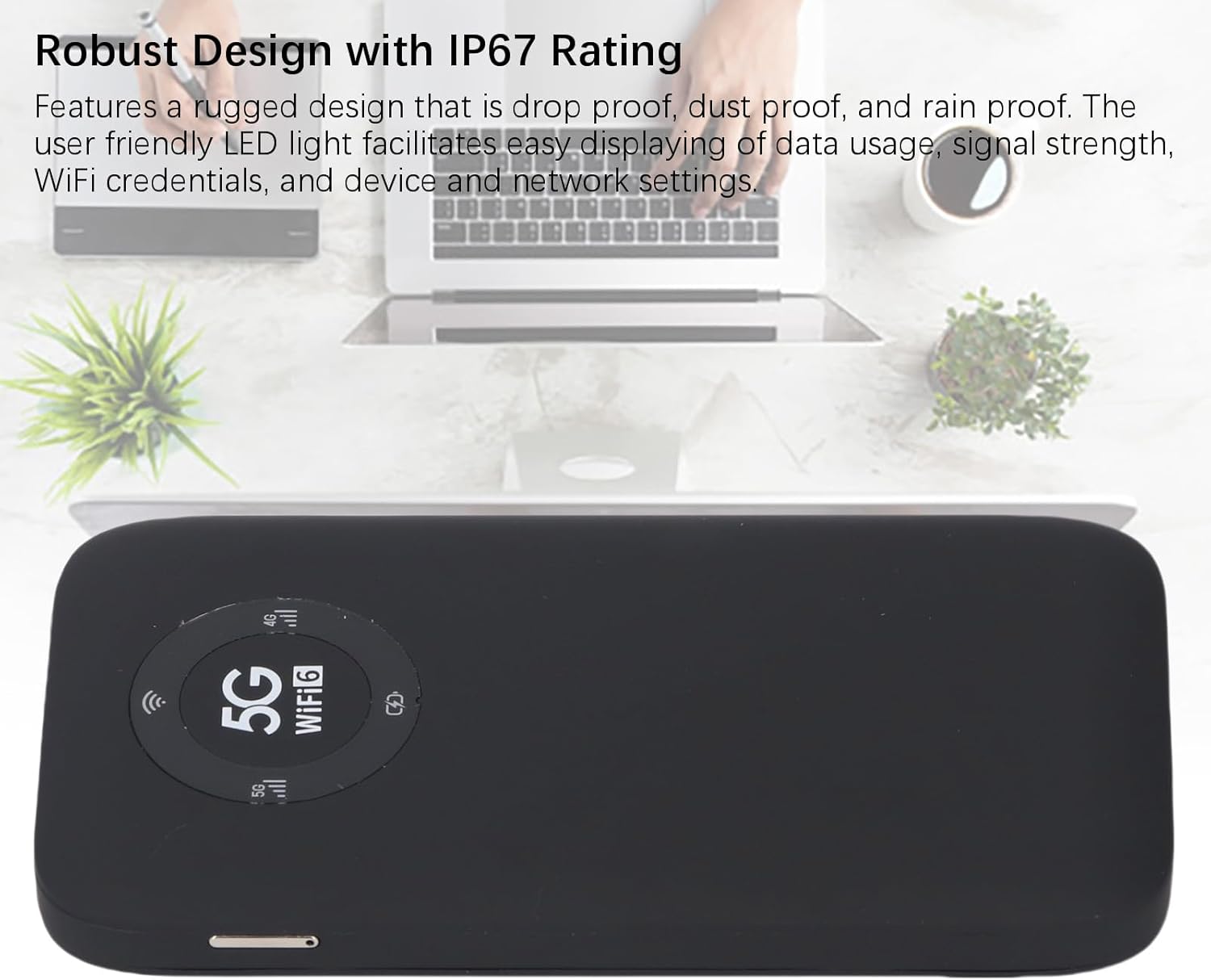
Image: A close-up of the Jectse 5G Mobile Hotspot's LED display, highlighting the 5G and WiFi 6 indicators, along with signal and battery icons.
3. Accessing Web Management Interface (if applicable)
For advanced settings and configuration, you may access the device's web management interface:
- Connect your computer or smartphone to the hotspot's WiFi network.
- Open a web browser and enter the default IP address (e.g., 192.168.0.1 or 192.168.1.1). This address is usually found on a sticker inside the SIM card slot or in the quick start guide.
- Enter the default username and password (also typically found on the device sticker or in documentation).
- From the web interface, you can manage WiFi settings, change passwords, view connected devices, and monitor data usage.
Maintenance
Battery Care
- Avoid exposing the device to extreme temperatures (below 0°C or above 45°C).
- Do not leave the device fully discharged for extended periods.
- For long-term storage, charge the battery to approximately 50-70%.
- Use only the provided USB cable for charging.
Cleaning
- Wipe the device with a soft, dry, lint-free cloth.
- Do not use liquid cleaners, aerosols, or solvents.
- Ensure all ports are free from dust and debris.
Troubleshooting
| Problem | Possible Cause | Solution |
|---|---|---|
| No Internet Connection |
|
|
| Cannot Connect to WiFi |
|
|
| Device Not Powering On |
|
|
Specifications
| Feature | Detail |
|---|---|
| Model Number | Jectses1yn2px9gw-11 |
| Dimensions | Approx. 136x72x16mm (5.35x2.83x0.63in) |
| Weight | 10.6 ounces |
| Battery | 7100mAh Li-Ion Battery (Built-in) |
| Memory | LPDDR4X 4GB RAM, NAND 2GB ROM |
| Charging Port | USB-C |
| SIM Card Type | Nano-SIM (Not Included) |
| Cellular Network | 3GPP Rel.15, 5G NR (SA/NSA, Sub 6G), LTE Category 18 |
| 5G NR Bands | FDD: N1, N3, N28; TDD: N41, N78 |
| 4G Bands | FDD: B1, B3, B5, B8; TDD: B34, B38, B39, B40, B41 |
| 3G Band | B1 |
| WiFi Bands | WiFi6 2.4GHz, 5.8GHz |
| WiFi Protocol | 802.11 a, b, g, n, ac, ax |
| Max WiFi Connections | Up to 16 Devices Simultaneously |
| NR Download Rate | 2.77Gbps (DL) |
| NR Upload Rate | 1.25Gbps (UL) |
| IP Rating | IP67 (Drop-proof, Dust-proof, Rain-proof) |
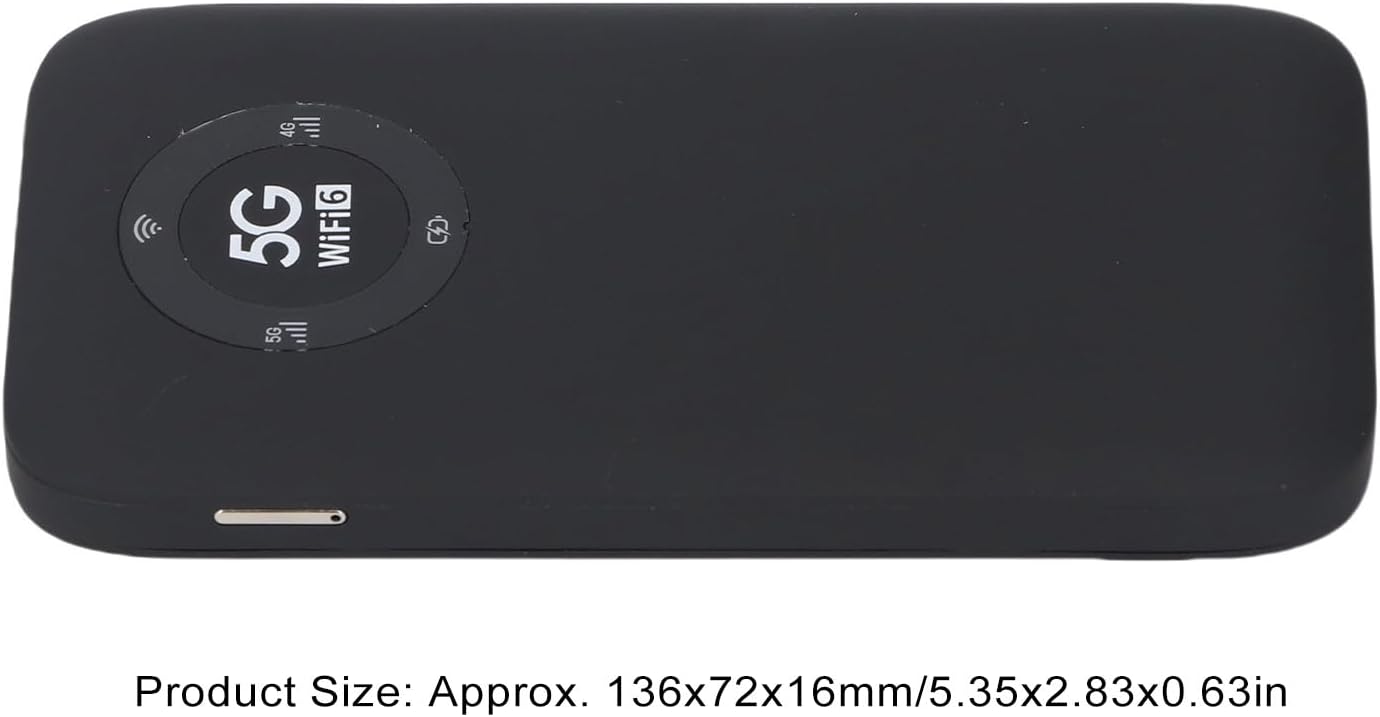
Image: The Jectse 5G Mobile Hotspot, illustrating its compact size with approximate dimensions of 136x72x16mm.
Important Notes
- Before purchasing, ensure that your local network signal frequency band and the SIM card frequency band are compatible with the supported frequency bands of this product.
- This product does not support use in South America, Japan, and South Korea regions.
Warranty and Support
For warranty information and technical support, please refer to the documentation provided with your purchase or contact Jectse customer service through their official channels. Specific warranty terms may vary by region and retailer.
You can visit the Jectse Store on Amazon for more information or to contact support.