
Introduction
This manual provides comprehensive instructions for the setup, operation, maintenance, and troubleshooting of your JOVELL Model-198 Region-Free DVD Player. Please read this manual thoroughly before using the device to ensure proper functionality and to maximize your viewing and listening experience.
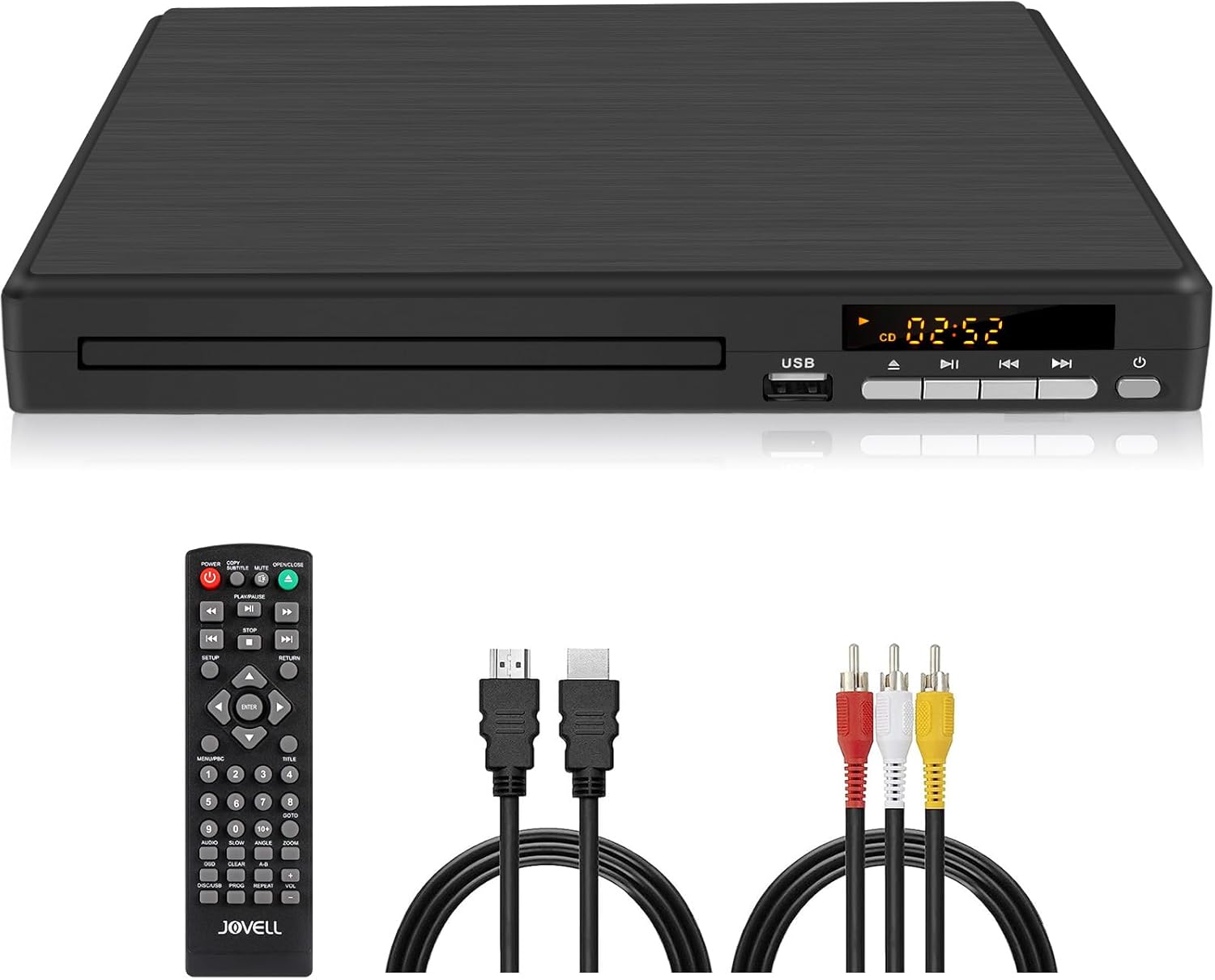
Image: The JOVELL Model-198 DVD Player, remote control, HDMI cable, and RCA cable.
Package Contents
Verify that all items listed below are included in your package:
- 1 x JOVELL DVD Player (Model-198 Non-Blu-ray)
- 1 x Remote Control
- 1 x HDMI Cable
- 1 x RCA Cable
- 1 x User Manual

Image: All components included in the JOVELL Model-198 DVD Player package, laid out with approximate dimensions.
Product Overview
The JOVELL Model-198 is a versatile, region-free DVD player designed for home entertainment. It supports multiple disc formats and offers various connectivity options for seamless integration with your existing audio-visual systems.
Key Features:
- Region-Free Playback: Plays DVDs from any region (1-6, excluding Japan CPRM Discs).
- Multi-Format Support: Compatible with CD, DVD, DVD-R/DVD+R, DVD-RW/DVD+RW, CD-R/CD-RW, VCD, SVCD.
- 1080P HD Upscaling: Enhances standard definition content to near 1080P quality.
- Multiple Outputs: HDMI, RCA, and Coaxial for broad compatibility.
- USB Input: Supports playback of digital audio and video files (AVI/MPG/MPEG4/VOB for video; MP3/WMA/MPEG1 for audio) from FAT/FAT32 formatted USB 2.0 flash drives up to 32GB.
- Compact Design: Space-saving form factor.
Note: This DVD player does not support Blu-ray Discs or 4K Discs.

Image: Visual representation of the DVD player highlighting its core features.
Setup
Follow these steps to connect your DVD player to your television or audio system.
1. Connecting to a TV via HDMI (Recommended for HD Quality)
- Ensure both the DVD player and your TV are powered off.
- Connect one end of the provided HDMI cable to the HDMI OUT port on the back of the DVD player.
- Connect the other end of the HDMI cable to an available HDMI IN port on your TV. Note the HDMI input number (e.g., HDMI 1, HDMI 2).
- Power on your TV and the DVD player.
- Select the corresponding HDMI input on your TV using your TV's remote control.
2. Connecting to a TV via RCA (Standard Definition)
- Ensure both the DVD player and your TV are powered off.
- Connect the provided RCA cable to the VIDEO OUT (yellow), AUDIO OUT L (white), and AUDIO OUT R (red) ports on the back of the DVD player.
- Connect the other end of the RCA cable to the corresponding VIDEO IN (yellow), AUDIO IN L (white), and AUDIO IN R (red) ports on your TV.
- Power on your TV and the DVD player.
- Select the corresponding AV input on your TV using your TV's remote control.
3. Connecting to an Audio System via Coaxial (Optional)
For enhanced audio, you can connect the DVD player to an external audio receiver or soundbar with a coaxial input.
- Connect a coaxial audio cable (not included) from the COAXIAL OUT port on the DVD player to the COAXIAL IN port on your audio receiver.
- Select the appropriate input on your audio receiver.
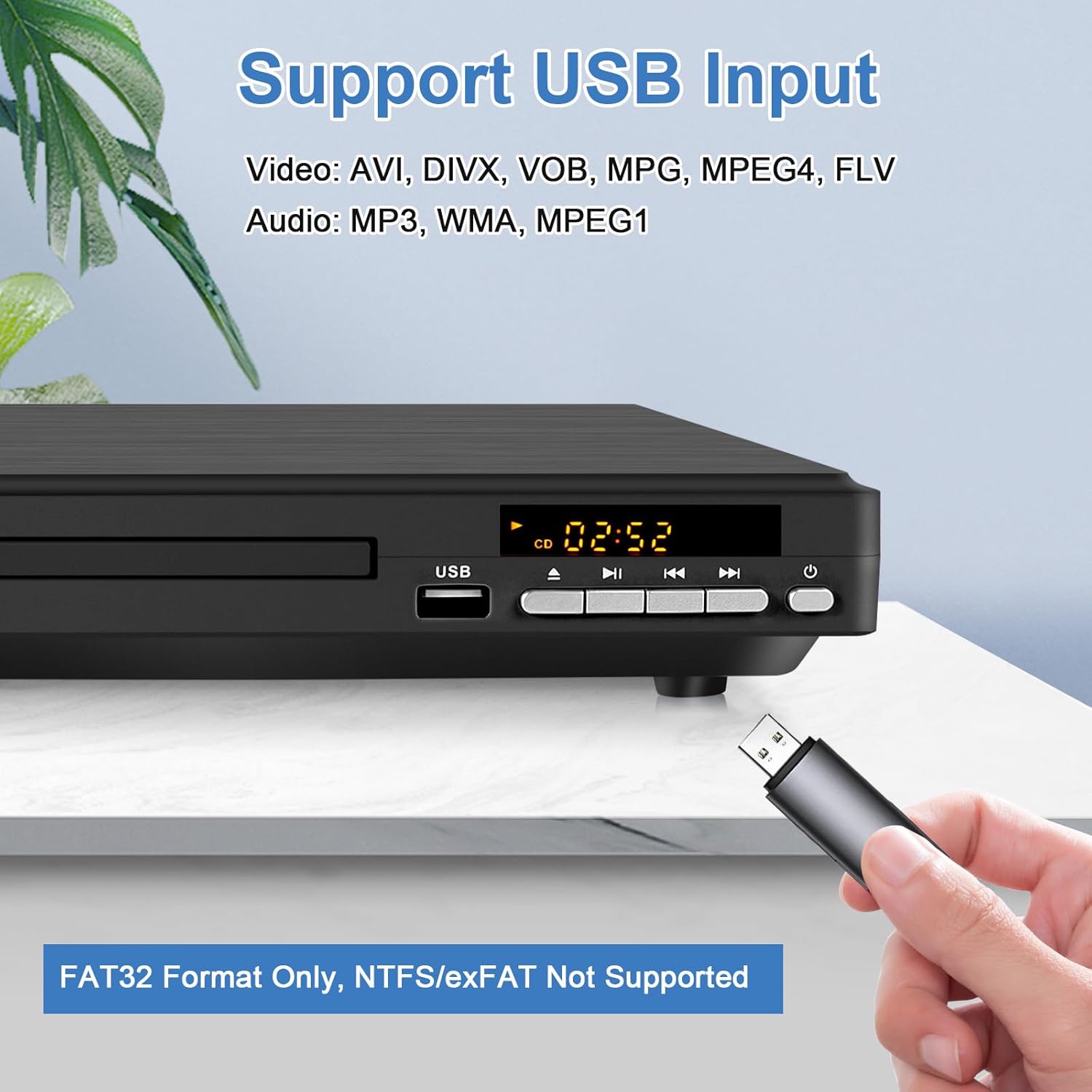
Image: Detailed view of the DVD player's rear connections, illustrating HDMI and RCA cable hookups.
Operating Instructions
1. Disc Playback
- Power on the DVD player and your TV.
- Press the OPEN/CLOSE button on the front panel or remote control to open the disc tray.
- Place a compatible disc (DVD, CD, etc.) gently onto the disc tray with the label side facing up.
- Press the OPEN/CLOSE button again to close the disc tray.
- The player will automatically begin reading the disc. Playback should start shortly. If a menu appears, use the arrow keys and ENTER button on the remote to navigate.

Image: The DVD player's disc tray, indicating its compatibility with various disc formats and regions.
2. USB Playback
The DVD player supports playback of media files from a USB 2.0 flash drive (up to 32GB, FAT/FAT32 format only).
- Insert your USB flash drive into the USB port on the front of the DVD player.
- The player should automatically detect the USB drive and display a menu. If not, press the DISC/USB button on the remote control to switch to USB mode.
- Use the arrow keys and ENTER button on the remote to navigate through your files and select the desired media for playback.
Supported File Formats:
- Video: AVI, MPG, MPEG4, VOB (720*480/576 resolution)
- Audio: MP3, WMA, MPEG1
Note: NTFS and exFAT USB formats are not supported.
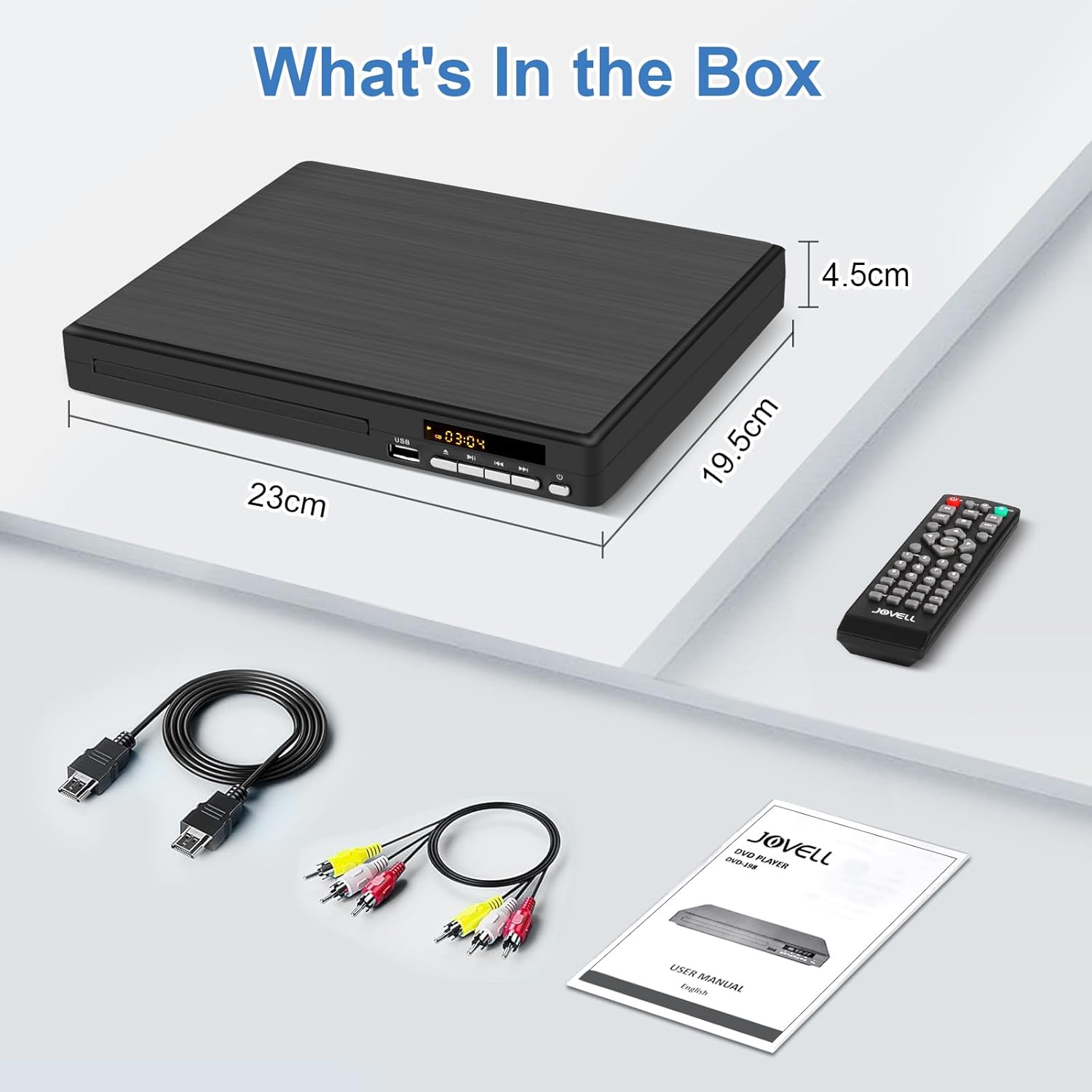
Image: A USB flash drive connected to the front USB port of the DVD player, indicating support for various media files.
3. Remote Control Functions
Familiarize yourself with the remote control for convenient operation.
- POWER: Turns the player on or off.
- OPEN/CLOSE: Opens and closes the disc tray.
- PLAY/PAUSE: Starts or pauses playback.
- STOP: Stops playback.
- SKIP (<< / >>): Skips to the previous or next track/chapter.
- FF/REW (<< / >>): Fast forward or rewind.
- SETUP: Accesses the system settings menu.
- ARROW KEYS / ENTER: Navigates menus and confirms selections.
- VOLUME (+/-): Adjusts the volume (if connected directly to a TV via RCA or if TV volume is controlled by player).
- DISC/USB: Switches between disc and USB input modes.

Image: The remote control for the JOVELL DVD player, illustrating the layout of its buttons.
Maintenance
Proper care and maintenance will extend the life of your DVD player.
- Cleaning the Unit: Use a soft, dry cloth to wipe the exterior of the player. Do not use liquid cleaners or abrasive materials.
- Disc Care: Handle discs by their edges. Keep them clean and free of scratches. Store discs in their cases when not in use.
- Ventilation: Ensure the player has adequate ventilation. Do not block ventilation openings.
- Power Off: Disconnect the power cord from the wall outlet if the player will not be used for an extended period.
Troubleshooting
If you encounter issues with your DVD player, refer to the following common problems and solutions:
| Problem | Possible Cause | Solution |
|---|---|---|
| No power | Power cord not connected; power outlet faulty. | Ensure power cord is securely plugged into the player and a working outlet. |
| No picture | Incorrect input selected on TV; loose video cable connection. | Select the correct HDMI or AV input on your TV. Check all video cable connections. |
| No sound | Loose audio cable connection; TV/receiver volume too low or muted. | Check audio cable connections. Increase volume on TV/receiver. Ensure TV/receiver is not muted. |
| Disc not playing/reading | Disc is dirty, scratched, or incompatible format; disc inserted incorrectly. | Clean the disc. Try a different disc. Ensure the disc is inserted label-side up. Verify disc format is supported (no Blu-ray/4K). |
| USB drive not recognized | USB drive format is not FAT/FAT32; drive capacity exceeds 32GB; incompatible file format. | Ensure USB drive is FAT/FAT32 format and 32GB or less. Check file formats for compatibility. |
| Remote control not working | Batteries are dead or inserted incorrectly; obstruction between remote and player. | Replace batteries. Ensure correct polarity. Remove any obstructions. Point remote directly at the player's sensor. |
Specifications
| Feature | Detail |
|---|---|
| Brand | JOVELL |
| Model Name | 198 |
| Disc Compatibility | CD, DVD, DVD-R/DVD+R, DVD-RW/DVD+RW, CD-R/CD-RW, VCD, SVCD |
| Region Code | Region-Free (excluding Japan CPRM Discs) |
| Video Resolution | 1080P Upscaling (1920x1080) |
| Video Output | HDMI, RCA (Composite Video) |
| Audio Output | RCA (Stereo), Coaxial |
| USB Port | USB 2.0 (Max 32GB, FAT/FAT32 format only) |
| Supported USB Video Formats | AVI, MPG, MPEG4, VOB (720*480/576) |
| Supported USB Audio Formats | MP3, WMA, MPEG1 |
| Dimensions (Approx.) | 23cm x 19.5cm x 4.5cm (9.06 x 7.68 x 1.77 inches) |
| Weight (Approx.) | 2.31 pounds |
| Special Features | Compact, Multi-Format Playback, Region Free, Upscaling, Anti-Skip, Memory Function |
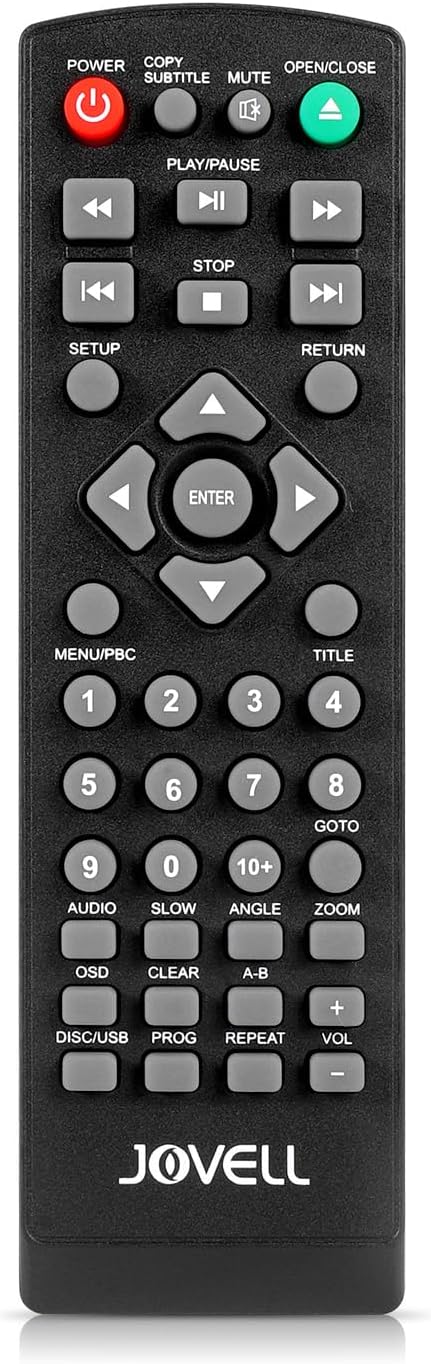
Image: A visual comparison demonstrating the 1080P HD picture quality of the JOVELL DVD player.
Warranty and Support
Your JOVELL Model-198 DVD Player comes with an 18-month warranty.
For technical assistance, warranty claims, or any questions regarding your product, please contact JOVELL customer support. Refer to the contact information provided on the product packaging or the official JOVELL website for the most up-to-date support details.
Please have your model number (198) and purchase date available when contacting support.