
1. Introduction
This manual provides essential information for the NIMO 15.6" Gaming Laptop (Model N159). It covers product features, setup procedures, operating instructions, maintenance guidelines, troubleshooting tips, and detailed specifications. Please read this manual thoroughly before using your new laptop to ensure optimal performance and longevity.

Image: The NIMO 15.6" Gaming Laptop, showcasing its display and key features like fingerprint unlock, Type-C PD charger, and backlit keyboard.
2. What's in the Box
Verify that all items are present in the packaging:
- 1 x NIMO N159 Laptop
- 1 x Type-C 100W PD Fast Charger
- 1 x User Manual (this document)
- Windows 11 Home Operating System (pre-installed)
- Warranty Information (2 Years Warranty, 90 Days Return)
3. Product Overview
3.1 Key Features
- Processor: AMD Ryzen 7 7735HS (8 Cores, 16 Threads, up to 4.75GHz)
- Graphics: Integrated AMD Radeon 680M GPU
- Display: 15.6" Full HD (1920x1080) IPS Anti-Glare Display
- Memory: 16GB DDR5 RAM (upgradeable)
- Storage: 1TB PCIe 4.0 SSD (upgradeable)
- Charging: 100W Type-C PD Fast Charger
- Security: Fingerprint Reader for secure unlock
- Keyboard: Backlit Keyboard with Numeric Keypad
- Audio: Dual 2W stereo speakers, dual beamforming microphones
- Webcam: 2MP with physical camera shutter
- Operating System: Windows 11 Home

Image: An illustration detailing the AMD Ryzen 7 7735HS processor, highlighting its 8 cores, 16 threads, and integrated Radeon 680M graphics for balanced performance.
3.2 Ports and Connectors
Familiarize yourself with the available ports on your NIMO laptop:

Image: A detailed diagram illustrating the location and type of ports on the NIMO laptop, including USB 2.0, USB 3.2 Gen1, Type-C Gen2 (multifunction), HDMI 2.0, Audio Jack, Micro SD Reader, and Kensington Lock.
- USB 2.0 Port: For connecting older USB devices.
- USB 3.2 Gen1 Ports (x4): For high-speed data transfer with compatible USB devices.
- Type-C Gen2 Ports (x2, Multifunction): Supports data transfer, video output, and power delivery (100W PD fast charging).
- HDMI 2.0 Port: For connecting to external displays or TVs.
- Audio Jack: For connecting headphones or external speakers.
- Micro SD Reader: For reading Micro SD memory cards.
- Kensington Lock Slot: For securing your laptop with a compatible lock.
4. Setup
4.1 Initial Power On
- Unpack the laptop and all accessories from the box.
- Connect the 100W Type-C PD Fast Charger to one of the Type-C ports on the laptop and then to a power outlet.
- Open the laptop lid. The laptop may power on automatically, or you may need to press the power button.
- Follow the on-screen instructions to complete the Windows 11 Home setup, including language selection, network connection, and user account creation.
4.2 Charging the Battery
Before first use, it is recommended to fully charge the laptop battery. The 100W Type-C PD Fast Charger can provide approximately 5 hours of usage time with just 1 hour of charging.

Image: A visual representation of the 100W Type-C lightning-fast charger connected to the NIMO laptop, demonstrating its ability to charge quickly and efficiently.
5. Operating Instructions
5.1 Power On/Off and Sleep Mode
- Power On: Press the power button located on the keyboard.
- Power Off: Click the Start button in Windows, then select Power > Shut down.
- Sleep Mode: Click the Start button, then select Power > Sleep, or close the laptop lid.
5.2 Using the Fingerprint Unlock
The fingerprint reader is integrated into the touchpad for quick and secure access.
- During Windows setup or later in Windows Settings, configure your fingerprint for login.
- To unlock, simply place your registered finger on the fingerprint reader on the touchpad.
5.3 Adjusting the Backlit Keyboard
The keyboard backlight can be adjusted for comfortable typing in various lighting conditions.

Image: A visual guide demonstrating the fingerprint unlock feature on the touchpad and the functionality of the backlit keyboard, including how to cycle through brightness settings using the F9 key.
- Press the F9 key to cycle through backlight settings:
- 1 Tap: Light (Temporary)
- 2 Taps: Light (Temporary)
- 3 Taps: Light (Constant)
- 4 Taps: Off
5.4 Using the Webcam Shutter
For privacy, the laptop includes a physical camera shutter.
- Slide the shutter to the left to open the camera.
- Slide the shutter to the right to close and cover the camera lens.

Image: A visual guide demonstrating the physical camera shutter, showing both the 'Camera Open' and 'Camera Close' statuses for enhanced privacy.
6. Maintenance
6.1 Cleaning the Laptop
- Always power off the laptop and disconnect the charger before cleaning.
- Use a soft, lint-free cloth slightly dampened with water or a screen cleaner for the display.
- For the keyboard and chassis, use a soft, dry cloth. Avoid harsh chemicals or abrasive materials.
- Use compressed air to clear dust from vents periodically.
6.2 Battery Care
- Avoid fully discharging the battery frequently.
- Store the laptop in a cool, dry place if not used for extended periods.
- Do not expose the laptop to extreme temperatures.
6.3 Software Updates
Regularly check for and install operating system and driver updates to ensure optimal performance and security.
7. Troubleshooting
| Problem | Possible Cause | Solution |
|---|---|---|
| Laptop does not power on. | Low battery or power adapter issue. | Connect the charger and wait a few minutes before attempting to power on. Ensure the charger is properly connected to both the laptop and the power outlet. |
| Screen is blank or black. | Laptop in sleep mode, display settings issue, or hardware problem. | Press any key or the power button to wake from sleep. Try connecting an external monitor to check if the display output works. Restart the laptop. |
| Keyboard backlight not working. | Backlight turned off or at lowest setting. | Press the F9 key repeatedly to cycle through brightness levels and turn on the backlight. |
| Fingerprint unlock not working. | Finger not properly placed, or sensor issue. | Ensure your finger is clean and dry and covers the sensor completely. Re-register your fingerprint in Windows Settings if the issue persists. |
| Slow performance. | Too many applications running, insufficient storage, or outdated drivers. | Close unnecessary applications. Check available storage space. Update Windows and device drivers. |
If you encounter issues not listed here or require further assistance, please contact NIMO customer support.
8. Specifications
| Brand | NIMO |
| Model Name | NIMO N159B |
| Screen Size | 15.6 Inches |
| Screen Resolution | 1920 x 1080 Pixels (FHD IPS) |
| Processor | AMD Ryzen 7 7735HS (8 Cores, 4.75 GHz Max Turbo) |
| RAM | 16 GB DDR5 (4800 MHz) |
| Hard Drive | 1024 GB SSD (PCIe 4.0) |
| Graphics Coprocessor | AMD Radeon 680M (Integrated) |
| Operating System | Windows 11 Home |
| Wireless Type | 802.11a/b/g/n/ac |
| USB 2.0 Ports | 1 |
| USB 3.0 Ports | 4 |
| Average Battery Life | 5 Hours (54Wh, 11.4V/4700mAh) |
| Item Weight | 3.8 pounds |
| Product Dimensions | 14.07 x 8.98 x 0.76 inches |
| Color | Blue |
| Rear Webcam Resolution | 2 MP |
| Special Features | Backlit Keyboard, Fingerprint Reader, HD Audio, Numeric Keypad |
9. Warranty and Support
9.1 Manufacturer's Warranty
Your NIMO N159 laptop is covered by a comprehensive 2-Year Manufacturer's Warranty from Nimo Direct Inc. This warranty covers defects in materials and workmanship under normal use. For warranty claims, please contact customer support.
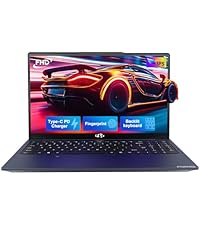
Image: A technician working on a laptop's internal components, representing the 2-year support provided for Nimo products.
9.2 Return Policy
Nimo Direct Inc. offers a 90-Day Hassle-Free Return Policy. You may return any Nimo product for any reason within 90 days of purchase. Please refer to your purchase documentation for specific return procedures.
Image: A delivery person handing a package to a customer, illustrating the 90-day return policy for Nimo products.
9.3 Customer Support
For any product-related questions, technical assistance, or warranty claims, please contact our professional after-sales service team. Our dedicated support team is available to resolve issues or facilitate replacements.
- Email: service@nimopc.com
- Online: Visit the official NIMO website or product page for contact options.
Image: Customer service representatives wearing headsets, indicating professional customer assistance available via phone and live chat.
