
1. Introduction
The Razer Kiyo V2 X is a high-performance streaming webcam designed to deliver superior video quality for various applications, including live streaming, video conferencing, and content creation. It features QHD 1440p resolution at 60 frames per second, ensuring smooth and clear visuals. Key functionalities include fast and accurate auto-focus, a wide-angle lens, an integrated microphone, and a built-in privacy shutter. This webcam offers a plug-and-play setup and is compatible with popular platforms such as OBS, Xsplit, Streamlabs, Discord, Zoom, and Microsoft Teams.
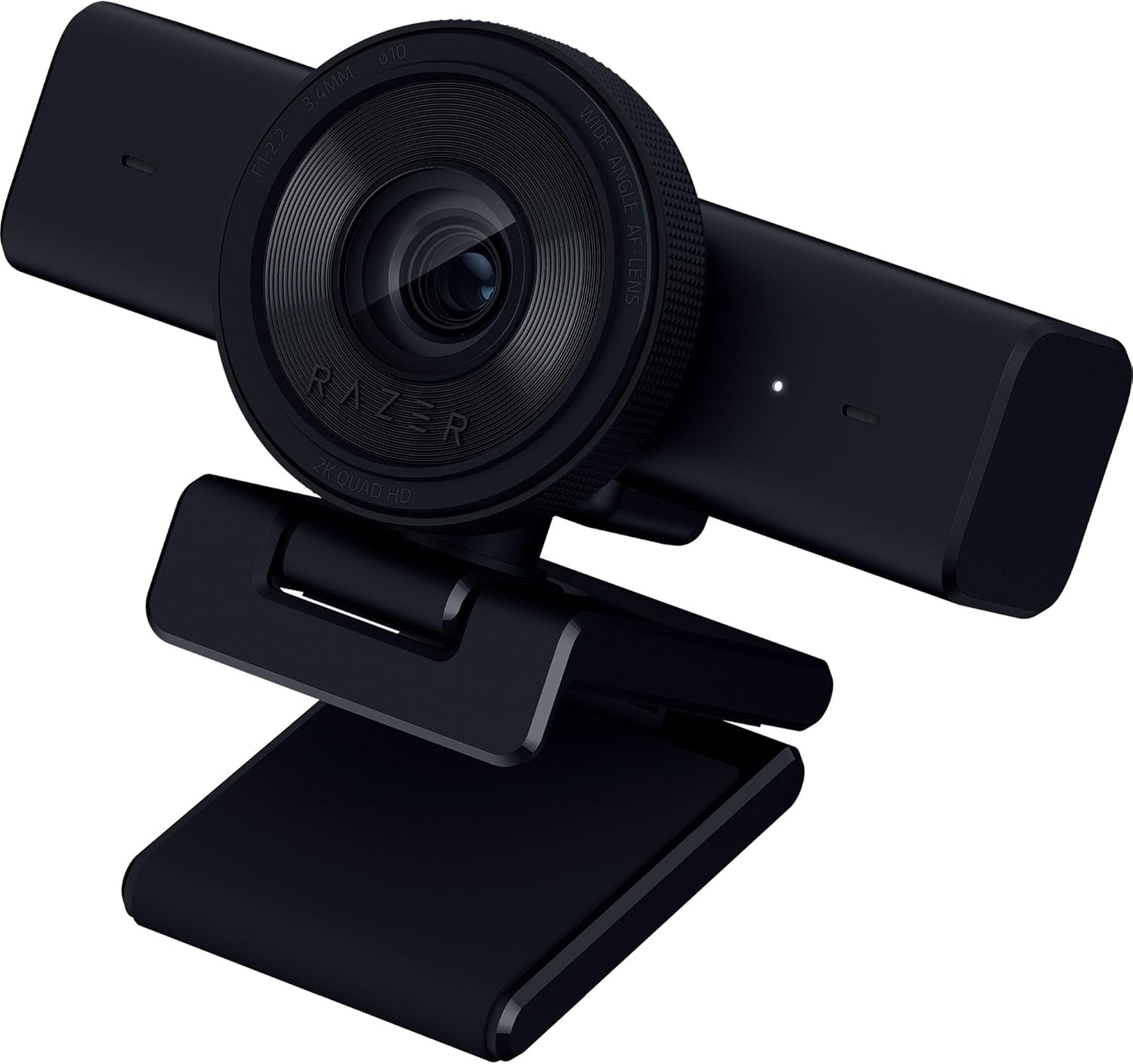
Image: Front view of the Razer Kiyo V2 X Streaming Webcam, showcasing its sleek black design and lens.
2. What's in the Box
Upon unboxing your Razer Kiyo V2 X, you should find the following items:
- Razer Kiyo V2 X Streaming Webcam
- Product Information Guide
3. Setup
- Connect the Webcam: Plug the USB cable of the Razer Kiyo V2 X into an available USB port on your computer. The webcam is designed for plug-and-play functionality and should be recognized automatically by your operating system.
- Mounting: The webcam features a universal pivoting mount. Securely place it on top of your monitor. Alternatively, use the built-in tripod thread to attach it to a tripod for more flexible positioning.
- Install Razer Synapse (Recommended): For advanced customization and to unlock the full potential of your webcam, download and install the Razer Synapse software from the official Razer website. This software allows you to fine-tune various settings.
4. Features
- 1440p 60 FPS Video: Experience smooth, natural motion and exceptional clarity with QHD 1440p resolution at 60 frames per second. This ensures high-quality video output for all your streaming and communication needs.

Image: A streamer demonstrating the smooth, clear 1440p 60 FPS video quality of the Razer Kiyo V2 X.
- Fast, Accurate Auto-Focus: The webcam maintains sharp focus on your subject, adapting quickly to movement. This feature ensures you remain clear and in focus during dynamic activities.

Image: The webcam's auto-focus feature highlighting a person and a game controller in sharp detail.
- Quick, Easy Software Customization: Utilize Razer Synapse software to customize video settings such as brightness, contrast, and sharpness. Built-in image presets are available for quick adjustments.

Image: A visual representation of the software interface for adjusting brightness settings.
- Wide-Angle Lens: The wide-angle lens provides flexible framing options, allowing you to capture more of your background or focus closely on your subject. The default field of view is approximately 80.9 degrees.

Image: An overhead view illustrating the wide field of view of the webcam, capturing a broad desk area.
- Built-in Microphone: The integrated microphone captures clear audio, providing a convenient all-in-one solution for video and sound.
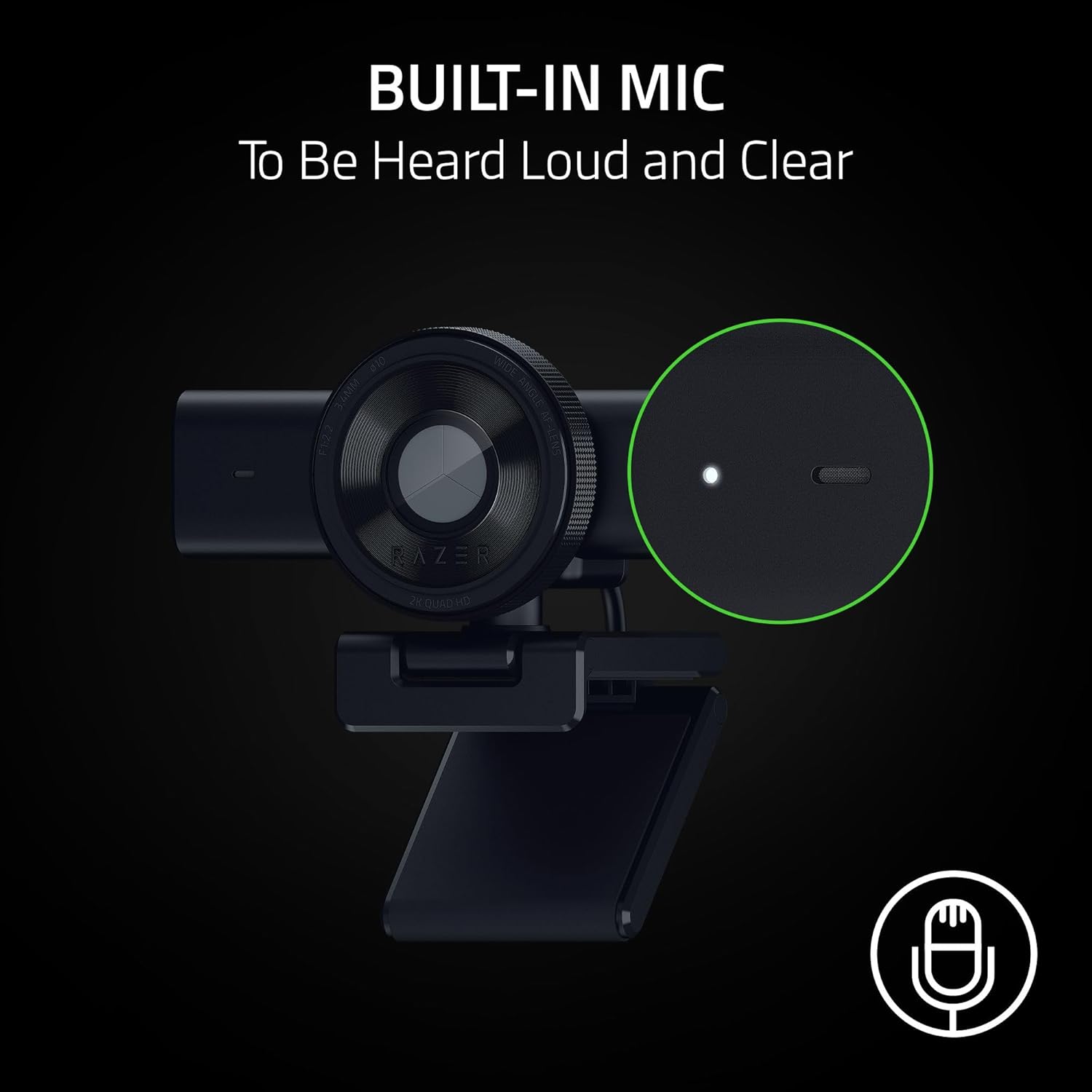
Image: A close-up of the webcam, pointing out the location of the built-in microphone.
- Integrated Privacy Shutter: A physical privacy shutter is integrated into the lens design. A quick twist covers the lens, ensuring instant privacy when the webcam is not in use.
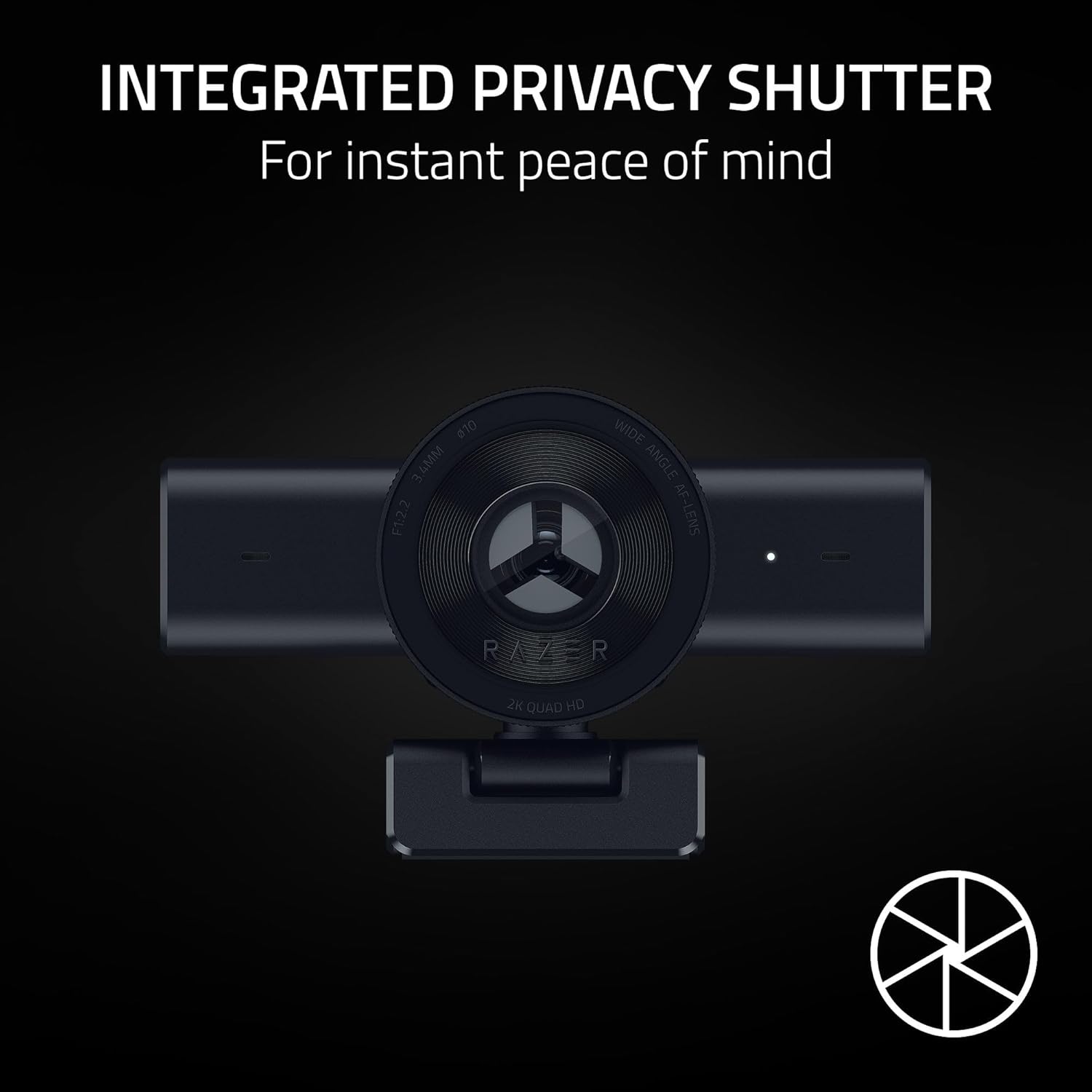
Image: The webcam with its integrated privacy shutter in the open position.

Image: The webcam with its integrated privacy shutter in the closed position, obscuring the lens.
- Universal Pivoting Mount: The webcam's mount allows for tilting and swiveling to achieve the perfect angle on a monitor. It also includes a built-in thread for tripod mounting.

Image: Side view of the Razer Kiyo V2 X, illustrating its adjustable mount for various placements.
5. Operating the Webcam
5.1. Connecting and Mounting
After connecting the webcam to your computer via USB, position it using the universal pivoting mount. It can be placed on top of most monitors or attached to a tripod for alternative camera angles.
5.2. Using the Privacy Shutter
To activate the integrated privacy shutter, gently twist the outer ring of the lens. This will physically cover the camera lens, ensuring your privacy. Twist it back to open the shutter when you are ready to use the webcam.
5.3. Software Configuration with Razer Synapse
Razer Synapse software provides comprehensive control over your webcam's settings. It is highly recommended to install and use this software for optimal performance and customization.
- Auto-Focus Control: While the webcam features fast auto-focus, you can disable it in Razer Synapse or your streaming application (e.g., OBS) to set a manual focus point. This can be beneficial in environments with consistent subject distance or to prevent unwanted focus shifts.
- Exposure Adjustment: Manually adjust the exposure slider to control the brightness of your image. Razer Synapse offers metering options (Average, Center, Face) to help the webcam prioritize exposure based on different areas of the frame. Adjusting exposure can significantly improve image quality in challenging lighting conditions.
- Field of View (FOV) Adjustment: Use the zoom function in Razer Synapse to adjust the field of view. You can narrow the FOV from the default 80.9 degrees to a more focused view, such as 62.9 degrees, to frame your shot more tightly. Be aware that digital zoom may introduce some loss in image quality.
- Noise Reduction: Razer Synapse includes 2D and 3D noise reduction features, which are enabled by default. These settings help to reduce visual noise, especially in low-light conditions. You can toggle these settings on or off based on your preference and lighting environment.
- Image Presets and Fine-Tuning: Razer Synapse offers various image presets (Default, Cool, Vibrant, Warm) to quickly apply different visual styles. You can also manually adjust individual parameters like brightness, contrast, saturation, and white balance to achieve your desired look.
6. Specifications
| Feature | Detail |
|---|---|
| Product Dimensions | 2.36 x 4.29 x 2.25 inches |
| Item Weight | 10.6 ounces |
| Item Model Number | RZ19-05380100-R3U1 |
| Brand | Razer |
| Photo Sensor Technology | Other |
| Video Capture Resolution | 1440p |
| Maximum Focal Length | 3 Millimeters |
| Flash Memory Type | Internal flash memory |
| Video Capture Format | MP4 |
| Supported Audio Format | AAC, MP3 |
| Connectivity Technology | USB |
| Color | Black |
| Special Features | Auto Focus, Built-In Mic, Integrated Privacy Shutter, QHD 1440p Video at 60 FPS, Wide-Angle Lens |
7. Troubleshooting
- Webcam Not Detected: Ensure the USB cable is securely connected to both the webcam and your computer. Try a different USB port. Restart your computer. Verify that the necessary drivers are installed (Razer Synapse can assist with this).
- Blurry Image: If the image appears blurry, check the auto-focus setting in Razer Synapse or your streaming software. Disabling auto-focus and setting manual focus can often resolve this. Ensure adequate and even lighting in your environment.
- Overexposure/Underexposure: Adjust the exposure settings manually in Razer Synapse or your streaming software. Experiment with different metering options (Average, Center, Face) to find the best balance for your specific lighting conditions.
- Poor Audio Quality: While the webcam has a built-in microphone, for professional streaming or recording, a dedicated external microphone is generally recommended. Ensure the webcam's microphone is selected as the input device in your system and application settings. Check microphone volume levels.
- Software Issues: Ensure Razer Synapse is updated to the latest version. If issues persist, try reinstalling the software. Consult the Razer support website for specific software-related troubleshooting guides.
8. Warranty and Support
For detailed warranty information, technical support, or further assistance with your Razer Kiyo V2 X Streaming Webcam, please refer to the "Product Information Guide" included in your package. You can also visit the official Razer support website for comprehensive resources, FAQs, and contact options.
Razer Support Website: www.razer.com/support


