
Product Overview
The BNCF NewBook 11 is a versatile 2-in-1 laptop designed for productivity and entertainment. It features an 11-inch Full HD IPS touchscreen, powered by an Intel N150 processor, 12GB DDR5 RAM, and a 512GB SSD. This device runs on Windows 11 Pro and includes a magnetic keyboard and kickstand for flexible use.
Key Features
- Intel N150 CPU with UHD Graphics
- Windows 11 Pro Operating System
- 12GB DDR5 RAM and 512GB NVMe SSD
- 11-inch FHD IPS In-Cell Touchscreen (1920x1200)
- Dual Cameras (5MP front, 8MP rear)
- 34.2Wh Battery with Type-C Fast Charging
- Durable 635g Metal Body
- Included Magnetic Keyboard and Protective Case
- Connectivity: 2x Type-C, USB 3.0, Micro HDMI, 3.5mm Jack, Wi-Fi 6, Bluetooth 5.0
What's in the Box
Your BNCF NewBook 11 package includes the following items:
- BNCF NewBook 11 2-in-1 Laptop (Tablet Unit)
- Magnetic Pogo Pin Keyboard
- Kickstand / Protective Case
- Power Adapter (12V/3A)
- User Manual

Image: Contents of the BNCF NewBook 11 package.
Initial Setup
Unboxing and First Inspection
Carefully remove all components from the packaging. Inspect the tablet and accessories for any signs of damage.
Video: BNCF NewBook 11 2-in-1 Laptop Unboxing. This video demonstrates the unboxing process and initial handling of the device and its accessories.
Powering On and Initial Configuration
Press and hold the power button located on the side of the tablet to turn it on. Follow the on-screen prompts to complete the initial Windows 11 setup. This includes selecting your language, region, and setting up user accounts and passwords.
Video: BNCF NewBook 11 Initial Setup. This video guides you through the first power-on, language selection, and user account setup.
Attaching the Magnetic Keyboard
Align the magnetic pogo pins on the tablet with the corresponding connectors on the keyboard. The keyboard will snap into place magnetically. This allows for instant transition to laptop mode.

Image: The BNCF NewBook 11 in laptop mode with the magnetic keyboard attached.
Operating Your BNCF NewBook 11
Understanding Device Modes
The BNCF NewBook 11 offers three primary modes for versatile usage:
- Laptop Mode: Attach the magnetic keyboard and use the device like a traditional laptop for typing and productivity tasks.
- Tablet Mode: Detach the keyboard for a lightweight tablet experience, ideal for browsing, reading, or touch-based applications.
- Stand Mode: Utilize the integrated kickstand (or protective case) to prop up the tablet for media consumption, presentations, or video calls without the keyboard.

Image: The BNCF NewBook 11 demonstrating its three flexible usage modes: Laptop, Tablet, and Stand.
Windows 11 Pro Features
Your device comes pre-installed with Windows 11 Pro, offering enhanced security, productivity, and management features.
- Chip-level Security: Benefit from advanced hardware-based security.
- BitLocker Encryption: Protect your data with full disk encryption.
- Windows Hello: Secure and fast login using facial recognition or fingerprint (if applicable).
- Efficient Multitasking: Utilize Snap Layouts and Desktops for organized workflows.
Connectivity
The NewBook 11 provides comprehensive connectivity options:
- Wi-Fi 6 (2.4/5GHz): For high-speed wireless internet access.
- Bluetooth 5.0: Connect wireless peripherals like headphones, mice, and keyboards.
- USB Ports: Includes 2x Type-C (charging/data) and 1x USB 3.0 for connecting various devices.
- Micro HDMI: Connect to external displays, monitors, or projectors for extended screen space.
- 3.5mm Audio Jack: For wired headphones or external speakers.
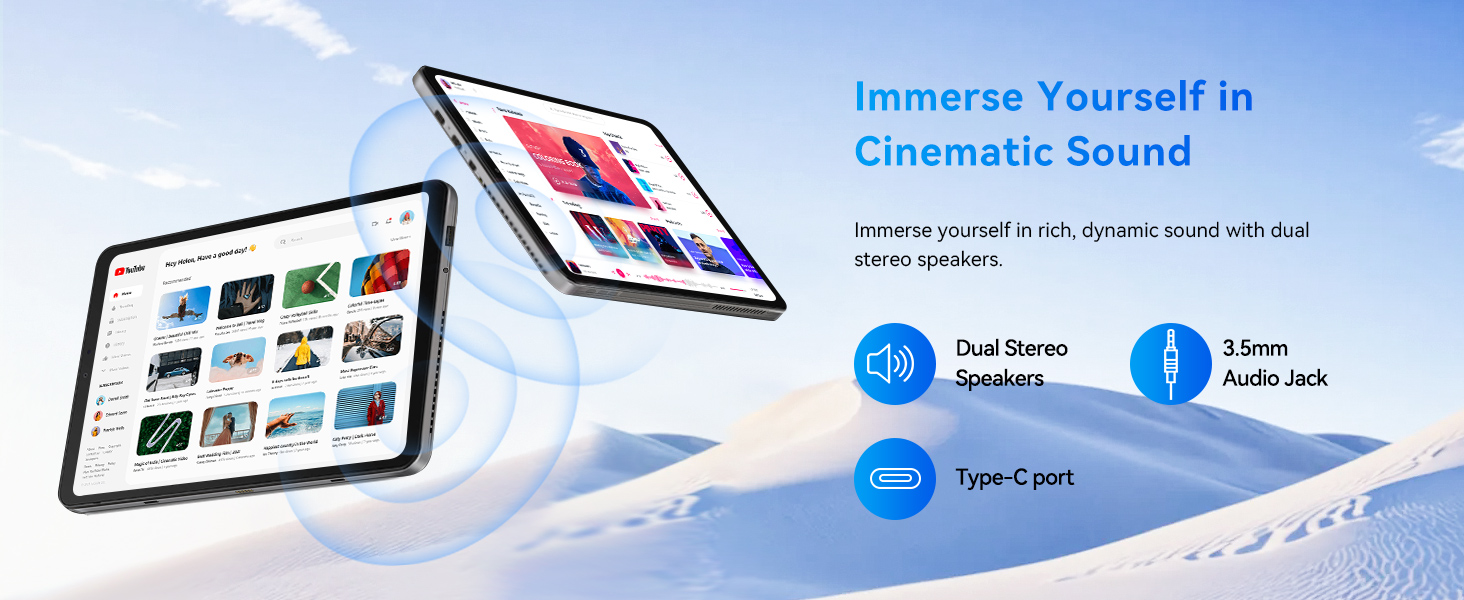
Image: Detailed view of the BNCF NewBook 11's ports and buttons.
Maintenance
Cleaning Your Device
- Use a soft, lint-free cloth to clean the screen and body.
- For stubborn smudges, slightly dampen the cloth with water or a screen-safe cleaner.
- Avoid harsh chemicals, abrasive materials, or excessive moisture.
- Keep ports free of dust and debris.
Software Updates
Regularly check for and install Windows updates to ensure optimal performance, security, and access to the latest features. Go to Settings > Windows Update to manage updates.
Battery Care
- For optimal battery longevity, avoid fully discharging the battery frequently.
- Store the device in a cool, dry place when not in use for extended periods.
- Use only the provided power adapter or a compatible Type-C PD charger.
Troubleshooting
Common Issues and Solutions
- Device not turning on: Ensure the battery is charged. Connect the power adapter and try again.
- Screen not responding: Restart the device. If the issue persists, check for system updates or contact support.
- Keyboard not working: Ensure the magnetic connection is secure. Restart the device.
- Wi-Fi/Bluetooth connectivity issues: Check if Wi-Fi/Bluetooth is enabled in settings. Restart your router or device.
- Slow performance: Close unnecessary applications. Check for system updates. Ensure sufficient free storage space.
If you encounter persistent issues, refer to the official BNCF support resources or contact customer service.
Technical Specifications
| Feature | Specification |
|---|---|
| Brand | BNCF |
| Model Name | NewBook 11 |
| Screen Size | 11 Inches |
| Resolution | 1920x1200 (FHD IPS) |
| CPU Model | Intel Twin Lake N150 |
| Processor Speed | Up to 3.6 GHz |
| RAM | 12 GB DDR5 |
| Storage | 512 GB SSD (NVMe) |
| Operating System | Windows 11 Pro |
| Graphics | Intel UHD Graphics (Integrated) |
| Front Camera | 5 MP |
| Rear Camera | 8 MP |
| Battery | 34.2 Wh |
| Connectivity | Wi-Fi 6, Bluetooth 5.0, 2x Type-C, USB 3.0, Micro HDMI, 3.5mm Audio |
| Dimensions (Tablet) | 25.7"L x 16.8"W x 0.96"Th |
| Weight (Tablet) | 635g |
| Weight (with Keyboard/Case) | 1106g |
Warranty and Support
Warranty Information
The BNCF NewBook 11 comes with a 1-year limited warranty. This warranty covers manufacturing defects and hardware malfunctions under normal use. Please retain your proof of purchase for warranty claims.
Customer Support
For any questions, software glitches, or hardware concerns, please contact BNCF customer support.
- Email Support: service01@bncfai.com
- Online Resources: Visit the official BNCF website for drivers, firmware downloads, and FAQs.
- Response Time: Our team aims to respond within 24/7 a week.
When contacting support, please provide your product model number (N150) and order number for faster assistance.