
Introduction
This manual provides instructions for the Zebronics CSH501 2.5" SSD/HDD Enclosure. This device allows you to connect a 2.5-inch SATA Solid State Drive (SSD) or Hard Disk Drive (HDD) to your computer via a USB Type-C 3.1 Gen 1 interface, enabling high-speed data transfer and portable storage solutions. It supports up to 6TB of storage capacity and features a tool-free slide design for easy installation.
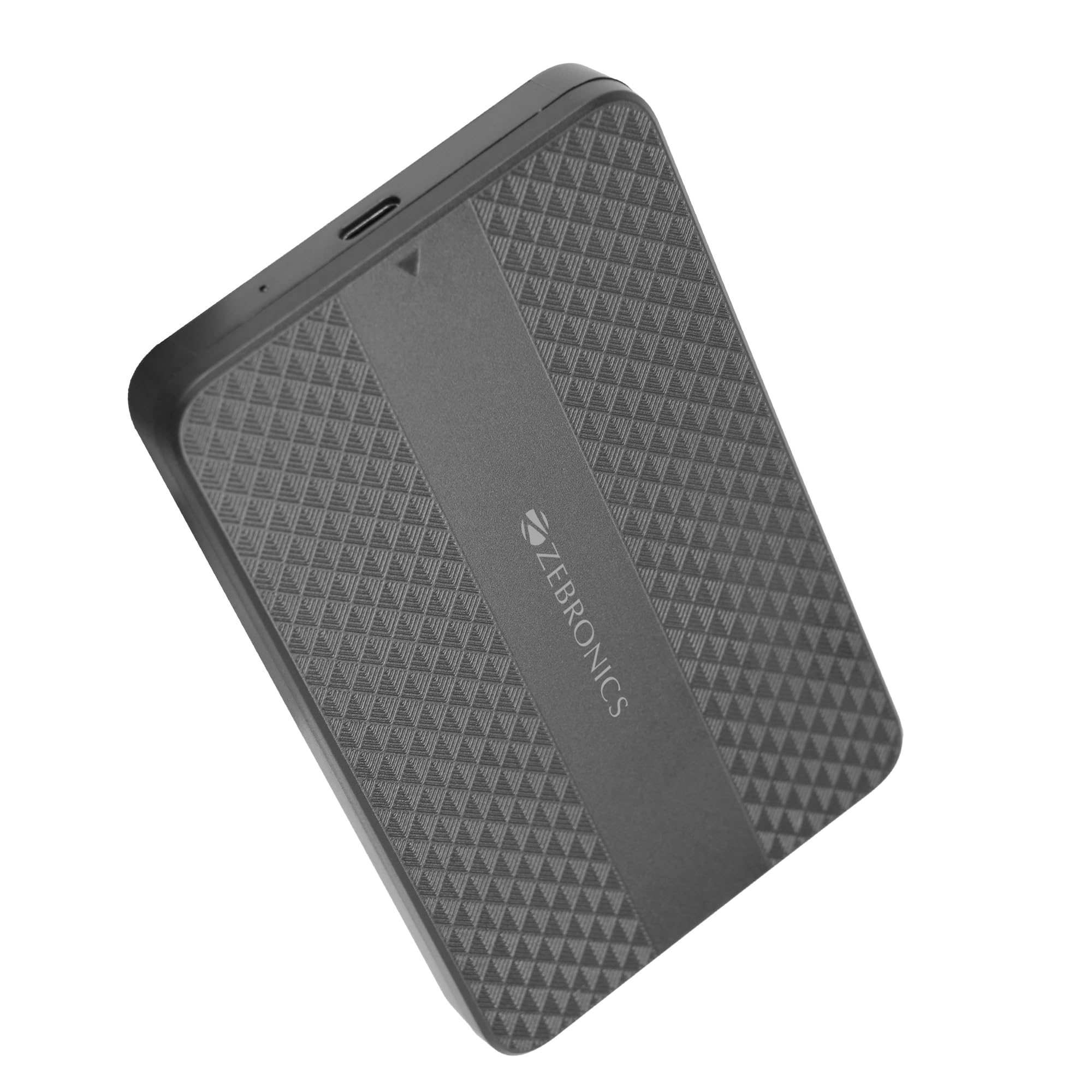
Image: The Zebronics CSH501 2.5 inch SSD/HDD Enclosure, a compact black device with a textured surface and Zebronics branding.
Package Contents
Verify that all items are present in the package:
- 1 x 2.5" SATA SSD Enclosure (CSH501)
- 1 x Foam Pad
- 1 x USB to Micro B Cable
Specifications
| Feature | Description |
|---|---|
| Model | CSH501 |
| Compatible Drives | 2.5-inch SATA SSD/HDD |
| Max. Storage Capacity | 6 TB |
| Interface | USB Type-C 3.1 Gen 1 |
| Data Transfer Rate | Up to 5 Gbps |
| Material | Plastic |
| Dimensions (L x W x H) | 13L x 8W x 1.3H Centimeters |
| Weight | 60 Grams |
| OS Support | Windows, Mac, Linux |
Setup and Installation
The CSH501 enclosure features a tool-free slide design for quick and easy installation of your 2.5-inch SATA SSD or HDD.
- Step 1: Open the Enclosure
Gently slide the back cover of the enclosure to open it. - Step 2: Insert the Drive
Carefully insert your 2.5-inch SATA SSD or HDD into the enclosure, ensuring it connects securely to the internal SATA connector. You may use the provided foam pad to secure thinner drives. Close the cover by sliding it back until it clicks into place. - Step 3: Connect to Computer
Connect the enclosure to your computer using the provided USB to Micro B cable. The enclosure is plug-and-play, requiring no additional drivers for most operating systems.

Image: A three-step visual guide demonstrating the tool-free slide setup: 1. Slide back to open the cover. 2. Insert the drive and close the cover. 3. Connect to the computer for plug & play operation.
Operating Instructions
Once connected, the enclosure will be recognized by your operating system as an external storage device. You can then access, transfer, and manage files as you would with any other external drive.
- Data Transfer: The USB 3.1 Gen 1 interface supports data transfer speeds up to 5 Gbps. Actual speeds may vary based on the connected drive, computer's USB port, and file types.
- Operating System Compatibility: The enclosure is compatible with Windows, Mac, and Linux operating systems.
- Power: The enclosure is bus-powered via the USB connection, eliminating the need for an external power adapter.

Image: The Zebronics CSH501 enclosure connected to a laptop via its USB cable, illustrating its capability for data transfer speeds up to 5Gbps.

Image: The Zebronics CSH501 enclosure connected to a laptop, with text highlighting its compatibility across Windows, Mac, and Linux operating systems.
Maintenance
To ensure the longevity and optimal performance of your Zebronics CSH501 enclosure:
- Keep the device clean and free from dust. Use a soft, dry cloth for cleaning.
- Avoid exposing the enclosure to extreme temperatures, humidity, or direct sunlight.
- Do not drop or subject the device to strong impacts.
- Always safely eject the drive from your operating system before disconnecting the enclosure to prevent data corruption.
Troubleshooting
If you encounter issues with your enclosure, refer to the following common solutions:
- Drive Not Detected:
- Ensure the drive is properly seated within the enclosure and the cover is closed securely.
- Try connecting the enclosure to a different USB port on your computer.
- Test with a different USB cable.
- Verify that the drive itself is functional by testing it in another enclosure or directly connecting it to a computer if possible.
- For new drives, ensure they are initialized and formatted in your operating system's Disk Management (Windows) or Disk Utility (Mac).
- Slow Transfer Speeds:
- Ensure the enclosure is connected to a USB 3.0/3.1 port on your computer. Connecting to a USB 2.0 port will result in slower speeds.
- The performance of the installed SSD/HDD also affects transfer speeds.
- Large file transfers are generally faster than many small file transfers.
- Enclosure Gets Warm:
It is normal for the enclosure to become warm during extended use, especially during large data transfers, as heat is dissipated from the internal drive. Ensure adequate airflow around the device.
Warranty and Support
The Zebronics CSH501 enclosure comes with a 1 Year Carry-In Warranty to the service center. For warranty claims or technical support, please contact Zebronics customer service.
Manufacturer Contact Information:
Zebronics India Private Limited
No.13/7, Smith Road, Royapettah, Chennai - 600 002
For further assistance, visit the official Zebronics website or contact their support channels.