
Introduction
This manual provides comprehensive instructions for the setup, operation, maintenance, and troubleshooting of your TAG Gamerz Titan RGB Black Gaming Headphone. Please read this manual carefully before using the product to ensure optimal performance and longevity.
Product Overview
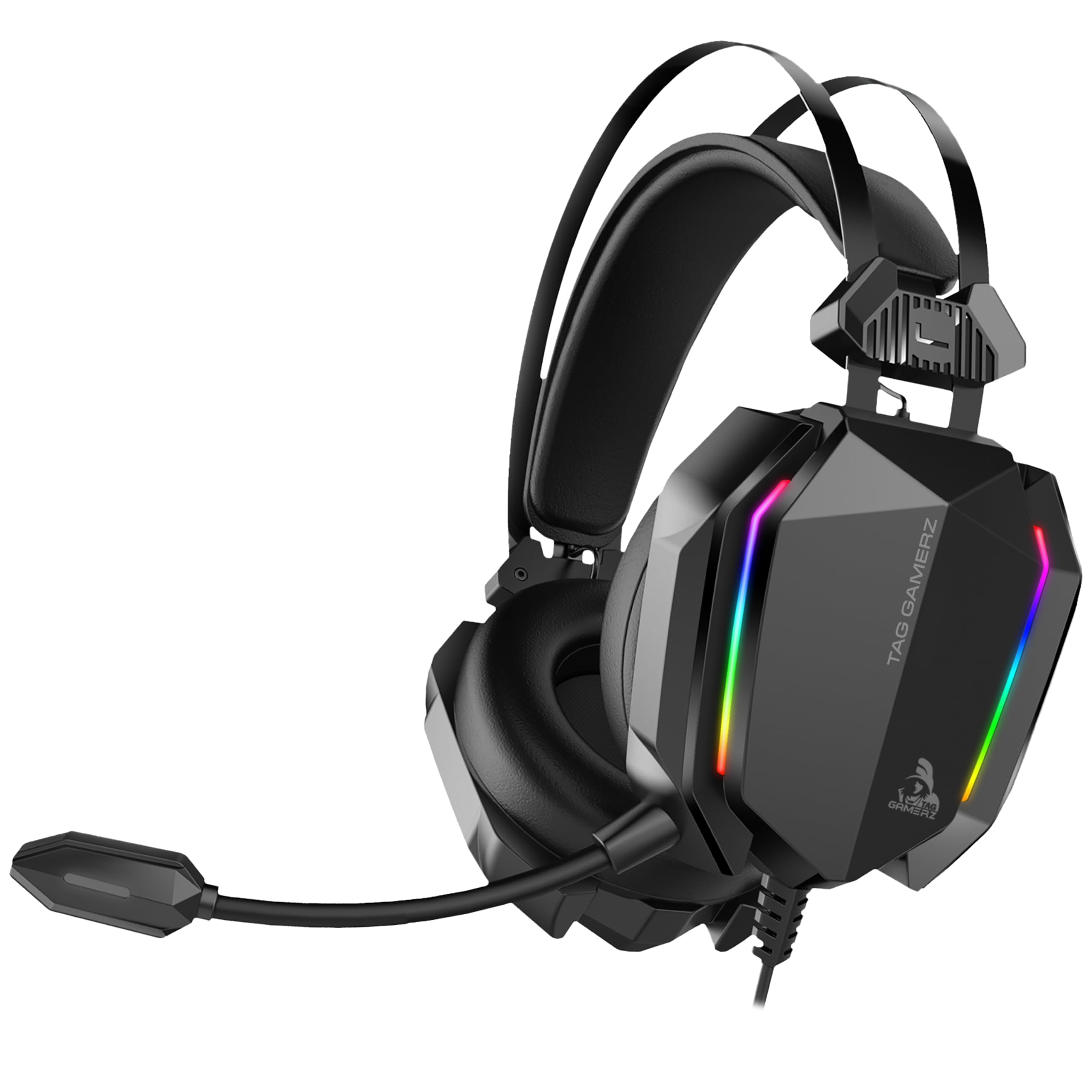
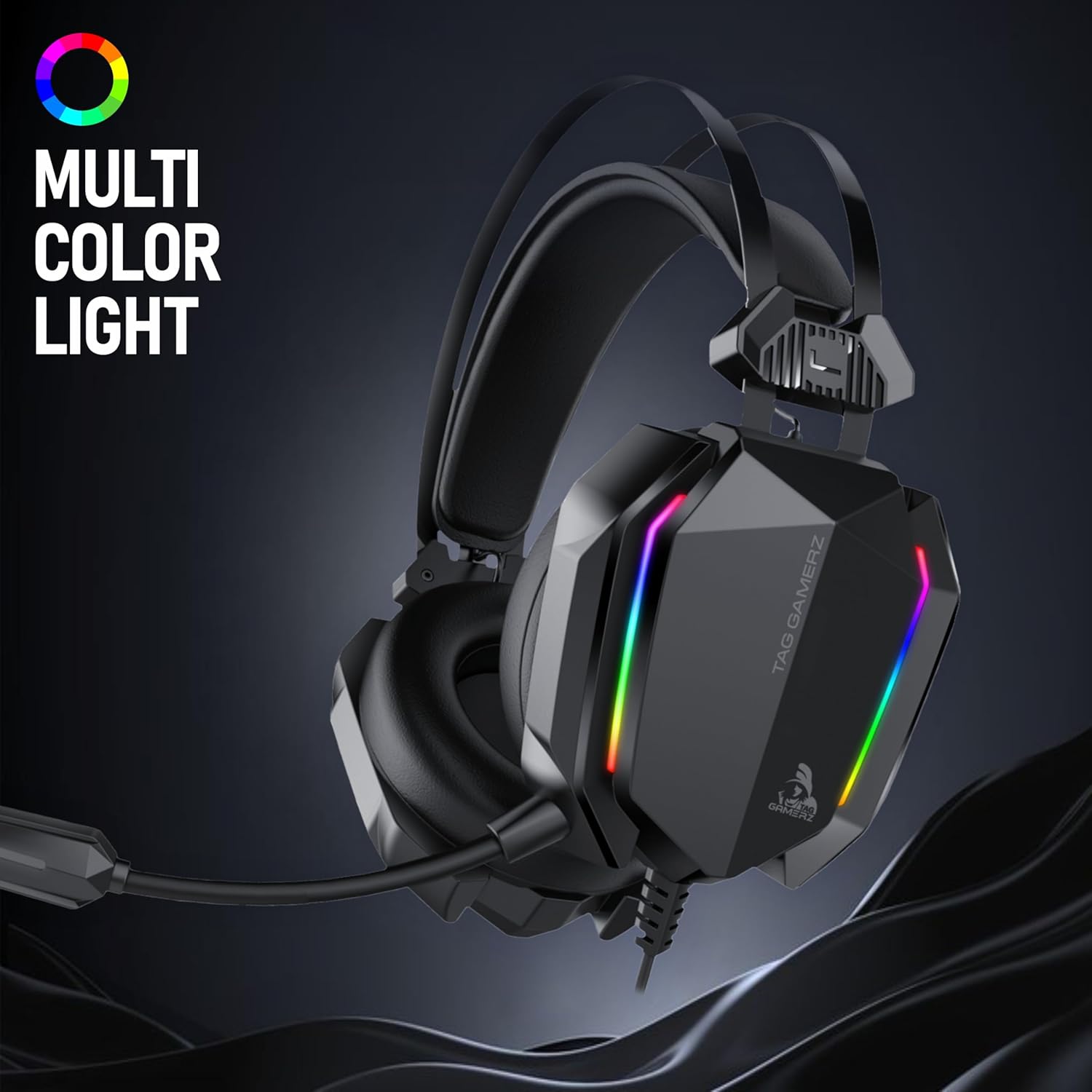
The TAG Gamerz Titan RGB Black Gaming Headphone is designed for immersive audio experiences across various platforms. It features 50mm neodymium drivers, a retractable noise-cancelling microphone, and customizable RGB lighting.
Key Features:
- 50mm Neodymium Drivers: Delivers powerful and clear audio.
- Retractable Noise-Cancelling Microphone: Ensures clear voice communication.
- Adjustable Suspension Headband: Provides a comfortable fit for extended use.
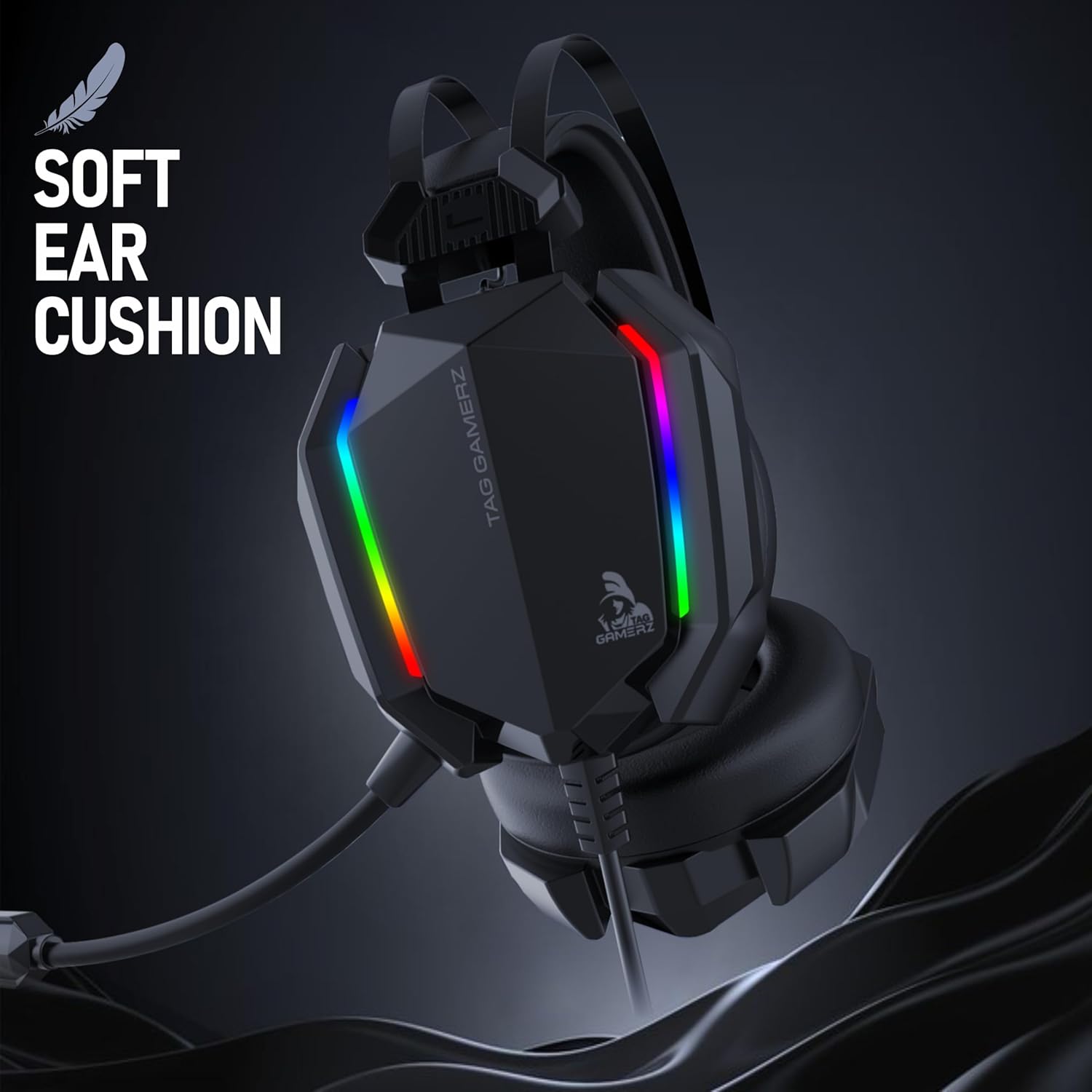
- Soft Over-Ear Ear Cups: Designed for maximum comfort and sound isolation.
- Dual Connectivity: 3.5mm audio jack for sound and USB for RGB lighting.
- In-line Volume Roller: For quick and easy audio adjustments.
- Durable 2m Tangle-Free Cable: Offers flexibility and longevity.
Components:
Your package includes:
- TAG Gamerz Titan RGB Black Gaming Headphone (with integrated 3.5mm audio cable and USB cable)


Setup Instructions
- Connect Audio: Plug the 3.5mm audio jack into the corresponding audio port on your PC, laptop, gaming console controller (e.g., PS5, Xbox), cellphone, or tablet. Ensure it is fully inserted for proper audio transmission.
- Connect USB for RGB Lighting: Plug the USB connector into an available USB port on your device (PC, laptop, console). This connection powers the headset's RGB lighting feature. The headset will function for audio even without the USB connected, but RGB lighting requires USB power.
- Adjust Headband: Place the headset on your head. The suspension headband will automatically adjust for a comfortable fit. Ensure the ear cups fully cover your ears.
- Position Microphone: Gently pull out the retractable microphone and bend it to a suitable position near your mouth for clear voice capture. When not in use, you can retract it back into the earcup.
- Initial Volume Check: Before starting your activity, use the in-line volume roller to set the audio to a comfortable level.
Operating Instructions
Audio Control:
- Volume Adjustment: Use the volume roller located on the headset cable to increase or decrease the audio output level. Roll upwards to increase volume, downwards to decrease.
Microphone Usage:
- Activating the Microphone: Extend the retractable microphone from the left earcup. Position it approximately 2-3 cm from your mouth for optimal voice clarity.
- Noise-Cancelling Feature: The microphone is designed with noise-cancelling technology to reduce ambient background noise, focusing on your voice.
- Muting: If your device or application has a microphone mute function, use that for quick muting. The headset itself does not have a dedicated mute button.
- Storing the Microphone: When not in use, gently push the microphone back into the earcup until it is fully retracted.
RGB Lighting:
- The RGB lighting on the earcups will automatically illuminate once the USB connector is plugged into a powered USB port.
- The lighting features a dynamic 7-color cycle. There are no user-adjustable settings for the RGB patterns or colors directly on the headset.
Device Compatibility:
The headset is compatible with devices featuring a 3.5mm audio jack and a USB port for RGB lighting, including:
- Personal Computers (PC)
- Laptops
- Gaming Consoles (e.g., PlayStation 5, Xbox Series X/S via controller)
- Cellphones
- Tablets
Maintenance
- Cleaning Ear Cups: Gently wipe the ear cups with a soft, damp cloth. Avoid using harsh chemicals or abrasive materials. Ensure the ear cups are dry before use.
- Cleaning Headset Body: Use a dry, soft cloth to wipe the main body of the headset. Do not immerse the headset in water or any other liquid.
- Cable Care: Avoid sharp bends, twists, or excessive pulling on the cable. Store the cable neatly when not in use to prevent tangling and damage.
- Storage: Store the headset in a cool, dry place away from direct sunlight and extreme temperatures.
Troubleshooting
| Problem | Possible Cause | Solution |
|---|---|---|
| No audio from headset. |
|
|
| Microphone not working. |
|
|
| RGB lighting not working. |
|
|
| Headset is uncomfortable. |
|
|
Specifications
| Feature | Detail |
|---|---|
| Model Number | TG-HP-TITAN-B |
| Driver Size | 50mm Neodymium Dynamic Drivers |
| Headset Frequency Response | 20 Hz - 20,000 Hz |
| Headset Impedance | 32 Ohms |
| Microphone Type | Retractable, Noise-Cancelling |
| Microphone Frequency Response | 50 Hz - 16,000 Hz |
| Microphone Sensitivity | -45dB ± 3dB |
| Microphone Impedance | 2.4 kOhms |
| Connectivity | 3.5mm Audio Jack (4-pole), USB (for RGB Lighting) |
| Cable Length | 2 meters |
| Cable Type | Durable PVC, Tangle-Free |
| Weight | 200 Grams |
| Material | Plastic |
| RGB Lighting | 7-color dynamic cycle |
| Ear Placement | Over-Ear |
| Control Type | Volume Roller |
Warranty and Support
Warranty Period: Your TAG Gamerz Titan RGB Black Gaming Headphone comes with a 1-year manufacturer's warranty from the date of purchase. This warranty covers manufacturing defects under normal use.
For warranty claims, technical assistance, or any product-related inquiries, please contact TAG customer support:
- Support Phone: 98201 63040
- Email: support@technologyandgadgets.com
- Manufacturer Address: Technology And Gadgets, Gala no.142/143, 1st Floor, Building no.6, Mittal Industrial Estate, Marol, Andheri (East), Mumbai - 400059, Maharashtra, India.
Please retain your proof of purchase for warranty validation.