
1. Introduction
Thank you for choosing the Doohoeek Bluetooth Keyboard Case. This manual provides detailed instructions for setting up, operating, and maintaining your keyboard case. Please read this manual carefully before use to ensure optimal performance and longevity of your device.
2. Package Contents
- 1 x Doohoeek Bluetooth Keyboard with Case
- 1 x USB-C Charging Cable
- 1 x User Manual
3. Compatibility
This keyboard case is compatible with the following Samsung Galaxy Tab models:
- Samsung Galaxy Tab S10 Lite 10.9 inch 2025 (Models: SM-X400/SM-X406B)
- Samsung Galaxy Tab S10 FE 10.9 inch 2025 (Models: SM-X520/X526B/X528U)
- Samsung Galaxy Tab S9 FE 5G 10.9 inch (Models: SM-X510/X516B/X518U)
- Samsung Galaxy Tab S9 11 inch 2023 (Models: SM-X710/X716B/X718U)
Please verify your tablet's model number under "Settings" > "About tablet" before use.

Image: The keyboard case shown with a compatible tablet, illustrating the fit and design. This image highlights the compatibility with various Samsung Galaxy Tab models.
4. Setup
4.1 Charging the Keyboard
Before first use, fully charge the keyboard. Connect the provided USB-C charging cable to the keyboard's charging port and a power source. The LCD display will indicate charging status.

Image: A close-up of the keyboard showing the USB-C charging port and the scissor-structure keys. The image also illustrates the precise cutouts of the case.
4.2 Bluetooth Pairing
- Ensure the keyboard is charged.
- Turn on the keyboard.
- Press and hold the Fn + C keys simultaneously for 1 second to enter pairing mode. The Bluetooth indicator on the LCD display will flash.
- On your Samsung Galaxy Tab, go to Settings > Connected devices > Bluetooth and turn Bluetooth on.
- Select "Wireless Keyboard" from the list of available devices.
- Once paired, the Bluetooth indicator on the keyboard's LCD display will stop flashing and remain solid.
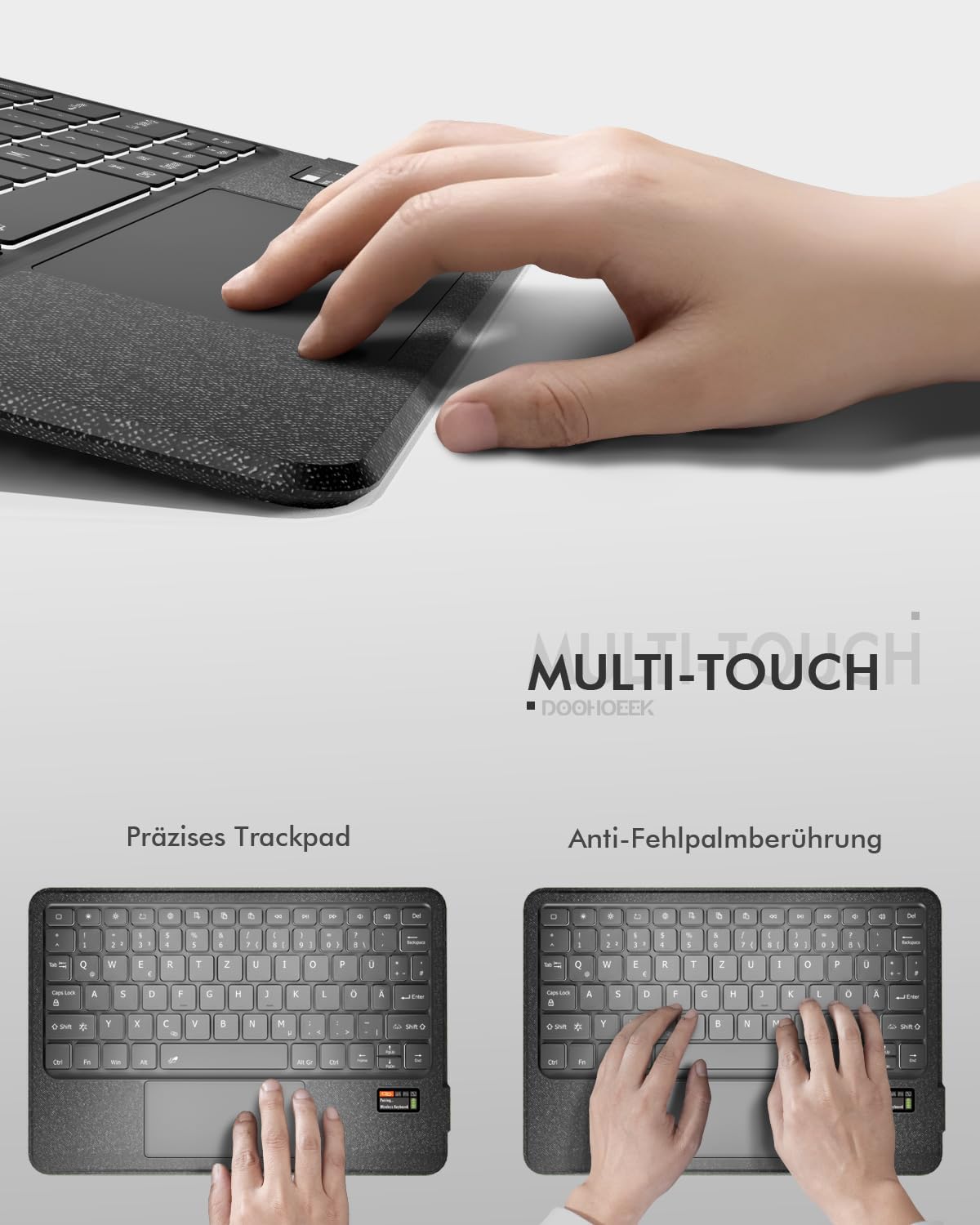
Image: A visual representation of the keyboard's LCD display showing "Pairing... Wireless Keyboard" and a flashing Bluetooth icon, indicating the device is in pairing mode.
4.3 Tablet Installation
Place your Samsung Galaxy Tab into the protective case. Ensure the tablet is securely seated and that all cutouts for the camera, speakers, and ports align correctly with the case openings.
5. Operating Instructions
5.1 LCD Status Display
The integrated LCD screen provides real-time status updates for your keyboard. It displays:
- Battery level
- Caps Lock status
- Bluetooth connection status
- Other relevant indicators
This feature eliminates guesswork regarding your keyboard's operational status.
5.2 7-Color Backlighting
The keyboard features 7-color rainbow backlighting with 3 adjustable brightness levels for comfortable typing in various lighting conditions, including low-light environments.

Image: Two views of the keyboard showcasing the 7-color rainbow backlighting in action, highlighting the illuminated keys.
5.3 Precision Trackpad
The integrated precision trackpad supports multi-touch gestures and includes palm rejection technology to prevent accidental touches during typing. Use the trackpad for navigation and interaction with your tablet.

Image: A hand demonstrating the use of the precision trackpad on the keyboard. Another image shows a hand resting on the keyboard, illustrating the palm rejection feature.
5.4 Removable Keyboard and Adjustable Stand
The keyboard is magnetically attached to the case, allowing for easy removal when not needed. The PU leather case features a 150° fully adjustable stand, providing multiple viewing angles for your tablet.

Image: The keyboard detached from the case, and the case supporting a tablet at an adjustable angle, demonstrating the removable keyboard and flexible stand features.
5.5 Scissor-Structure Keys
The keyboard utilizes a quiet scissor-structure key mechanism, designed to provide a comfortable and responsive typing experience, ideal for office or library environments.
6. Maintenance
- Keep the keyboard and case clean by wiping with a soft, dry cloth.
- Avoid exposing the device to extreme temperatures, direct sunlight, or liquids.
- Do not use harsh chemicals or abrasive cleaners.
- Store the keyboard in a dry place when not in use.
7. Troubleshooting
7.1 Keyboard Not Connecting
- Ensure the keyboard is turned on and fully charged.
- Make sure Bluetooth is enabled on your tablet.
- Re-enter pairing mode on the keyboard (Fn + C) and re-scan for devices on your tablet.
- If previously paired, try forgetting the device on your tablet's Bluetooth settings and re-pairing.
7.2 Keys Not Responding
- Check the battery level on the LCD display and recharge if necessary.
- Ensure the keyboard is properly connected via Bluetooth.
- Restart both the keyboard and your tablet.
7.3 Trackpad Not Working
- Ensure the keyboard is connected.
- Check if the trackpad is enabled (some tablets or apps might have settings to disable external trackpads).
- Clean the trackpad surface to remove any dirt or debris.
8. Specifications
| Brand | Doohoeek |
| Compatible Devices | Samsung Galaxy Tab S10 Lite / S10 FE / S9 FE / S9 |
| Connectivity Technology | Bluetooth |
| Power Source | Battery Powered |
| Battery Capacity | 650 mAh (Rechargeable via USB-C) |
| Special Features | Backlit (7-color), Rechargeable, LCD Screen Display, Silent Keys, Trackpad, Removable Keyboard |
| Keyboard Description | Multi-Functional (QWERTZ Layout) |
| Material | Thermoplastic Polyurethane (TPU) Plastic |
| Item Weight | 630 g |
| Package Dimensions | 28.7 x 20.9 x 3.1 cm |
9. Warranty and Support
This product comes with a 2-year warranty. For any questions or issues during use, please contact us through Amazon's messaging service. Our support team will assist you promptly.