
1. Introduction and Compatibility
This manual provides instructions for the Doohoeek Keyboard Case, designed for the Samsung Galaxy Tab S11 2025 11-inch tablet. Please ensure your tablet model matches the compatible models listed below before use.
Compatible Devices: Samsung Galaxy Tab S11 2025 11-inch (Models: SM-X730, SM-X736B).
To verify your tablet model, navigate to "Settings" > "About tablet" on your device.

Image: The Doohoeek keyboard case shown with a Samsung Galaxy Tab S11 2025 11-inch tablet, illustrating compatibility.
2. Product Components
The package includes the following items:
- 1 x Keyboard with Case for Samsung Galaxy Tab S11 2025
- 1 x USB Charging Cable
- 1 x User Manual (this document)

Image: Detailed view of the keyboard case, highlighting its compact design, integrated pen holder, and scissor-foot key structure.
3. Setup
3.1 Charging the Keyboard
Before initial use, fully charge the keyboard. The keyboard is equipped with a 650 mAh rechargeable battery.
- Connect the provided USB charging cable to the charging port on the keyboard.
- Connect the other end of the USB cable to a USB power adapter (not included) or a computer's USB port.
- The charging indicator light will illuminate. A full charge typically takes 2-3 hours.
- Once fully charged, the indicator light will change or turn off. Disconnect the charging cable.
A fully charged keyboard provides approximately 300 hours of standby time without backlight.
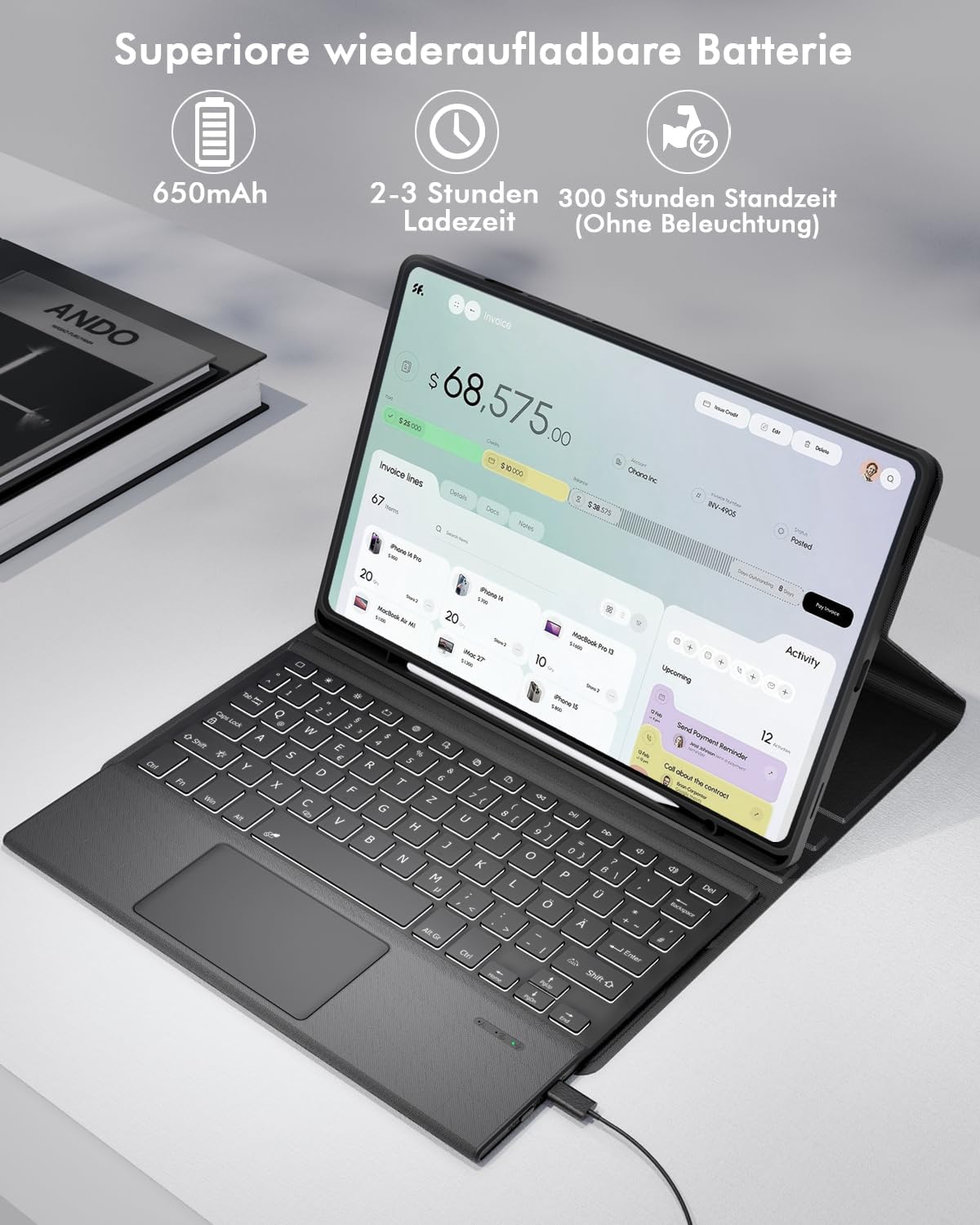
Image: The keyboard case being charged, illustrating its 650mAh battery, 2-3 hour charging time, and 300-hour standby time without backlight.
3.2 Bluetooth Pairing
Follow these steps to connect your keyboard to your Samsung Galaxy Tab S11 via Bluetooth:
- Ensure the keyboard is charged.
- Turn on the keyboard by sliding the power switch to the "ON" position.
- Press the "Connect" button (or a similar Bluetooth pairing button, often indicated by a Bluetooth icon) on the keyboard. The Bluetooth indicator light will start flashing, indicating it is in pairing mode.
- On your Samsung Galaxy Tab S11, go to "Settings" > "Connected devices" or "Bluetooth".
- Turn on Bluetooth if it is not already enabled.
- Your tablet will search for available Bluetooth devices. Select "Doohoeek Keyboard" (or a similar name) from the list of found devices.
- If prompted, enter the pairing code displayed on your tablet screen using the keyboard, then press Enter.
- Once paired, the Bluetooth indicator light on the keyboard will stop flashing and remain solid or turn off, and your tablet will show the keyboard as "Connected".
4. Operating Instructions
4.1 Keyboard Usage
The keyboard features a QWERTZ layout for standard typing. Utilize the function keys (Fn) in combination with other keys for specific shortcuts as indicated on the keycaps.
4.2 Multi-touch Trackpad
The integrated multi-touch trackpad allows for precise navigation and control of your tablet without an external mouse. It features anti-palm touch technology to prevent accidental inputs while typing.
- Single Finger Tap: Left-click.
- Two Finger Tap: Right-click (context menu).
- Two Finger Scroll: Scroll up/down or left/right.
- Pinch to Zoom: Use two fingers to zoom in or out.

Image: A hand interacting with the multi-touch trackpad, illustrating its functionality and the anti-palm touch feature.
4.3 Backlight Function
The keyboard features 7-color rainbow backlighting with 3 adjustable brightness levels, allowing for comfortable typing in various lighting conditions.
- To turn on/off backlight: Press the Light Bulb icon key (often near the spacebar or function keys).
- To change backlight color: Press Fn + Light Bulb icon key. Cycle through the 7 available colors.
- To adjust brightness: Press Light Bulb icon key + Up/Down arrow keys (or similar combination as indicated on the keyboard). Cycle through 3 brightness levels.

Image: Two views of the keyboard case showcasing its 7-color rainbow backlight and the ability to adjust brightness.
4.4 Detachable Keyboard and Adjustable Viewing Angles
The wireless keyboard attaches magnetically to the case, allowing for easy detachment when not needed. The case also provides 3 adjustable viewing angles for optimal comfort during use.
- Detaching the keyboard: Gently pull the keyboard away from the magnetic surface of the case.
- Attaching the keyboard: Align the keyboard with the magnetic strip in the case until it snaps into place.
- Adjusting viewing angles: Position the tablet in the designated grooves on the case to select one of the three available angles.

Image: A side view of the keyboard case illustrating the detachable keyboard and the three possible kickstand angles for the tablet.
5. Maintenance
- Keep the keyboard and case clean by wiping with a soft, dry cloth.
- Avoid exposing the product to liquids, extreme temperatures, or direct sunlight.
- Do not use harsh chemicals or abrasive cleaners.
- Store the keyboard in a dry place when not in use for extended periods.
- To preserve battery life, fully charge the keyboard at least once every three months if not used regularly.
6. Troubleshooting
| Problem | Solution |
|---|---|
| Keyboard does not turn on. | Ensure the power switch is in the "ON" position. Charge the keyboard fully. |
| Keyboard does not connect via Bluetooth. |
|
| Keys are unresponsive or typing incorrectly. |
|
| Trackpad is not working. |
|
| Backlight is not working or changing. |
|
7. Specifications
- Model Compatibility: Samsung Galaxy Tab S11 2025 11-inch (SM-X730/SM-X736B)
- Connectivity Technology: Bluetooth
- Keyboard Layout: QWERTZ
- Special Features: Multi-touch Trackpad with Anti-palm Touch, Detachable Keyboard, 7-Color Backlight (3 brightness levels), 3 Adjustable Viewing Angles, Pen Holder, Scissor-foot Keys
- Battery Capacity: 650 mAh
- Charging Time: Approximately 2-3 hours
- Standby Time (without backlight): Approximately 300 hours
- Material: Polyurethane (PU), Plastic, Rubber
- Power Source: Battery
- Dimensions (Package): 28.7 x 20.9 x 3.4 cm
- Weight (Package): 800 g
8. Warranty and Support
This Doohoeek product comes with a 2-year warranty from the date of purchase.
For any questions, technical support, or warranty claims, please contact Doohoeek customer service through the Amazon platform where you purchased the product. Provide your order number and a detailed description of the issue for prompt assistance.