
Introduction
This manual provides comprehensive instructions for the installation, operation, and maintenance of your UNITOPSCI 4+64G Android 15 Car Stereo. Designed specifically for Kia Soul models from 2014 to 2017, this unit enhances your driving experience with advanced features such as wireless Carplay/Android Auto, GPS navigation, Bluetooth 5.0, and a high-resolution IPS touchscreen.
Please read this manual thoroughly before installation and use to ensure proper functionality and to maximize the benefits of your new car stereo system.
Package Contents
Before beginning installation, verify that all components are present in the package:
- 1 x Car Radio
- 1 x Power Cable
- 1 x GPS Antenna
- 1 x Rear Camera Input Cable
- 1 x RCA Cable
- 2 x USB Cable
- 1 x User Manual (this document)
- 1 x Microphone
- 1 x Car Rear View Camera
- 1 x Installation Tool

Figure 1: Overview of the UNITOPSCI car stereo unit and all included accessories, including cables, antennas, microphone, rear camera, and installation tools.
Setup and Installation
Professional installation is recommended for this car stereo system. Ensure the vehicle's battery is disconnected before starting any electrical work.
1. Vehicle Compatibility
This unit is designed for Kia Soul models manufactured between 2014 and 2017. Verify your vehicle's dashboard configuration matches the compatible design.

Figure 2: The UNITOPSCI car stereo seamlessly integrated into a Kia Soul dashboard, demonstrating the 'After' installation appearance.
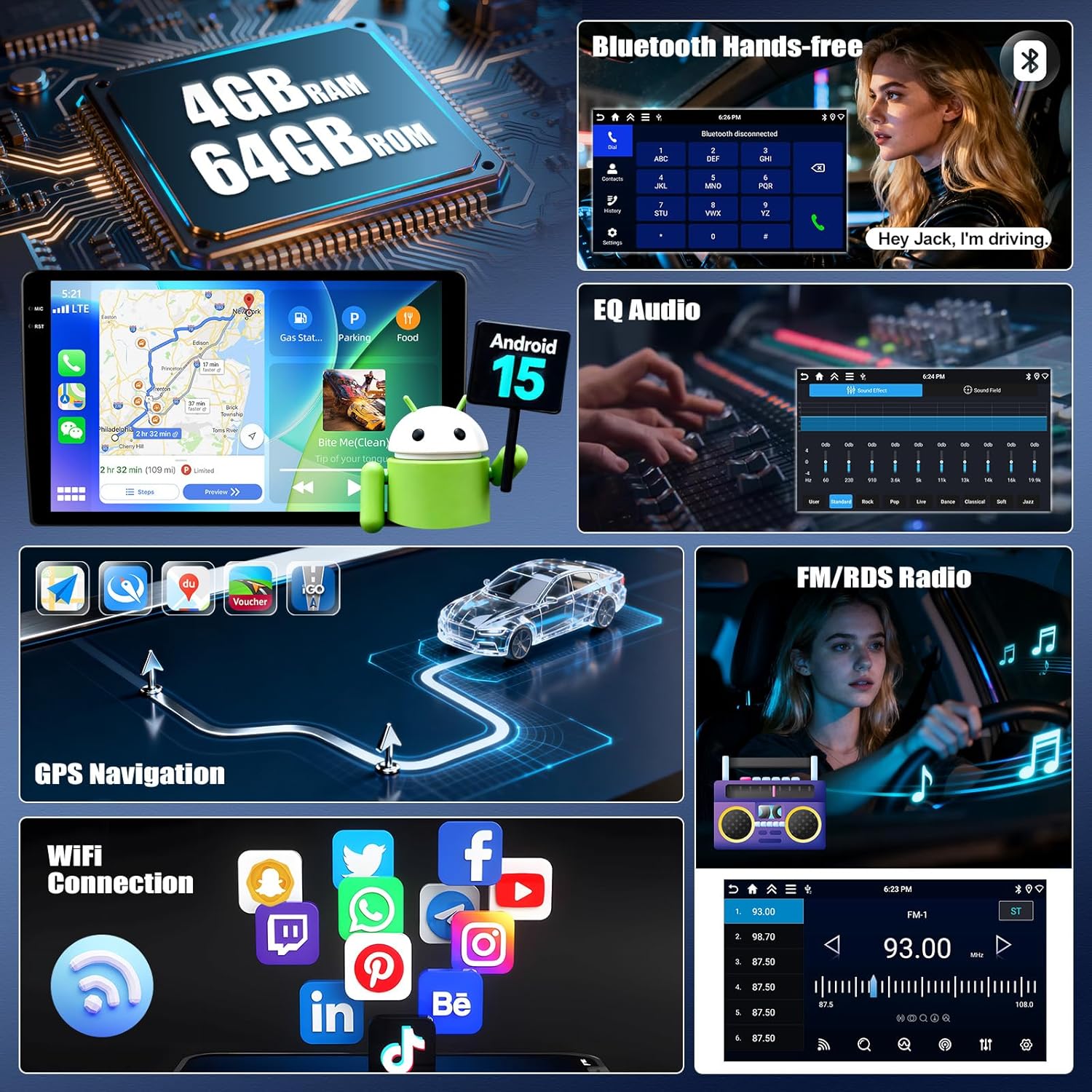
Figure 3: Visual guide indicating which Kia Soul dashboard configurations are compatible ('Fit') and incompatible ('Not Fit') with this specific car stereo model.
2. Wiring Connections
Refer to the included wiring diagram for specific connections. Key connections include:
- Power Cable: Connect to the vehicle's power supply (constant 12V, accessory, and ground).
- GPS Antenna: Mount in a location with a clear view of the sky for optimal signal reception.
- Rear Camera Input Cable: Connect to the provided AHD rear view camera.
- USB Cables: For data transfer and charging.
- Microphone: For hands-free calling and voice commands.
- RCA Cables: For external audio/video input/output.
3. Initial Power On
After all connections are secure, reconnect the vehicle's battery. Turn on the ignition. The unit should power on automatically. Follow any on-screen prompts for initial setup, such as language selection and time zone.
Operating Instructions
Wireless Carplay & Android Auto
Connect your iPhone or Android smartphone wirelessly to access navigation, music, calls, and messages directly on the stereo's display. This feature integrates smart voice control via Siri or Google Assistant.
- Ensure Bluetooth and Wi-Fi are enabled on your smartphone.
- On the car stereo, navigate to the Carplay or Android Auto application.
- Select your phone from the available devices to pair.
- Confirm the pairing code on both devices.

Figure 4: The car stereo display showing the user interface for Wireless Carplay and Android Auto, with various app icons visible.
Mirror Link Functionality
Mirror Link allows you to display your smartphone's screen on the car stereo. Android users can also control their phone directly from the stereo's touchscreen.
- For iOS devices: Connect via Wi-Fi or USB.
- For Android devices: Connect via Wi-Fi or USB for mirroring, and control via USB.
Bluetooth 5.0
The integrated Bluetooth 5.0 module enables hands-free calling and wireless audio streaming.
- Access the Bluetooth menu on the stereo.
- Enable Bluetooth on your phone and search for available devices.
- Select "UNITOPSCI" (or similar device name) from the list and pair.
- Once paired, you can make/receive calls and play music wirelessly.

Figure 5: The car stereo displaying the Bluetooth interface for hands-free calling and music playback, with a phone dial pad and music controls.
FM/RDS Radio
Tune into your favorite radio stations with enhanced signal reception. RDS (Radio Data System) provides additional information like station name and song title where available.
- Select the FM/RDS application from the main menu.
- Use the scan function to automatically find and save stations, or manually tune to a frequency.

Figure 6: The car stereo displaying the FM radio interface, showing frequency selection and potential RDS information.
GPS Navigation & WiFi Connection
The unit features dual navigation capabilities, supporting both offline and online maps. Connect to Wi-Fi to access online maps, download apps, and browse the internet.
- GPS Navigation: Access the navigation app. Ensure the GPS antenna is properly installed for accurate positioning.
- WiFi Connection: Go to Settings > Network & Internet > Wi-Fi. Select your desired network and enter the password.

Figure 7: The car stereo displaying GPS navigation with options for online and offline maps, alongside various app icons indicating WiFi connectivity.
Steering Wheel Control (SWC)
Program your steering wheel buttons to control audio functions (volume, track skip) and answer calls, enhancing driving safety.
- Navigate to the SWC settings in the stereo's menu.
- Follow the on-screen instructions to "learn" each button's function by pressing the button on your steering wheel and then selecting the corresponding function on the stereo's screen.

Figure 8: The car stereo displaying the interface for programming Steering Wheel Controls, showing options to assign functions to physical buttons.
AHD Rear View Camera
The included AHD backup camera provides a clear view of the area behind your vehicle. It automatically activates when shifting into reverse, displaying real-time views with parking assist lines.

Figure 9: The car stereo displaying the rear view from the AHD camera, complete with dynamic parking assist lines for safe maneuvering.
Multiple UI Themes & Split Screen
Customize your stereo's appearance with various UI themes. The split-screen function allows you to run two applications simultaneously, such as navigation and music playback.
- UI Themes: Access the theme settings to select your preferred visual style.
- Split Screen: Drag an app to one side of the screen or use the dedicated split-screen button (if available) to activate.

Figure 10: The car stereo demonstrating various user interface themes and the split-screen feature, allowing two applications to run concurrently.
Maintenance
To ensure the longevity and optimal performance of your UNITOPSCI car stereo, follow these maintenance guidelines:
- Cleaning: Use a soft, dry cloth to clean the touchscreen and unit exterior. Avoid abrasive cleaners or solvents.
- Software Updates: Periodically check for software updates via the system settings to ensure you have the latest features and bug fixes. A stable Wi-Fi connection is required for updates.
- Temperature: Avoid exposing the unit to extreme temperatures for extended periods.
- Connections: Ensure all cables are securely connected and free from damage.
Troubleshooting
If you encounter issues with your car stereo, refer to the following common troubleshooting steps:
No Power
- Check all power cable connections to ensure they are secure.
- Verify the vehicle's fuse related to the stereo is not blown.
- Ensure the vehicle's ignition is on.
No Sound
- Check the volume level and ensure it is not muted.
- Verify speaker wire connections are correct and secure.
- Check audio settings (EQ, balance, fader) to ensure they are not set to extreme values.
GPS Signal Loss or Inaccuracy
- Ensure the GPS antenna is mounted in a location with an unobstructed view of the sky.
- Check the GPS antenna connection to the unit.
- Update map data if available.
Bluetooth Connectivity Issues
- Ensure Bluetooth is enabled on both the stereo and your smartphone.
- Delete previous pairings on both devices and attempt to re-pair.
- Restart both the stereo and your smartphone.
Carplay/Android Auto Not Connecting
- Verify Wi-Fi and Bluetooth are active on your phone.
- Ensure your phone's operating system is up to date.
- Check for any specific app permissions required by Carplay/Android Auto on your phone.
If problems persist after attempting these steps, please contact UNITOPSCI customer support for further assistance.
Specifications
| Feature | Detail |
|---|---|
| Operating System | Android 15 |
| RAM | 4GB |
| ROM | 64GB |
| Display Size | 9 inches |
| Display Resolution | 1280 x 720P IPS Touchscreen |
| Bluetooth Version | 5.0 |
| Connectivity | Bluetooth, Wi-Fi, USB |
| Special Features | Wireless CarPlay, Android Auto, Mirror Link, GPS Navigation, FM/RDS, EQ, DSP, Steering Wheel Control, AHD Backup Camera |
| Compatible Devices | Smartphone (Android/iOS) |
| Audio Output Mode | Stereo |
| Control Method | Touch, Voice |
| Item Weight | 1.92 Kilograms (4.22 pounds) |
| Package Dimensions | 14.17 x 11.02 x 3.74 inches |
Warranty and Support
Warranty Information
Your UNITOPSCI car stereo comes with a 1-year warranty from the date of purchase. This warranty covers manufacturing defects and malfunctions under normal use. Additionally, a 30-day money-back guarantee and a 12-month replacement service are offered.
Optional extended protection plans are available for purchase:
- 2-Year Protection Plan
- 3-Year Protection Plan
Please retain your proof of purchase for warranty claims.
Customer Support
For any inquiries, technical assistance, or support during installation or usage, please contact our dedicated customer service team. We offer lifetime after-sales consultation and technical support.
Email: UNITOPSCI@126.com
Our professional after-sales team is available 24/7 to assist you.

Figure 11: Visual representation of UNITOPSCI's customer support, highlighting replacement, quick response, lifetime support, and return policies.


