
Motorola Moto G 5G (2025) XT2513V
Motorola Moto G 5G (2025) XT2513V User Manual
Model: XT2513V
Introduction
This manual provides essential instructions for setting up, operating, maintaining, and troubleshooting your Motorola Moto G 5G (2025) XT2513V smartphone. Please read this guide thoroughly to ensure proper use and to maximize your device's capabilities.
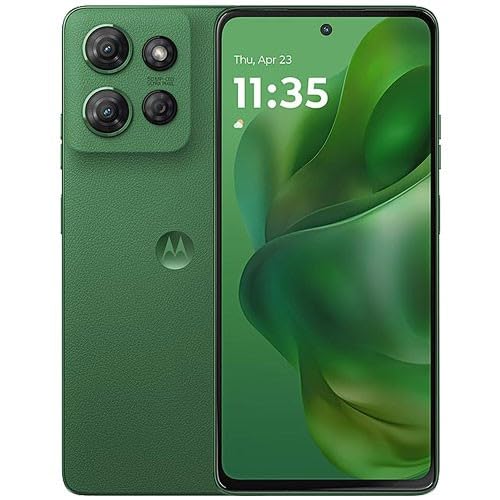
Image: Front view of the Motorola Moto G 5G (2025) XT2513V smartphone.
1. Setup
1.1 What's in the Box
- Motorola Moto G 5G (2025) XT2513V Smartphone
- USB-C Cable
- SIM Ejector Tool
- Quick Start Guide
- Safety and Warranty Information
1.2 Inserting the SIM Card
- Locate the SIM tray on the side of your phone.
- Insert the SIM ejector tool into the small hole next to the tray and push gently until the tray pops out.
- Place your Nano SIM card into the tray with the gold contacts facing down. Ensure it fits securely.
- Carefully push the tray back into the phone until it clicks into place.

Image: Illustration of SIM card insertion.
1.3 Charging the Device
Before first use, fully charge your phone. Connect the USB-C cable to the phone's charging port and the other end to a compatible power adapter. Plug the adapter into a wall outlet. The battery indicator will show charging progress.
Note:
- Use only Motorola-approved chargers and cables.
- The device supports fast charging.
1.4 Initial Power On and Setup
Press and hold the Power button until the Motorola logo appears. Follow the on-screen prompts to:
- Select your language.
- Connect to a Wi-Fi network.
- Sign in with your Google account or create a new one.
- Set up screen lock (PIN, pattern, password, fingerprint, or face unlock).
- Review and accept terms and conditions.
2. Operating Your Device
2.1 Basic Navigation
- Swipe Up: Access the app drawer.
- Swipe Down: Open the notification panel and quick settings.
- Tap: Select an item.
- Tap & Hold: Access contextual menus or move icons.
- Pinch: Zoom in or out.
2.2 Making Calls and Sending Messages
To make a call, open the Phone app, enter the number, and tap the call icon. To send a message, open the Messages app, tap "Start chat," enter the recipient's number or contact name, and type your message.
2.3 Connecting to Networks
Wi-Fi Connection
- Go to Settings > Network & internet > Internet.
- Turn on Wi-Fi.
- Select your desired network from the list and enter the password if prompted.
Mobile Data (5G)
Your device supports 5G cellular technology. Ensure your SIM card is active and your plan includes mobile data. To enable/disable mobile data, go to Settings > Network & internet > Mobile network and toggle the "Mobile data" option.
2.4 Using the Camera
Open the Camera app. Tap the shutter button to take a photo. Swipe left or right to switch between photo, video, portrait, and other modes. Tap the camera icon to switch between front and rear cameras.

Image: Camera app interface.
2.5 Security Features
Protect your device with various security options:
- Fingerprint Sensor: Register your fingerprints for quick and secure unlocking. Go to Settings > Security & privacy > Device unlock.
- Face Unlock: Set up face recognition for convenient unlocking.
- Screen Lock: Choose between Pattern, PIN, or Password.
3. Maintenance
3.1 Software Updates
Regularly check for software updates to ensure your device has the latest features and security patches. Go to Settings > System > System updates.
3.2 Cleaning Your Device
Use a soft, lint-free cloth to clean the screen and body of your phone. Avoid harsh chemicals or abrasive materials. Do not immerse the device in water as it is not water resistant.
3.3 Battery Care
- Avoid extreme temperatures.
- Do not let the battery fully discharge frequently.
- Unplug the charger once the battery is full.
- The device features a 5000 mAh battery for extended use.
3.4 Storage Management
Your device comes with 128 GB of internal storage. To manage storage, go to Settings > Storage. You can free up space by deleting unused apps, photos, and videos, or by moving files to cloud storage.
4. Troubleshooting
4.1 Common Issues and Solutions
- Device not turning on: Ensure the battery is charged. Press and hold the Power button for at least 10-15 seconds to force a restart.
- Network connectivity issues: Check if Airplane mode is off. Restart your device. Verify SIM card insertion. Contact your carrier (Total Wireless) if issues persist.
- Apps crashing or freezing: Close and reopen the app. Clear the app's cache (Settings > Apps > select app > Storage & cache > Clear cache).
- Slow performance: Close background apps. Clear cache. Check for software updates.
4.2 Factory Reset
Warning:
A factory reset will erase all data from your phone. Back up important data before proceeding.
- Go to Settings > System > Reset options.
- Tap Erase all data (factory reset).
- Confirm your decision and enter your PIN/password if prompted.
5. Specifications
| Feature | Detail |
|---|---|
| Model Name | Moto G 5G (2025) XT2513V |
| Brand | Motorola |
| Memory Storage Capacity | 128 GB |
| CPU Speed | 2.4 GHz |
| Resolution | 2400 x 1080 |
| Refresh Rate | 120 Hz |
| Cellular Technology | 5G |
| Wireless Carrier | Total Wireless |
| Color | Green |
| SIM Card Slot Count | Single SIM |
| Sim Card Size | Nano |
| Water Resistance Level | Not Water Resistant |
| Battery Capacity | 5000 Milliamp Hours |
| Phone Talk Time | 16 Hours |
| Effective Video Resolution | 1080 Pixels |
| Frame Rate | 120 fps |
| UPC | 784196698691 |
6. Warranty and Support
6.1 Limited Warranty
Your Motorola Moto G 5G (2025) XT2513V is covered by a limited warranty. Please refer to the "Safety and Warranty Information" document included in your product packaging for full details on warranty terms, conditions, and exclusions.
6.2 Customer Support
For technical assistance, troubleshooting, or warranty claims, please contact Motorola customer support or your service provider, Total Wireless.
- Motorola Support Website: Visit www.motorola.com/support for FAQs, guides, and contact options.
- Total Wireless Support: For carrier-specific issues, visit the Total Wireless support website or contact their customer service.
Related Documents - Moto G 5G (2025) XT2513V
 |
moto g 2025 Service BOM for U.S.A Market Service Bill of Materials (BOM) and parts list for the moto g 2025 smartphone, model XT2513-X, for the U.S.A. Market. Includes part numbers, descriptions, and quantities for repair and service. |
 |
Motorola Moto G34 5G User Guide Comprehensive user guide for the Motorola Moto G34 5G smartphone. Covers setup, features, personalization, troubleshooting, and more. Includes information on using apps, connectivity, and device maintenance. |
 |
Motorola moto g 5G (2022) User Guide: Setup and Features Comprehensive user guide for the Motorola moto g 5G (2022) smartphone, covering setup, app management, connectivity, security, troubleshooting, and accessibility features. |
 |
Guía del Usuario del Motorola moto g 86 POWER 5G Explore la guía del usuario completa para el smartphone Motorola moto g 86 POWER 5G. Aprenda a configurar, usar y personalizar su dispositivo. |
 |
Motorola Moto G 5G (2024) User Guide | Setup, Features, and Support Comprehensive user guide for the Motorola Moto G 5G (2024). Learn setup, navigation, app usage, security, troubleshooting, and essential features for your new smartphone. |
 |
Motorola moto g 82 5G User Guide Your essential guide to the Motorola moto g 82 5G. Learn setup, personalization, app usage, camera functions, connectivity, and troubleshooting tips for your Motorola smartphone. Get the most out of your device with this comprehensive user manual. |
Ask a question about this manual
Ask about setup, troubleshooting, compatibility, parts, safety, or missing instructions. Manuals+ will review the question and use this page’s manual context to help answer it.