
Introduction
This manual provides essential information for setting up, operating, maintaining, and troubleshooting your HP 15 Laptop. Please read this guide thoroughly to ensure proper use and to maximize the performance and longevity of your device.

Image: Overview of the HP 15 Laptop highlighting its main components and features.
Setup
1. Initial Power-On and Windows 11 Pro Setup
- Connect the provided AC power adapter to the laptop and a power outlet.
- Open the laptop lid and press the power button.
- Follow the on-screen instructions to complete the Windows 11 Pro setup. This includes selecting your region, language, connecting to a Wi-Fi network, and creating a user account.
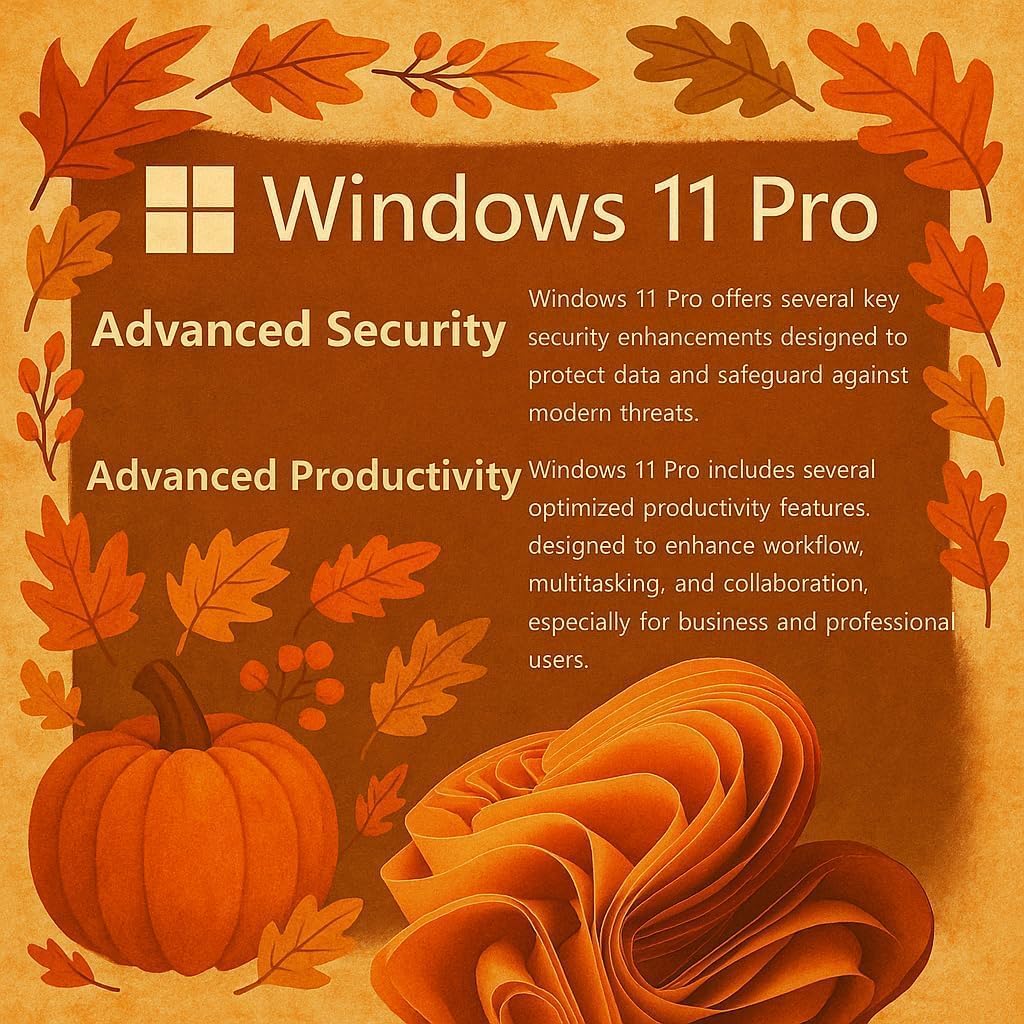
Image: Visual representation of Windows 11 Pro features, emphasizing security and productivity.
2. Microsoft Office 365 Activation
Your laptop includes Microsoft Office 365. To activate it:
- Locate the instructions included in your package for redeeming your Microsoft Office license key.
- Follow the provided steps to install and activate Word, Excel, PowerPoint, Outlook, and other Office applications.
3. Connecting Peripherals and External Devices
The HP 15 Laptop offers various ports for connectivity:
- USB Type-C (5Gbps): For modern USB-C devices and data transfer.
- USB Type-A (5Gbps): Two ports for standard USB devices like mice, keyboards, or external drives.
- HDMI 1.4b: Connect to external displays or projectors.
- SD Media Card Reader: For transferring files from SD cards.
- Headphone / Microphone Combo Jack: For audio input/output.
- AC Power Port: For connecting the power adapter.

Image: Detailed view of the laptop's side profiles, indicating the location and type of each port and slot.
Operating Your HP 15 Laptop
1. Display Features
The 15.6-inch Full HD (1920 x 1080) IPS display features narrow bezels and an anti-glare coating for comfortable viewing. It provides clear and vibrant visuals for various tasks.

Image: Visual comparison demonstrating the superior clarity of the 1080p Full HD display.
2. Performance and Multitasking
Your HP 15 Laptop is equipped with an Intel N4120 Quad-Core Processor, capable of turbo boosting up to 2.6 GHz, and Intel UHD Graphics. With 16GB DDR4 RAM and a 512GB SSD, it delivers responsive performance for daily computing tasks, multitasking, and quick application loading.

Image: Detailed view of the Intel Celeron N4120 Processor specifications.
3. Using Copilot AI
The laptop is Copilot AI-ready, integrating an AI assistant within Windows and Microsoft 365. Copilot helps streamline tasks, generate content, and enhance productivity. Access it through the Windows interface to utilize its features.

Image: The Copilot AI interface on the Windows desktop.
4. Wireless Connectivity
The laptop supports Realtek RTL8822CE 802.11ac (2x2) Wi-Fi for internet access and Bluetooth 5.0 for connecting wireless peripherals like headphones or speakers.
Maintenance
1. Cleaning Your Laptop
- Use a soft, lint-free cloth slightly dampened with water or a screen cleaner to clean the display.
- For the keyboard and chassis, use a soft cloth. Avoid harsh chemicals or abrasive materials.
- Ensure the laptop is powered off and unplugged before cleaning.
2. Battery Care
- To prolong battery life, avoid extreme temperatures.
- Periodically allow the battery to discharge to around 20% before recharging.
- If storing the laptop for an extended period, ensure the battery is charged to about 50%.
3. Software Updates
Regularly check for and install Windows updates to ensure your system has the latest security patches and performance improvements. Go to Settings > Windows Update to manage updates.
Troubleshooting
Common Issues and Solutions
- Laptop does not power on: Ensure the AC adapter is securely connected and the power outlet is functional. Try a different outlet. If using battery, ensure it has sufficient charge.
- Display issues (no image, flickering): Restart the laptop. If connected to an external monitor, try disconnecting it. Check display settings in Windows.
- No Wi-Fi connection: Verify Wi-Fi is enabled in Windows settings. Restart your router and modem. Check for updated Wi-Fi drivers.
- Slow performance: Close unnecessary applications. Check Task Manager for resource-intensive processes. Ensure sufficient free space on the SSD. Run a disk cleanup.
For more detailed troubleshooting or issues not covered here, please refer to the official HP support website or contact HP customer service.
Specifications
| Feature | Detail |
|---|---|
| Brand | HP |
| Model Name | G9 |
| Screen Size | 15.6 Inches |
| Screen Resolution | 1920 x 1080 pixels (Full HD) |
| Processor | Intel N4120 (2.6 GHz Celeron, 4 Cores) |
| RAM | 16 GB DDR4 |
| Hard Drive | 512 GB SSD (PCIE x 4) |
| Graphics Coprocessor | Intel UHD Graphics (Integrated) |
| Operating System | Windows 11 Pro |
| Wireless Type | 802.11ac, Bluetooth 5.0 |
| USB Ports | 1 x USB Type-C, 2 x USB Type-A |
| HDMI Port | 1 x HDMI 1.4b |
| Card Reader | SD Media Card Reader |
| Special Features | Anti Glare Coating, HD Audio, Memory Card Slot, Numeric Keypad |
| Color | Silver |
| Item Weight | 6 pounds |
| Product Dimensions | 14.09 x 0.78 x 9.53 inches |
Warranty and Support
1. Product Warranty
Your HP 15 Laptop is covered by a standard manufacturer's warranty. Please refer to the warranty documentation included with your product for specific terms, conditions, and duration. Keep your proof of purchase for warranty claims.
2. Technical Support
For technical assistance, driver downloads, or further support, please visit the official HP support website. You may need your product's serial number, typically found on a label on the bottom of the laptop or in the system information within Windows.
HP Support Website: support.hp.com


