
1. Introduction
This manual provides detailed instructions for the GEEZER AK-96 Mechanical Gaming Keyboard. Designed for both gaming and office use, this compact 96-key keyboard features LED backlighting, blue mechanical switches, and a convenient volume knob. Please read this manual thoroughly to ensure proper setup and operation of your new keyboard.
What's in the Box
- Mechanical Keyboard
- USB Cable
- USB to Type-C Adapter
- User Manual
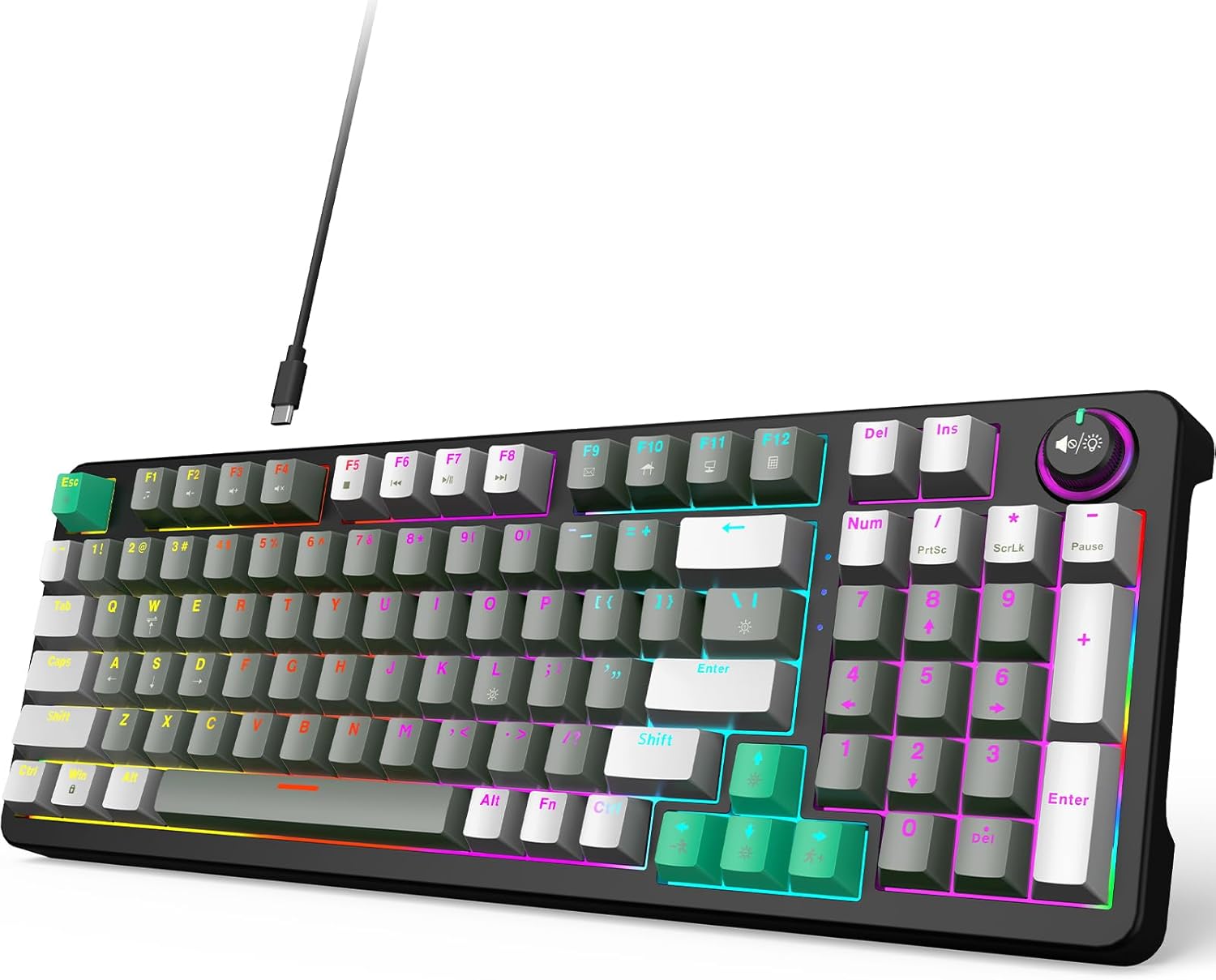
Figure 1: GEEZER AK-96 Mechanical Gaming Keyboard
2. Setup
2.1. Connectivity
The GEEZER AK-96 keyboard offers plug-and-play functionality with multi-system compatibility. Connect the provided USB cable to the Type-C port on the keyboard and the USB-A end to your PC or Mac. An included USB to Type-C adapter allows for flexible connection options.

Figure 2: Plug-and-Play USB Connection
2.2. Ergonomic Adjustment
For optimal comfort during extended use, the keyboard features two adjustable-height kickstands on the underside. These kickstands allow you to select from multiple typing angles. Non-slip rubber pads ensure stability and prevent unwanted movement.

Figure 3: Adjustable Kickstands for Ergonomic Typing
3. Operation
3.1. Key Layout and Switches
The AK-96 features a compact 96% layout, retaining essential arrow keys and a numeric keypad. It utilizes blue mechanical switches for responsive keystrokes and full key rollover technology. Keycaps are crafted from high-quality PBT material for durability and color retention.

Figure 4: Blue Mechanical Switches
3.2. LED Backlight and Side Lights
The keyboard features 17 built-in lighting modes with multiple colors, enhanced by side lights on both sides. Use the following key combinations to control the backlighting:
- Fn + |: Switch between 17 backlight modes.
- Fn + ENTER: Turn off backlight.
- Fn + ↑ / ↓: Control backlight brightness.
- Fn + ← / →: Change backlight speed.
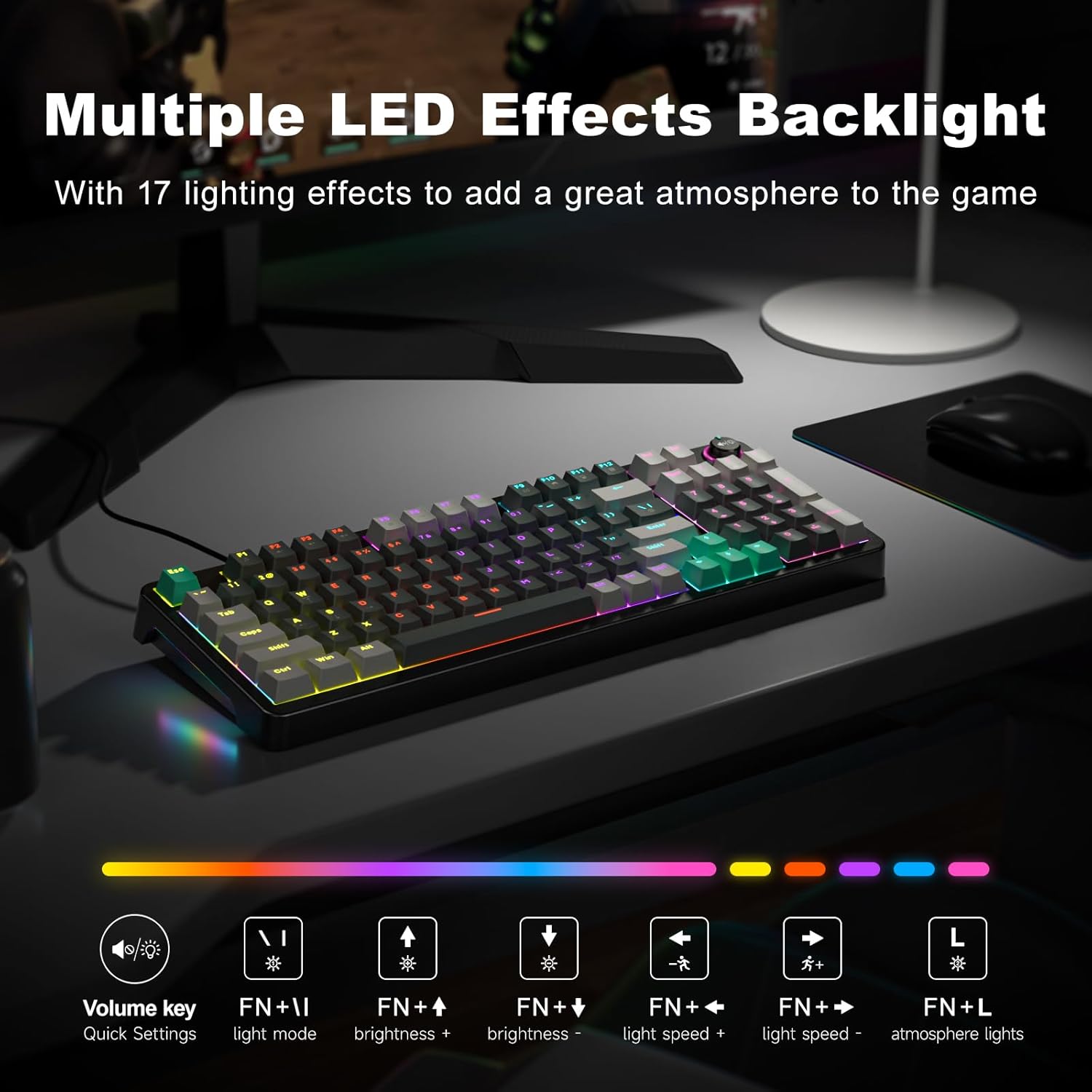
Figure 5: Multiple LED Backlight Effects
3.3. Media and Function Keys
The keyboard includes dedicated media control keys and a volume knob for quick access to various functions:
- Volume Knob: Adjust media volume, change backlight effect, or control music play/pause/switch.
- Fn + F1: Media Player
- Fn + F2: Volume Down
- Fn + F3: Volume Up
- Fn + F4: Mute
- Fn + F5: Play to Suspend
- Fn + F6: Previous Track
- Fn + F7: Play / Pause
- Fn + F8: Next Track
- Fn + F9: Email
- Fn + F10: Web Home
- Fn + F11: My Computer
- Fn + F12: Calculator

Figure 6: 96-Key Layout with Volume Knob and Function Keys
3.4. Official Product Video
Video 1: GEEZER Gaming Keyboard Overview (Seller-provided)
4. Maintenance
To ensure the longevity and optimal performance of your GEEZER AK-96 keyboard, regular maintenance is recommended:
- Cleaning: Use a soft, dry cloth to wipe down the keyboard surface. For deeper cleaning, gently remove keycaps using a keycap puller (not included) and use compressed air to clear debris.
- Storage: When not in use, store the keyboard in a clean, dry environment away from direct sunlight and extreme temperatures.
- Cable Care: Avoid sharp bends or excessive pulling on the USB cable to prevent damage.
5. Troubleshooting
If you encounter any issues with your GEEZER AK-96 keyboard, please refer to the following common solutions:
- Keyboard Not Responding: Ensure the USB cable is securely connected to both the keyboard and your computer. Try connecting to a different USB port.
- Backlight Not Working: Check if the backlight is turned off (Fn + ENTER). Adjust brightness using Fn + ↑ / ↓.
- Keys Not Registering: Due to full key rollover, this is rare. Ensure no debris is lodged under the keycap.
- Intermittent Connection: Try using a different USB cable or connecting directly to a computer port rather than a USB hub.
If the problem persists, please contact GEEZER customer support for further assistance.
6. Specifications
| Product Dimensions | 15.35 x 5.51 x 1.18 inches |
| Item Weight | 1.92 pounds |
| Manufacturer | GEEZER |
| Item Model Number | AK-96 |
| Connectivity Technology | USB-A |
| Compatible Devices | Laptop, PC, Smart TV, Tablet |
| Special Feature | Backlit, Ergonomic, Hotkeys and Media Keys, Volume Roller |
| Color | Grey-Black |
| Material | Plastic |
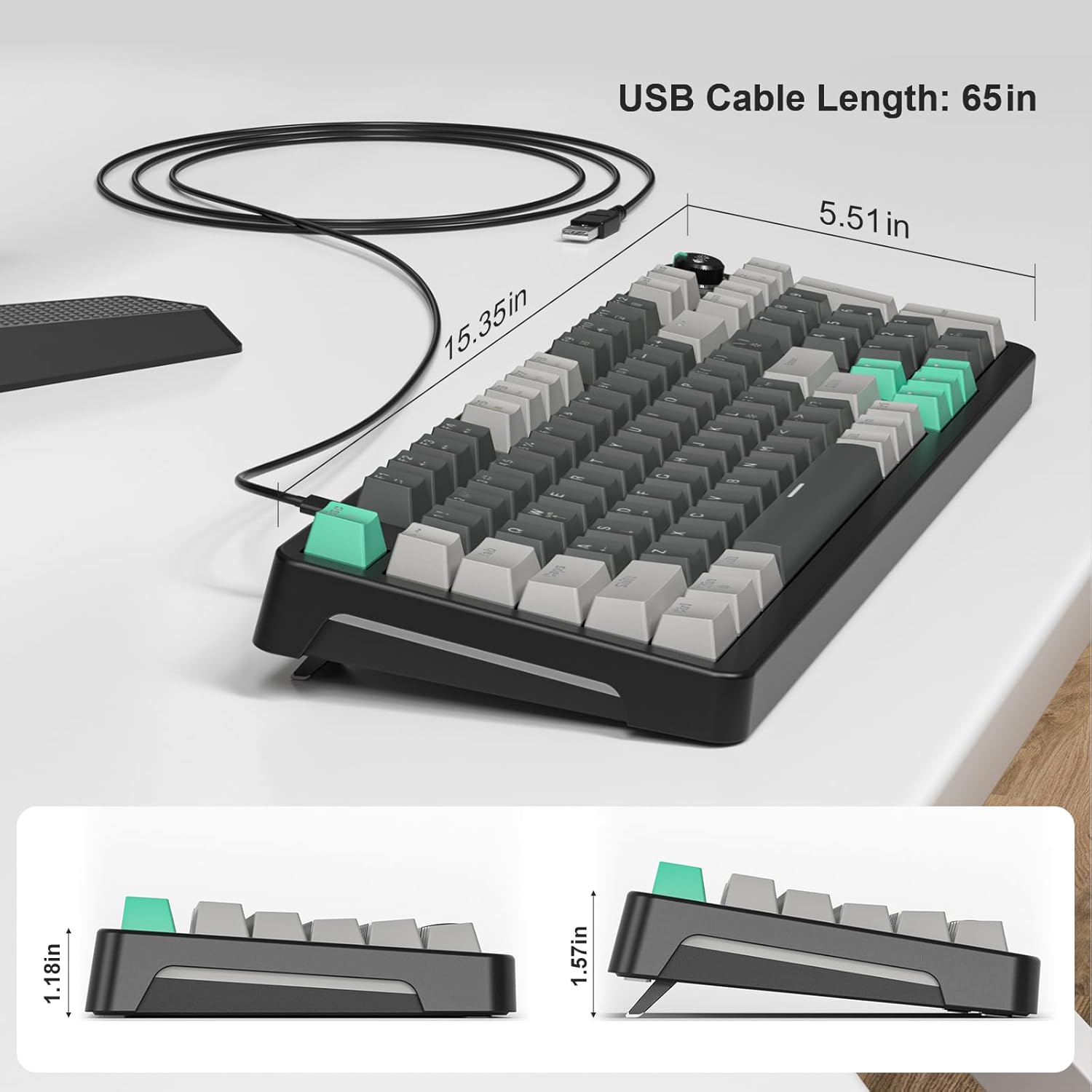
Figure 7: Keyboard Dimensions
7. Warranty and Support
For warranty information or technical support, please refer to the documentation included with your purchase or contact GEEZER customer service directly. Keep your proof of purchase for warranty claims.