
1. Overview
The Infinix HOT 60i 5G is a feature-rich smartphone designed for modern communication and entertainment. It combines a sleek design with powerful performance, offering true 5G connectivity, a large 6000mAh battery, and advanced AI capabilities. This manual provides essential information to help you set up, operate, maintain, and troubleshoot your device.

Image 1.1: Front and back view of the Infinix HOT 60i 5G smartphone, highlighting its design and key features.
2. What's in the Box
Please check the contents of your product package. If any items are missing or damaged, contact your retailer.
- Infinix HOT 60i 5G Smartphone
- Phone Case
- Power Adapter
- SIM Tray Ejector
- USB Cable
3. Device Layout
Familiarize yourself with the physical components of your Infinix HOT 60i 5G smartphone.
3.1 Front View

Image 3.1: Front view of the Infinix HOT 60i 5G, showing the display, front camera, and earpiece.
3.2 Side View

Image 3.2: Side view of the Infinix HOT 60i 5G, illustrating the volume buttons and power button.
3.3 Back View

Image 3.3: Back view of the Infinix HOT 60i 5G, showing the camera module and Infinix branding.
4. Setup
4.1 Inserting SIM Card(s) and Storage Card
- Locate the SIM tray on the side of your device.
- Insert the SIM tray ejector tool into the small hole next to the tray and push gently until the tray pops out.
- Place your Nano-SIM card(s) and/or microSD card into the designated slots on the tray. Ensure the gold contacts face downwards.
- Carefully reinsert the tray into the device until it clicks into place.
4.2 Initial Power On
- Press and hold the Power button (located on the side) until the Infinix logo appears on the screen.
- Follow the on-screen instructions to complete the initial setup, including language selection, Wi-Fi connection, Google account setup, and security settings.
4.3 Charging the Device
- Connect the USB cable to the power adapter.
- Plug the power adapter into a wall outlet.
- Connect the other end of the USB cable to the charging port on your phone.
- The charging indicator will appear on the screen. For optimal battery life, use the provided Infinix charger and cable.
5. Operating Your Device
5.1 Basic Navigation
- Touch: Tap icons to open apps, select items, or confirm actions.
- Swipe: Move your finger across the screen to scroll through content or switch between home screens.
- Pinch: Use two fingers to zoom in or out on photos and web pages.
5.2 Making Calls and Sending Messages
- Calls: Open the Phone app, enter the number, and tap the call icon.
- Messages: Open the Messages app, tap the new message icon, enter the recipient, and type your message.
5.3 Internet Connectivity
- Wi-Fi: Go to Settings > Network & internet > Wi-Fi to connect to available networks.
- Mobile Data (5G): Ensure your SIM card supports 5G and your plan includes data. Go to Settings > Network & internet > Mobile network to enable mobile data.

Image 5.1: The Infinix HOT 60i 5G supports major 5G networks for fast connectivity.
5.4 Camera Usage
Your device features a 50MP clear camera. Open the Camera app to capture photos and videos. Explore various modes like AI GC Portraits and Super Night for enhanced photography.
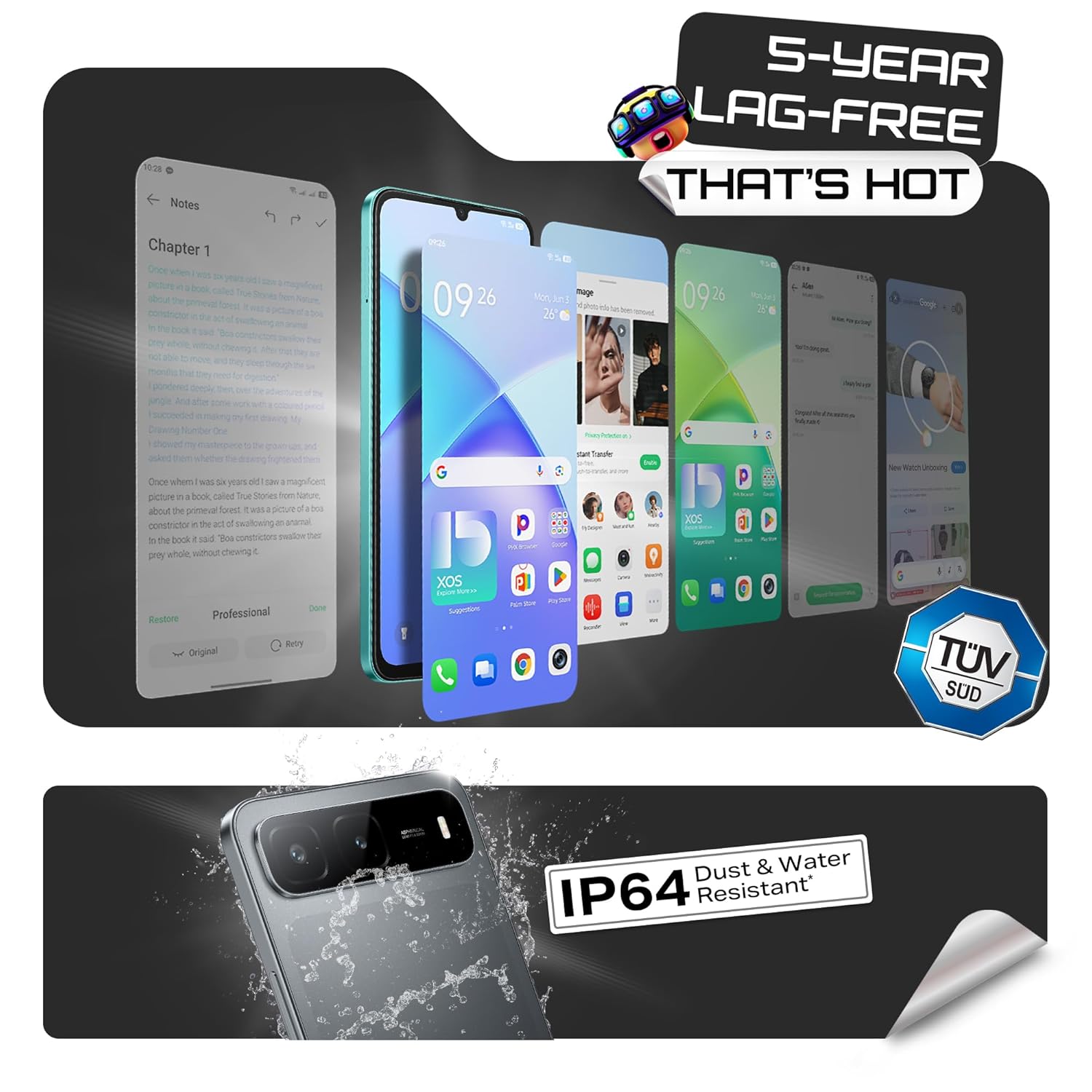
Image 5.2: The 50MP clear camera offers multiple modes for diverse photography needs.
5.5 Infinix AI Features
The Infinix HOT 60i 5G integrates advanced AI features to enhance user experience:
- Circle to Search: Circle an object on your screen to quickly search for information about it.
- AI Eraser: Remove unwanted objects or people from your photos with a simple tap.
- AI Extender: Expand your image to your desired perspective.
- Call Translation: Provides real-time translation during calls.
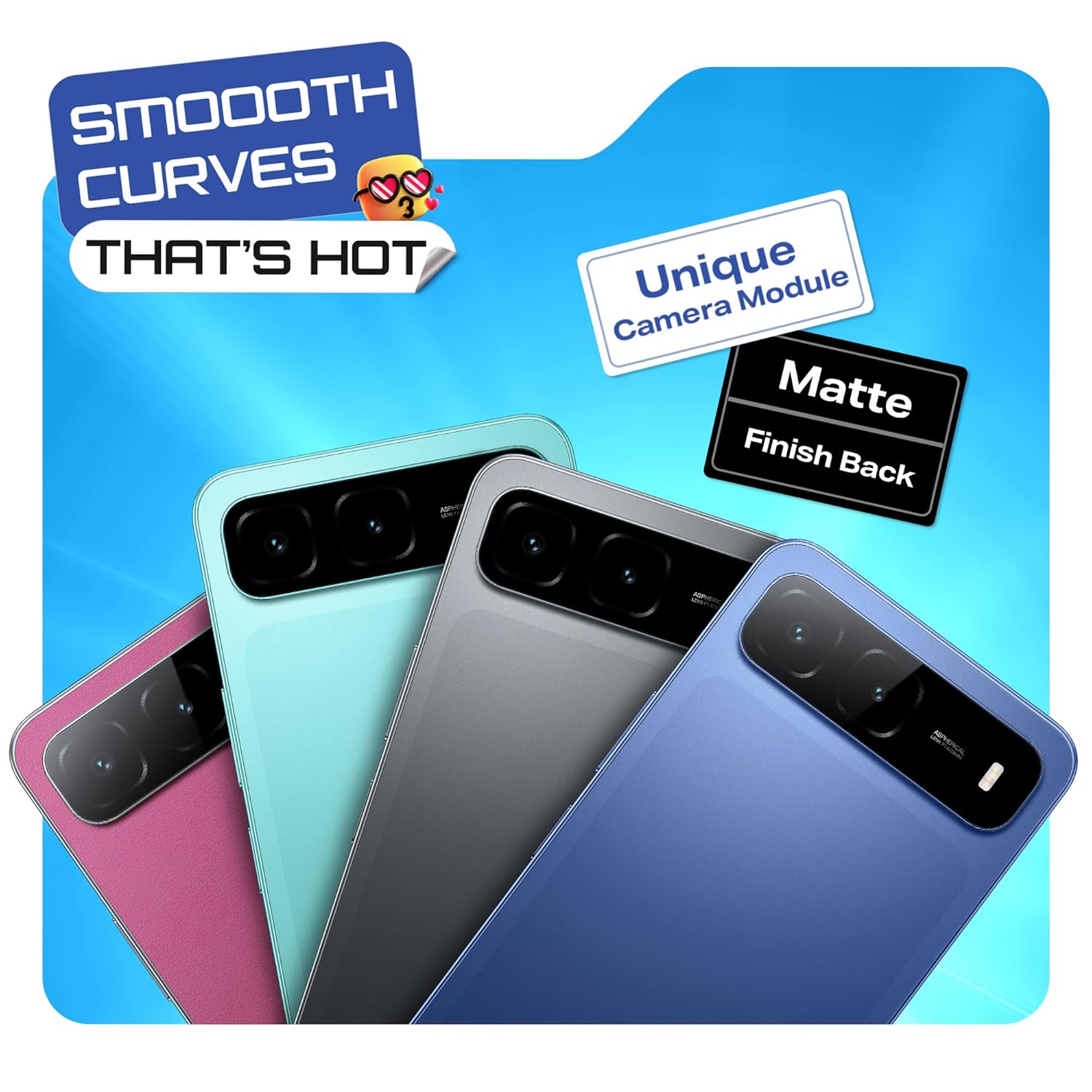
Image 5.3: Overview of Infinix AI features including Circle to Search, AI Eraser, and AI Extender.

Image 5.4: Demonstration of the AI Eraser feature, showing before and after removal of an object.

Image 5.5: Demonstration of the AI Extender feature, showing how an image can be expanded.
5.6 XOS 15 (Based on Android 15)
Your device runs on XOS 15, based on Android 15, offering an intuitive and secure user experience with various customization options and enhanced privacy features.
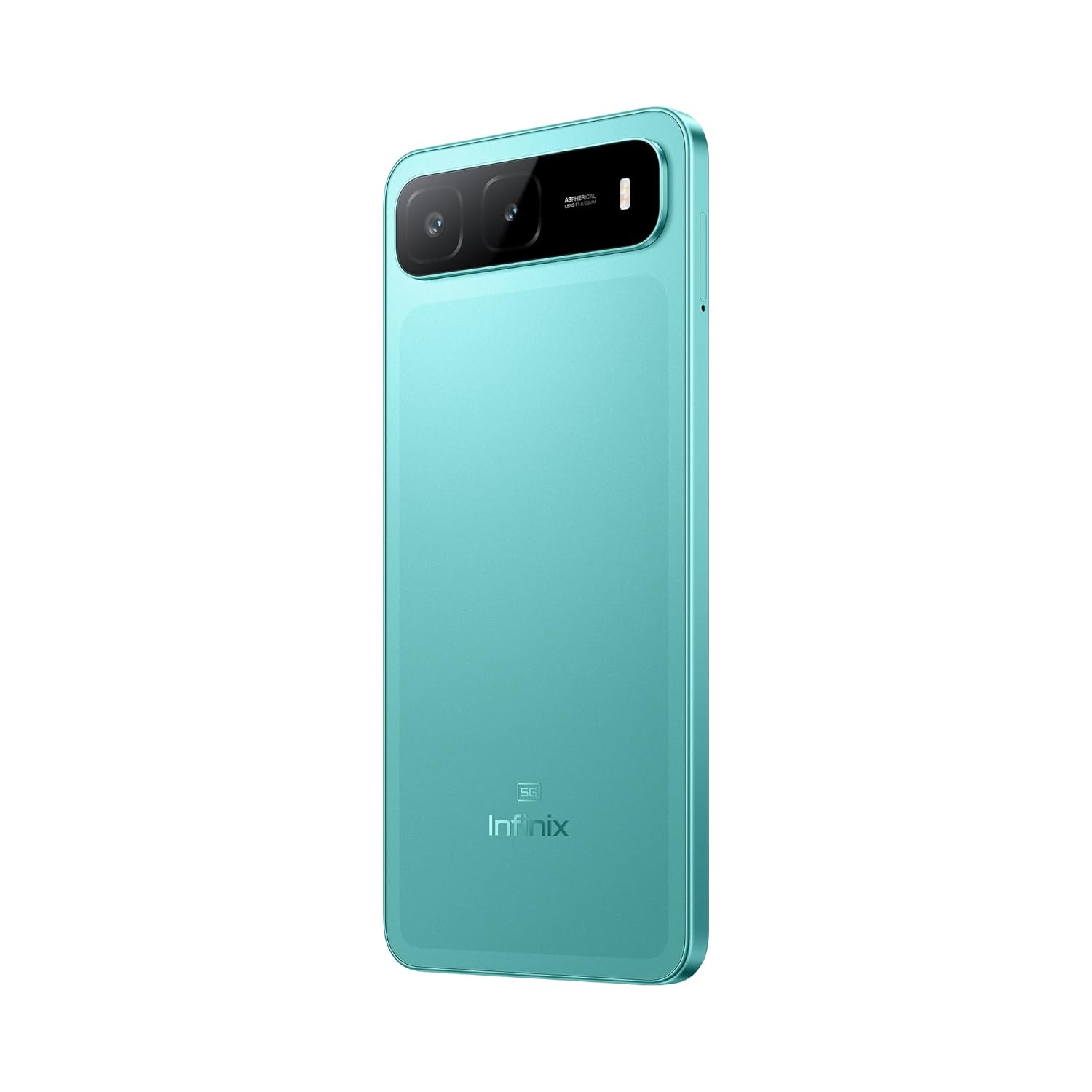
Image 5.6: The XOS 15 interface, showcasing its design and features.
6. Maintenance
6.1 Battery Care
The Infinix HOT 60i 5G is equipped with a 6000mAh battery. To maximize battery life:
- Avoid extreme temperatures.
- Use the original charger and cable.
- Avoid completely draining the battery frequently.
- Enable battery saver mode when needed.
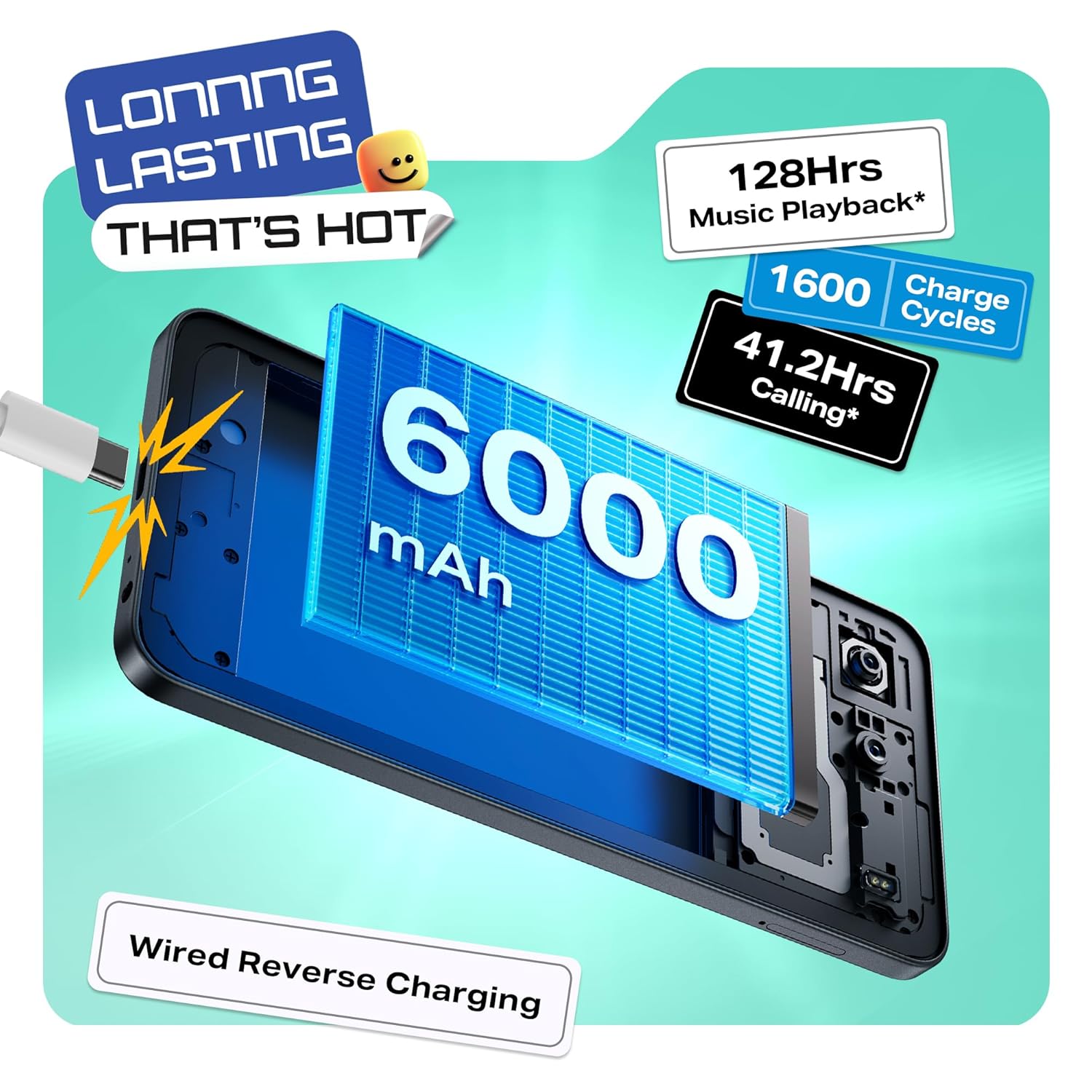
Image 6.1: Illustration of the 6000mAh battery and its long-lasting capabilities.
6.2 Software Updates
Regularly check for and install software updates to ensure optimal performance and security. Go to Settings > System > System update.
6.3 Cleaning and Protection
Your device has an IP64 rating for dust and water resistance. To clean your phone, use a soft, lint-free cloth. Avoid harsh chemicals or abrasive materials. Do not submerge the device in water.
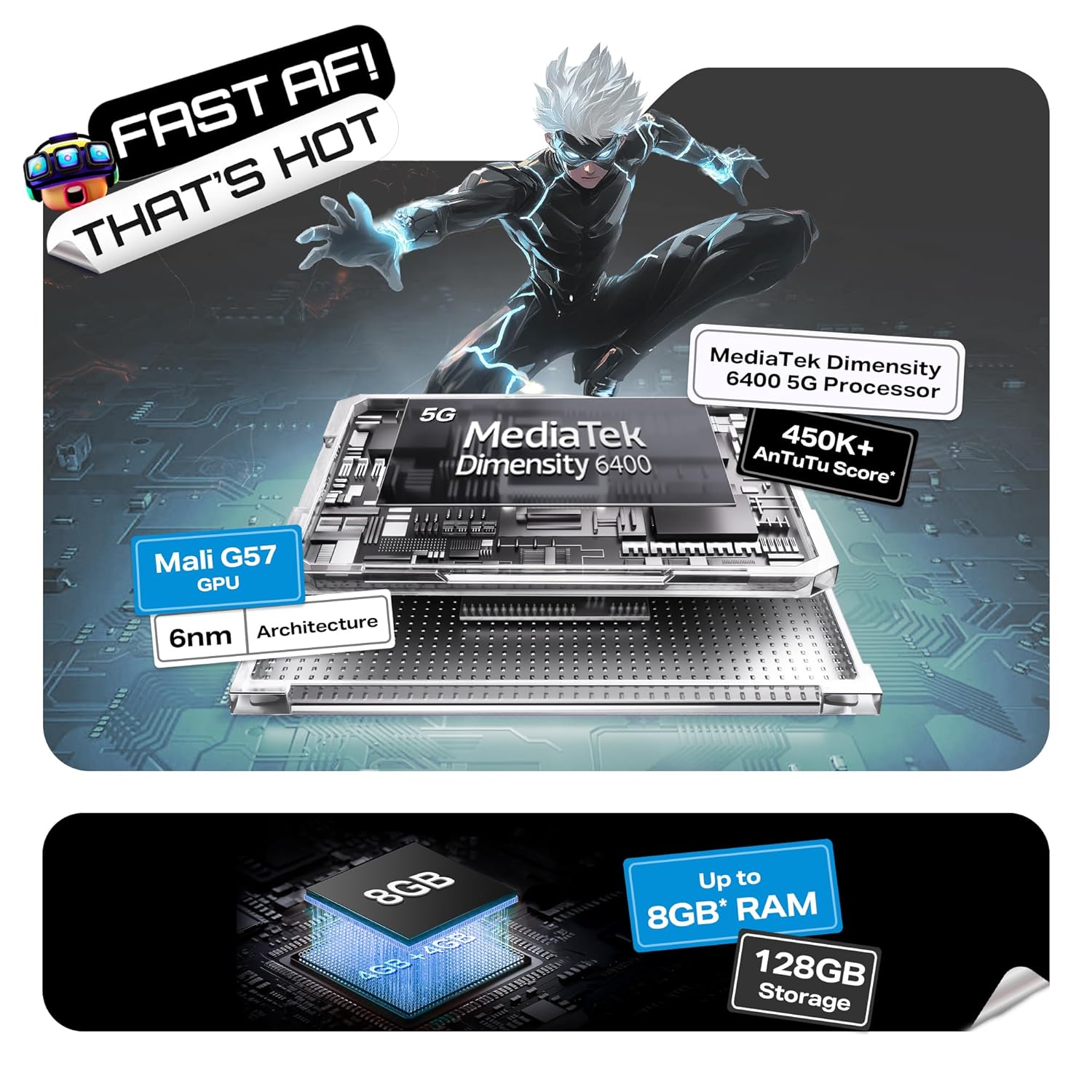
Image 6.2: The IP64 rating indicates the device's resistance to dust and splashes.
6.4 Storage Management
The device comes with 128GB of internal storage. To manage your storage effectively:
- Regularly delete unnecessary files and apps.
- Utilize cloud storage services.
- Move large files to a microSD card (if installed).
7. Troubleshooting
If you encounter issues with your device, try the following solutions:
- Device not turning on: Ensure the battery is charged. Press and hold the Power button for at least 10 seconds.
- Charging problems: Check the charger and cable for damage. Try a different power outlet.
- Network issues: Restart your device. Check SIM card insertion. Verify mobile data or Wi-Fi settings.
- App crashes: Clear the app's cache and data (Settings > Apps > [App Name] > Storage). Reinstall the app if necessary.
- Slow performance: Close background apps. Clear cache. Consider a factory reset as a last resort (Settings > System > Reset options > Erase all data). Note: A factory reset will erase all data on your phone. Back up important information before proceeding.
8. Specifications
| Feature | Specification |
|---|---|
| Model Number | X6730 |
| Operating System | Android 15 || XOS 15 (Based on Android 15) |
| Processor | MediaTek Dimensity 6400 |
| RAM | 4 GB (Up to 8GB with extended RAM) |
| Internal Storage | 128 GB |
| Display | 6.75-inch HD+ with 120Hz Refresh Rate |
| Resolution | 720 x 1560 |
| Rear Camera | 50MP Clear Camera |
| Battery Capacity | 6000mAh |
| Connectivity | 5G |
| Dimensions | 16.8 x 7.7 x 0.8 cm |
| Weight | 199 g |
| Special Features | Always On Display, Built-In GPS, Dual SIM, Fast Charging Support, Mobile Hotspot Capability, IP64 Dust & Water Resistant, Infinix AI (Circle to Search, AI Eraser, Call Translation) |

Image 8.1: Details of the MediaTek Dimensity 6400 5G processor, 8GB RAM, and 128GB storage.

Image 8.2: Visual representation of the 6.75-inch HD+ display with 120Hz refresh rate.
9. Warranty Information
For detailed warranty terms and conditions, please refer to the warranty card included with your Infinix HOT 60i 5G smartphone. You may also visit the official Infinix Mobile website for the most up-to-date warranty policy and registration information.
10. Support
If you require further assistance or have questions not covered in this manual, please contact Infinix Mobile customer support through their official website or designated service centers. Contact information can typically be found on the Infinix Mobile website or in the documentation provided with your device.


