Introduction
This manual provides essential information for the safe and efficient use of your Infinix HOT 60i 5G smartphone. Please read this guide thoroughly before operating your device to ensure proper functionality and to understand its various features. The Infinix HOT 60i 5G is designed with a premium aesthetic, powered by the MediaTek Dimensity 6400 processor for 5G connectivity, and features a large 6000mAh battery. It incorporates advanced Infinix AI capabilities and is IP64 water and dust resistant.
Setup
1. Unboxing and Initial Inspection
Carefully remove all components from the packaging. Inspect the device and accessories for any signs of damage. Ensure all items listed in the "What's in the Box" section are present.
2. Inserting SIM Card(s) and MicroSD Card
- Locate the SIM tray on the side of your device.
- Insert the provided SIM ejector tool into the small hole on the SIM tray to open it.
- Place your Nano-SIM card(s) and/or MicroSD card into the tray with the gold contacts facing down, ensuring they are correctly oriented as indicated on the tray.
- Gently push the tray back into the slot until it clicks into place.

Image: Side view of the Infinix HOT 60i 5G, illustrating the location of the SIM card tray.
3. Charging the Device
Before first use, it is recommended to fully charge your Infinix HOT 60i 5G. Connect the USB cable to the power adapter and then to the phone's charging port. Plug the power adapter into a wall outlet. The charging indicator will appear on the screen. Use only the original charger and cable provided with your device.
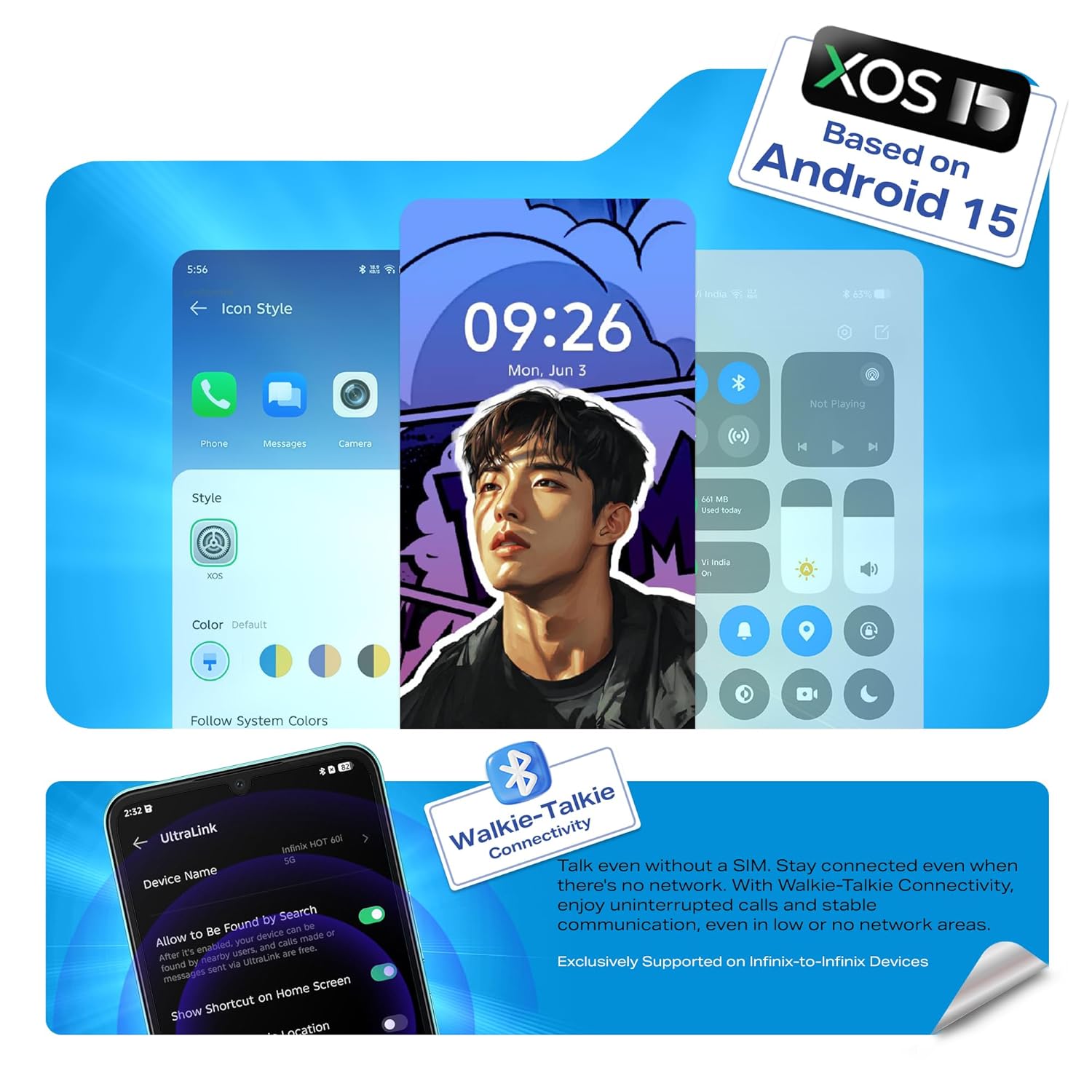
Image: Illustration of the Infinix HOT 60i 5G being charged, highlighting the 6000mAh battery.
4. Powering On and Initial Configuration
Press and hold the Power button until the Infinix logo appears. Follow the on-screen instructions to complete the initial setup, which includes selecting your language, connecting to a Wi-Fi network, and signing in to your Google account.

Image: Front view of the Infinix HOT 60i 5G, displaying the screen.
Operating Your Device
1. Basic Navigation
- Touch Gestures: Tap to select, swipe to scroll, pinch to zoom.
- Power Button: Press to wake/sleep the screen, press and hold to power off or restart.
- Volume Buttons: Adjust media volume, call volume, or ringtone volume.
2. Connectivity (5G, Wi-Fi, Bluetooth)
Your Infinix HOT 60i 5G supports 5G cellular networks, Wi-Fi, and Bluetooth. Access these settings via the Quick Settings panel (swipe down from the top of the screen) or through the main Settings app. Ensure your SIM card supports 5G for optimal network speeds.

Image: The Infinix HOT 60i 5G displaying compatibility with various 5G networks.
3. Camera Features
The device features a 50MP Clear Camera with dual LED flash. Open the Camera app to access various modes including standard photo, portrait, night mode, and more. Tap the shutter button to capture images. Explore the settings for advanced options.
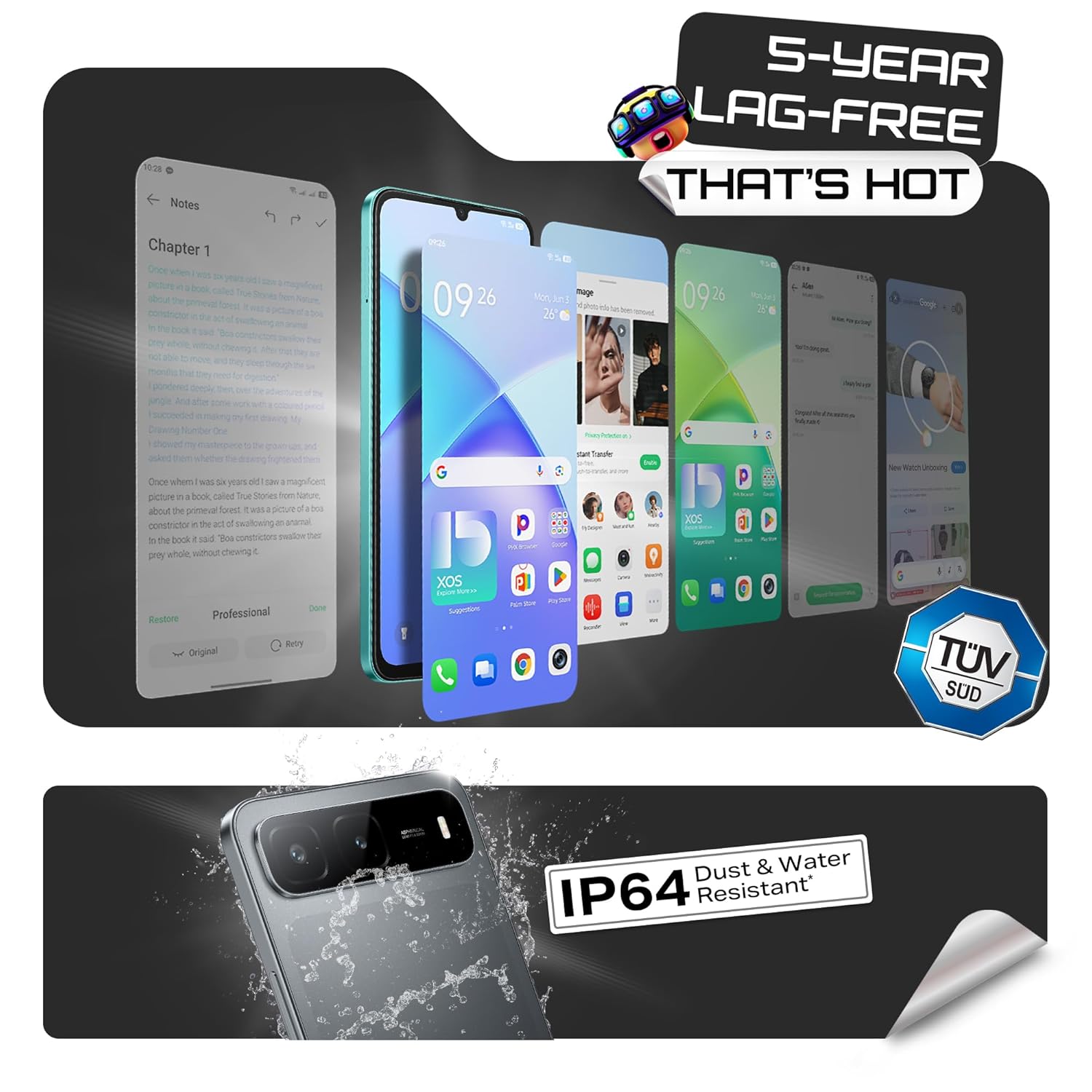
Image: Visual representation of the Infinix HOT 60i 5G's 50MP camera and various shooting modes.
4. Infinix AI Features
Your device includes several AI-powered features to enhance your experience:
- Circle to Search: Use a circular gesture on the screen to quickly search for information about on-screen content.
- AI Eraser: Remove unwanted objects or people from your photos with a simple tap.
- AI Extender: Expand the background of your images to achieve a desired perspective.
- Call Translation: Provides real-time translation during calls (availability may vary by region and language).

Image: Overview of Infinix AI features including Circle to Search, AI Eraser, and AI Extender.

Image: Demonstration of the AI Eraser feature, showing before and after removal of an object from a photo.

Image: Demonstration of the AI Extender feature, showing how an image's background can be expanded.
5. XOS 15 Operating System
The Infinix HOT 60i 5G runs on XOS 15, based on Android 15. This operating system offers an intuitive interface, enhanced security features, and various customization options. Explore the Settings app to personalize your device, manage notifications, and configure privacy settings.

Image: Screenshots of the XOS 15 user interface on the Infinix HOT 60i 5G.
Maintenance
1. Cleaning Your Device
To clean your phone, use a soft, lint-free cloth. Avoid using harsh chemicals, abrasive cleaners, or aerosol sprays directly on the device. For stubborn smudges, slightly dampen the cloth with water or a screen cleaner designed for electronics.
2. Software Updates
Regularly check for and install software updates to ensure your device has the latest security patches, features, and performance improvements. You can usually find this option in Settings > System > Software update.
3. Battery Care
The Infinix HOT 60i 5G is equipped with a 6000mAh battery. To prolong battery life, avoid exposing the device to extreme temperatures. It is recommended to keep the battery charge between 20% and 80% for optimal long-term health. Avoid leaving the phone charging for extended periods after it has reached 100%.
4. Water and Dust Resistance (IP64)
Your device is rated IP64 for water and dust resistance. This means it is protected against dust ingress and splashing water from any direction. However, it is not designed for submersion in water or exposure to pressurized water jets. Avoid using the device in showers, swimming pools, or during heavy rain. Damage caused by liquid exposure is not covered under warranty.
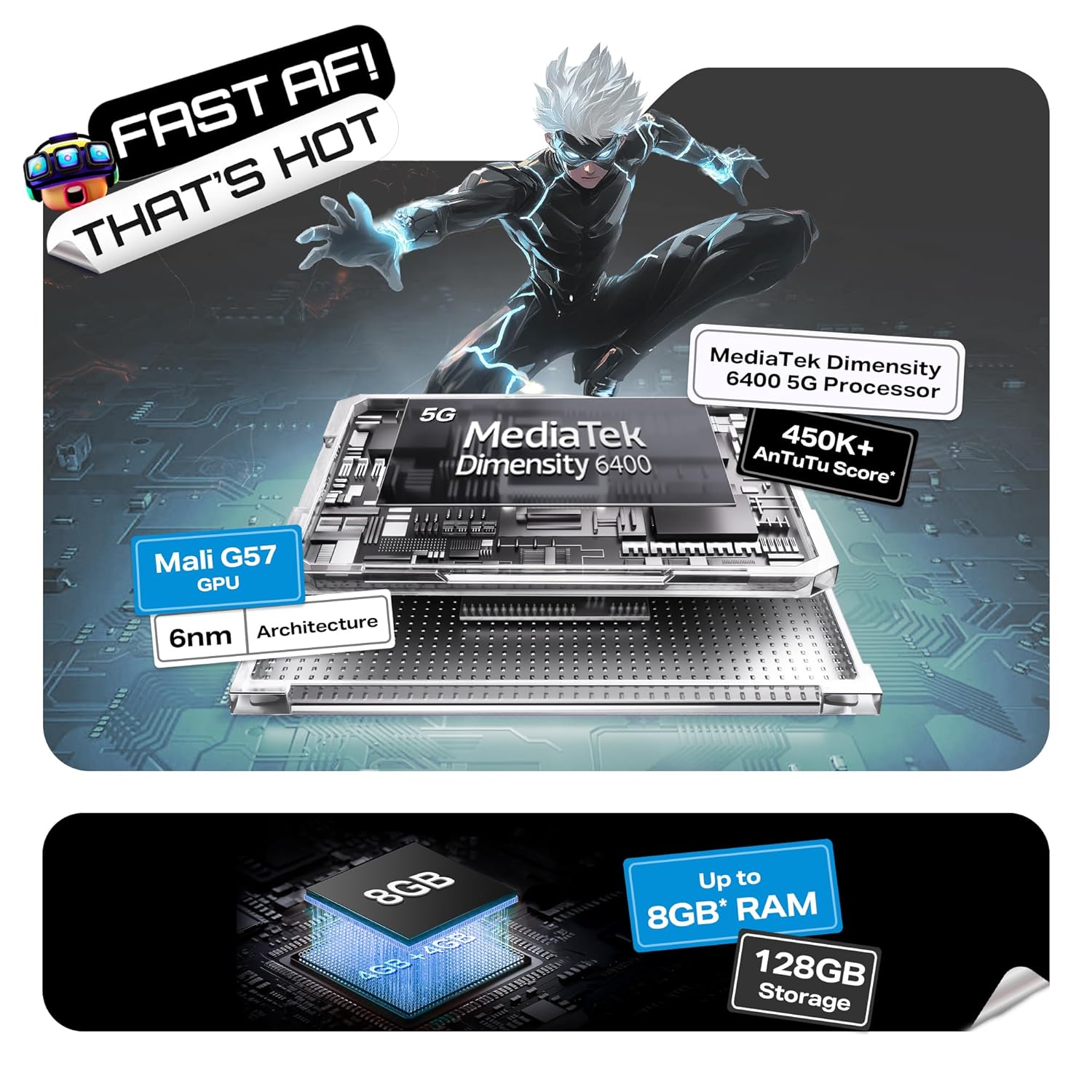
Image: Visual indicating the Infinix HOT 60i 5G's IP64 dust and water resistance rating.
Troubleshooting
If you encounter issues with your device, try the following steps before seeking professional assistance:
- Device Not Turning On: Ensure the battery is charged. Connect the charger and wait a few minutes before attempting to power on again.
- Screen Unresponsive: Force restart the device by pressing and holding the Power button for approximately 10-15 seconds until the device restarts.
- Network Issues (No Signal/Slow Data): Check if your SIM card is properly inserted. Go to Settings > Network & internet > SIMs and ensure your SIM is enabled. Try restarting the device. Verify with your service provider if there are network outages in your area.
- Apps Crashing/Freezing: Clear the cache of the problematic app (Settings > Apps > [App Name] > Storage & cache > Clear cache). If the issue persists, try reinstalling the app.
- Battery Draining Quickly: Review app usage in Settings > Battery to identify power-hungry apps. Reduce screen brightness, disable unnecessary features like GPS or Bluetooth when not in use.
- Overheating: Close background applications and avoid using the device while charging or during intensive tasks like gaming for extended periods. If overheating persists, contact support.
If these steps do not resolve your issue, please refer to the Warranty and Support section for further assistance.
Specifications
| Feature | Detail |
|---|---|
| Model Number | X6730 |
| Operating System | Android 15 || XOS 15 (Based on Android 15) |
| Processor | MediaTek Dimensity 6400 |
| RAM | 4GB (Up to 8GB with extended RAM) |
| Internal Storage | 128GB |
| Battery Capacity | 6000mAh |
| Display | 6.75-inch HD+ with 120Hz Refresh Rate |
| Rear Camera | 50MP Clear Camera with Dual LED Flash |
| Connectivity | 5G, Wi-Fi, Bluetooth, GPS |
| Dimensions (LxWxH) | 16.8 x 7.7 x 0.8 cm |
| Weight | 199 g |
| Water & Dust Resistance | IP64 Certified |
What's in the Box
The standard retail package for the Infinix HOT 60i 5G includes the following items:
- Infinix HOT 60i 5G Smartphone
- Phone Case
- Power Adapter
- SIM Tray Ejector
- USB Cable
Warranty and Support
1. Product Warranty
Your Infinix HOT 60i 5G smartphone comes with a standard manufacturer's warranty, typically covering defects in materials and workmanship for a period of one year from the date of purchase. Please retain your proof of purchase for warranty claims. The warranty does not cover damage caused by misuse, accidents, unauthorized repairs, or liquid exposure (beyond IP64 rating).
2. Customer Support
For technical assistance, warranty claims, or service inquiries, please contact Infinix customer support. Infinix maintains a significant service network, including over 1300 service centers across more than 1000 towns in India. You can find detailed contact information and service center locations on the official Infinix website.
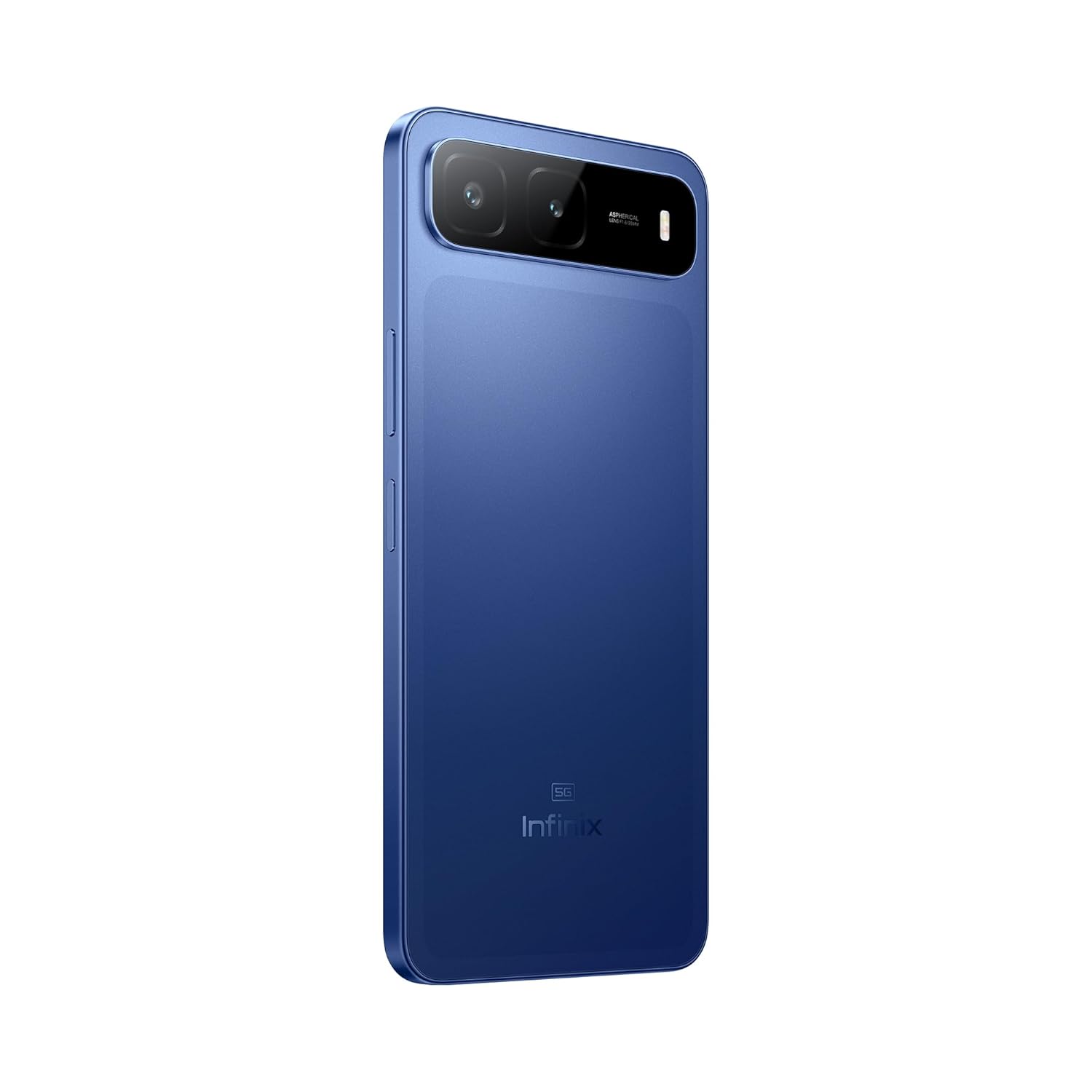
Image: Information regarding Infinix's extensive service network and customer support.
For more information, visit the official Infinix website: www.infinixmobility.com


