1. Introduction
Thank you for choosing the Lenovo Idea Tab Octa-Core Tablet. This manual provides essential information for setting up, operating, maintaining, and troubleshooting your device. Please read it carefully to ensure optimal performance and longevity of your tablet.
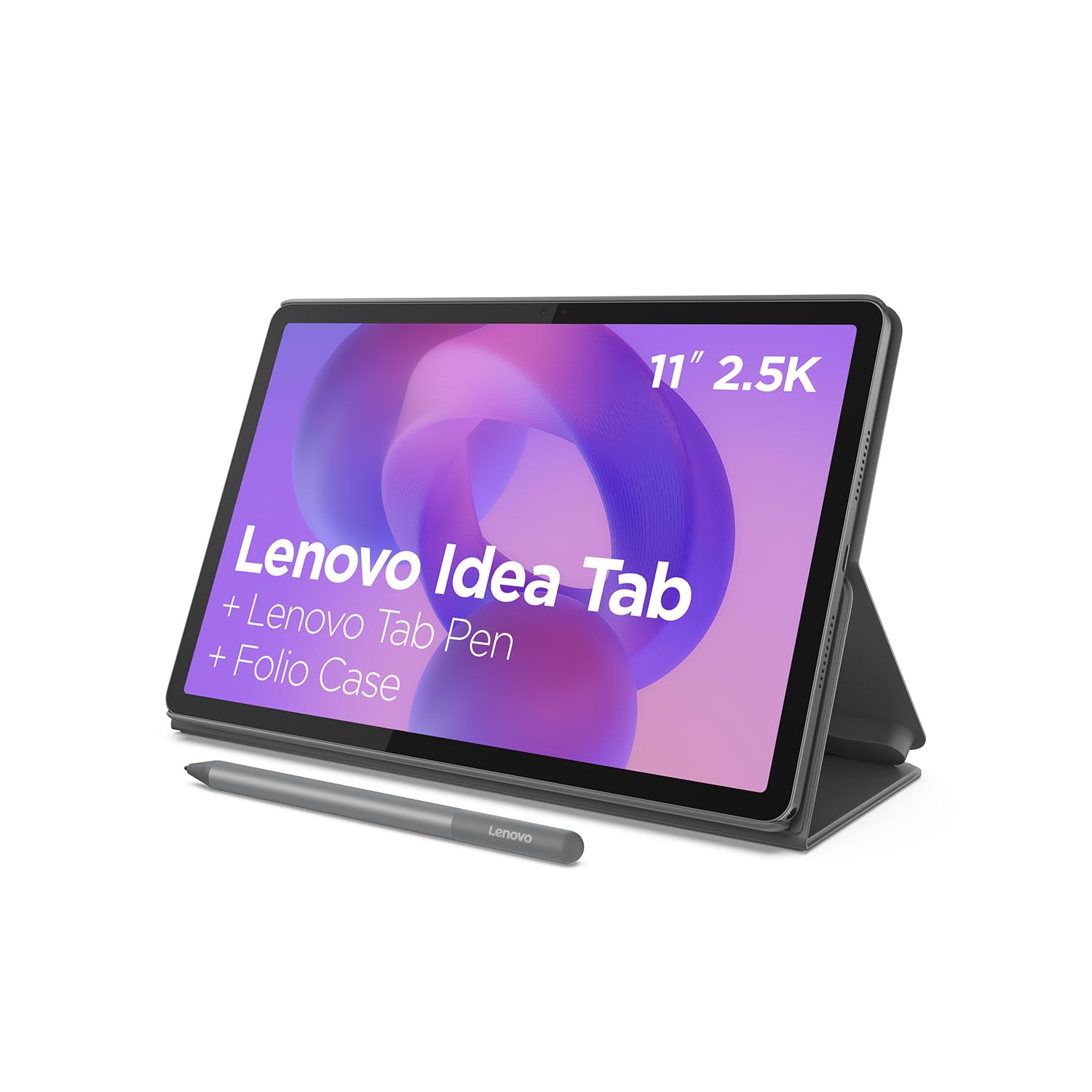
Image 1.1: Lenovo Idea Tab Octa-Core Tablet with stylus and case.
2. What's in the Box
Verify that all items are present in your product packaging:
- Lenovo Idea Tab Tablet
- Power Adapter (20W)
- USB-A to USB-C Charging Cable
- Protective Cover/Case
- Lenovo Tab Pen (Stylus)
- 2 Replacement Pen Tips
- MicroSD Tray Eject Pin
- Quick Start Guide
- Safety and Warranty Guide
- AAAA Battery (for pen)
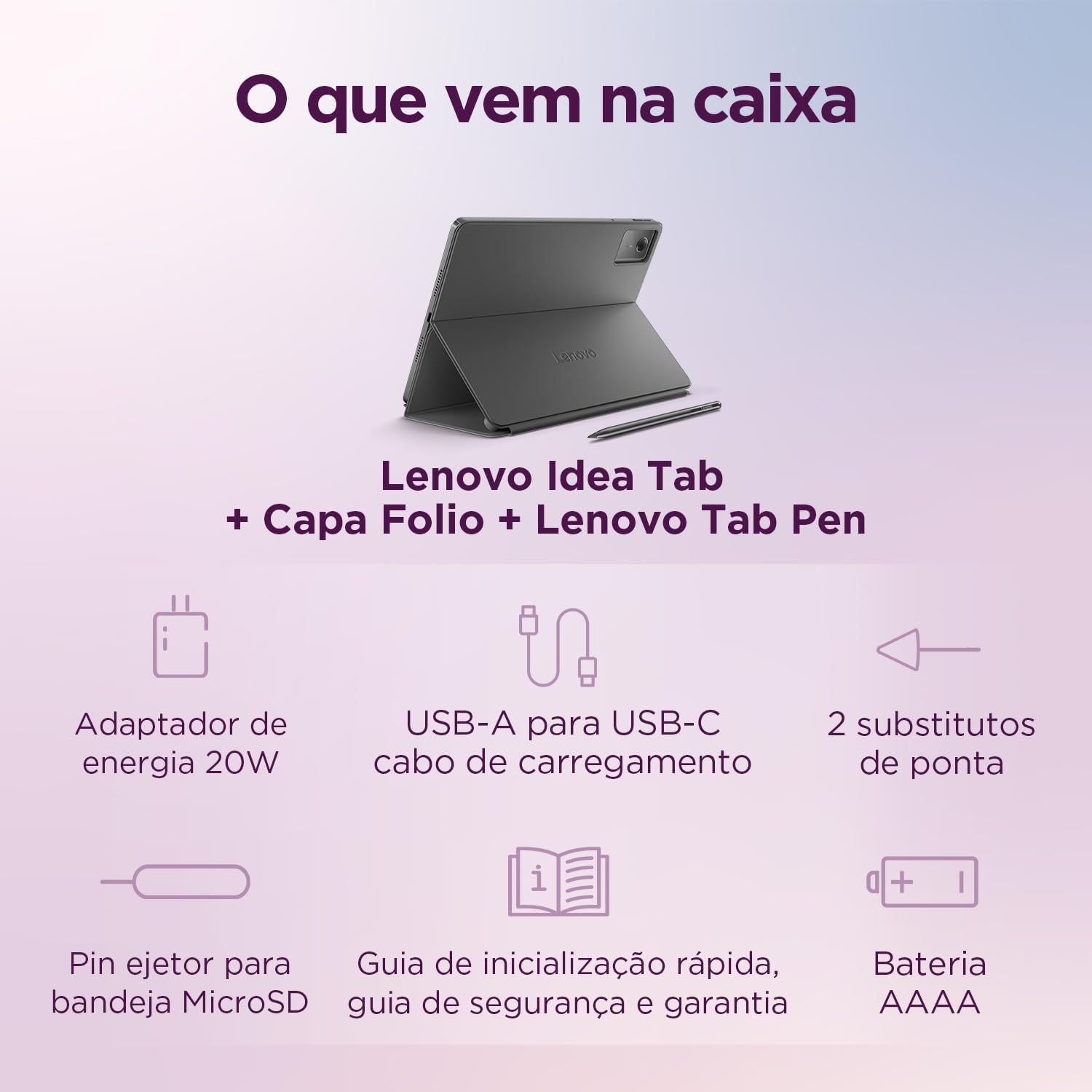
Image 2.1: Illustration of the items included in the product packaging.
3. Setup
3.1 Initial Charging
Before first use, fully charge your tablet. Connect the USB-C cable to the tablet's charging port and the power adapter to a wall outlet. The charging indicator will illuminate.
3.2 Powering On/Off
- To Power On: Press and hold the Power button until the Lenovo logo appears.
- To Power Off: Press and hold the Power button, then select 'Power off' from the options on the screen.
- To Restart: Press and hold the Power button, then select 'Restart' from the options.
3.3 Initial Setup Wizard
Upon first power-on, follow the on-screen instructions to configure your tablet:
- Select your preferred language.
- Connect to a Wi-Fi network.
- Sign in with your Google account or create a new one.
- Review and accept the terms and conditions.
- Set up security features like PIN, pattern, or password.
3.4 Attaching the Protective Case
Align the tablet with the case and gently press it into place. The case is designed to protect your device and can often function as a stand.

Image 3.1: Tablet positioned in its protective case, acting as a stand.
3.5 Using the Lenovo Tab Pen
The Lenovo Tab Pen enhances interaction with your tablet. It may require an AAAA battery (included). Insert the battery according to the polarity markings. The pen can be used for writing, drawing, and precise navigation.

Image 3.2: Lenovo Idea Tab with the accompanying stylus.
4. Operating Instructions
4.1 Basic Navigation
Your tablet uses Android 15, offering intuitive touch gestures:
- Tap: Select an item.
- Double-tap: Zoom in/out on web pages or images.
- Swipe: Scroll through lists or pages.
- Pinch: Zoom in/out.
- Long press: Access contextual menus or move icons.
4.2 Connecting to Wi-Fi
To connect to a Wi-Fi network:
- Go to Settings > Network & internet > Internet.
- Turn on Wi-Fi.
- Select your desired network from the list.
- Enter the password if prompted, then tap Connect.
4.3 Bluetooth Pairing
To pair with a Bluetooth device:
- Go to Settings > Connected devices > Connection preferences > Bluetooth.
- Turn on Bluetooth.
- Ensure your Bluetooth device is in pairing mode.
- Select the device from the 'Available devices' list and follow any on-screen prompts.
4.4 Camera Usage
Your tablet features a 5MP front camera and an 8MP rear camera. Open the Camera app to take photos or record videos. Tap the screen to focus and press the shutter button to capture.
4.5 Display and Audio Features
Experience clear visuals and immersive sound:
- Display: The 11-inch 2.5K (2560 x 1600) WVA display offers 500 nits of brightness and a 90Hz refresh rate for smooth visuals. Adjust brightness in Settings > Display.
- Audio: Equipped with four speakers and Dolby Atmos support for rich, clear audio.

Image 4.1: Visual representation of the tablet's display and audio capabilities.
4.6 Circle to Search with Google
Utilize the 'Circle to Search' feature for quick information retrieval. Simply circle an object, text, or image on your screen to initiate a Google search without leaving your current application.
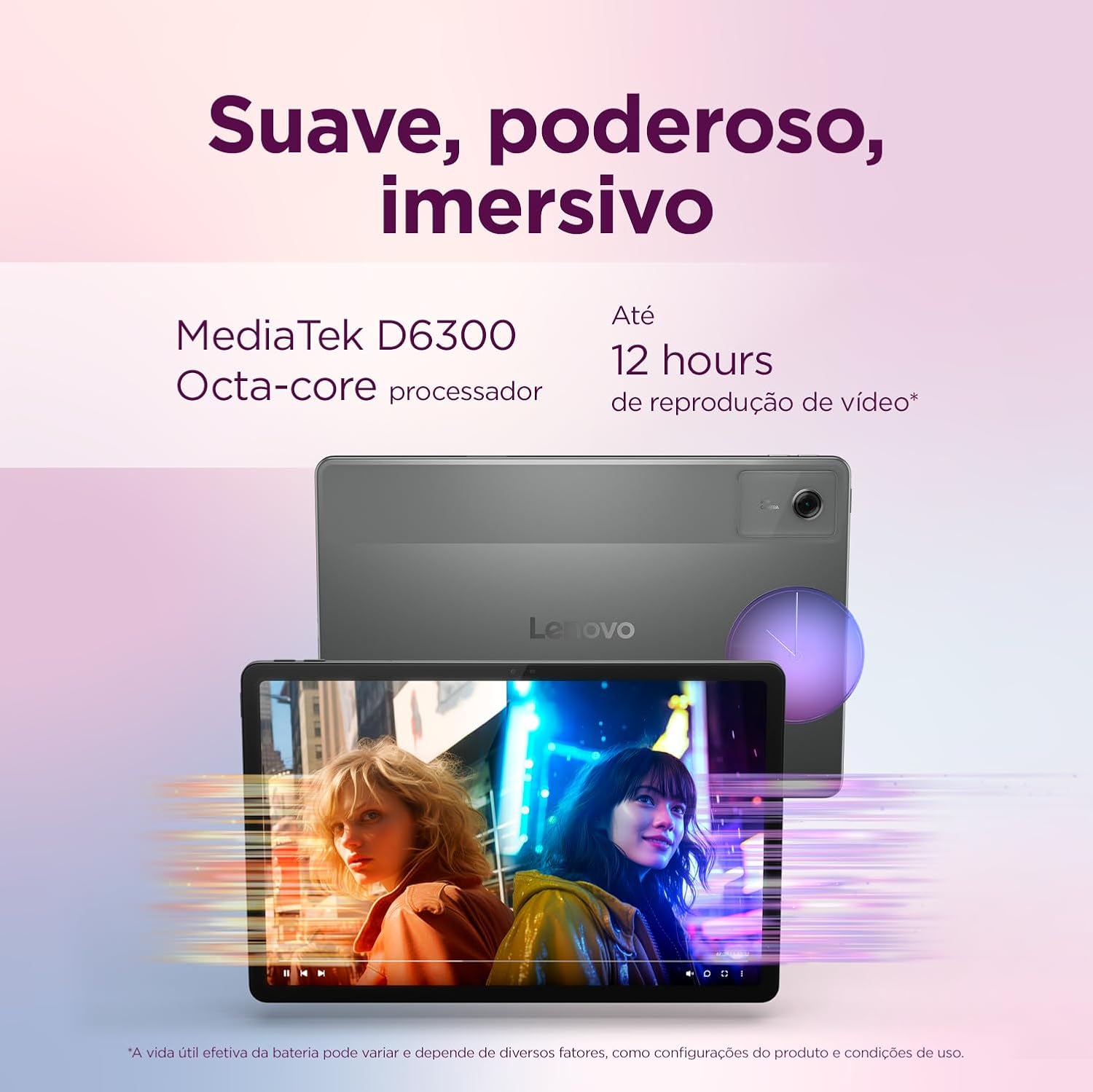
Image 4.2: Example of using 'Circle to Search' on the tablet.
4.7 Unify Your Digital Life
The tablet supports features like Share Hub and Smart Clipboard to seamlessly integrate with your other devices, allowing for easy file sharing and content transfer.
5. Maintenance
5.1 Cleaning the Device
To clean your tablet:
- Use a soft, lint-free cloth.
- For stubborn marks, lightly dampen the cloth with water or a screen cleaner specifically designed for electronics.
- Avoid using harsh chemicals, abrasive materials, or excessive moisture.
5.2 Battery Care
To maximize battery life:
- Avoid extreme temperatures.
- Do not let the battery completely drain frequently.
- Unplug the charger once the battery is full.
5.3 Software Updates
Regularly check for and install software updates to ensure your tablet has the latest features, security patches, and performance improvements. Go to Settings > System > System update.
6. Troubleshooting
If you encounter issues with your tablet, try the following solutions:
| Problem | Solution |
|---|---|
| Tablet does not turn on | Ensure the battery is charged. Connect to the charger for at least 30 minutes, then try powering on again. |
| Wi-Fi connection issues | Restart your Wi-Fi router and the tablet. Forget the network in settings and reconnect. |
| Slow performance | Close unused apps. Clear cache. Check for software updates. Consider a factory reset if the issue persists (back up data first). |
| Touchscreen unresponsive | Restart the tablet. If unresponsive, force restart by holding the power button for 10-15 seconds. |
6.1 Factory Reset
If troubleshooting steps do not resolve the issue, you may perform a factory reset. Warning: This will erase all data on your tablet. Back up important data before proceeding. Go to Settings > System > Reset options > Erase all data (factory reset).
7. Specifications
| Feature | Detail |
|---|---|
| Model Name | Lenovo Idea Tab |
| Model Number | ZAFR0853BR |
| Processor | MediaTek Dimensity 6300 Octa Core |
| Operating System | Android 15 |
| RAM | 4 GB |
| Storage | 128 GB |
| Display Size | 11 inches |
| Display Resolution | 2560 x 1600 (2.5K) |
| Refresh Rate | 90 Hz |
| Brightness | 500 Nits |
| Rear Camera | 8 MP |
| Front Camera | 5 MP |
| Wi-Fi | Wi-Fi 5 (802.11ac) |
| Bluetooth | Bluetooth 5.2 |
| Dimensions (L x W x H) | 25.4 x 16.6 x 0.69 cm |
| Weight | 1.28 kg |
| Power Source | AC / DC |
| Compatible Devices | Cover, Pen, Stylus |
8. Warranty Information
Your Lenovo Idea Tab Tablet is covered by a limited warranty. Please refer to the 'Safety and Warranty Guide' included in your product packaging for detailed terms and conditions, warranty period, and claim procedures. Keep your proof of purchase for warranty service.
9. Support
For further assistance, technical support, or to download the latest drivers and manuals, please visit the official Lenovo support website:
Website: support.lenovo.com
You can also find contact information for customer service in your region on the support website.


