
1. Product Overview
The ExtreLife Smart Leather Luggage Tag is designed to help you keep track of your belongings using the Apple Find My network. This durable and stylish tag offers real-time location tracking, sound alerts, and privacy features, making it an essential travel companion.

Image 1.1: The ExtreLife Smart Leather Luggage Tag in navy blue, alongside an iPhone displaying its location on the Apple Find My app.
2. What's Included
- 1x ExtreLife Smart Leather Luggage Tag
- 1x Metal Loop for attachment
- 3x Information Cards for personal details
- 1x User Manual (this document)

Image 2.1: A flat lay showing all items included in the ExtreLife Smart Leather Luggage Tag package.
3. Setup
3.1. Charging the Device
The ExtreLife Luggage Tag features wireless charging. Place the tag on a compatible regular or MagSafe wireless charger. The LED indicator light will turn orange during charging and green when fully charged. A single charge can last up to 6 months. Note: The wireless charger is not included.

Image 3.1: The luggage tag being charged wirelessly, with an illustration of the LED indicators and battery life.
3.2. Attaching the Tag
Use the provided durable steel loop to securely attach the tag to your luggage, backpack, or other items. The loop features a twist-lock mechanism for secure fastening.
- Insert your personal information card into the privacy flap.
- Thread the metal loop through the eyelet on the tag.
- Twist the ends of the metal loop together to secure it.
- Attach the tag to your desired item.

Image 3.2: Step-by-step visual guide for attaching the metal loop to the luggage tag and securing it to luggage.
3.3. Pairing with Apple Find My
The ExtreLife Luggage Tag integrates with the Apple Find My network. Note: Android devices are not supported.
- Ensure your iPhone or iPad has Two-Factor Authentication enabled in Settings.
- Turn on the "Find My" app and Bluetooth on your iOS device.
- Press the power button on the luggage tag once to turn it on.
- Open the Find My app on your iOS device, navigate to "Items," then "Add New Item," and select "Other Supported Items." Follow the on-screen prompts to connect.
- Name your item (e.g., "ExtreLife's Luggage") and choose an emoji to represent it.

Image 3.3: Visual instructions for connecting the luggage tag to the Apple Find My app.
Video 3.1: Official demonstration of the ExtreLife Luggage Tag working with Apple Find My, including setup and sound alerts.
4. Operating Instructions
4.1. Tracking Location
Once paired, you can view the real-time location of your luggage tag on the map within the Apple Find My app. This allows you to pinpoint its exact whereabouts, whether it's across town or at a busy airport.

Image 4.1: An iPhone and Apple Watch showing the luggage tag's location on the Find My map, illustrating its tracking capability.
4.2. Playing a Sound
If your luggage is nearby but out of sight, use the "Play Sound" feature in the Find My app to emit an audible alert from the tag. This helps you quickly locate it, for example, on a crowded baggage carousel. The Bluetooth range for this feature is approximately 160ft/50m.
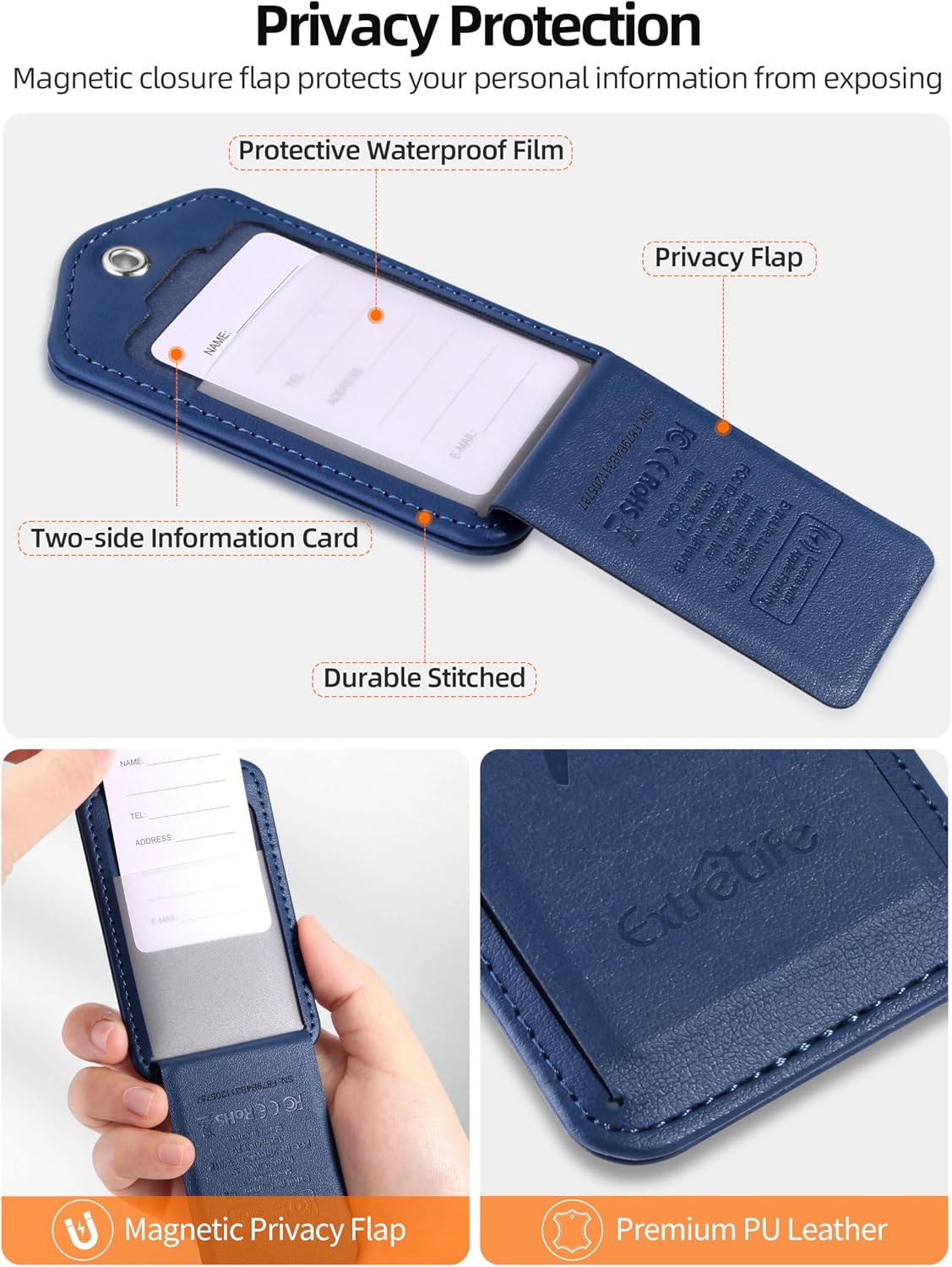
Image 4.2: A user activating the "Play Sound" feature on their iPhone to locate their luggage on a baggage carousel.
4.3. Separation Alerts
Receive instant notifications on your iOS device if you accidentally leave your luggage behind. This feature helps prevent loss by alerting you when the tag separates from your device's proximity.

Image 4.3: An iPhone displaying a "Left-Behind Alert" notification, indicating the luggage tag has been separated from the user.
4.4. Lost Mode and Sharing
In the event your luggage is lost, you can enable Lost Mode in the Find My app to display your contact information to anyone who finds it. You can also securely share the tag's location with trusted family members or travel companions.

Image 4.4: A map interface showing the shared location of a tracked item between multiple users.
4.5. Privacy Protection
The tag features a magnetic privacy cover that conceals your personal information card. This protects your details from unauthorized viewing while still allowing the tag to be identified if necessary.
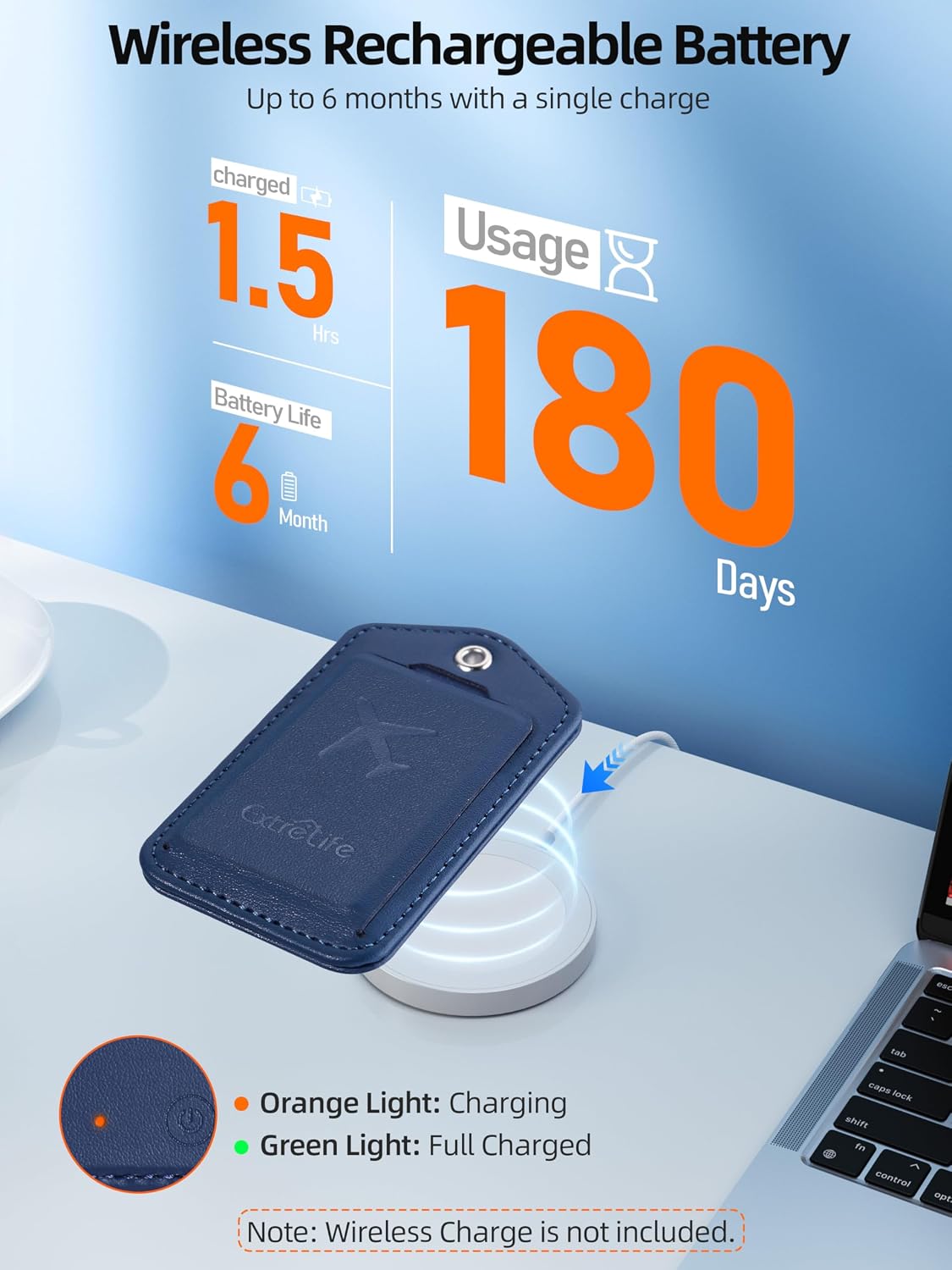
Image 4.5: Detailed view of the luggage tag's magnetic privacy flap and the information card slot.