
1. Introduction
This manual provides essential information for setting up, operating, and maintaining your Zwide i3 CPU N305 2-in-1 Tablet Laptop. Please read this guide thoroughly before using the device to ensure optimal performance and longevity. Keep this manual for future reference.
2. Product Overview
2.1 Key Features
- Versatile 2-in-1 Design: Operates as a laptop or tablet with a 360-degree rotatable 8-inch touchscreen.
- Operating System: Pre-installed with Windows 11 Pro for a comprehensive computing experience.
- High-Performance CPU: Equipped with an upgraded Intel N305 CPU (8 cores, 8 threads, up to 3.8GHz) for enhanced multi-tasking and performance.
- Ample Memory & Storage: Features 16GB LPDDR5 RAM and a 1TB SSD for efficient operation and storage. Storage is expandable up to 1TB via TF card.
- Compact & Portable: Ultra-compact size (20 x 13 x 1.8 cm) and lightweight design for easy portability.
- Secure Login: Integrated fingerprint authentication on the power button for quick and secure access.
- High-Resolution Display: 8.4-inch HD display with 1920x1200 FHD resolution for clear visuals.
- Connectivity: Supports Bluetooth 5.2 for efficient wireless connections and Wi-Fi.
- Japanese Keyboard: Features a Japanese keyboard layout for localized input.
2.2 Device Layout and Ports
Familiarize yourself with the physical components and connection ports of your Zwide 2-in-1 Tablet Laptop.
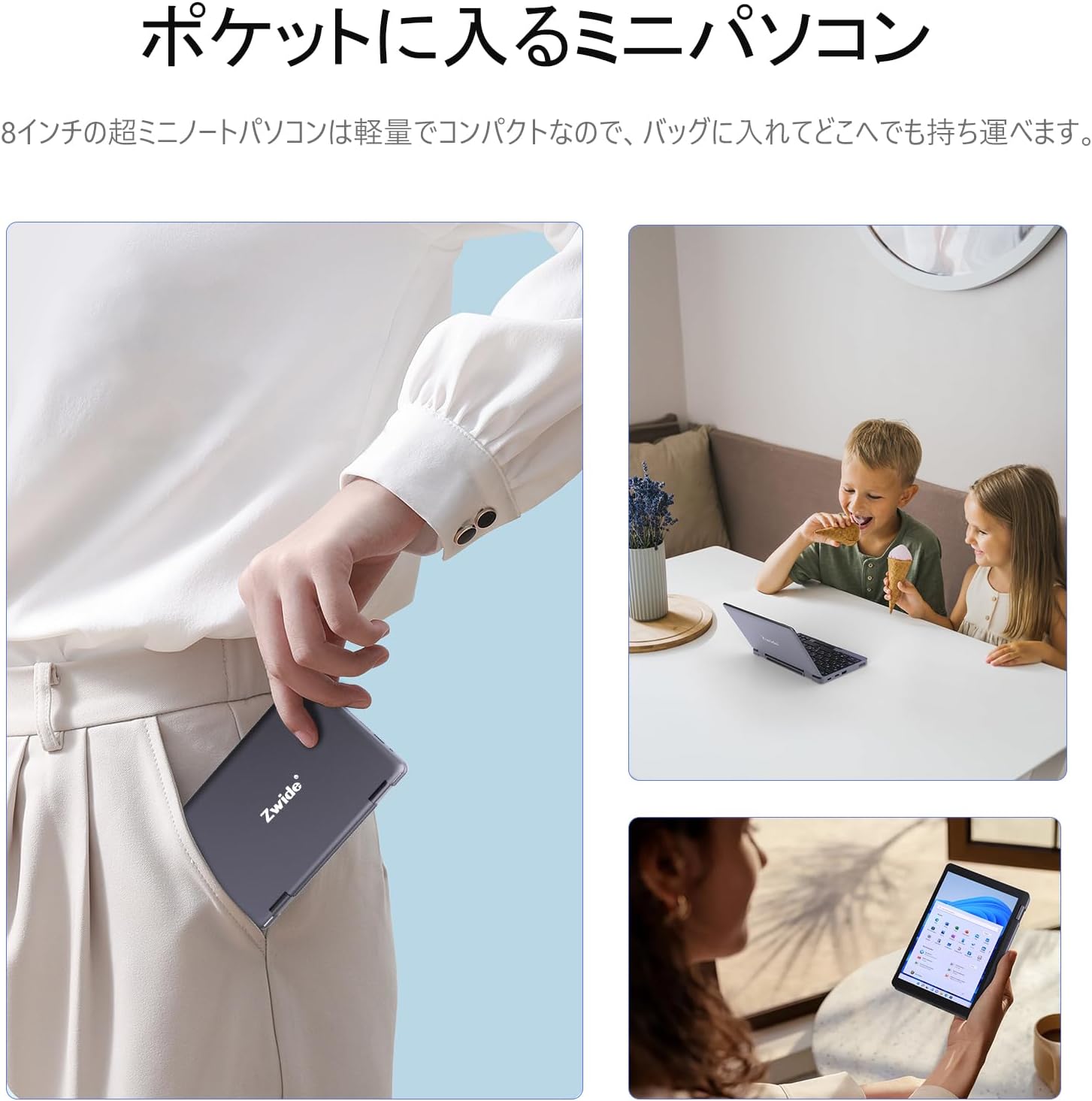
Image: Side view of the Zwide 2-in-1 Tablet Laptop highlighting its various ports.
- USB 3.0 Ports: For connecting USB devices such as external storage, mice, or keyboards.
- Mini HD Port: For connecting to external displays or projectors.
- TF Card Slot: For expanding storage with a TF (microSD) card.
- Headphone Jack: For connecting headphones or external speakers.
- Charging Port: For connecting the power adapter to charge the device.
- LAN Port: For wired network connectivity.
- Thunderbolt Port (Type-C): For high-speed data transfer, video output, and power delivery.
3. Setup
3.1 Initial Charging
Before first use, fully charge your Zwide 2-in-1 Tablet Laptop. Connect the provided power adapter to the charging port and plug it into a power outlet. The charging indicator light will show the charging status.
3.2 Powering On/Off
- To Power On: Press and hold the power button for a few seconds until the screen lights up.
- To Power Off: Go to the Start Menu in Windows, select Power, and then choose Shut down. Alternatively, press and hold the power button for approximately 10 seconds to force a shutdown (use only when necessary).
3.3 Initial Windows Setup
Upon first power-on, you will be guided through the Windows 11 Pro setup process. Follow the on-screen instructions to configure language, region, network settings, and user accounts.
3.4 Connecting Peripherals
You can connect various peripherals to your device:
- USB Devices: Plug USB mice, external keyboards, or storage devices into the USB 3.0 ports.
- External Display: Use a Mini HD cable to connect to an external monitor or TV.
- TF Card: Insert a TF card into the designated slot for additional storage.
4. Operating Instructions
4.1 2-in-1 Modes
Your device supports multiple modes thanks to its 360-degree hinge:
- Laptop Mode: Standard notebook configuration for typing and productivity.
- Tablet Mode: Fold the keyboard back completely for a full tablet experience with touchscreen interaction.
- Tent Mode: Stand the device in an inverted 'V' shape for media consumption or presentations.
- Stand Mode: Position the keyboard face down to use the screen as a display stand.

Image: Zwide 2-in-1 Tablet Laptop in traditional laptop mode.

Image: Zwide 2-in-1 Tablet Laptop converted to tablet mode.
4.2 Touchscreen and Keyboard Usage
- Touchscreen: Use multi-touch gestures for navigation, zooming, and interaction in tablet mode or when the screen is accessible.
- Keyboard: The integrated Japanese keyboard features a backlight for use in low-light conditions. A trackpoint is also available for precise cursor control.
4.3 Fingerprint Login
To set up fingerprint authentication, navigate to Windows Settings > Accounts > Sign-in options. Follow the instructions to register your fingerprint. Once set up, you can securely log in by touching the power button with your registered finger.
4.4 Wireless Connectivity
- Wi-Fi: To connect to a Wi-Fi network, click the Wi-Fi icon in the taskbar, select your desired network, and enter the password if prompted.
- Bluetooth: To pair Bluetooth devices, go to Windows Settings > Devices > Bluetooth & other devices. Ensure Bluetooth is enabled on both your laptop and the device you wish to pair.
4.5 External Display Output
Connect an external display to the Mini HD port or Thunderbolt (Type-C) port. Once connected, press the Windows key + P to open the project menu and select your preferred display mode (e.g., Duplicate, Extend, Second screen only).
5. Maintenance
5.1 Cleaning the Device
- Use a soft, lint-free cloth to clean the screen and exterior surfaces.
- For stubborn marks, slightly dampen the cloth with water or a screen-safe cleaner.
- Avoid using harsh chemicals, abrasives, or solvents.
5.2 Battery Care
- To prolong battery life, avoid fully discharging the battery frequently.
- Store the device in a cool, dry place when not in use for extended periods.
- Do not expose the device to extreme temperatures.
5.3 Software Updates
Regularly check for and install Windows updates to ensure your system has the latest security patches and performance improvements. Go to Settings > Windows Update.
5.4 Storage Management
Periodically clean up unnecessary files and applications to maintain optimal performance. Utilize cloud storage or external drives for large files to free up internal SSD space.
6. Troubleshooting
If you encounter issues with your Zwide 2-in-1 Tablet Laptop, refer to the following common solutions:
| Problem | Possible Solution |
|---|---|
| Device does not power on | Ensure the device is charged. Connect the power adapter and try again. If unresponsive, perform a hard reset by holding the power button for 10-15 seconds. |
| Screen is blank or flickering | Restart the device. Check external display connections if applicable. Adjust display settings in Windows. |
| Wi-Fi or Bluetooth not connecting | Ensure Wi-Fi/Bluetooth is enabled in Windows settings. Restart the device and your router/Bluetooth device. Update network drivers. |
| Slow performance | Close unnecessary applications. Check for background processes. Ensure sufficient free storage space. Run a system scan for malware. |
| Fingerprint sensor not working | Ensure your finger is clean and dry. Re-register your fingerprint in Windows settings. |
If the problem persists, please contact Zwide customer support for further assistance.
7. Specifications
| Feature | Detail |
|---|---|
| Brand | Zwide |
| Model Name | NA08H |
| Screen Size | 8 inches |
| Color | Gray |
| Hard Disk Capacity | 1 TB (SSD) |
| CPU Model | Intel N305 |
| CPU Speed | Up to 3.8 GHz |
| Installed RAM Size | 16 GB (LPDDR5) |
| Operating System | Windows 11 Pro |
| Graphics Card | Integrated (Intel UHD Graphics) |
| Bluetooth Version | 5.2 |
| Display Resolution | 1920x1200 pixels (FHD) |
| Display Type | LCD |
| Max Display Brightness | 350 cd/m² |
| Wireless Type | Wi-Fi |
| Item Dimensions (LxWxH) | 20 x 13 x 2 cm |
| Form Factor | Convertible |
| Webcam | Front |
| Keyboard Description | Backlit, Japanese Layout |
| Control Method | Touch, Trackpoint |
| Model Year | 2025 |
| Included Components | Keyboard |
8. Official Product Videos
8.1 Zwide 8-inch Mini Notebook PC Overview
Video: This video demonstrates the compact size, 360-degree rotation, and various usage modes of the Zwide 8-inch mini notebook PC, including tablet and laptop configurations, touch screen interaction, and port usage.
8.2 Zwide Pocket Handheld Mini Laptop Portability
Video: This video showcases the Zwide mini laptop's portability, demonstrating how it fits into a pocket and its use in various on-the-go scenarios.
8.3 Zwide 2-in-1 Tablet 8-inch Mini PC Functionality
Video: This video illustrates the 2-in-1 tablet functionality of an 8-inch mini PC, demonstrating its versatility and touch screen capabilities. Note: This video features an N100 CPU model, while the product is N305.
9. Warranty and Support
9.1 Warranty Information
Your Zwide 2-in-1 Tablet Laptop comes with a 1-year domestic warranty in Japan. This warranty covers manufacturing defects and hardware malfunctions under normal use. Please retain your proof of purchase for warranty claims.
9.2 Customer Support
For technical assistance, warranty claims, or any other inquiries, please contact Zwide customer support through the official website or your retailer. Provide your model number (NA08H) and a detailed description of the issue for faster service.