
BNARQP NE32
BNARQP NE32 AI Translator Headphones User Manual
Model: NE32
Introduction
Thank you for choosing the BNARQP NE32 AI Translator Headphones. These innovative open-ear headphones combine real-time language translation, high-quality audio for calls, and music entertainment into a single device. Designed for international meetings, travel, language learning, and daily use, the NE32 supports 134 languages with high accuracy and minimal delay. This manual provides detailed instructions to help you get the most out of your device.
Product Overview
The NE32 AI Translator Headphones feature an ergonomic open-ear clip design for maximum comfort and situational awareness. They include a color LCD touch screen for intuitive operation and come with the free "AuraIntelli" app for enhanced functionality. The headphones utilize Bluetooth 6.0 for stable and efficient wireless connectivity.
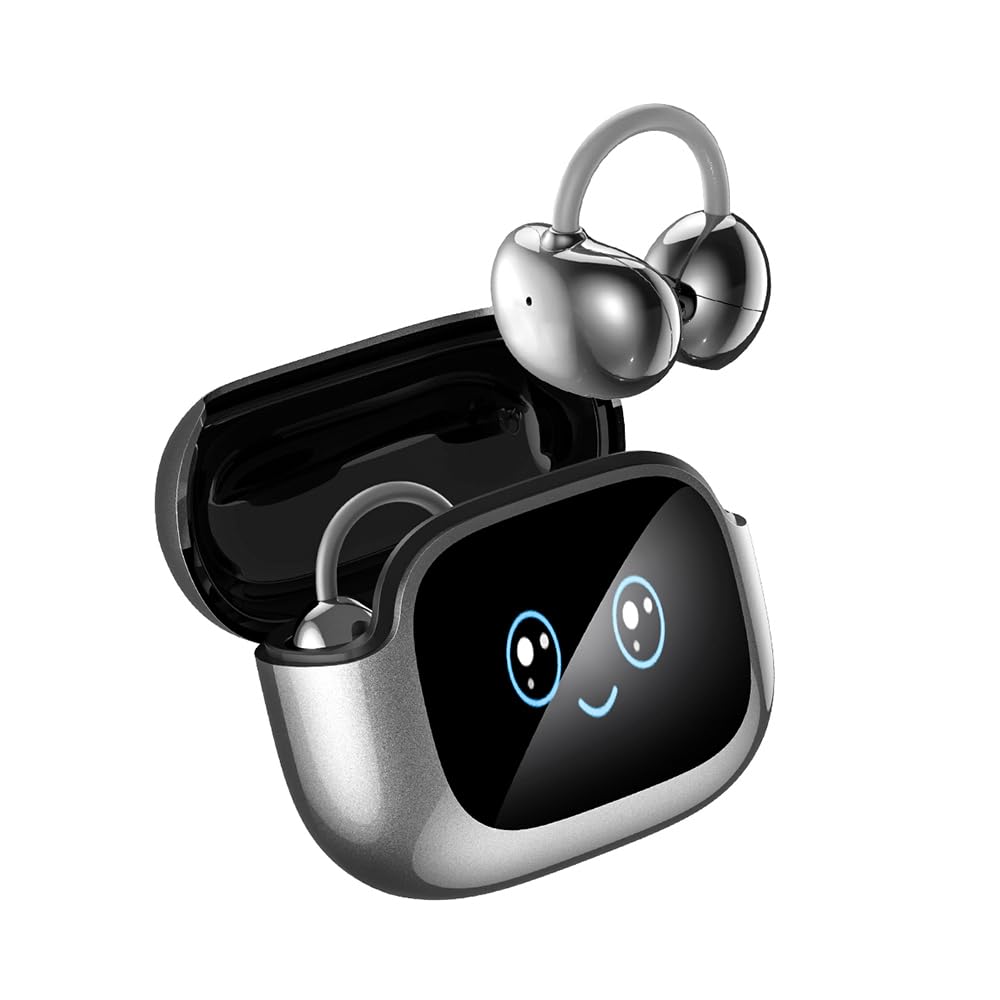
Image: The NE32 AI Translator Headphones in their charging case, illustrating their multi-language translation capability with words like 'Hello' in various languages.
Key Features:
- 3-in-1 Functionality: Real-time translation, high-quality calls, and music playback.
- Extensive Language Support: Translates 134 languages with up to 98% accuracy and less than 0.5 seconds delay.
- LCD Touch Screen: Intuitive control for over 14 functions, including AI translation display, music control, volume adjustment, EQ modes, language selection, and remote camera activation.
- 7 Translation Modes: AI Conversation Mode, Translator Mode, Free Talk Mode, Headphone + Smartphone Mode, Dual Headset Translation Mode, Voice Note Mode, and Photo Translation.
- Free AuraIntelli App: No subscription required, offering 134 language packs, custom sound effects, customizable EQ shortcuts, and a "find earbuds" function.
- Bluetooth 6.0: Stable and energy-efficient connection up to 10 meters with low latency.
- Ergonomic Open-Ear Design: Hypoallergenic silicone inserts and open-ear clip design ensure comfort while allowing awareness of surroundings.
Setup Guide
1. Charging the Headphones
Before first use, fully charge your NE32 headphones and their charging case. Connect the provided USB-C cable to the charging port on the case and to a power source. The LCD screen on the case will indicate the charging status. Ensure the earbuds are correctly seated in the charging case for them to charge.
2. Downloading and Installing the AuraIntelli App
The translation features of the NE32 headphones require the dedicated "AuraIntelli" app. This app is free and available for both iOS and Android devices.
- Scan the QR code provided in the product packaging or search for "AuraIntelli" in your device's app store (Google Play Store for Android, Apple App Store for iOS).
- Download and install the app on your smartphone.
- Open the app and follow the on-screen instructions to create an account or log in.
3. Pairing with Your Smartphone
To enable translation and other smart features, you must pair your NE32 headphones with the AuraIntelli app via Bluetooth.
- Ensure your smartphone's Bluetooth is turned on.
- Open the AuraIntelli app.
- Take the NE32 earbuds out of their charging case. They will automatically enter pairing mode.
- Within the AuraIntelli app, navigate to the device connection section. The app should detect the "NE32" device.
- Select "NE32" from the list of available devices to connect. Confirm any pairing requests on your phone.
- Once connected, the app will display a confirmation, and the headphones are ready for use.

Image: Step-by-step guide for app download, login, taking out earbuds for connection, and confirming Bluetooth pairing within the AuraIntelli app.
Operating Instructions
Using the LCD Touch Screen
The NE32 charging case features an LCD touch screen that allows direct control of various functions without needing your smartphone for basic operations. Swipe and tap to navigate through menus for:
- AI Translation (displays translated content synchronized with the app)
- Music Control (play/pause, skip tracks)
- Volume Adjustment
- Equalizer (EQ) Mode Selection
- Language Selection for quick translation modes
- Remote Camera Activation
- And more.

Image: The NE32 LCD screen showing translated text, demonstrating its Free Talk Mode functionality alongside the smartphone app.
Translation Modes
The AuraIntelli app provides 7 distinct translation modes to suit various communication scenarios:
- AI Conversation Mode: Engage in real-time dialogue with AI, finding inspiration and answers.
- Translator Mode: General translation for spoken phrases.
- Free Talk Mode: Allows continuous, natural conversation with automatic language detection and translation.
- Headphone + Smartphone Mode: Wear one earbud, and pass your smartphone to another person for two-way translation.

Image: Demonstrates the Headphone + Smartphone Mode, where one user wears an earbud and the other uses the phone for translation during a conversation.
- Dual Headset Translation Mode: Each person wears one earbud for seamless two-way translation in conversations.

Image: Two individuals engaging in a conversation using the Dual Headset Translation Mode, each wearing an NE32 earbud.
- Voice Note Mode: Record voice notes and have them translated into text.
- Photo Translation: Translate text from images by taking a photo through the app.

Image: A visual summary of the different translation modes available, including AI Dialogue, Machine Translation, Headphone+Phone, Dual Earphone, and the Anti-Loss feature.
Language Selection and Usage
The NE32 supports 134 languages. Within the AuraIntelli app, you can easily select your source and target languages for translation. The app also allows for personalized sound effects and EQ settings.

Image: A comprehensive list displaying the 134 languages supported by the NE32 AI Translator Headphones.
Maintenance
- Cleaning: Regularly clean the earbuds and charging case with a soft, dry cloth. Avoid using abrasive materials or harsh chemicals.
- Storage: When not in use, store the headphones in their charging case to protect them and keep them charged. Store in a cool, dry place away from direct sunlight and extreme temperatures.
- Water Resistance: The headphones are waterproof. However, avoid prolonged submersion in water and ensure they are dry before charging.
Troubleshooting
Headphones Not Charging
- Ensure the earbuds are correctly seated in the charging case. The charging contacts must align.
- Check if the charging case itself has power or is connected to a power source.
- Clean the charging contacts on both the earbuds and the case with a dry cotton swab to remove any dust or debris.
Cannot Connect to App/Bluetooth
- Make sure Bluetooth is enabled on your smartphone.
- Ensure the earbuds are out of the charging case and in pairing mode.
- Restart the AuraIntelli app and your smartphone.
- Forget the device in your phone's Bluetooth settings and try pairing again through the AuraIntelli app.
- Ensure the app is updated to the latest version.
Translation Issues (Slow/Inaccurate)
- Verify a stable internet connection (Wi-Fi or mobile data) on your smartphone, as the app relies on cloud services for translation.
- Speak clearly and at a moderate pace.
- Ensure the correct source and target languages are selected in the app.
- Update the AuraIntelli app to the latest version.
- Check the microphone on the earbuds for any obstructions.
Audio Quality Issues
- Ensure the earbuds are properly positioned on your ears.
- Check the volume levels on both the headphones (via LCD) and your smartphone.
- If experiencing crackling or drops, move closer to your connected device to avoid interference.
Specifications
| Brand | BNARQP |
| Model Name | NE32 |
| Color | Black |
| Ear Placement | Open-ear |
| Connectivity Technology | Wireless (Bluetooth) |
| Bluetooth Version | 6.0 |
| Bluetooth Range | Up to 10 meters |
| Control Method | Touch |
| Noise Control | None |
| Water Resistance Level | Waterproof |
| Compatible Devices | Smartphones (iOS and Android) |
| Special Features | Real-time translation in 134 languages, touchscreen display, AuraIntelli app integration |
| Material | Silicone |
Warranty and Support
For warranty information and technical support, please refer to the documentation included with your product or visit the official BNARQP website. If you encounter any issues not covered in this manual, please contact customer service for assistance. The AuraIntelli app offers permanent free translation without subscription.
Ask a question about this manual
Ask about setup, troubleshooting, compatibility, parts, safety, or missing instructions. Manuals+ will review the question and use this page’s manual context to help answer it.