
1. Introduction
Thank you for purchasing the VELATEMOR 2.4 Inch 16MP Portable Digital Camera. This manual provides essential information for the safe and efficient operation of your device. Please read it thoroughly before use and retain it for future reference.
2. Product Overview
The VELATEMOR Digital Camera is a compact and versatile device designed for capturing high-quality photos and videos. It features a 2.4-inch rotatable screen, 16X digital zoom, and a built-in fill light for various lighting conditions.
2.1 Package Contents
- VELATEMOR 16MP Digital Camera
- USB Charging Cable
- User Manual
2.2 Camera Components

Image 1: Front view of the camera, showing the lens and fill light.
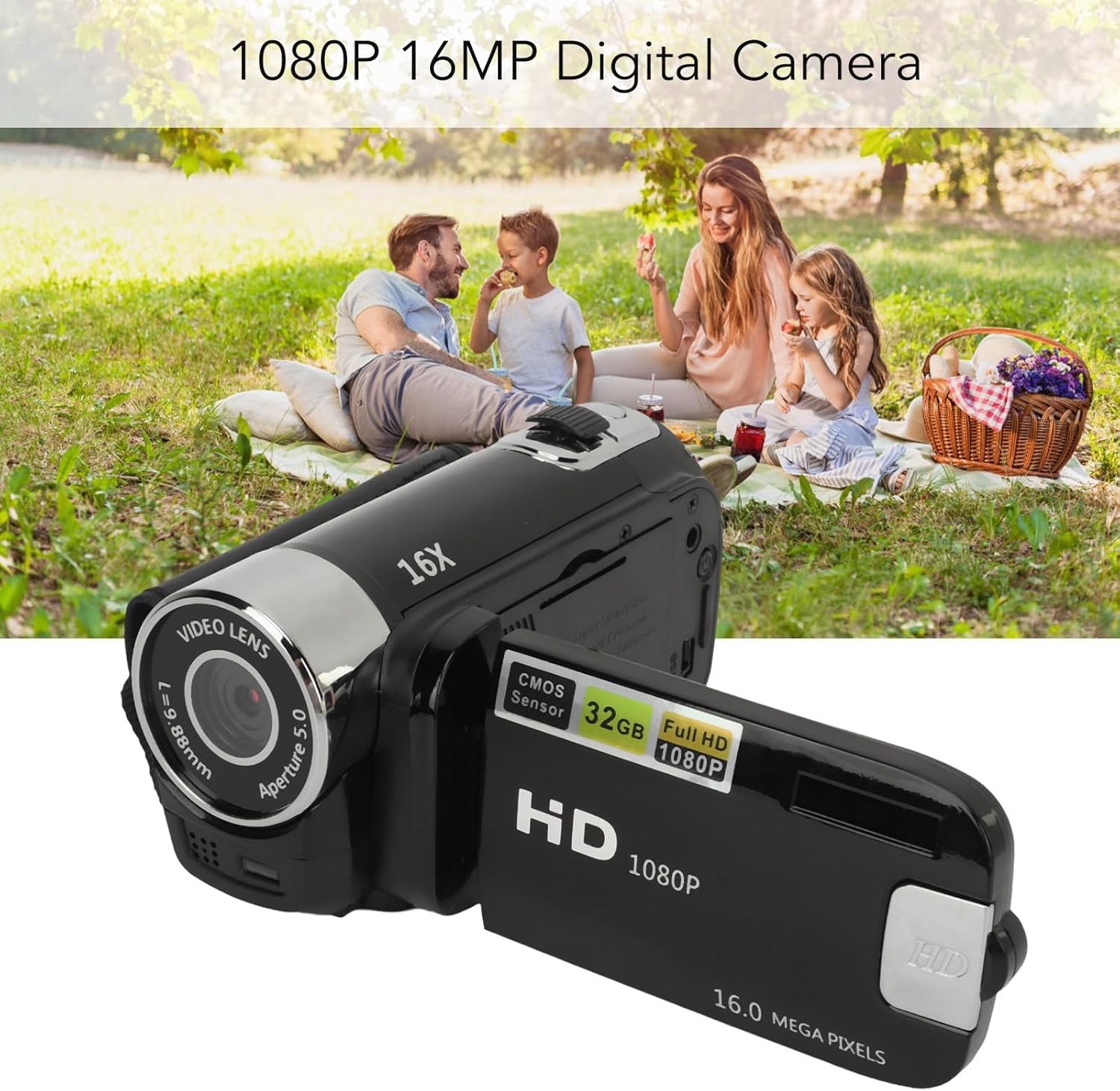
Image 2: Rear view of the camera with the rotatable screen open, displaying controls and ports.

Image 3: Detailed view of the camera lens, showing aperture and focal length markings.

Image 4: Close-up of the camera's control buttons (Menu, Mode) and USB port.
3. Setup
3.1 Charging the Battery
The camera uses a built-in BL-5C Li-ion battery. Before first use, fully charge the camera.
- Connect the small end of the provided USB charging cable to the camera's USB port.
- Connect the large end of the USB cable to a USB power adapter (not included) or a computer's USB port.
- The charging indicator light will illuminate. Once charging is complete, the light will change or turn off.
The camera supports recording while charging.
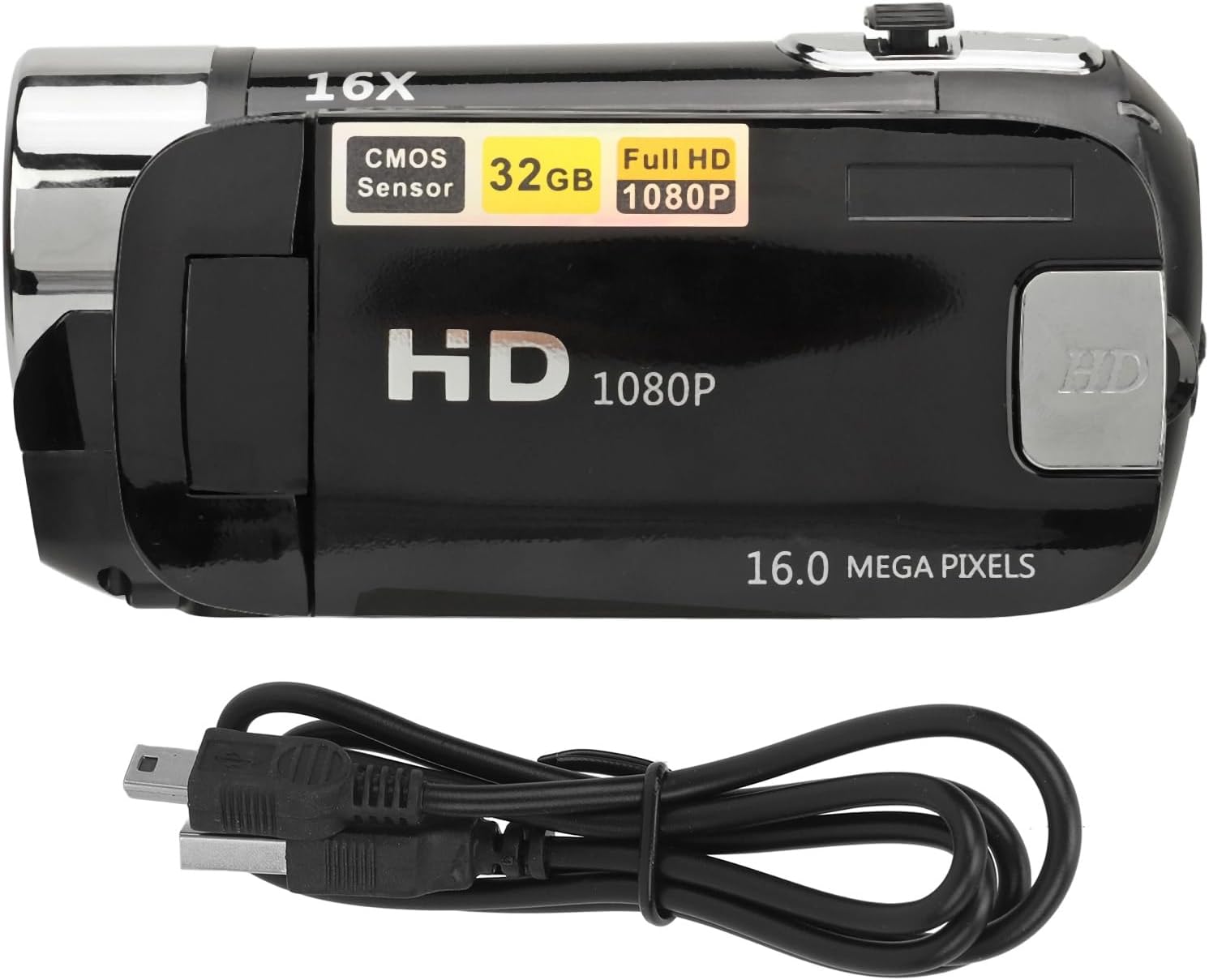
Image 5: The camera and its USB charging cable.
3.2 Inserting a Memory Card
The camera requires a standard memory card (up to 128GB, not included) for storing photos and videos.
- Locate the memory card slot, typically on the side or bottom of the camera.
- Insert the memory card with the metal contacts facing the correct direction (refer to the diagram near the slot if available) until it clicks into place.
- To remove, gently push the card in until it springs out.
Note: Ensure the camera is powered off before inserting or removing the memory card to prevent data loss or damage.
4. Operating Instructions
4.1 Powering On/Off
- To power on: Press and hold the Power button (usually located near the screen or top panel) for a few seconds.
- To power off: Press and hold the Power button again until the screen turns off.
4.2 Basic Photo and Video Capture
- Switching Modes: Use the 'Mode' button to switch between photo mode and video recording mode.
- Taking Photos: In photo mode, press the Shutter button (usually a larger button on top) to capture an image.
- Recording Videos: In video mode, press the Record button (often marked with a red dot or video camera icon) to start recording. Press it again to stop.
4.3 Using the Rotatable Screen
The 2.4-inch screen can be rotated to various angles, including facing forward for selfies or vlogging. Adjust the screen to your desired viewing angle.

Image 6: The rotatable screen positioned for a selfie.
4.4 Digital Zoom
Use the zoom controls (often marked with 'W' for Wide and 'T' for Telephoto) to adjust the 16X digital zoom. Press 'T' to zoom in and 'W' to zoom out.

Image 7: The camera highlighting its 16X Digital Zoom capability.
4.5 Fill Light
The camera is equipped with a front fill light to assist in low-light conditions. Activate or deactivate the fill light through the camera's menu settings or a dedicated button, if available.
4.6 Advanced Functions
- Selfies: Utilize the rotatable screen to frame yourself for self-portraits.
- Electronic Anti-Shake: This feature helps stabilize images and videos, reducing blur from camera movement.
- Loop Recording: When enabled, the camera will continuously record, overwriting the oldest files when the memory card is full.
- Time Watermarking: Add a date and time stamp to your photos and videos.
- External Microphone Support: Connect an external microphone (not included) for improved audio quality during video recording.
- Recording Pause: Pause and resume video recording without creating multiple files.
4.7 Connecting to a Computer
To transfer photos and videos:
- Connect the camera to your computer using the USB cable.
- The camera should appear as a removable disk or media device on your computer.
- Browse the camera's folders to access and transfer your files.
4.8 Tripod Connection
The camera features a 1/4 inch thread hole on the bottom, allowing it to be mounted on a standard tripod (not included) for stable shots.
5. Maintenance
5.1 Cleaning the Camera
- Use a soft, lint-free cloth to clean the camera body.
- For the lens and screen, use a specialized lens cleaning cloth and solution. Avoid harsh chemicals.
- Gently wipe away dust and smudges.
5.2 Battery Care
- Avoid exposing the battery to extreme temperatures.
- Charge the battery regularly, even if the camera is not in use, to maintain its lifespan.
5.3 Storage
- Store the camera in a cool, dry place away from direct sunlight and moisture.
- If storing for an extended period, remove the memory card and ensure the battery is partially charged.
6. Troubleshooting
If you encounter issues with your camera, refer to the following common problems and solutions:
| Problem | Possible Cause | Solution |
|---|---|---|
| Camera does not power on. | Low battery; battery not inserted correctly. | Charge the battery fully. Ensure the battery is properly seated. |
| Cannot take photos/videos. | Memory card full or not inserted; incorrect mode. | Insert a memory card or free up space. Ensure you are in the correct mode (photo/video). |
| Images are blurry. | Camera shake; dirty lens; insufficient light. | Hold the camera steady or use a tripod. Clean the lens. Use the fill light or shoot in brighter conditions. |
| Computer does not recognize camera. | Faulty USB cable; driver issue; camera not in transfer mode. | Try a different USB cable or port. Restart computer and camera. Check camera settings for USB connection mode. |
7. Specifications
| Feature | Description |
|---|---|
| Image Resolution | 1MP, 2MP, 3MP, 5MP, 8MP, 10MP, 12MP, 16MP |
| Image Format | JPG |
| Video Resolution | 1080P (maximum) |
| Video Format | AVI |
| Screen Size | 2.4 Inch Rotatable Screen |
| Digital Zoom | 16X |
| Shutter | Electronic |
| Storage | Supports up to 128GB standard memory card (not included) |
| Battery | 1 x BL-5C Li Battery, 600mAh (built-in) |
| Languages | 17 Languages |
| Model Number | VELATEMOR7brac0d4pq-11 |
8. Warranty and Support
8.1 Warranty Information
This VELATEMOR product is covered by a manufacturer warranty for 90 days from the date of purchase. This warranty covers manufacturing defects and workmanship. It does not cover damage caused by misuse, accidents, unauthorized modifications, or normal wear and tear.
8.2 Customer Support
For technical assistance, warranty claims, or any questions regarding your VELATEMOR Digital Camera, please refer to the contact information provided with your purchase or visit the official VELATEMOR brand store on Amazon: VELATEMOR Store.