
1. Introduction
This manual provides comprehensive instructions for the setup, operation, maintenance, and troubleshooting of your Hoorola BY-480BT Bluetooth Thermal Label Printer. Please read this manual carefully before using the printer to ensure optimal performance and longevity.
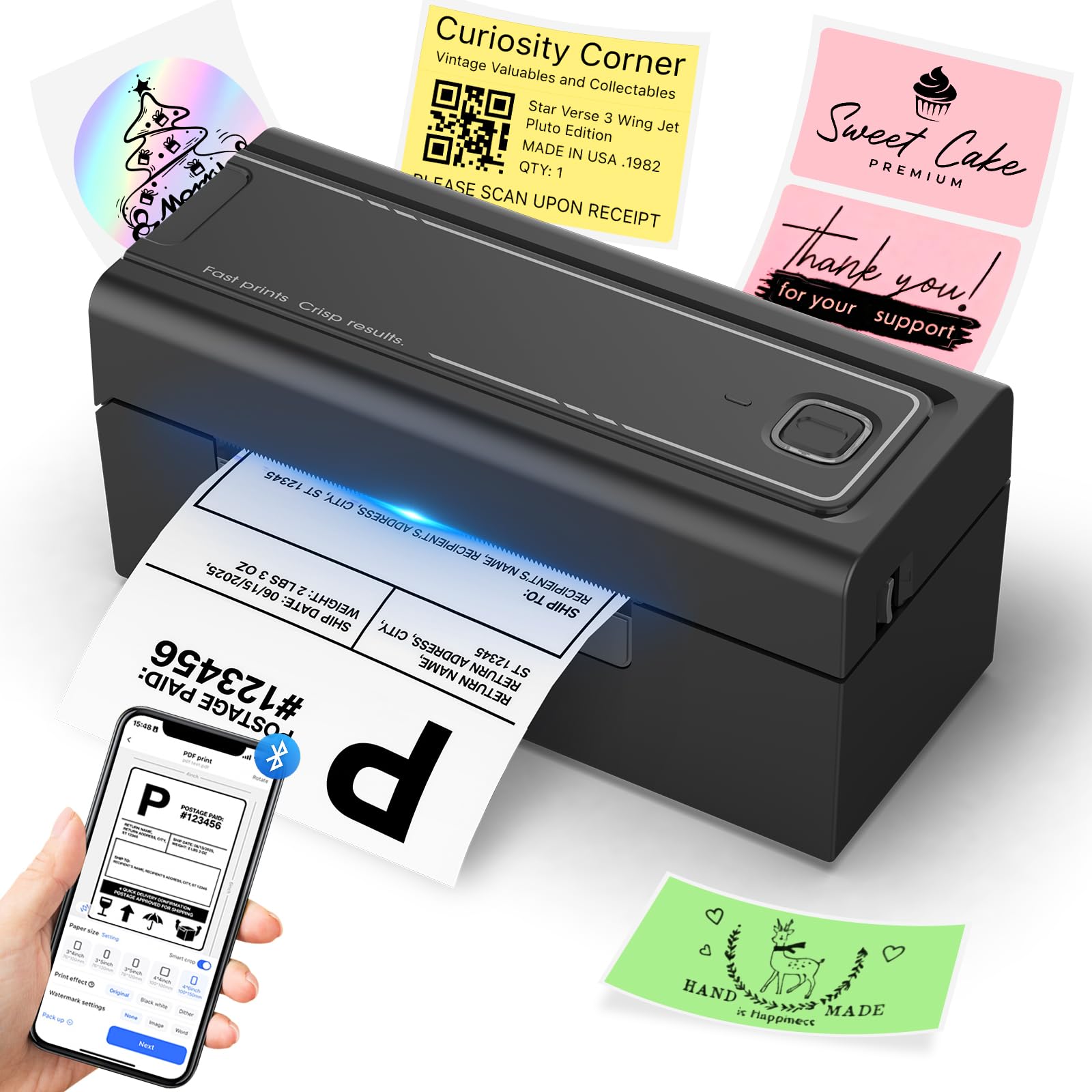
Image: The Hoorola BY-480BT Bluetooth Thermal Label Printer, a compact black device designed for efficient label printing.
2. What's in the Box
Verify that all items listed below are included in your package:
- Label Printer
- USB-C Adapter
- Fan-Fold Labels (Sample Pack)
- Power Cord
- Quick Guide Card
- USB Cable
- User Manual
- Power Adapter

Image: A visual representation of the Hoorola BY-480BT printer and its included accessories, such as cables, adapters, sample labels, and documentation.
3. Setup
3.1 Physical Setup
- Connect Power: Connect the power adapter to the printer and then plug it into a power outlet.
- Load Labels:
- Open the printer cover.
- Adjust the label guides to match the width of your labels (1.54" to 4.1").
- Insert the labels, ensuring the print side faces up and the first label is fed smoothly into the printer mechanism.
- Close the printer cover. The printer will automatically detect the label size.

Image: A person demonstrating how to load fan-fold labels into the thermal label printer, showing the adjustable guides and proper label placement.
3.2 Software Installation
The Hoorola BY-480BT supports both USB and Bluetooth connections for various operating systems.
- For Windows/macOS:
- Visit the official Hoorola website (https://hoorola.com) to download the latest printer drivers for your operating system.
- Follow the on-screen instructions to install the driver. During installation, you can choose between USB or Bluetooth (wireless) connection. Ensure Bluetooth is enabled on your computer for wireless setup.
- For iOS/Android:
- Download the "Label Expert" app from the App Store (iOS) or Google Play Store (Android).
- Open the app and follow the instructions to connect to your printer via Bluetooth.
Video: A demonstration of the Windows driver installation and Bluetooth setup process for the Hoorola BY-480BT thermal label printer.
4. Operating Instructions
4.1 Connecting to Your Device
- Bluetooth Connection:
- Ensure the printer is powered on and Bluetooth is enabled on your mobile device or computer.
- Open the "Label Expert" app (for mobile) or the printer driver software (for PC/Mac).
- Search for and select "BY-480BT" from the list of available devices to pair.
- USB Connection:
- Connect the printer to your computer using the provided USB cable.
- Ensure the printer drivers are installed correctly. The computer should recognize the printer automatically.

Image: The thermal label printer demonstrating flexible device connection options, including Bluetooth for mobile devices and USB for computers running Windows, macOS, ChromeOS, or Linux.
4.2 Printing a Label
- Prepare your label design using the "Label Expert" app or your preferred shipping software on your computer.
- Select the print option within your application.
- Choose "BY-480BT" as your printer.
- Confirm print settings, including label size (e.g., 4x6 inches) and number of copies.
- Initiate printing. The printer will quickly produce your labels.

Image: The Hoorola BY-480BT thermal label printer in action, rapidly printing a shipping label, highlighting its high-speed capability of 150mm/s.
4.3 Supported Label Sizes and Platforms
The printer supports various label sizes and is compatible with major shipping and e-commerce platforms:
- Label Sizes: Supports fanfold and roll labels from 1.54" to 4.1" wide, including common sizes like 4x6, 3x2, 3x1, 2x1, and custom sizes.
- Platforms: Works with Amazon, eBay, Shopify, Etsy, USPS, UPS, ShipStation, Shipping Easy, Shippo, ShipWorks, Ordoro, and more.

Image: An illustration showcasing the range of label sizes (from 1.57" to 4.1" wide) that can be printed with the Hoorola BY-480BT, including shipping labels, round stickers, and custom designs.

Image: A graphic displaying logos of various major e-commerce and shipping platforms (e.g., eBay, Shopify, Amazon, USPS, UPS) indicating compatibility with the Hoorola BY-480BT printer.
5. Maintenance
- Cleaning the Print Head: Regularly clean the print head with an alcohol wipe to ensure clear print quality. Ensure the printer is off and cooled down before cleaning.
- Loading New Labels: Always ensure labels are loaded correctly and aligned with the guides to prevent jams and misprints.
- Storage: Store the printer in a cool, dry place away from direct sunlight and excessive dust.
6. Troubleshooting
| Problem | Possible Cause | Solution |
|---|---|---|
| Printer not responding | Power issue, loose connection, Bluetooth not paired. | Check power cable, ensure USB/Bluetooth connection is stable, re-pair Bluetooth if necessary. |
| Poor print quality | Dirty print head, incorrect label type, low-quality labels. | Clean the print head, use high-quality thermal labels, ensure labels are suitable for thermal printing. |
| Labels not feeding correctly | Labels jammed, incorrect loading, label guides not adjusted. | Clear any jammed labels, re-load labels correctly, adjust label guides to fit label width. |
| Bluetooth connection issues | Bluetooth not enabled, device out of range, interference. | Ensure Bluetooth is on, move device closer to printer, minimize interference from other devices. |
7. Specifications
| Feature | Detail |
|---|---|
| Model | BY-480BT |
| Printing Method | Thermal |
| Resolution | 203 dots_per_inch |
| Maximum Print Speed | 150 mm/s (72 4x6 labels/minute) |
| Supported Media Width | 1.54" to 4.1" |
| Connectivity | Bluetooth, USB |
| Compatibility | Windows, macOS, iOS, Android, Linux, Chrome OS |
| Product Dimensions | 3.17"D x 7.87"W x 3.54"H |
| Item Weight | 3.47 pounds (1.58 Kilograms) |
8. Support
For further assistance, troubleshooting, or warranty information, please visit the official Hoorola website or contact customer support:
- Official Website: https://hoorola.com
- Refer to the Quick Guide Card included in your package for specific contact details.