
1. Introduction
Thank you for choosing the Angetube 914Max 4K Webcam. This manual provides essential information for setting up, operating, and maintaining your webcam to ensure optimal performance for video conferencing, streaming, and remote learning.
2. What's in the Box
- Angetube 914Max 4K Webcam
- USB Cable (USB-A to USB-C)
- Privacy Cover
3. Setup Instructions
3.1 Attaching the Webcam
The Angetube 914Max webcam features a universal joint for flexible positioning. You can place it on top of monitors, TVs, or almost any flat surface. It also includes a standard 1/4 inch nut for tripod mounting.
- Monitor/TV Placement: Open the flexible clip and rest the webcam on top of your screen. Adjust the clip to secure it. The webcam allows for 360° horizontal rotation and 90° vertical adjustment.
- Tripod Mounting: Locate the 1/4 inch nut on the bottom of the webcam's clip. Screw the webcam onto a compatible tripod.
3.2 Connecting to Your Computer (Plug & Play)
The webcam is designed for hassle-free installation with zero software required for basic functionality.
- Connect the provided USB cable to the USB-C port on the back of the webcam.
- Plug the USB-A end of the cable into an available USB 2.0 or USB 3.0 port on your computer (Mac or PC). A USB-A to Type-C adapter is included for maximum compatibility.
- The webcam is compatible with Mac OS X 10.7 and higher, Windows 7, 8, 10 & 11, Linux 2.6.24, and Chrome OS 29.0.1547 or above. (Not compatible with PS4/PS5).
- Note for Mac users: You may need to authorize webcam permissions in your system settings. This process does not involve any user privacy leakage issues.
3.3 Attaching the Privacy Cover
The physical privacy cover guards your lens instantly. Slide it closed when not in use for enhanced security and peace of mind.
4. Operating Instructions
4.1 Video Resolution and Frame Rate
Experience stunning Ultra HD 4K video (3840x2160 @ 30fps) or silky-smooth 1080p @ 60fps, powered by a premium CMOS sensor. This webcam captures every detail with lifelike precision.
- Default Resolution: The webcam defaults to 1080p.
- Enabling 4K: To enable 4K resolution, you must do so via your camera software or compatible applications like OBS/PotPlayer.
4.2 Wide-Angle View and Autofocus
The 120° wide-angle lens provides crystal-clear, undistorted views, ideal for corporate video conferencing and other scenarios where a broader field of view is desired. PDAF (Phase Detection Auto Focus) technology delivers rapid, precise focusing for sharp images, even during movement.
4.3 Audio Features
The dual microphones capture your voice clearly up to 16 feet away. AI technology actively eliminates background noise, ensuring crystal-clear communication in any environment.
4.4 Auto Light Correction
The webcam automatically adjusts to both low and high light conditions, ensuring proper lighting for your remote meetings.
5. Features Overview
Crystal-Clear 4K Resolution
Experience stunning Ultra HD 4K video (3840x2160 @ 30fps) or silky-smooth 1080p @ 60fps—powered by a premium CMOS sensor. Perfect for business meetings, remote learning, and streaming, this wide angle 4K webcam captures every detail with lifelike precision. *Note: Defaults to 1080p; enable 4K via camera software or apps like OBS/PotPlayer.*

Image: The Angetube 914Max 4K Webcam with a visual comparison of 1080p, 2K QHD, and 4K UHD resolutions.
Distortion-Free 120° Wide-Angle & Fast Auto Focus
Enjoy crystal-clear, undistorted views with this 4K computer camera's ultra-wide lens. Featuring PDAF (Phase Detection Auto Focus) technology, it delivers rapid, precise focusing for sharp images, even during movement.

Image: The Angetube 914Max 4K Webcam illustrating its 120° wide view angle in a conference setting compared to other webcams.
Advanced AI Noise Cancellation
Angetube 4k webcam 914Max's dual microphones capture your voice clearly up to 16 feet away. AI technology actively eliminates background noise, ensuring crystal-clear communication in any environment—perfect for seamless long-distance video conferences on Mac or PC.

Image: The Angetube 914Max 4K Webcam showing its dual AI omni-directional noise-reducing microphones with a pickup range of up to 9.8ft.
Plug & Play with Dual USB Support
Ready to use in under 60 seconds! Includes a USB-A to Type-C adapter for maximum compatibility. Hassle-free installation on any device (Mac, PC, desktop, laptop) via USB 2.0/3.0—zero software required.
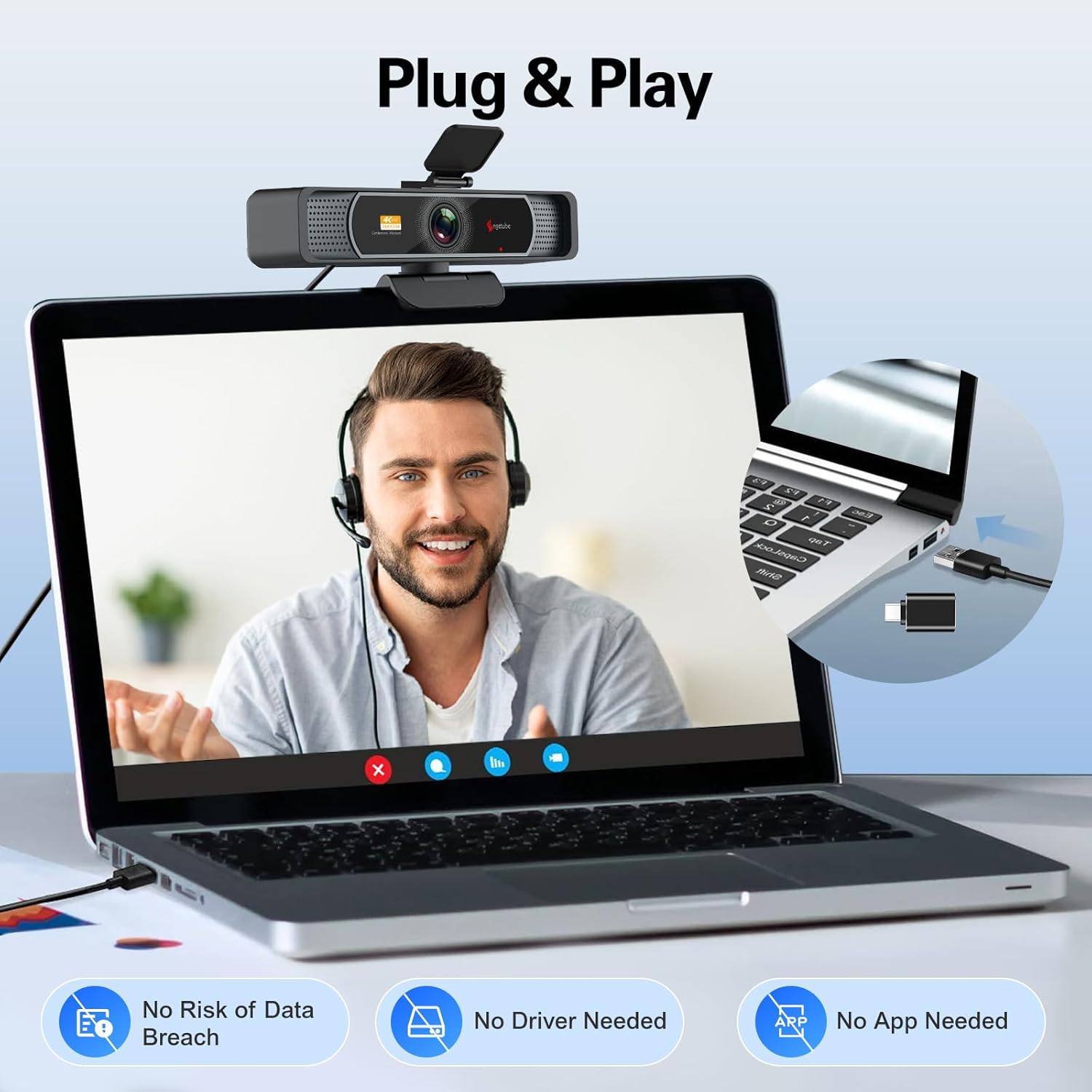
Image: The Angetube 914Max 4K Webcam connected to a laptop via USB, emphasizing no drivers or apps needed for setup.
USB Webcam with Privacy Cover
Guard your lens instantly with the physical cover. Slide it closed when not in use for ironclad security—essential peace of mind for home users, remote teams, and enterprise environments.

Image: The Angetube 914Max 4K Webcam with its privacy cover open, showing the lens, and a separate image of the cover closed.
Flexible Positioning, Broad Compatibility
The Angetube 4K webcam for PC features a universal joint for 360° horizontal rotation, 90° vertical adjustment and a 180° adjustable stand, plus a standard 1/4 inch nut for a tripod. Compatible with Mac OS X 10.7 and higher / Windows 7, 8, 10 & 11 / Linux 2.6.24 / Chrome OS 29.0.1547 / Ubuntu Version 10.04 or above. Not compatible with PS4/PS5.

Image: The Angetube 914Max 4K Webcam displaying logos of various compatible operating systems and video conferencing applications.
Official Product Video: Angetube 4K Webcam 120 degree FOV Wide Angle Auto Focus
Video: An official product video from Angetube Store showcasing the 4K webcam's 120-degree field of view and autofocus capabilities. Duration: 0:34.
6. Specifications
| Brand Name | Angetube |
| Item Weight | 6.5 ounces |
| Package Dimensions | 6.61 x 4.41 x 2.32 inches |
| Item Model Number | 914Max |
| Color Name | 914Max |
| Special Features | Low Light, Microphone Input, USB-A, USB-C, Wide Angle 120° |
| Photo Sensor Technology | CMOS |
| Video Capture Resolution | 4K |
| Maximum Focal Length | 1200 Millimeters |
| Maximum Aperture | 2.4 f |
| Flash Memory Type | CompactFlash |
| Video Capture Format | MP4, AVI |
| Supported Audio Format | AAC, MP3 |
| Screen Size | 2.1 Inches |
| Connectivity Technology | USB, USB-A |
7. Troubleshooting
- No Image/Video: Ensure the USB cable is securely connected to both the webcam and your computer. Check if the privacy cover is open. Verify that your operating system or application recognizes the webcam.
- Poor Video Quality: Ensure adequate lighting in your environment. Check your application's settings to confirm 4K resolution is selected if desired. Clean the webcam lens with a soft, dry cloth.
- No Audio/Poor Audio: Confirm that the webcam's microphone is selected as the input device in your computer's sound settings and your video conferencing application. Ensure the webcam is within 16 feet of the speaker for optimal pickup.
- Compatibility Issues: Refer to the specifications section for supported operating systems. Ensure your device meets the minimum requirements.
8. Maintenance
- Cleaning: Use a soft, lint-free cloth to gently wipe the lens and body of the webcam. Avoid using harsh chemicals or abrasive materials.
- Storage: When not in use, close the privacy cover to protect the lens. Store the webcam in a cool, dry place away from direct sunlight and extreme temperatures.
9. Warranty & Support
Angetube is committed to user-centered, innovative design, and quality. We offer comprehensive support for our products.
- Protection Plans: Extended protection plans are available for purchase, including 2-Year and 3-Year options.
- Returns: A 30-day return policy is available for exchange or refund.
- Technical Support: For any technical assistance, please contact Angetube customer support.

